
howtosimply.com/guides/how-to-use-split-screen-and-pop-up-view-on-a-samsung-galaxy/ · Checked October 2026 · Samsung Galaxy A57 5G (One UI 8.5, Android 16) and Samsung Galaxy A57 (One UI 9, Android 17 (build A576BXXU6BZIE))
In this guide
Open Recents, tap the app's icon above its preview and choose Open in split screen view, then pick the second app. Choose Open in pop-up view instead to float the app in a small window over another app.
4 of 4 steps with real screenshots · 3 official sources below
- Device
- Android
- Shown on
- Samsung Galaxy A57 5G (SM-A576B), One UI 8.5, Android 16, Samsung Galaxy A57 (SM-A576B), One UI 9, Android 17 (build A576BXXU6BZIE)
- Starts in
- Recents
- Real screenshots
- 4 of 4 steps
- What we did
- Observed: looked at each screen, changed nothing
- Our phone
- Shown on Galaxy A57, One UI 8.5
- Checked
- October 2026
- Sources
- 3 official, linked below
Step by step
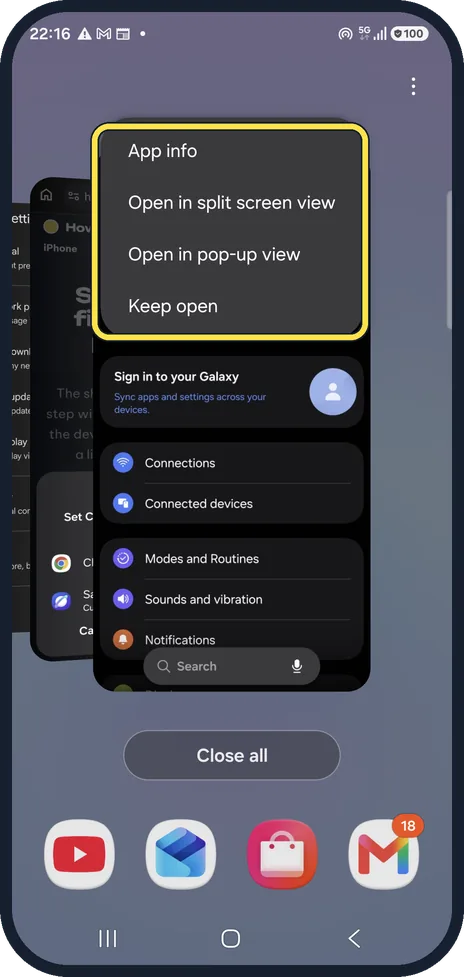
Open Recents and tap the icon
Open Recents and tap the round icon above the app's preview, not the preview itself. The menu opens on top of the icon, so the icon is hidden in our picture. On our Galaxy A57 it lists four rows: App info, Open in split screen view, Open in pop-up view and Keep open.
Watch these steps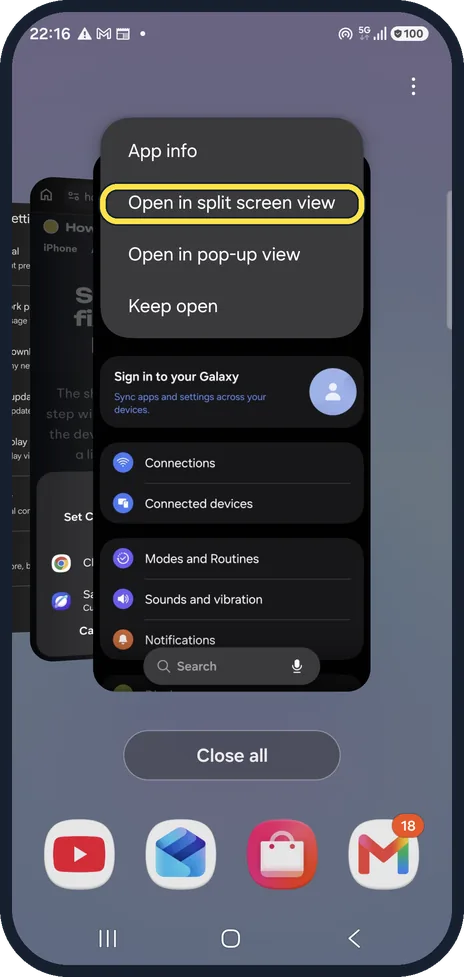
Open in split screen view
Tap Open in split screen view, then tap the second app. The first app moves to the top half.
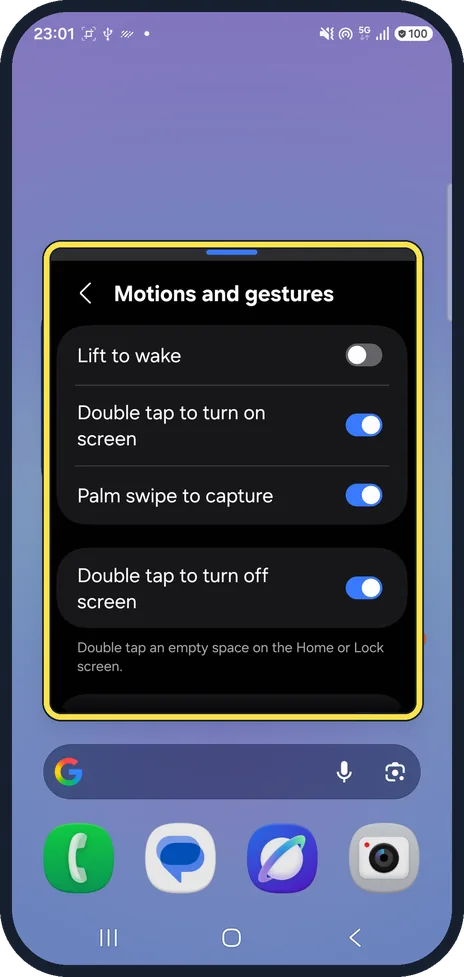
Or open in pop-up view
Tap Open in pop-up view in the same menu instead. The app opens in a floating window you can move and resize; ours showed Motions and gestures.
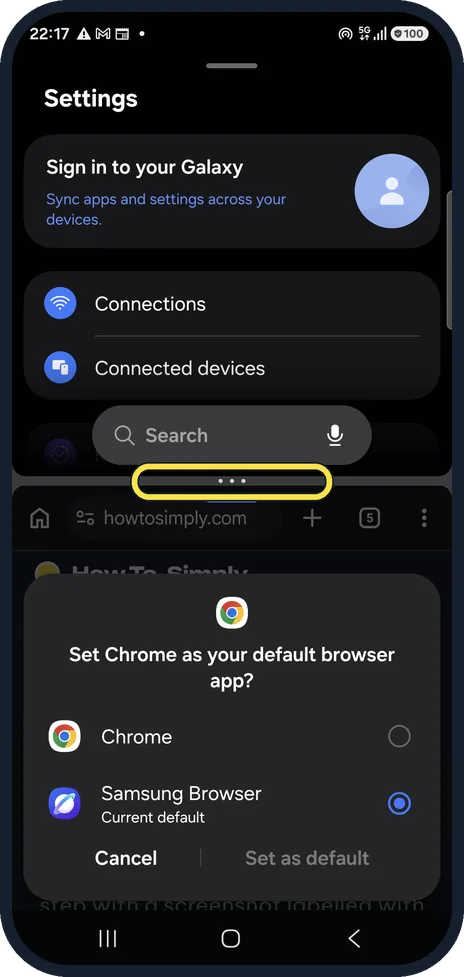
Resize the two halves
Drag the bar with three dots between the apps up or down to give one app more room. Ours shows Settings above and Chrome below, where Chrome happened to ask about the default browser; we chose nothing.
Watch these steps
If you do not see this option
- You have a Galaxy Z Fold or Z Flip Samsung says split screen and pop-up view do not work on the front (cover) screen of the Z Fold and Z Flip. Source: Use Multi window and App pairs on your Galaxy phone or tablet
- Your menu names differ Samsung says the screens and settings vary by carrier, software version and model. Source: Use Multi window and App pairs on your Galaxy phone or tablet
If this does not work
- One app will not open in split screen Samsung says some apps do not support split screen view. Labs in Advanced features has an option to allow all apps. Source: Use Multi window and App pairs on your Galaxy phone or tablet
- The Edge panel asks for a tutorial Samsung says the first time you use the enhanced edge features you need to finish the tutorial. Source: Use Multi window and App pairs on your Galaxy phone or tablet
About this guide
Split screen shows two apps at once, one above the other. Pop-up view puts one app in a movable window. Both start from the app icon in Recents.
Good to know
Some apps do not support split screen; Labs in Advanced features has an option to allow all apps.
Drag the dividing bar to the top or bottom edge to close split screen.
In short: Recents, tap the app icon, Open in split screen view (or pop-up view), pick the second app; drag the divider to resize.
- Samsung Latin: How to use intuitive Multi-Active Windows
- Samsung US: Use Multi window and App pairs on your Galaxy phone or tablet
- Samsung Latin: Use two hands with your Samsung Galaxy devices for maximum productivity
Links checked in October 2026. Menus and features can change after software updates. These steps match the version named at the top.
📷 See real photos from the Galaxy A57 in our Camera Lab, next to 10 other phones.
Did this guide work for you?
Sorry about that. What happened?