ONEPLUS
How to use screen-off gestures and Raise to wake on a OnePlus

In short
Go to Settings, Accessibility & convenience, Gestures & motions. Tap Screen-off gestures for Double tap to turn screen on/off and draw-to-open shortcuts (O for Camera, V for torch). Raise to wake is further down, under Motions.
7 of 7 steps show a real screenshot from our Nord 5. Each step was checked against the maker's own instructions, linked at the end.
Steps
- 1
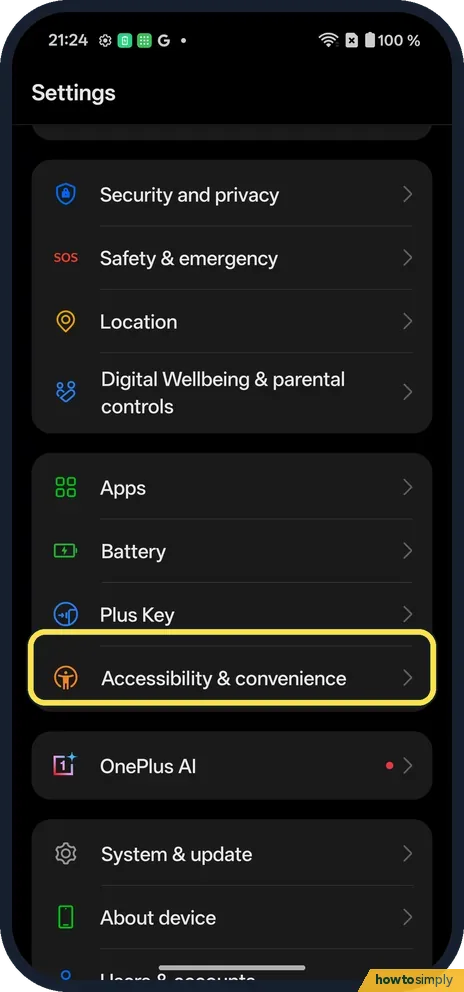
Open Accessibility & convenience
Open Settings, scroll down and tap Accessibility & convenience, between Plus Key and OnePlus AI.
- 2
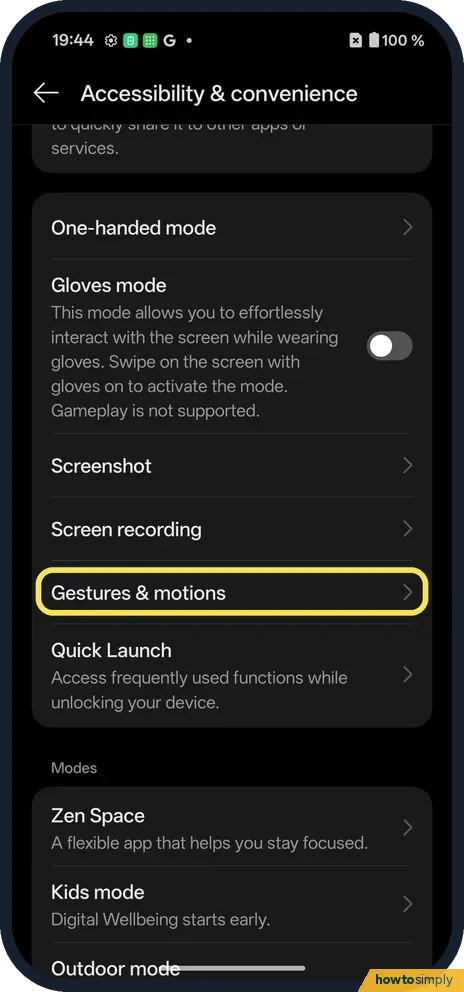
Tap Gestures & motions
It is under Screenshot and Screen recording.
- 3
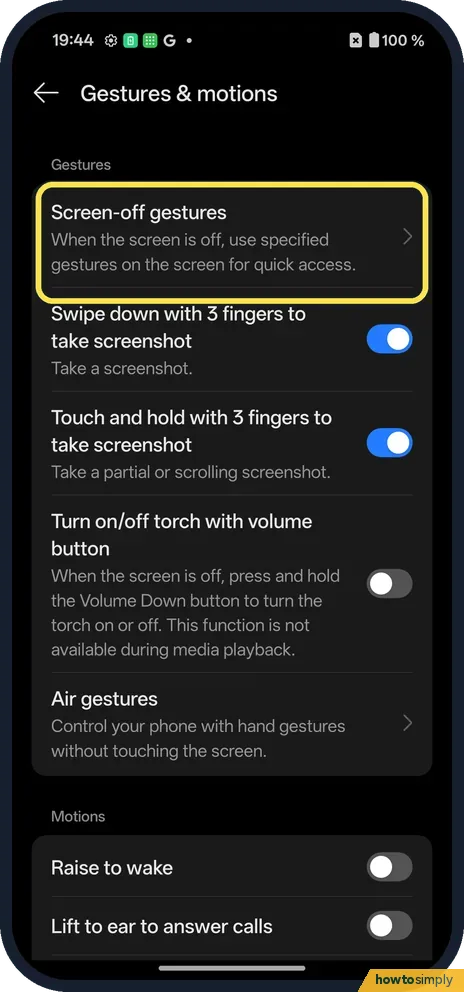
Tap Screen-off gestures
It is the first row: when the screen is off, use specified gestures for quick access.
- 4
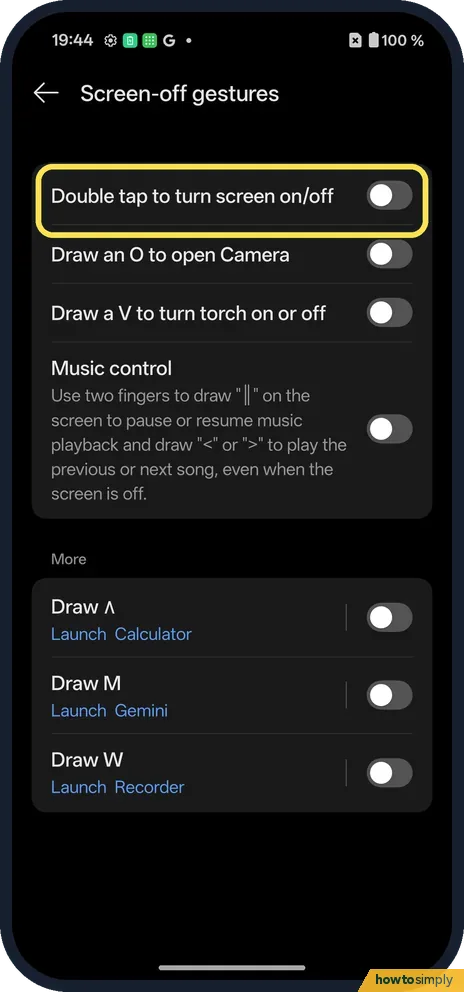
Double tap to wake
Turn on Double tap to turn screen on/off.
- 5
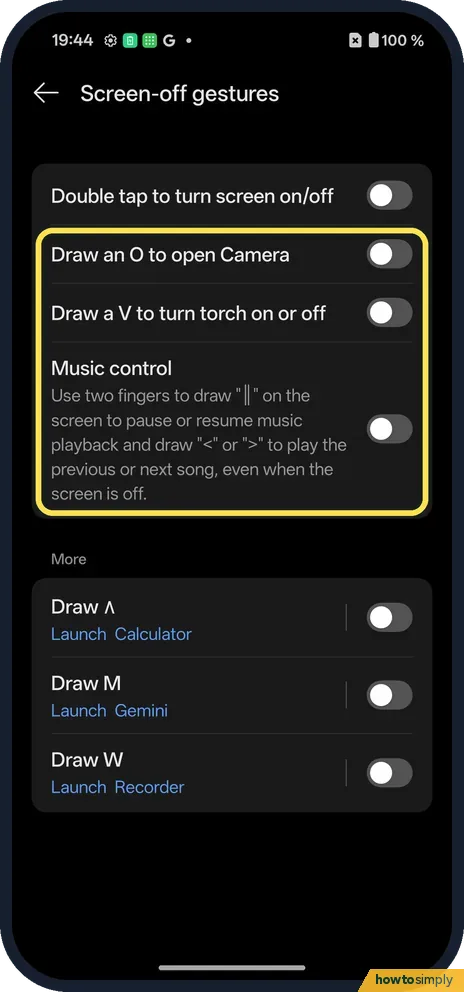
Draw to open
Draw an O to open Camera, Draw a V to turn torch on or off, and Music control (two fingers for pause, < or > for tracks). Under More: Draw ∧ (Calculator), M (Gemini), W (Recorder).
- 6
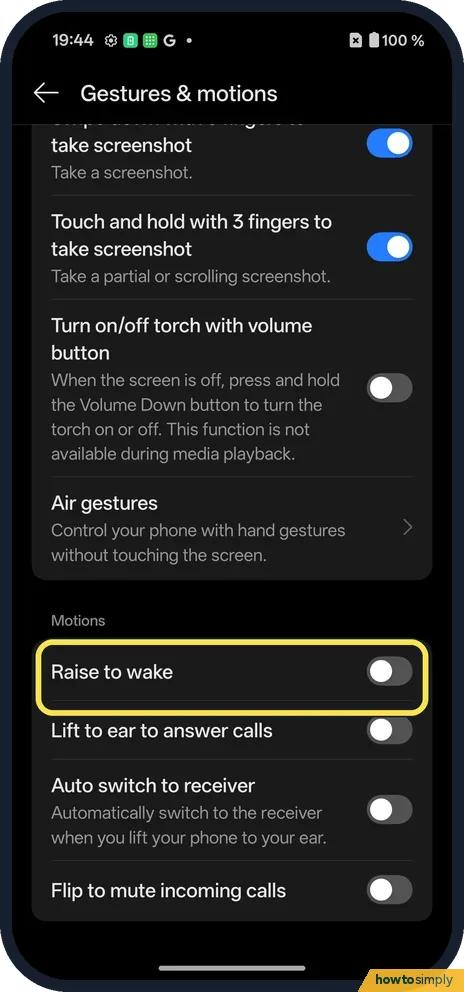
Raise to wake
Back on Gestures & motions, scroll to Motions. Raise to wake, Lift to ear to answer calls, Auto switch to receiver and Flip to mute incoming calls are there.
- 7
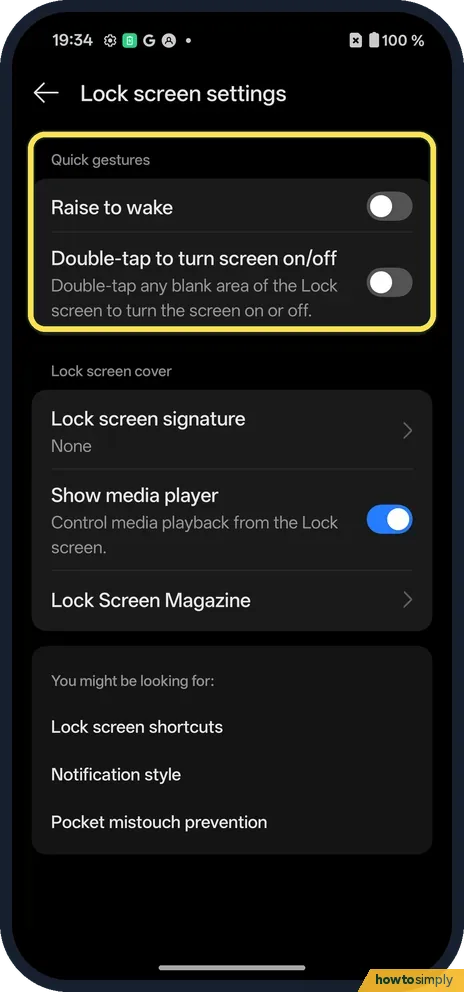
Or from Lock screen settings
Lock screen settings has the same two under Quick gestures: Raise to wake and Double-tap to turn screen on/off.
If you do not see this option
- Older OxygenOS? OnePlus's OxygenOS 14 manual puts Gestures & motions under Settings, Additional settings. On our OxygenOS 16 phone it is under Accessibility & convenience. Source: OxygenOS 14.0 User Manual
If this does not work
- Phone wakes in your pocket? Turn Raise to wake off.
- Drawing does nothing? These gestures work only with the screen off, and each one has its own switch. Check it is on.
- Double tap does nothing on the lock screen? Lock screen settings has its own Double-tap to turn screen on/off switch under Quick gestures.
- Double tap wakes the phone in a bag? Touches through fabric or a pocket can count as a double tap. Switch it off if the screen keeps lighting up by itself.
- Calls answer by themselves? Lift to ear to answer calls, under Motions, answers an incoming call when you lift the phone to your ear. Switch it off if you would rather tap to answer.
Good to know
Swipe gestures for Home and Back: gestures or buttons on a OnePlus.
Show the clock on the dark screen: Always-On Display.
Turning these on changes only what the phone does with the screen off; nothing is deleted, and each switch can be turned off on the same pages. The OxygenOS 14 manual describes the idea behind them as operating the phone without turning on the screen, for example answering a call by lifting it to your ear. If you mostly want to glance at the time and notifications without waking the phone, the always-on display may suit you better than Raise to wake.
About this guide
- Device
- Android
- Shown on
- OnePlus Nord 5 (CPH2709), OxygenOS 16.0.5.1201, Android 16
- App
- Settings
- Path
- Settings › Accessibility & convenience › Gestures & motions
- Real screenshots
- 7 of 7 steps
- Checked
- October 2026
- Sources
- 1 official, linked below
Sources
Links checked October 2026. Menus and features can change with updates.Spotted a mistake? Menus change with updates, and we want every step to match your screen. Email us about this page or use the contact form. We read every report, and fixes are listed on What changed.
Liked this guide?
Follow us for new guides and short how-to videos.
Did this guide work for you?
Sorry about that. What happened?