
howtosimply.com/guides/how-to-use-google-lens-on-android-to-search-with-your-camera/ · Checked October 2026 · build CP3A.261005.005 · Google Pixel 10a, Android 17
In this guide
- Tap the Lens icon in the Google app
- Tap Continue the first time
- Point the camera and tap the search button
- Or search with a photo: tap the gallery button
- Allow access to your photos
- Tap the picture
- Read the results
- Narrow it to one part of the picture
- If you do not see this option
- If this does not work
- Good to know
- Sources
Open the Google app and tap the Lens icon at the right of the search bar. Point the camera at something and tap the search button, or tap the gallery button to search with a photo. Drag the corners of the box to search one part of the picture.
8 of 8 steps with real screenshots · 1 official source below
- Device
- Android
- Shown on
- Google Pixel 10a, Android 17 (build CP3A.261005.005)
- App
- Google Lens
- Real screenshots
- 8 of 8 steps
- Checked
- October 2026
- Sources
- 1 official, linked below
Step by step
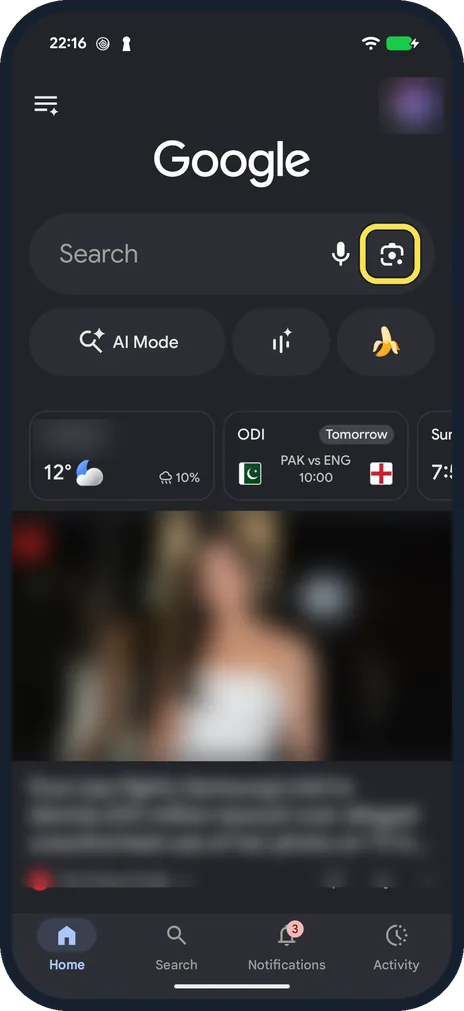
Tap the Lens icon in the Google app
Open the Google app. The Lens icon is the small camera at the right of the search bar, next to the microphone.
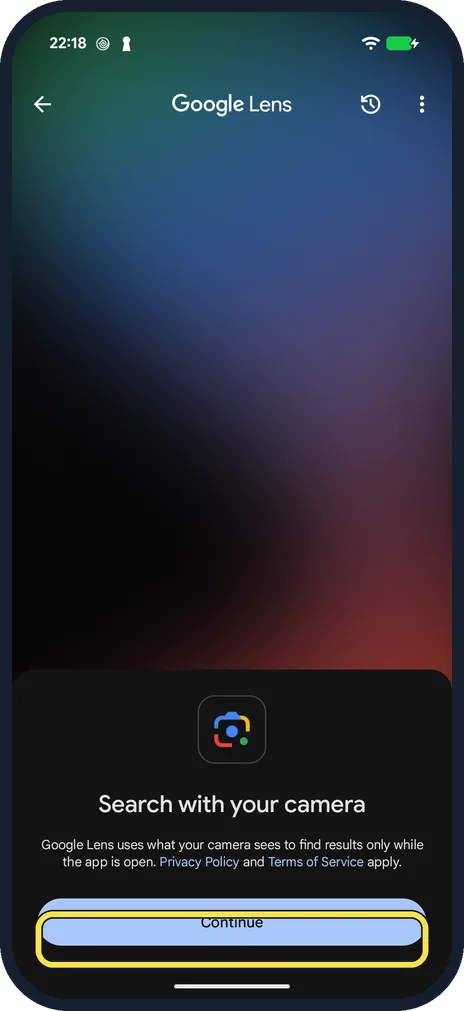
Tap Continue the first time
The first time, the phone asks to use the camera; we chose Only this time. Lens then shows Search with your camera, which says Google's Privacy Policy and Terms of Service apply. Tap Continue.
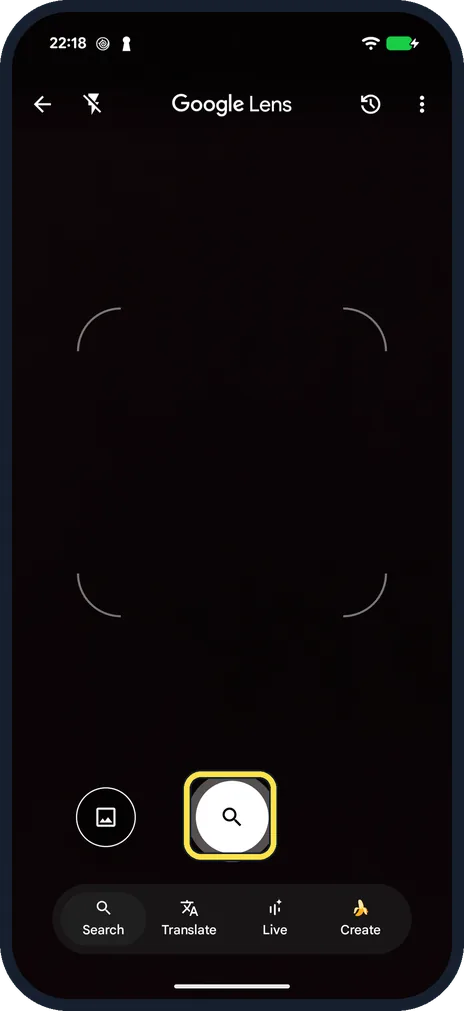
Point the camera and tap the search button
Point the camera at what you want to know about and tap the round button with the magnifier. The bar below switches between Search, Translate, Live and Create.
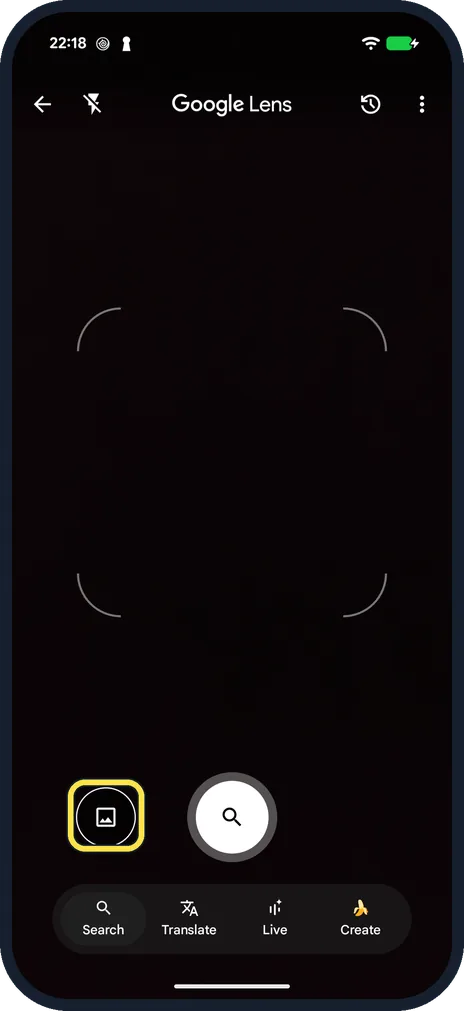
Or search with a photo: tap the gallery button
The gallery button is at the bottom left, next to the search button. On our phone Lens showed no row of photos under the camera.
Allow access to your photos
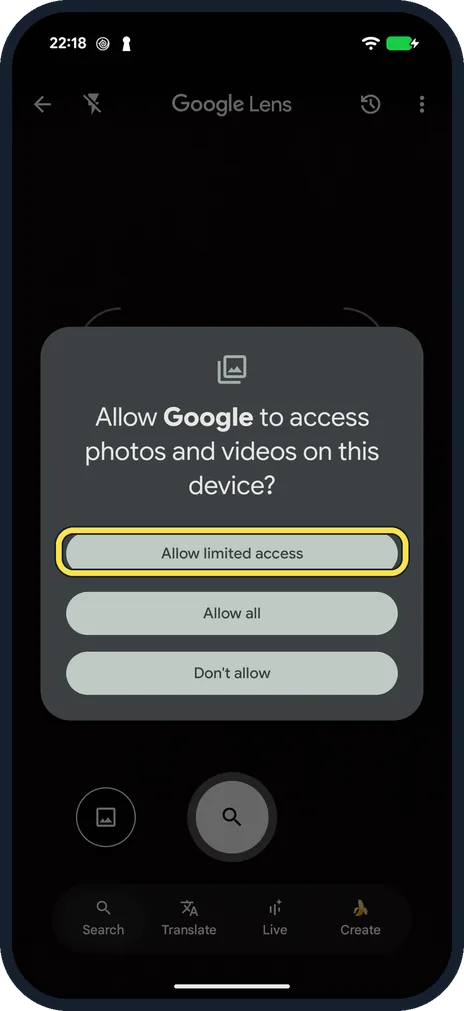
Lens asks to see your photos. Allow limited access lets you pick only the pictures Lens may see; we picked one screenshot.
Tap the picture
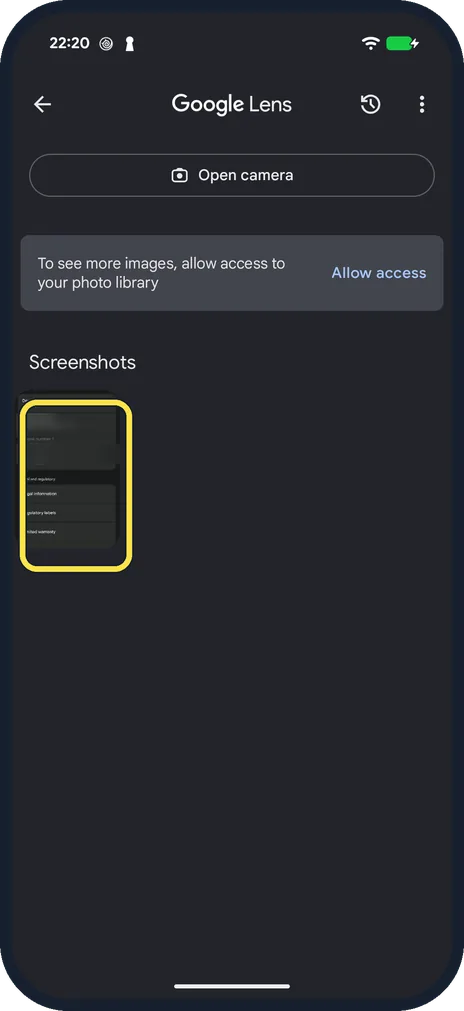
Your screenshots and photos are listed under Open camera. Tap the one you want.
Read the results
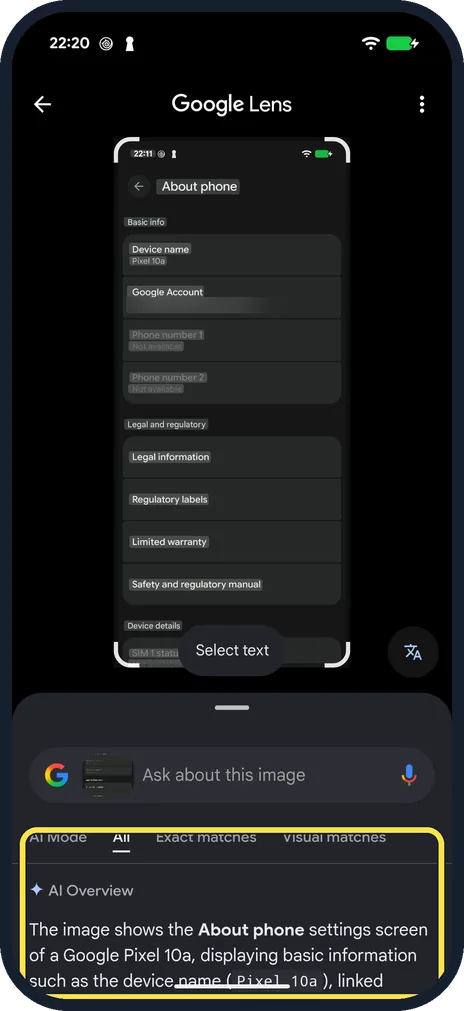
Lens puts a box around the picture and lists results below, with tabs for All, Exact matches and Visual matches. On ours an AI Overview described the screen first.
Narrow it to one part of the picture
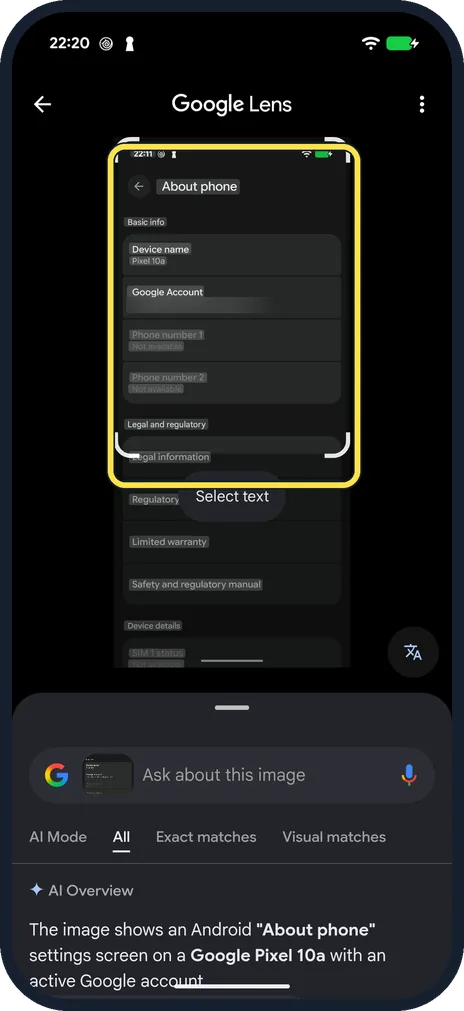
Drag a corner of the box to put it around the part you mean. We made it smaller, and the results changed to match.
If you do not see this option
- No row of photos under the camera? There was none on our Pixel 10a with Google app 17.32.82. Tap the gallery button at the bottom left of the camera view instead (step 4).
- No Lens icon in the search bar? Update the Google app in the Play Store. On ours it is the camera icon to the right of the microphone.
If this does not work
- Only one photo is listed? With Allow limited access, Lens sees only the photos you picked. Tap Allow access in the list to let it see more.
- Results are about the whole picture? Drag the corners of the box around the part you mean (step 8). Source: Search with an image on Google
About this guide
Google Lens searches with a picture where you would otherwise have to find words. It recognises products, plants, animals, buildings and text.
The screenshots are from our Google Pixel 10a with Android 17 (build CP3A.261005.005), in dark mode. The Google app was version 17.32.82. Instead of pointing the camera at an object, we searched with a screenshot of the phone's About phone page, which we deleted afterwards.
Good to know
Lens also reads text in a picture: how to copy text from a photo on Android.
In Chrome, Google says you can touch and hold a picture on a web page and tap Search image with Google Lens. Our Pixel's Chrome had never been set up, so that is not shown here.
Results for plants, mushrooms and medicines are suggestions and can be wrong. Do not eat or take anything on the strength of a picture search.
In short: Google app, Lens icon, Continue the first time, point and tap search, or the gallery button and a photo. Drag the box corners to narrow it.
Links checked in October 2026. Menus and features can change after software updates. These steps match the version named at the top.
Did this guide work for you?
Sorry about that. What happened?