
howtosimply.com/guides/how-to-remove-the-google-search-bar-from-a-samsung-galaxy-home-screen/ · Checked October 2026 · SM-A576B), One UI 9, Android 17 (build A576BXXU6BZIE · Samsung Galaxy A57
In this guide
On One UI 9 the search bar is not a widget. Touch and hold an empty part of the Home screen, tap Settings, then Show search on Home screen, and turn off Search. The bar disappears; turn Search back on to get it back in the same place.
7 of 7 steps with real screenshots · 3 official sources below
- Device
- Android
- Shown on
- Samsung Galaxy A57 (SM-A576B), One UI 9, Android 17 (build A576BXXU6BZIE)
- Starts in
- Home screen
- Real screenshots
- 7 of 7 steps
- Checked
- October 2026
- Sources
- 3 official, linked below
Step by step
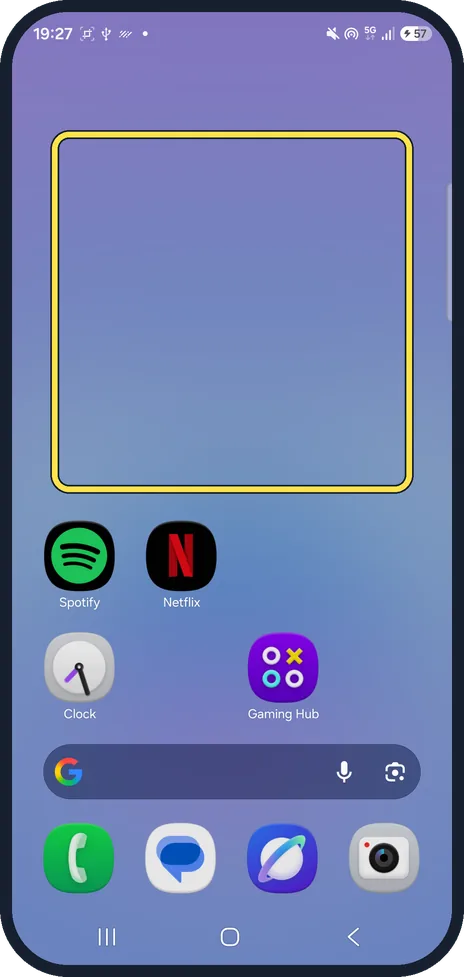
Touch and hold an empty spot
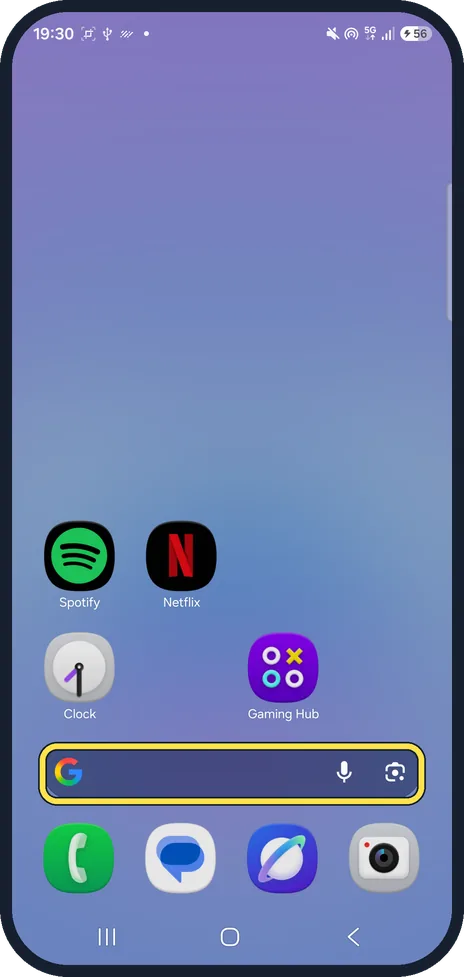
On the Home screen, touch and hold an empty part of the screen, not the search bar. Ours had the bar above the dock.
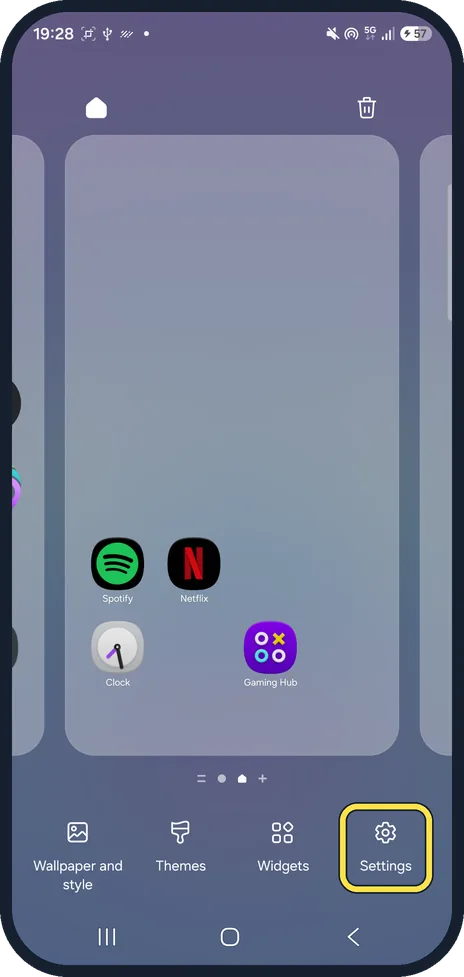
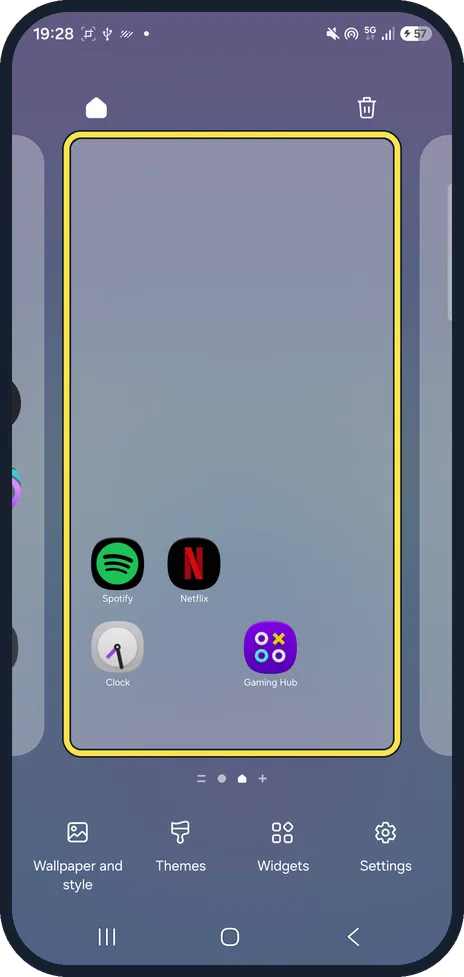
Tap Settings
The Home screen goes into edit mode, without the search bar. Tap Settings at the bottom right.
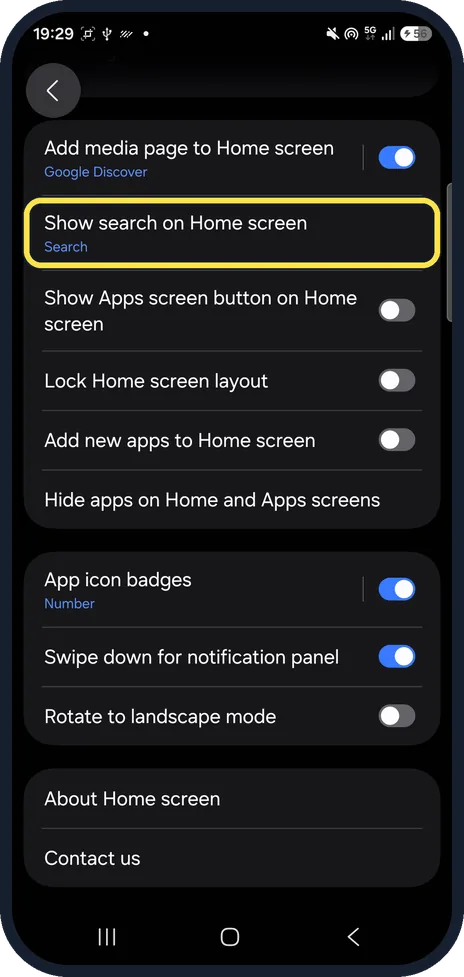
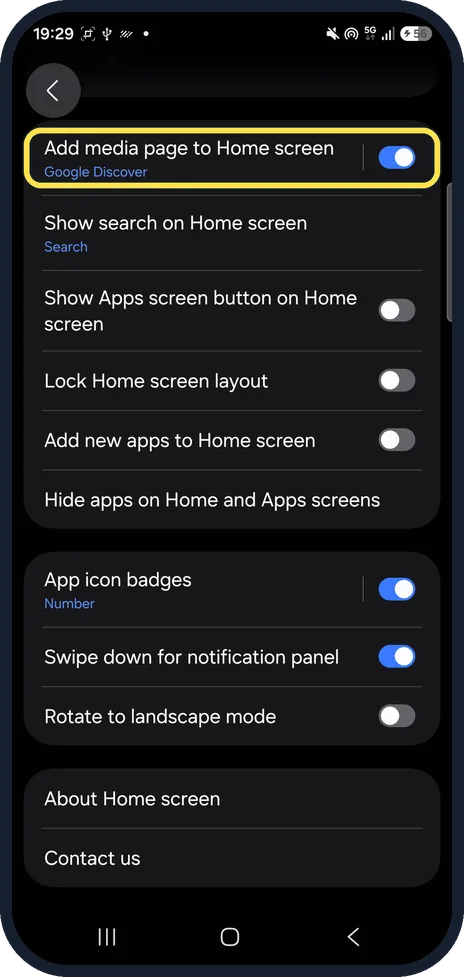
Tap Show search on Home screen
It is the second row, under Add media page to Home screen. Ours said Search below it.
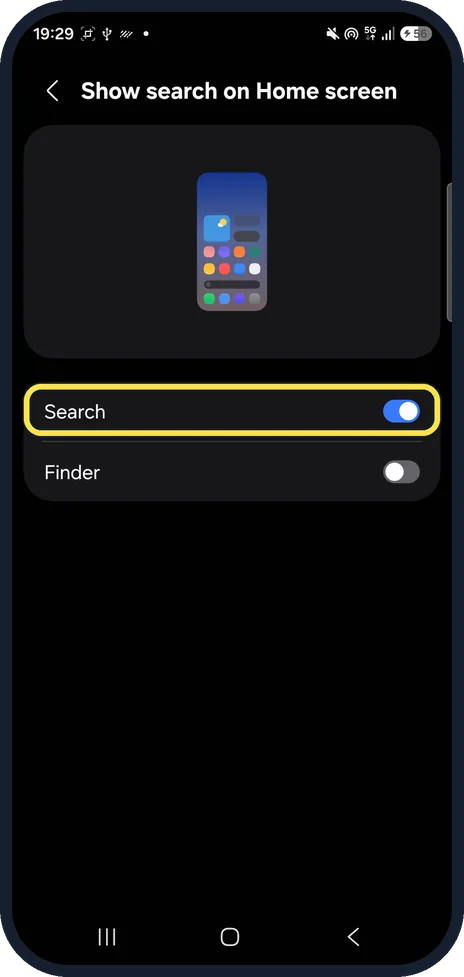
Find the Search switch
The page shows a preview with the bar and two switches: Search (on) and Finder (off on ours).
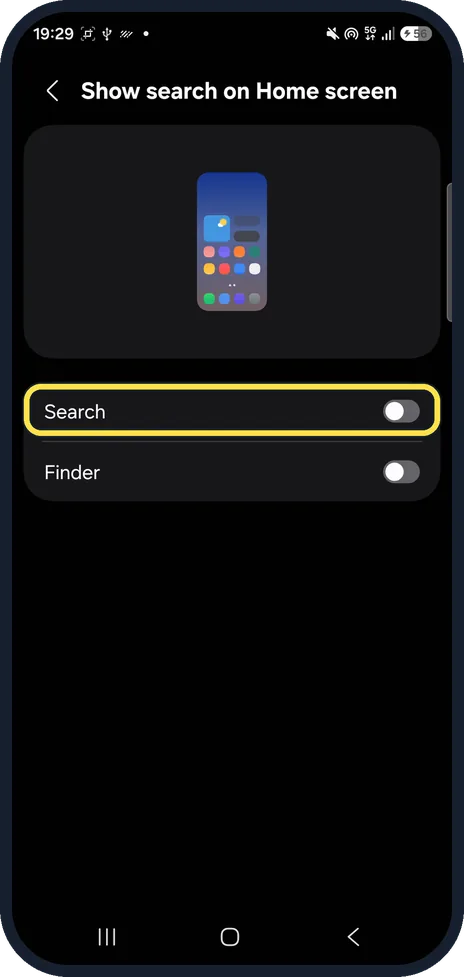
Turn off Search
Tap the switch. The bar disappears from the preview.
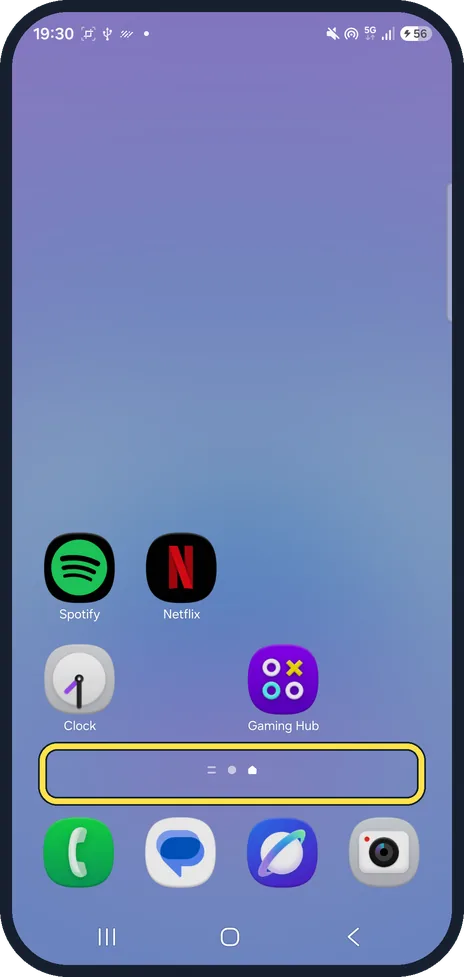
Check the Home screen
Go Home. The bar above the dock is gone and the page dots sit in its place.
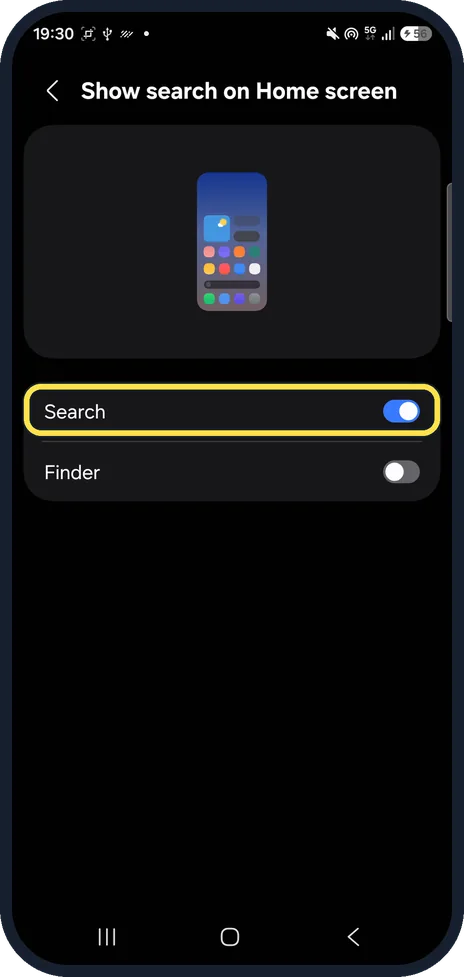
To get it back, turn Search on
Open Show search on Home screen again and tap the Search switch. The bar came back in the same place on ours.
If you do not see this option
- No Remove when you hold the bar? On ours, holding the bar opened Google search. Samsung's steps to touch and hold a widget and select Remove do not apply to this bar on One UI 9. Source: How to add apps and widgets on your Galaxy phone's Home screen
- Bar not shown in edit mode? That is expected: in edit mode our Home page showed only the apps. Use Settings at the bottom right. Source: How to add apps and widgets on your Galaxy phone's Home screen
- Want the Google page on the left gone too? That is Add media page to Home screen (Google Discover on ours), the row above. Samsung's Discover page gives the older route: hold a blank part of the Home screen, swipe right, tap the switch at the top. Source: Google Discover on Galaxy phones and tablets
If this does not work
- Bar came back? Check that Search is still off under Home screen settings, Show search on Home screen. Turned back on, the bar returned in the same place on ours.
- Wanted a widget removed instead? For a real widget, Samsung says to touch and hold the widget, and then select Remove. Source: How to add apps and widgets on your Galaxy phone's Home screen
About this guide
Long-pressing the Google bar on our Galaxy A57 only opened Google search, and the bar is not shown in Home screen edit mode, so it cannot be removed like a widget. The switch is in Home screen settings.
The screenshots are from our Samsung Galaxy A57 (SM-A576B) with One UI 9.0 and Android 17 (build CP2A.260605.016.A576BXXU6BZIE), in Dark mode, taken on 26 October 2026. We turned Search off for the pictures and then back on.
Good to know
To add other widgets, see add and resize widgets on a Samsung Galaxy home screen. We left Finder off; we did not test what it adds.
In short: Hold an empty spot on Home, Settings, Show search on Home screen, turn off Search.
- Samsung Latin: How to add apps and widgets on your Galaxy phone's Home screen
- Samsung US: Add, customize, and use widgets on Galaxy phones
- Samsung US: Google Discover on Galaxy phones and tablets
Links checked in October 2026. Menus and features can change after software updates. These steps match the version named at the top.
📷 See real photos from the Galaxy A57 in our Camera Lab, next to 10 other phones.
Did this guide work for you?
Sorry about that. What happened?