
howtosimply.com/guides/how-to-airdrop-photos-from-an-iphone-to-a-google-pixel-10a/ · Checked October 2026 · Google Pixel 10a (Android 17 (build CP3A.261005.005)) and iPhone 17e (iOS 27.2)
In this guide
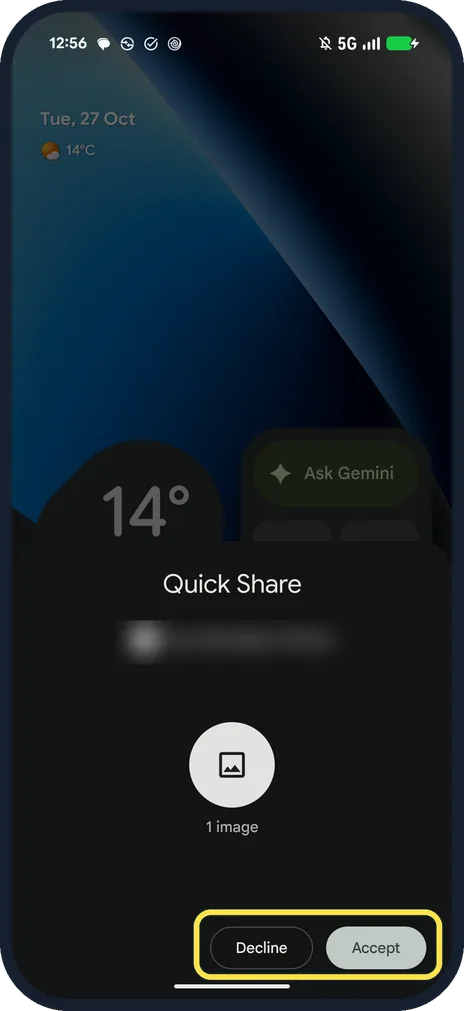
On the Pixel, set Quick Share to Everyone for 10 minutes. On the iPhone, tap Share, then AirDrop, and tap the Pixel. Tap Accept on the Pixel. The photo lands in Downloads, Quick Share. On ours it worked, but a prompt we answered too late expired.
7 of 7 steps with real screenshots · 3 official sources below
- Device
- iPhone
- Shown on
- Google Pixel 10a, Android 17 (build CP3A.261005.005), iOS 27.2 (iPhone 17e)
- App
- Settings (Quick Share)
- Path
- Settings › Quick Share › Who can share with you
- Real screenshots
- 7 of 7 steps
- Checked
- October 2026
- Sources
- 3 official, linked below
Step by step
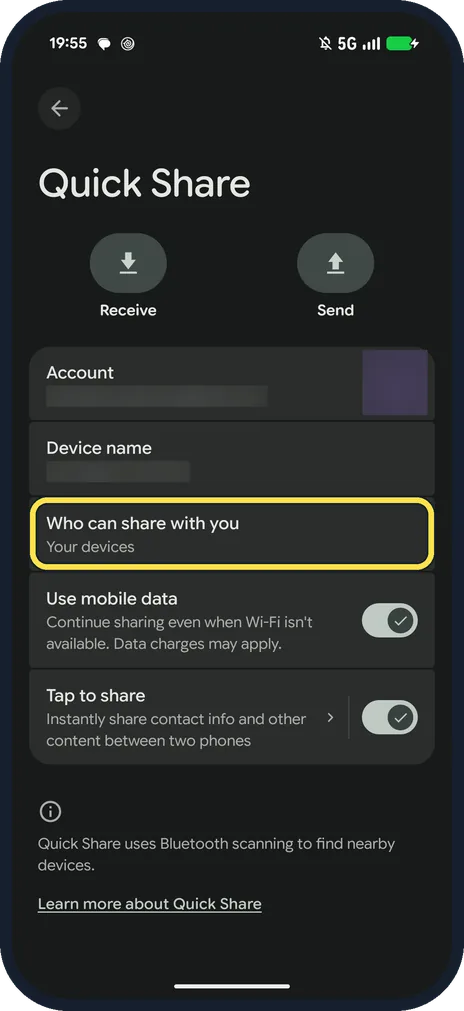
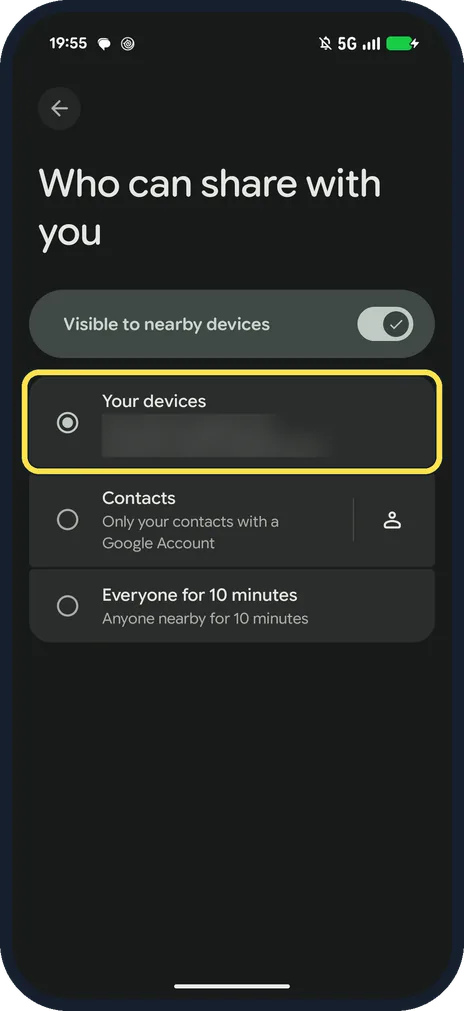
On the Pixel, open Who can share with you
Open Settings and search for Quick Share, then tap Who can share with you. Ours said Your devices.
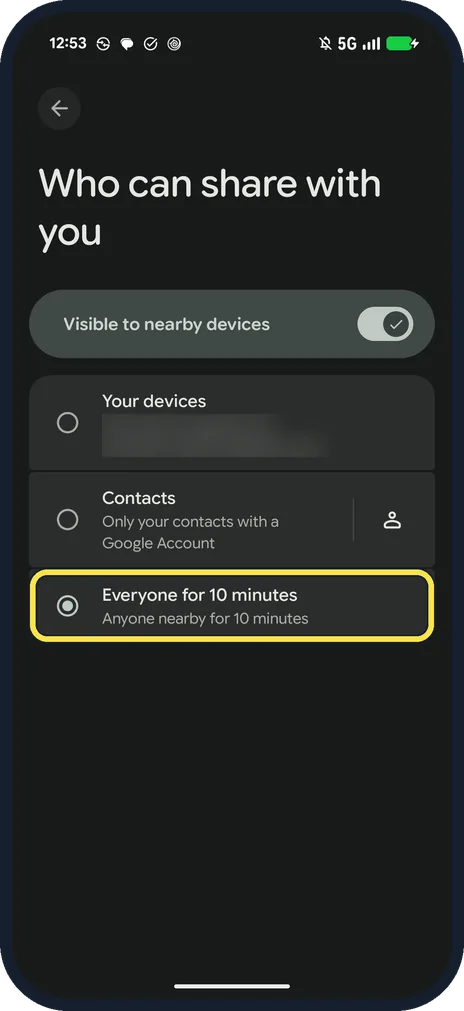
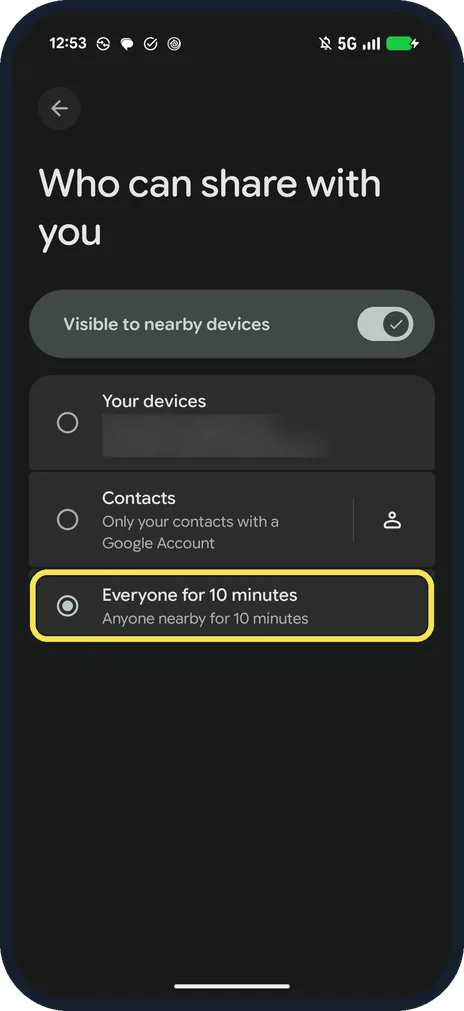
Pick Everyone for 10 minutes
It says Anyone nearby for 10 minutes. Google says to pick this to receive from an iPhone, or to keep the Quick Share page open on Receive.
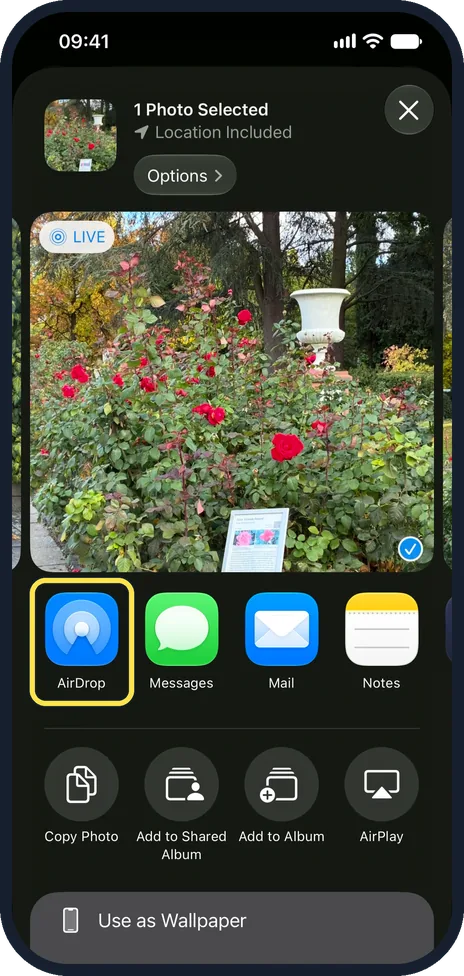
On the iPhone, tap Share, then AirDrop
On the iPhone, open the photo and tap the Share button. Ours said 1 Photo Selected, Location Included. Tap AirDrop.
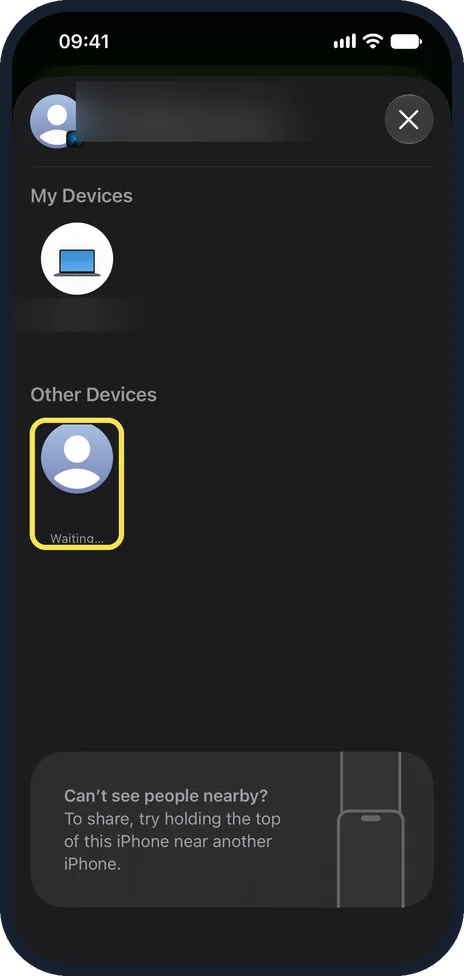
On the iPhone, tap the Pixel
The Pixel shows under Other Devices. Tap it. On our iPhone it then said Waiting… under the Pixel until the Pixel answered.
Tap Accept on the Pixel
A Quick Share prompt came up with 1 image, Decline and Accept. Tap Accept soon: our first one expired.
Open the photo
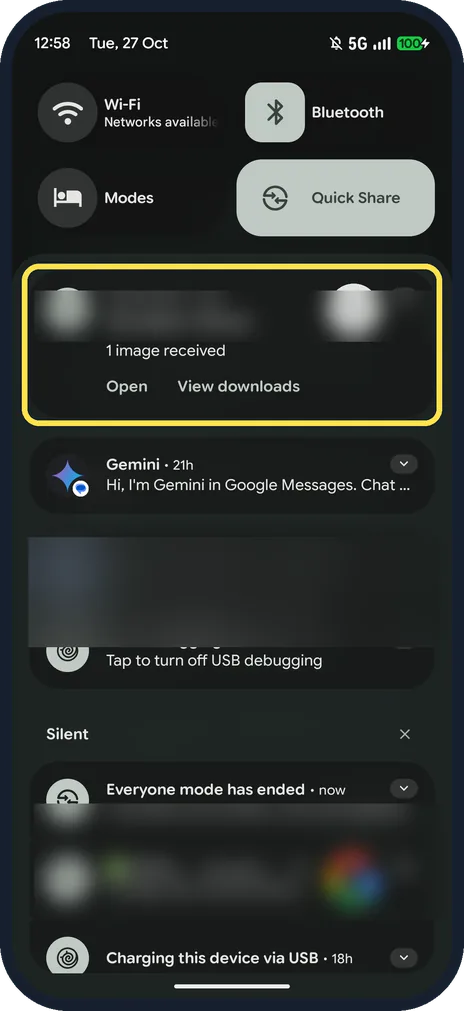
The notification says 1 image received, with Open and View downloads. Ours was saved in Download, Quick Share.
Set it back to Your devices
When you are done, go back to Who can share with you and pick Your devices again. We did that after the transfer.
If you do not see this option
- Pixel not in the iPhone's AirDrop list? Google says the Pixel must be set to Everyone for 10 minutes, or have the Quick Share page open on Receive. It also says receiving from an iPhone needs a Pixel 9 or later, except the Pixel 9a. Source: Use Quick Share on your Android device
- Everyone for 10 minutes already ran out? Pick it again just before the iPhone sends. The option itself says Anyone nearby for 10 minutes.
If this does not work
- Pixel says Can't complete transfer? Ours did when we saw the prompt too late. On the iPhone, the Pixel first said Waiting…, then Declined in red. We sent the photo again from the iPhone and tapped Accept on the Pixel at once, and it worked.
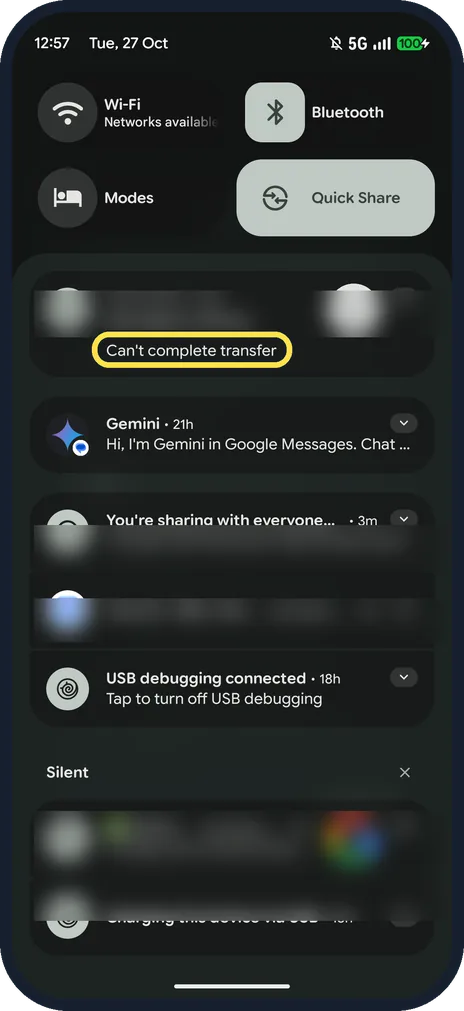
- Can't find the photo? Tap View downloads in the notification. Google says received files are in the Files app, in Downloads, Quick Share folder. Ours was in Download, Quick Share. Source: Use Quick Share on your Android device
About this guide
Pixel phones can take files sent with AirDrop from an iPhone. Google says this needs a Pixel 9 or later, except the Pixel 9a.
The screenshots are from our Google Pixel 10a with Android 17 (build CP3A.261005.005) and, for steps 3 and 4, our iPhone 17e with iOS 27.2, all in Dark mode, taken on 27 October 2026. Each step says which phone it is on. We hid device names and the account in our copies. We sent one photo from the iPhone to the Pixel.
Good to know
The other way, from the Pixel to the iPhone, did not work for us: twice the Pixel showed Waiting, then Failed, and no AirDrop prompt appeared on the iPhone.
From another Android phone: receive files with Quick Share on a Google Pixel.
In short: Pixel: Settings, Quick Share, Who can share with you, Everyone for 10 minutes. iPhone: Share, AirDrop, the Pixel. Pixel: Accept. Then set it back to Your devices.
- Google Android Help: Use Quick Share on your Android device
- Apple Support: How to use AirDrop on your iPhone or iPad
- Apple iPhone User Guide: Use AirDrop to send items to nearby Apple devices
Links checked in October 2026. Menus and features can change after software updates. These steps match the version named at the top.
📷 See real photos from the Pixel 10a in our Camera Lab, next to 10 other phones.
Did this guide work for you?
Sorry about that. What happened?