
howtosimply.com/guides/how-to-use-google-gemini-on-a-samsung-galaxy-side-button-and-app/ · Checked October 2026 · Samsung Galaxy A57 5G (SM-A576B), One UI 8.5, Android 16
In this guide
Press and hold the side button to open Gemini, then type or speak your question in Ask Gemini. If the side button opens Bixby or the power menu instead, open Settings, Advanced features, Side button and set Long press to Digital assistant.
3 of 3 steps with real screenshots · 2 official sources below
- Device
- Android
- Shown on
- Samsung Galaxy A57 5G (SM-A576B), One UI 8.5, Android 16
- Starts in
- The phone's buttons
- Real screenshots
- 3 of 3 steps
- What we did
- Observed: looked at each screen, changed nothing
- Our phone
- Shown on Galaxy A57, One UI 8.5
- Checked
- October 2026
- Sources
- 2 official, linked below
Step by step
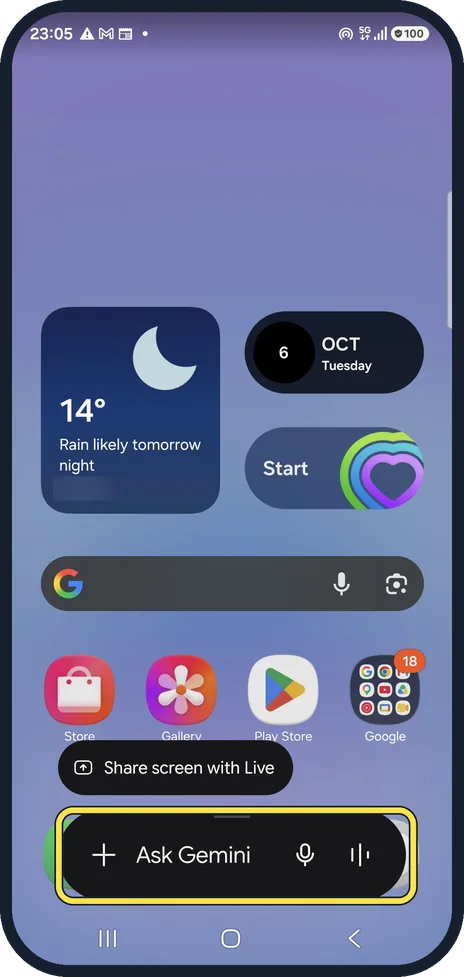
Press and hold the side button
Gemini opens at the bottom of the screen with Ask Gemini, the microphone and Gemini Live.
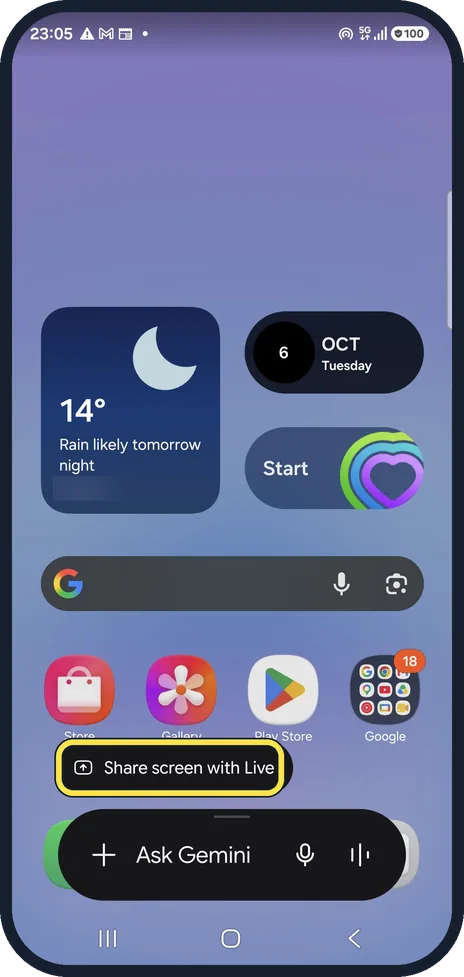
Ask about the screen
Share screen with Live lets Gemini see what is on the screen and talk about it.
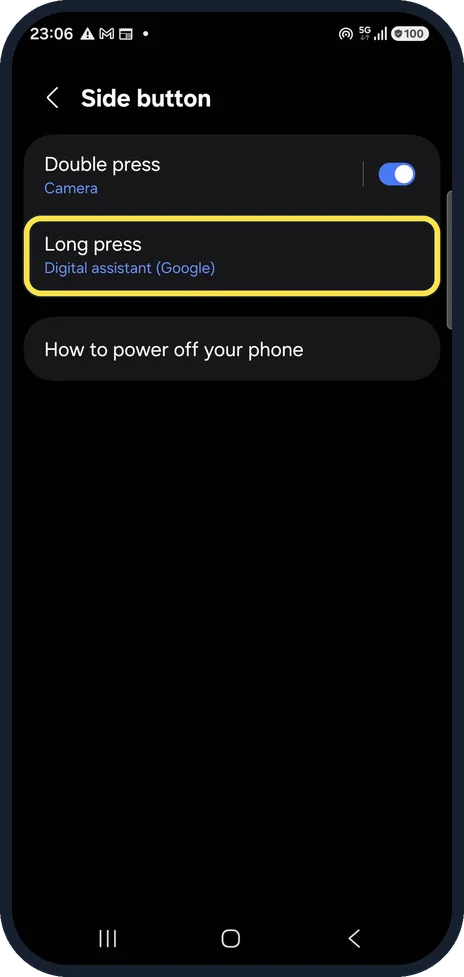
Set the side button
If holding the button does something else, open Settings, Advanced features, Side button. Long press shows Digital assistant (Google) on ours.
If you do not see this option
- Holding the button opens Google Assistant Samsung says that with the latest software a long press of the Side button opens Google's default assistant app, and Gemini is the default where available. Source: How to use Google Gemini on your Galaxy phone
- Gemini is not offered Samsung says Gemini needs Android 10 or later, a Google Account and age 18 or over, and that it varies by country, language and model. Source: How to use Google Gemini on your Galaxy phone
If this does not work
- There is no Share screen button Samsung says to hold the Side button, tap the Live icon next to the microphone and then choose Share screen or Video. Source: How to use Google Gemini on your Galaxy phone
- Gemini says it is on hold Samsung says the Pause button shows Gemini is on hold. Tap the Live icon again to continue, or X to end. Source: How to use Google Gemini on your Galaxy phone
About this guide
Gemini is Google's assistant. Samsung says it needs a Google account, an internet connection and age 18 or over, and features differ by country.
Good to know
To turn the phone off when the side button opens Gemini, use the power icon in the quick panel, or How to power off your phone on the same settings page.
Bixby is Samsung's own assistant: how to turn off Bixby.
In short: Hold the side button, Ask Gemini. Settings, Advanced features, Side button, Long press: Digital assistant.
- Samsung Latin: How to use Google Gemini on your Galaxy phone
- Samsung UK: How to use Google Gemini on your Galaxy phone
Links checked in October 2026. Menus and features can change after software updates. These steps match the version named at the top.
📷 See real photos from the Galaxy A57 in our Camera Lab, next to 10 other phones.
Did this guide work for you?
Sorry about that. What happened?