
howtosimply.com/guides/how-to-add-a-watermark-to-photos-on-a-samsung-galaxy-camera/ · Checked October 2026 · Samsung Galaxy A57 5G (SM-A576B), One UI 8.5, Android 16
Open Camera, the settings gear, Watermark and turn it on. The model name is added to the corner of every new photo; you can edit the text and add the date and time. A watermark cannot be removed from a photo afterwards.
4 of 4 steps with real screenshots · 1 official source below
- Device
- Android
- Shown on
- Samsung Galaxy A57 5G (SM-A576B), One UI 8.5, Android 16
- App
- Camera
- Real screenshots
- 4 of 4 steps
- What we did
- Observed: looked at each screen, changed nothing
- Our phone
- Shown on Galaxy A57, One UI 8.5
- Checked
- October 2026
- Sources
- 1 official, linked below
Step by step
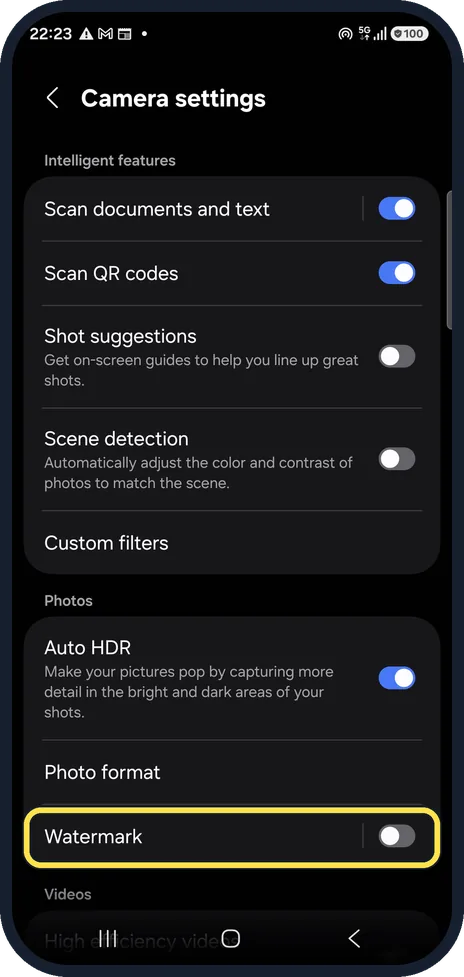
Open Watermark
In Camera, tap the settings gear and Watermark.
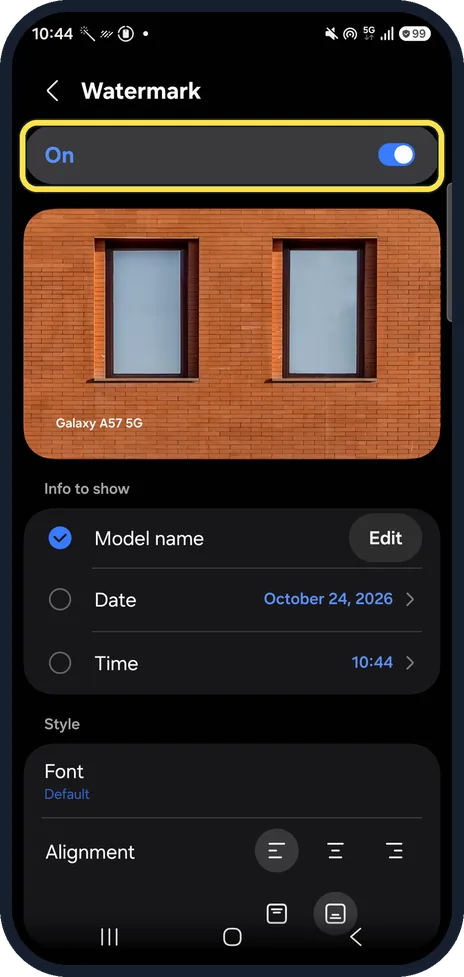
Turn it on
Tap the switch. Ours is Off; the sample shows the text Galaxy A57 5G in the corner.
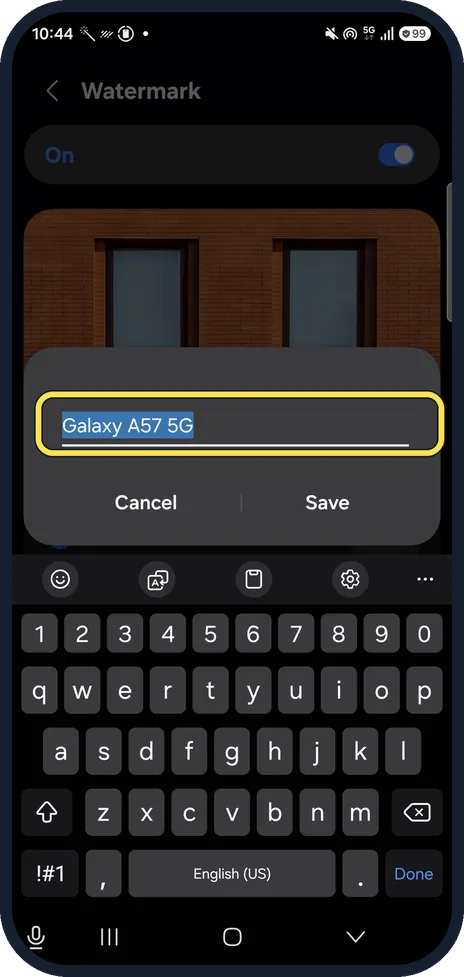
Choose what it shows
Under Info to show, Edit changes the model name text. Date and Time add when the photo was taken. On our phone only Model name was ticked; Date and Time were not.
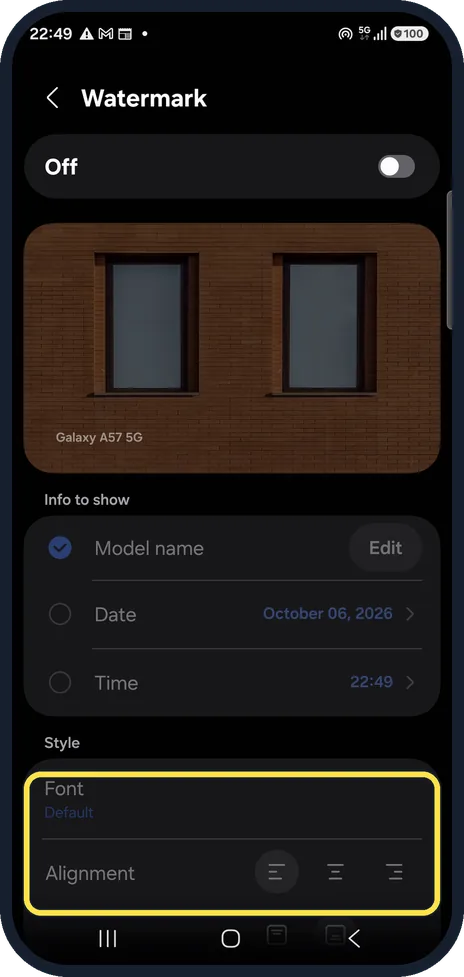
Font and position
Under Style, pick the Font and whether the text sits left, centre or right. Ours read Default for the font, with left alignment selected.
About this guide
The watermark is stamped into each new photo, like "Shot on". Old photos are not changed.
Good to know
Samsung notes that a watermark cannot be removed once it is in the photo, so turn it off before taking photos you want clean.
In short: Camera, settings gear, Watermark on; Edit for the text, Date and Time, Font, alignment.
Links checked in October 2026. Menus and features can change after software updates. These steps match the version named at the top.
📷 See real photos from the Galaxy A57 in our Camera Lab, next to 10 other phones.
Did this guide work for you?
Sorry about that. What happened?