GOOGLE PIXEL
How to use Circle to Search on a Google Pixel (Android 17)

In short
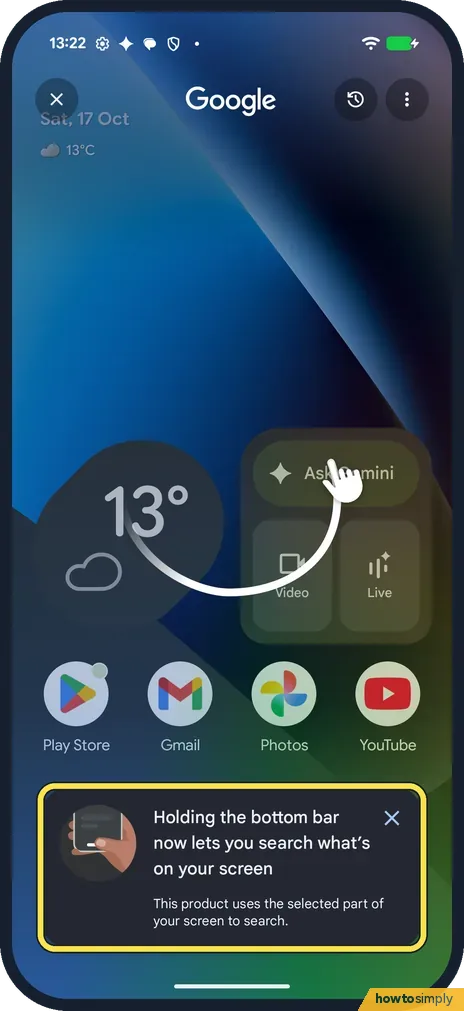
Touch and hold the navigation handle at the bottom of the screen. The switch is in Settings, System, Circle to Search; ours was on. The first time, ours showed a card: Holding the bottom bar now lets you search what's on your screen.
5 of 5 steps show a real screenshot from our Pixel 10a. Each step was checked against the maker's own instructions, linked at the end.
Steps
- 1
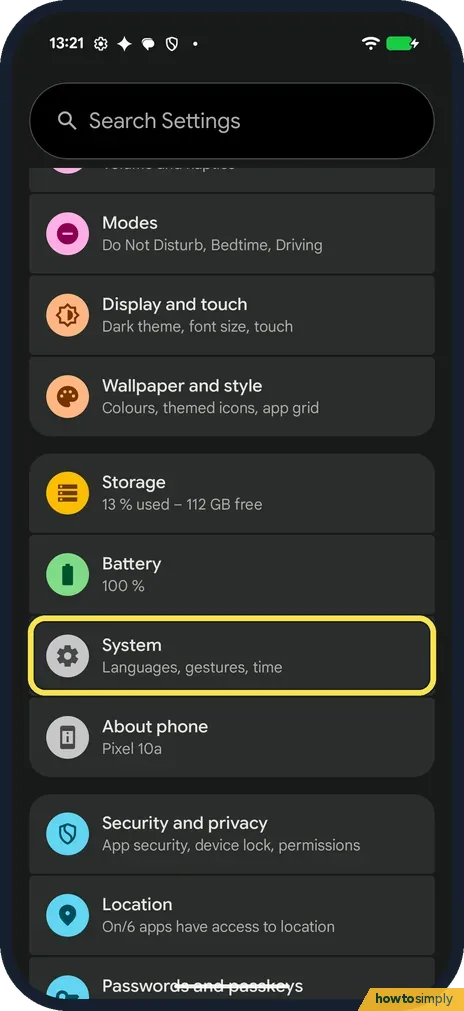
Open System
Open Settings and tap System: Languages, gestures, time.
- 2
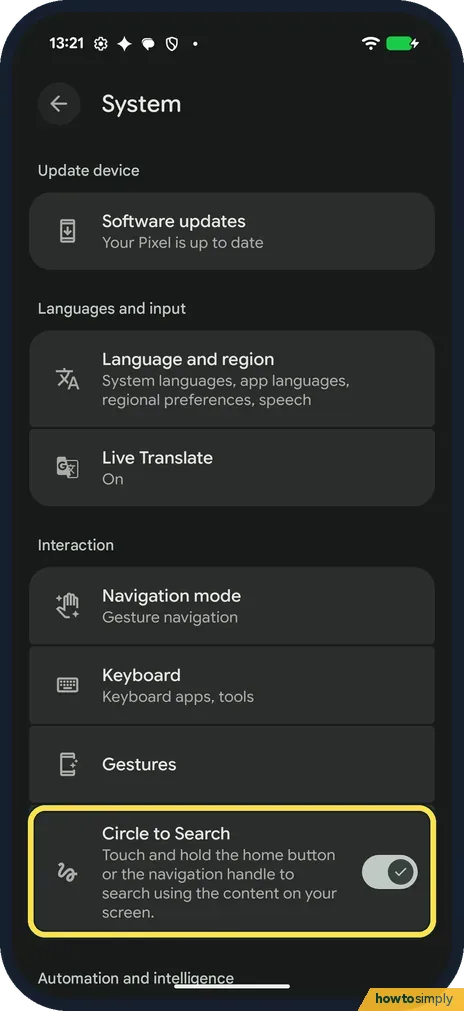
Find Circle to Search
Under Interaction, below Navigation mode, Keyboard and Gestures, is Circle to Search: Touch and hold the home button or the navigation handle to search using the content on your screen. A tick on the switch means it is on.
- 3
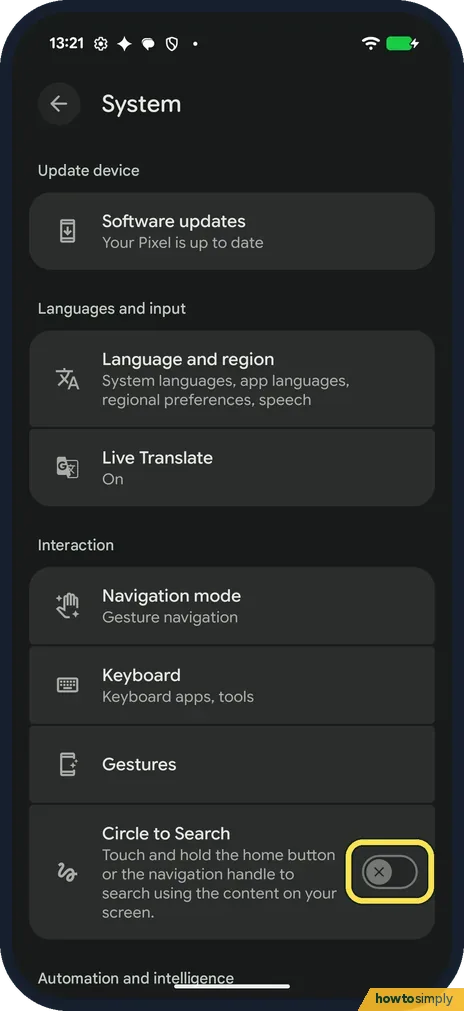
An X means it is off
Tapping anywhere on the row flips the switch. We tapped the row and ours went off at once, with an X on the switch.
- 4
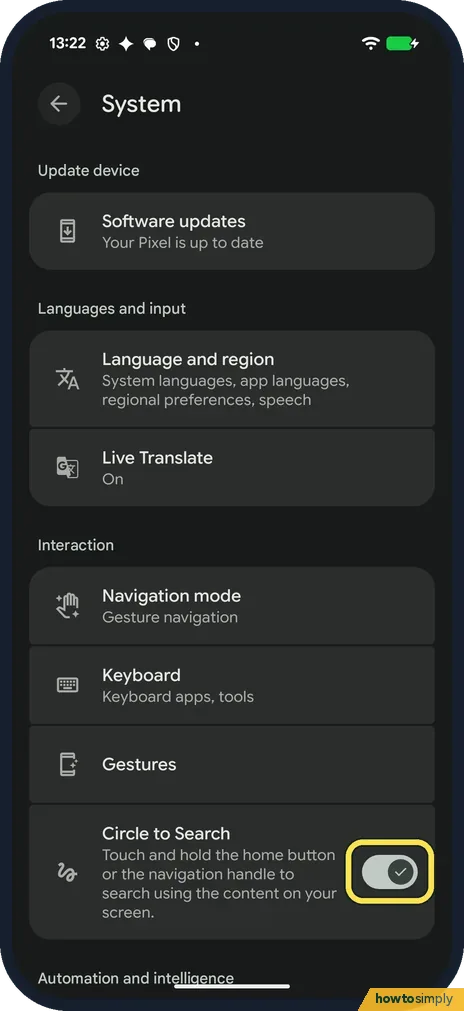
Tap the switch to turn it on
Tap the switch again. The tick comes back and Circle to Search is on. We did this straight away.
- 5
Touch and hold the bottom bar
On any screen, touch and hold the navigation handle at the bottom. Ours opened with a Google bar at the top and a card: Holding the bottom bar now lets you search what's on your screen. This product uses the selected part of your screen to search. We closed it with Back.
If you do not see this option
- No Circle to Search row? On ours it is on the System page itself, below the Gestures row, not inside it. Google says you can also search Settings for Circle to Search. Source: Search your screen with Circle to Search
- Using the three buttons? The row says to touch and hold the home button or the navigation handle. Ours used Gesture navigation, so we only tried the handle.
- Want to translate the screen? Google says to touch and hold the Home button or navigation handle, tap Translate, then choose Scroll and translate. It works on most content, such as web pages and messages, but not on videos or GIFs. Source: Search your screen with Circle to Search
If this does not work
- Holding the bar does nothing? Check the switch has a tick. Google says Google must be your default digital assistant app, with Use screen and app data on, and the Google app up to date. We did not check these.
- Doesn't work in one app? Google says it may not work in some apps, such as banking, medical and other confidential apps.
- How do you close it? Google says to swipe down, use the back gesture or tap X at the top left. We used Back.
- Selection missed part of it? Google says you can drag the borders of a selection, or drag the whole selection, to adjust it. You do not have to start again.
Good to know
Switch to the three buttons, or back to gestures: switch between gestures and 3-button navigation on a Pixel. More Pixel gestures: use Quick Tap and other gestures.
On a Samsung phone you hold the Home button or the handle too: use Circle to Search on a Samsung Galaxy.
Google says results appear in the lower half of the screen, and you can tap that area to expand it. To turn the feature off again, go back to Settings, System and turn off Circle to Search. Google also says your Search history and personalised recommendations are still controlled by Web & App Activity.
About this guide
- Device
- Android
- Shown on
- Google Pixel 10a, Android 17 (build CP3A.261005.005)
- App
- Settings
- Path
- Settings › System › Circle to Search
- Real screenshots
- 5 of 5 steps
- Checked
- October 2026
- Sources
- 1 official, linked below
Sources
Links checked October 2026. Menus and features can change with updates.Spotted a mistake? Menus change with updates, and we want every step to match your screen. Email us about this page or use the contact form. We read every report, and fixes are listed on What changed.
Liked this guide?
Follow us for new guides and short how-to videos.
Did this guide work for you?
Sorry about that. What happened?