
howtosimply.com/guides/how-to-use-circle-to-search-on-an-honor-phone/ · Checked October 2026 · BRP-NX1M, EEA), MagicOS 10.0, Android 16 (build 10.0.0.169(C430E7R2P1) · HONOR Magic7 Lite
In this guide
Touch and hold the navigation bar at the bottom of the screen, then circle what you want to search. If nothing happens, turn it on in Settings, System & updates, System navigation, Circle to Search.
4 of 4 steps with real screenshots · 1 official source below
- Device
- Android
- Shown on
- HONOR Magic7 Lite (BRP-NX1M, EEA), MagicOS 10.0, Android 16 (build 10.0.0.169(C430E7R2P1))
- App
- Settings
- Real screenshots
- 4 of 4 steps
- Checked
- October 2026
- Sources
- 1 official, linked below
Step by step
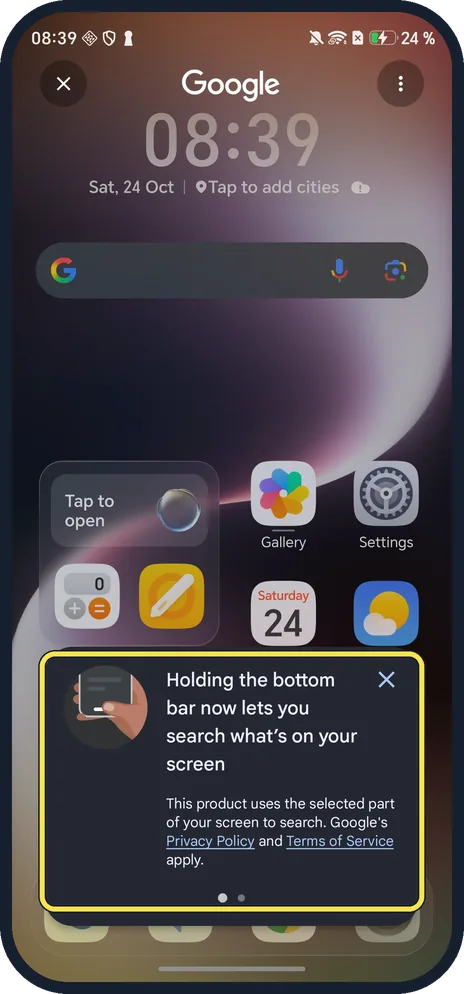
Touch and hold the bottom bar
A Google bar opens over the screen. The first time, a tip explains: holding the bottom bar now lets you search what's on your screen. Close the tip.
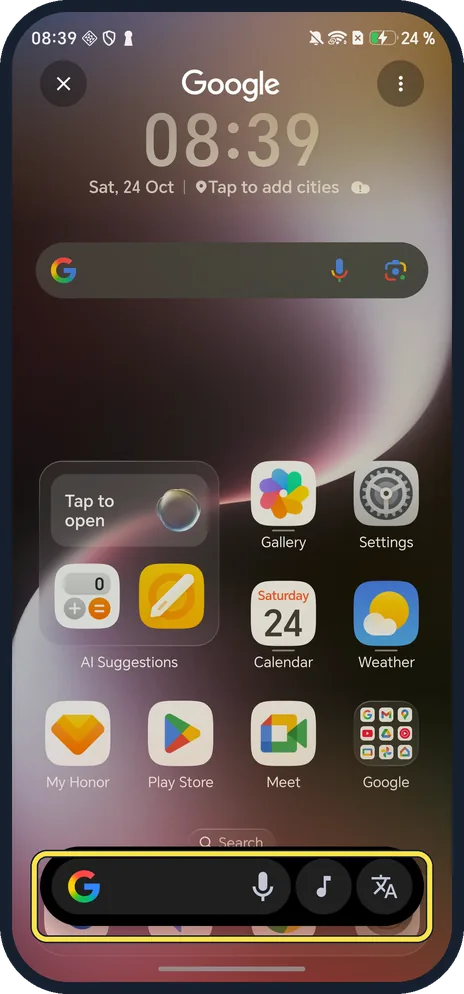
Circle or tap what you want to search
With the tip closed, the Google bar stays at the bottom. Circle, highlight or tap something on screen; we tapped the clock.
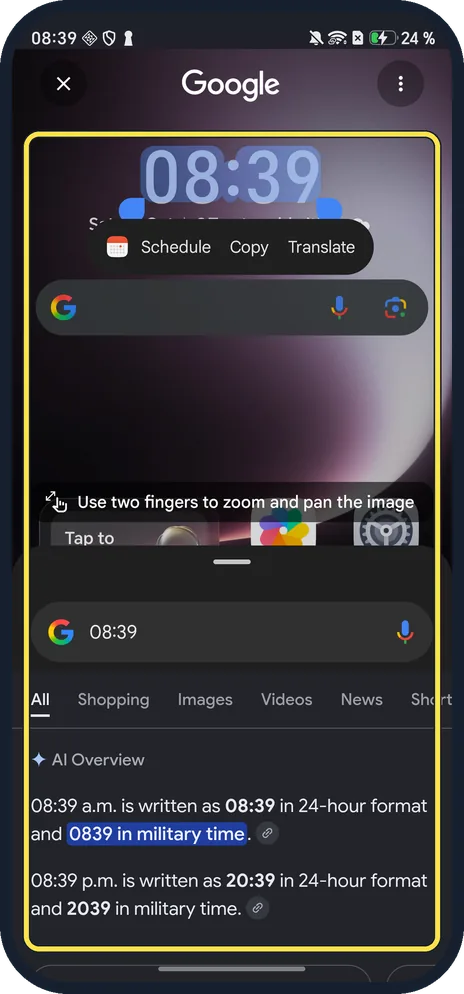
Read the results
Ours highlighted the clock with Schedule, Copy and Translate above it, and a results sheet showed Google results for 08:39 with an AI Overview.
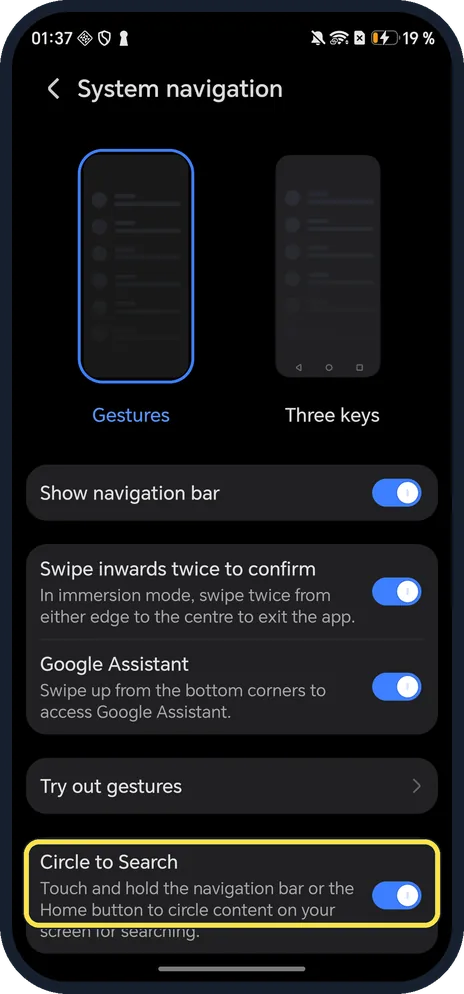
Check the switch if nothing happens
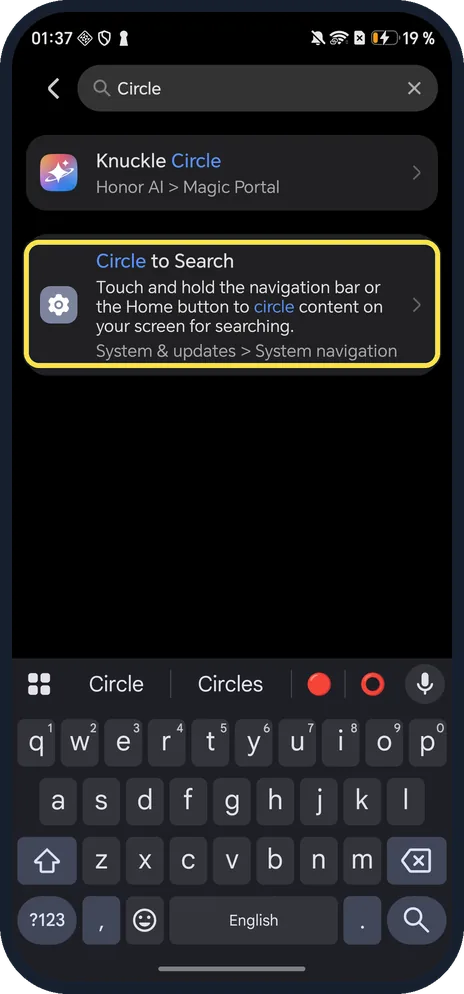
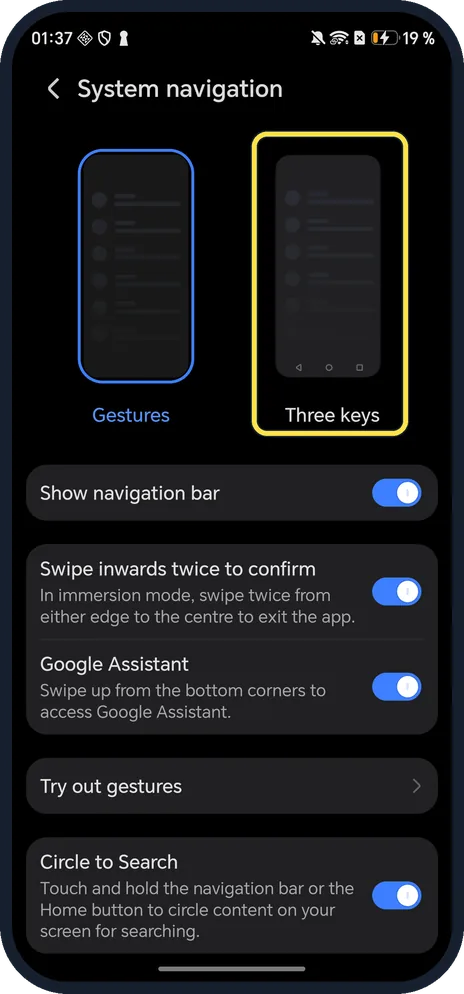
Settings, System & updates, System navigation, Circle to Search (or search Settings for Circle).
If you do not see this option
- Searched for Circle? The result shows the path: System & updates > System navigation.
- Using three keys? With Three keys, touch and hold the Home button instead; Google gives the same two ways in. Source: Search your screen with Circle to Search
If this does not work
- Knuckle Circle shows up too? That is HONOR's own Magic Portal gesture, a different feature.
- Hold opens Google Assistant? Swipe up from a bottom corner opens Assistant; hold the bar in the middle instead.
About this guide
The screenshots are from our HONOR Magic7 Lite, the European model BRP-NX1M, with MagicOS 10.0 and Android 16 (build 10.0.0.169(C430E7R2P1)), in Dark mode. Circle to Search was on; holding the bar opened Google's first-use tip, which we closed.
Good to know
For HONOR's own drag-and-share, use Magic Portal.
To switch to buttons, switch between gestures and three keys.
In short: Touch and hold the bottom bar, then circle.
Links checked in October 2026. Menus and features can change after software updates. These steps match the version named at the top.
Did this guide work for you?
Sorry about that. What happened?