GOOGLE PIXEL
How to turn auto-rotate on or off on a Google Pixel (Android 17)

In short
Swipe down twice and tap the Auto-rotate tile. Or open Settings, Display and touch, Auto-rotate screen, and turn Use auto-rotate on or off. Face detection on the same page uses the front camera to rotate more accurately.
5 of 5 steps show a real screenshot from our Pixel 10a. Each step was checked against the maker's own instructions, linked at the end.
Steps
- 1
Use the Quick Settings tile
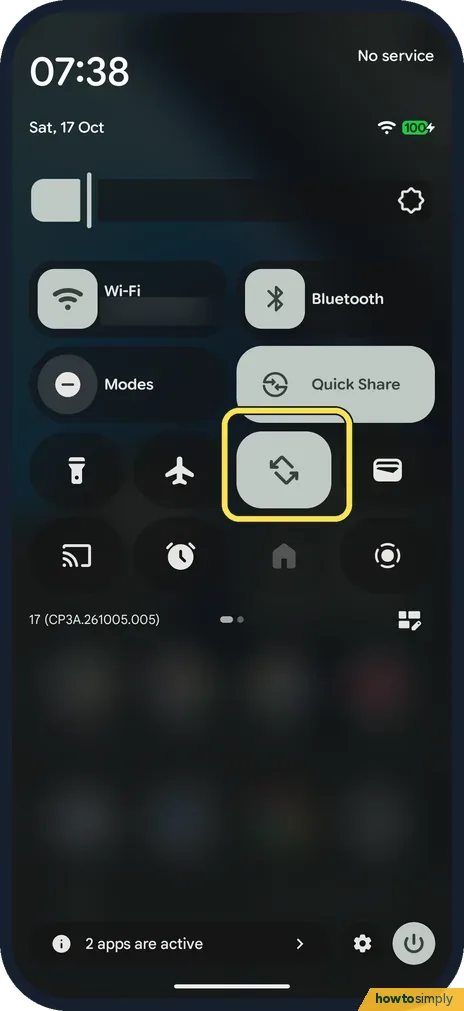
Swipe down twice from the top of the screen. On ours the Auto-rotate tile is the one with two curved arrows, below Quick Share. It was lit because auto-rotate was on. Tap it to switch.
- 2
Or open Display and touch
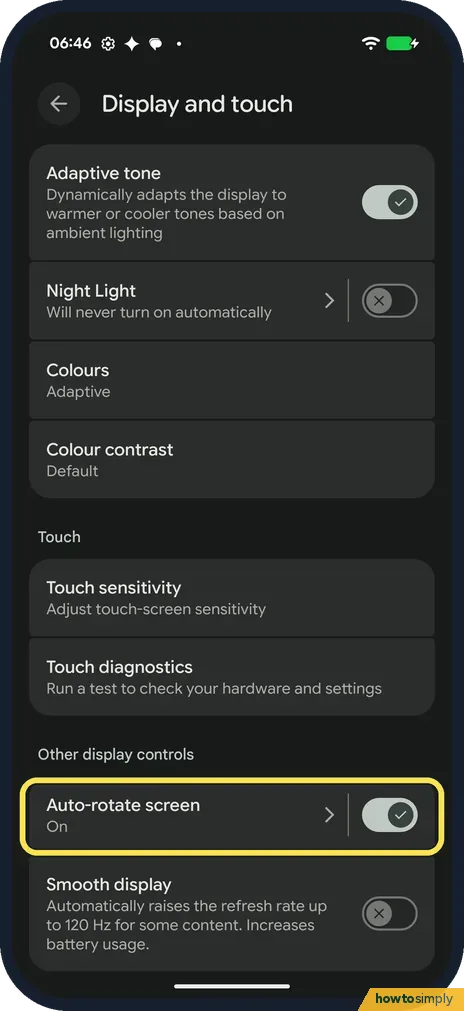
Open Settings and tap Display and touch. Auto-rotate screen is under Other display controls, with a switch on the row. Ours said On.
- 3
Use auto-rotate
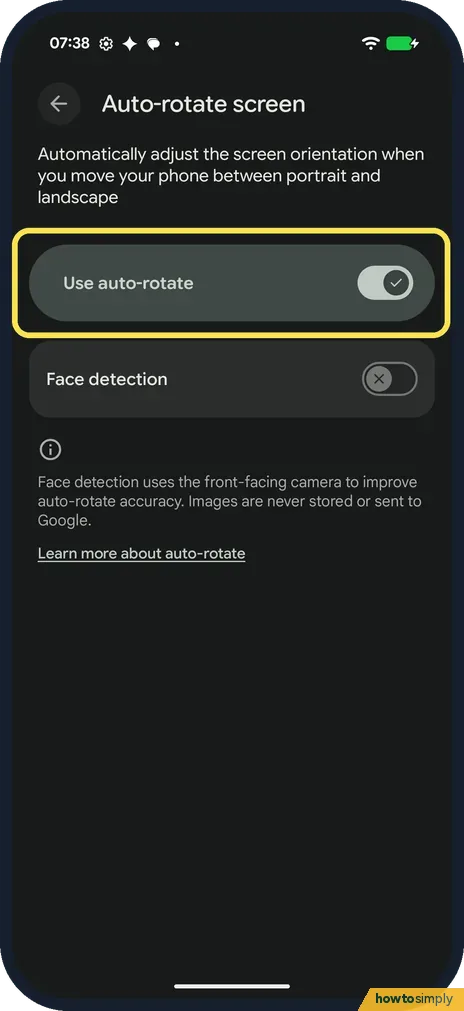
Tap the row. The page says it automatically adjusts the screen orientation when you move your phone between portrait and landscape. Turn Use auto-rotate on or off. Face detection, just below, was off on ours: its note says it uses the front-facing camera to improve auto-rotate accuracy, and images are never stored or sent to Google.
- 4
For the home screen, open Home settings
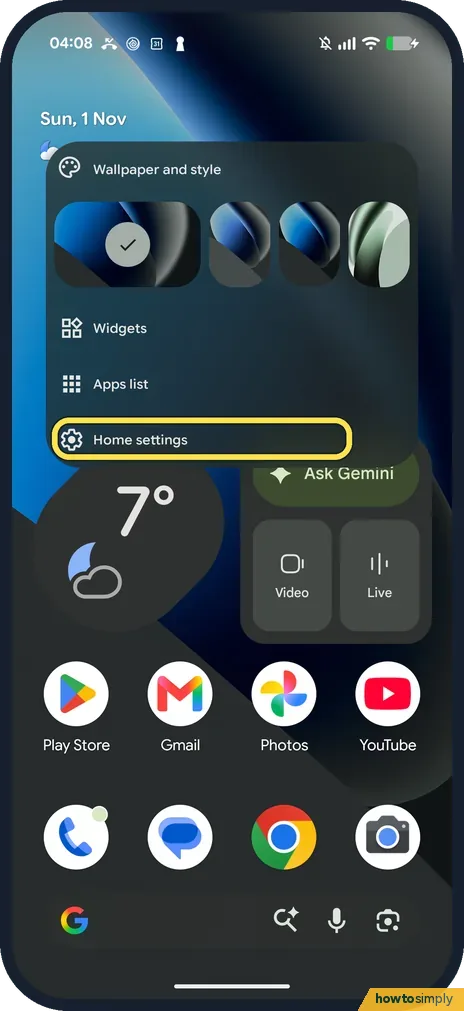
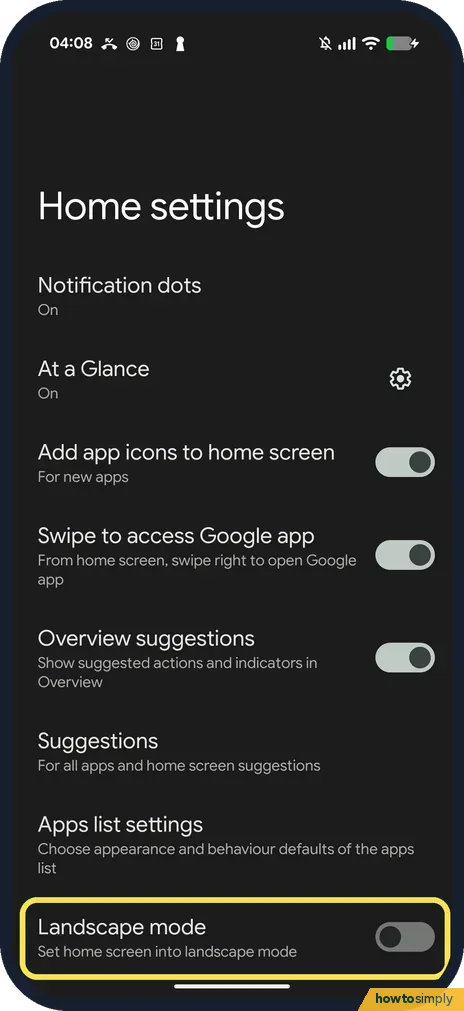
The home screen has its own setting. Touch and hold an empty space on the home screen and tap Home settings, the last item in the menu.
- 5
Landscape mode
Landscape mode, Set home screen into landscape mode, is the last row. It was off on ours on 1 November 2026, and we left it off. Turn it on if you want the home screen to turn sideways too.
If you do not see this option
- No Auto-rotate screen row? Google says that on Display and touch you may need to tap Advanced to see more settings. Ours had no Advanced: Auto-rotate screen was near the bottom, under Other display controls. Source: Manage screen & display settings on a Pixel phone
- Want to rotate only now and then? Google says you can leave auto-rotate off, rotate the phone, then tap the Rotate button that appears in the corner. Source: Manage screen & display settings on a Pixel phone
- Looking for Allow home screen rotation? On our Pixel 10a with Android 17 (build CP3A.261005.005) the row in Home settings is called Landscape mode (step 5).
If this does not work
- Screen won't turn? Check the Auto-rotate tile is on. If it is lit, check Use auto-rotate under Display and touch too.
- Using TalkBack? Google says you must turn off auto-rotate with TalkBack, because rotating the screen can interrupt spoken feedback.
- No Auto-rotate tile? Add it back: how to edit Quick Settings tiles on a Google Pixel.
- Only one app won't rotate? Some apps are made for one orientation only and stay upright whatever the setting. Others, such as many video players, turn to landscape on their own when you go full screen. That is the app's choice, not a fault in auto-rotate.
- Rotates when you lie down to read? Auto-rotate goes by how the phone is held, so lying on your side can turn the screen. Face detection, just below Use auto-rotate, uses the front camera to check how your face is turned, which can help in that case. Or turn auto-rotate off and use the Rotate button when you need it.
Good to know
Two apps side by side works best in landscape: how to use split screen on a Google Pixel.
Turning auto-rotate off locks the screen in portrait in most apps, which stops it flipping while you read in bed or pass the phone to someone. The Auto-rotate tile shows the current state at a glance: lit means on. Face detection is a separate switch, so you can leave it off if you prefer the front camera not to be used; the note on ours says images are never stored or sent to Google. To undo either change, go back to Auto-rotate screen or tap the tile again.
If you rotate to make text bigger, a larger text size may suit you better: how to change text and display size.
About this guide
- Device
- Android
- Shown on
- Google Pixel 10a, Android 17 (build CP3A.261005.005)
- App
- Settings
- Real screenshots
- 5 of 5 steps
- Checked
- October 2026
- Sources
- 2 official, linked below
Sources
Links checked October 2026. Menus and features can change with updates.Spotted a mistake? Menus change with updates, and we want every step to match your screen. Email us about this page or use the contact form. We read every report, and fixes are listed on What changed.
Liked this guide?
Follow us for new guides and short how-to videos.
Did this guide work for you?
Sorry about that. What happened?