ONEPLUS
How to use Circle to Search on a OnePlus (OxygenOS 16)

In short
Touch and hold the gesture bar at the bottom of the screen, then circle or tap what you want to search. The switch is in Settings, System & update, System navigation, Circle to Search (on, on ours).
3 of 3 steps show a real screenshot from our Nord 5. Each step was checked against the maker's own instructions, linked at the end.
Steps
- 1
Check it is on
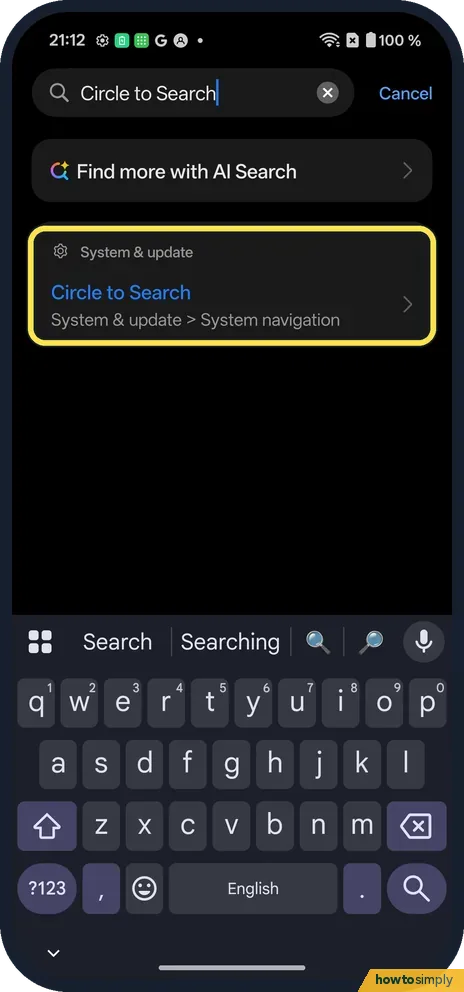
Searching Circle to Search finds it under System & update, System navigation.
- 2
The switch
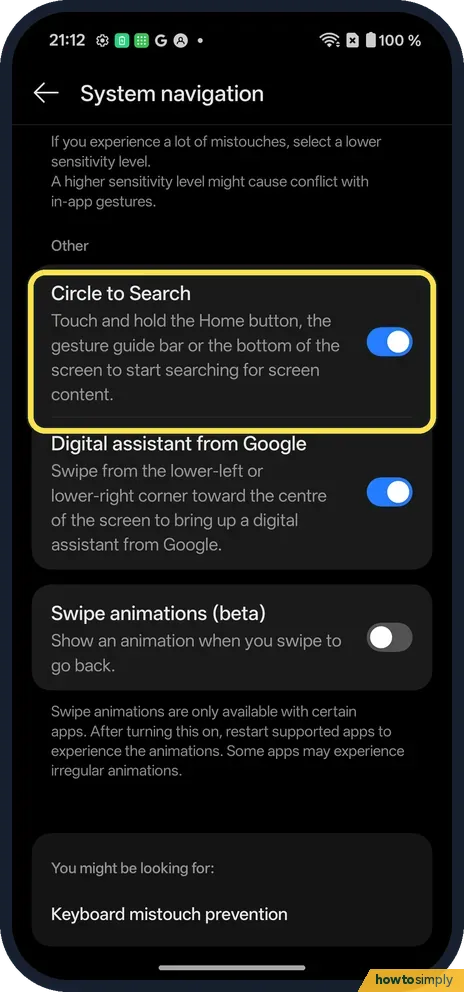
Circle to Search was on. It says touch and hold the Home button, the gesture bar or the bottom of the screen.
- 3
Touch and hold the bar
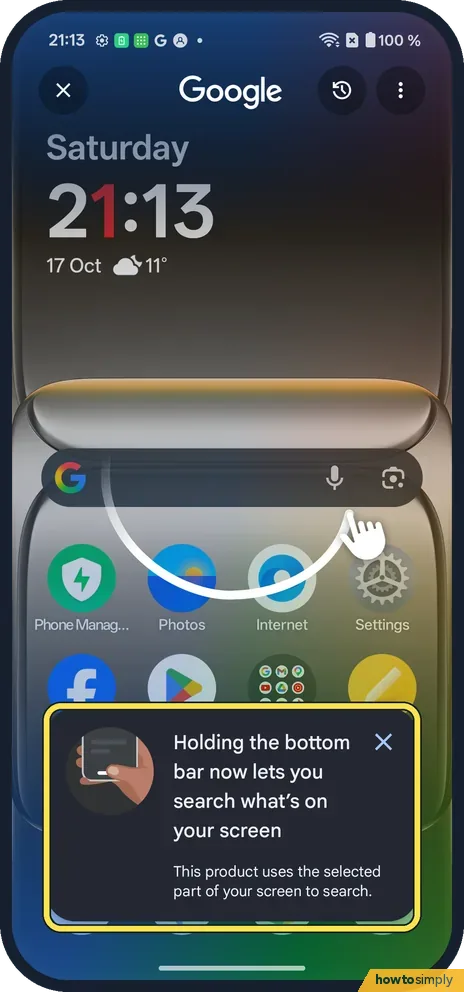
The screen freezes with Google at the top. Our first use showed a welcome card.
If you do not see this option
- Not in the list? It needs the Google app. Source: Search your screen with Circle to Search
- Digital assistant? Below it: swipe from a bottom corner for the Google assistant.
- Translate button missing on a video? Google says Scroll and translate works on web pages, messages and social media, but not on videos or GIFs. Source: Search your screen with Circle to Search
If this does not work
- Opens by accident? Switch Circle to Search off.
- Holding the bar does nothing? Check the switch is on.
- Says screen search isn't available? Google says to go to Settings, Apps, Default apps, Digital assistant app. Make sure Google is the default and Use screen and app data is on.
- Still not working after that? Update the Google app. In Google Play, tap your profile, then Manage apps and device, Manage, and find the Google app. If it shows Update available, tap Update.
- Cannot see what is under the search bar? Google says to use a two-finger pan, or drag the search bar to the top or bottom of the screen, to reach content behind it.
Good to know
Switch between gestures and buttons on a OnePlus.
Results appear in the lower half of the screen, and tapping that area makes it bigger. To leave, swipe down, use the back gesture, or tap X at the top left. The app you were in stays open underneath, so you go straight back to where you were. Besides searching, the Translate button next to the search bar translates the whole screen in one go.
What you circle is sent to Google Search, so it works like any other Google search. Whether it is saved to your history depends on Web & App Activity in your Google Account. If you would rather search by swiping instead of holding the bar, or the gesture bar is missing, see switch between gestures and buttons on a OnePlus.
About this guide
- Device
- Android
- Shown on
- OnePlus Nord 5 (CPH2709), OxygenOS 16.0.5.1201, Android 16
- App
- Settings
- Path
- Settings › System & update › System navigation
- Real screenshots
- 3 of 3 steps
- Checked
- October 2026
- Sources
- 1 official, linked below
Sources
Links checked October 2026. Menus and features can change with updates.Spotted a mistake? Menus change with updates, and we want every step to match your screen. Email us about this page or use the contact form. We read every report, and fixes are listed on What changed.
Liked this guide?
Follow us for new guides and short how-to videos.
Did this guide work for you?
Sorry about that. What happened?