
howtosimply.com/guides/how-to-turn-off-magazine-unlock-on-an-honor-phone/ · Checked October 2026 · BRP-NX1M, EEA), MagicOS 10.0, Android 16 (build 10.0.0.169(C430E7R2P1) · HONOR Magic7 Lite
In this guide
Open Settings, Home screen & style, Magazine Unlock and turn off the Magazine Unlock switch. HONOR says the phone then stops switching lock screen images; your favourites and images added from Gallery are kept.
4 of 4 steps with real screenshots · 2 official sources below
- Device
- Android
- Shown on
- HONOR Magic7 Lite (BRP-NX1M, EEA), MagicOS 10.0, Android 16 (build 10.0.0.169(C430E7R2P1))
- App
- Settings
- Path
- Settings › Home screen & style › Magazine Unlock
- Real screenshots
- 4 of 4 steps
- Checked
- October 2026
- Sources
- 2 official, linked below
Step by step
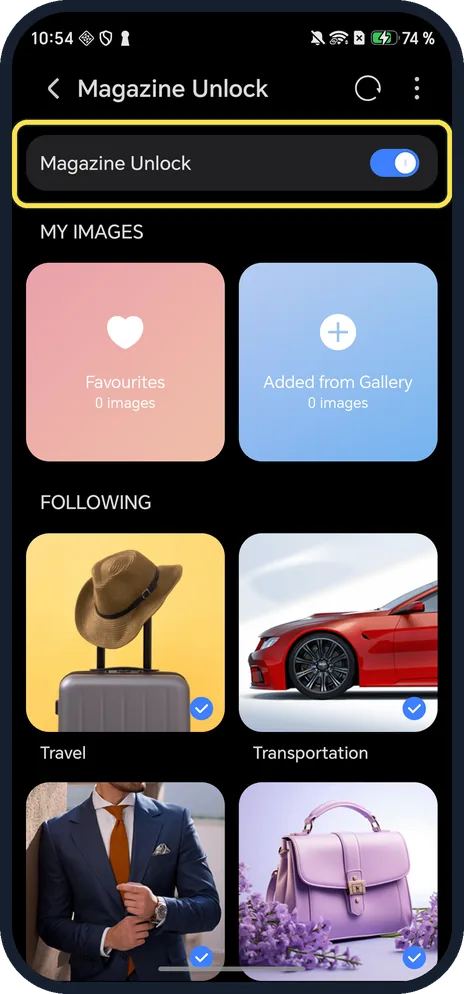
Open Magazine Unlock
Settings, Home screen & style, Magazine Unlock. When it is on, the page lists My Images (Favourites, Added from Gallery) and Following.
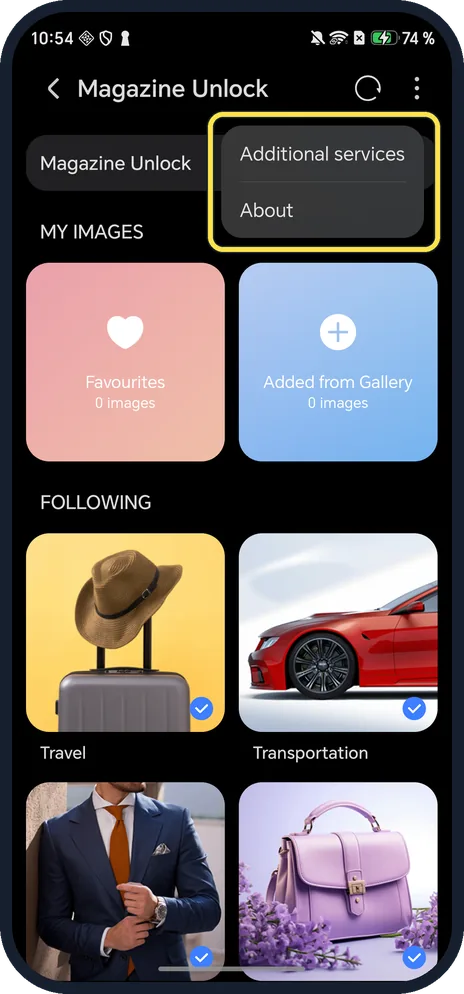
Optional: tap the three dots, Additional services
Do this before you turn it off: the menu at the top right (Additional services and About) only shows while Magazine Unlock is on.
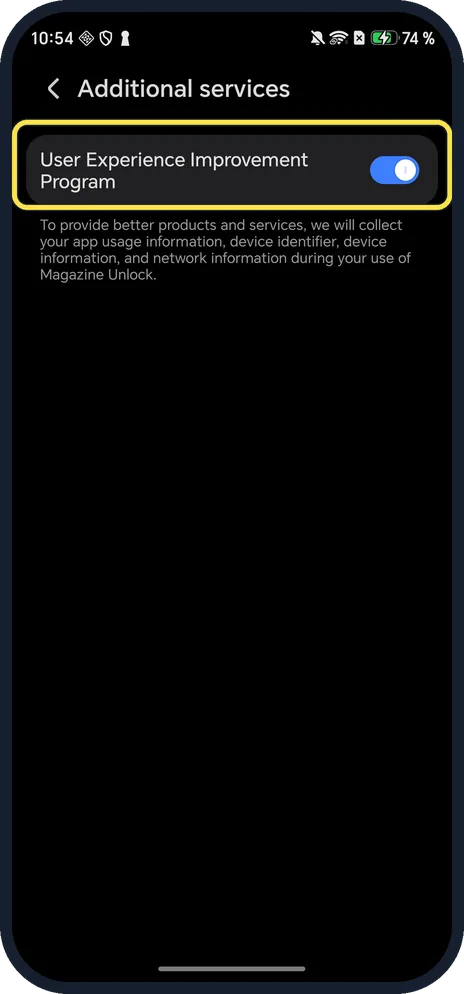
Optional: check User Experience Improvement Program
It collects app usage, device identifier, device and network information while you use Magazine Unlock. Ours was on; we left it as found.
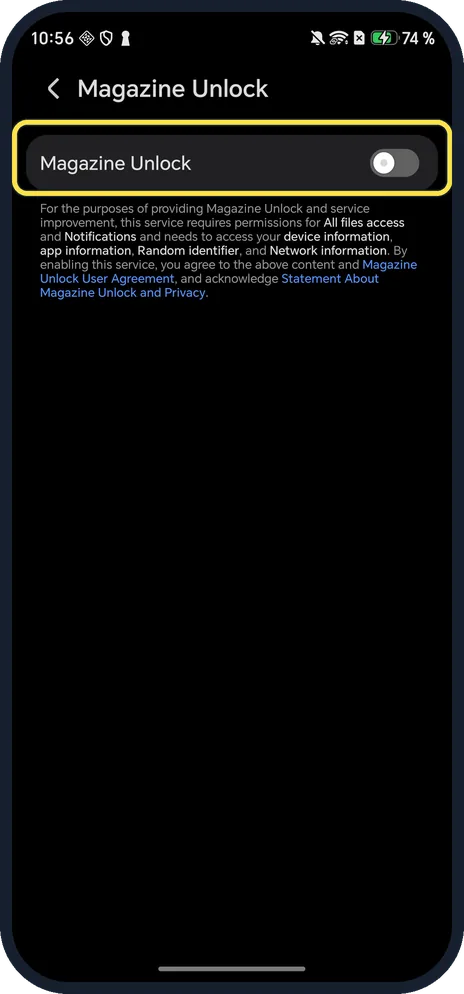
Turn off the Magazine Unlock switch
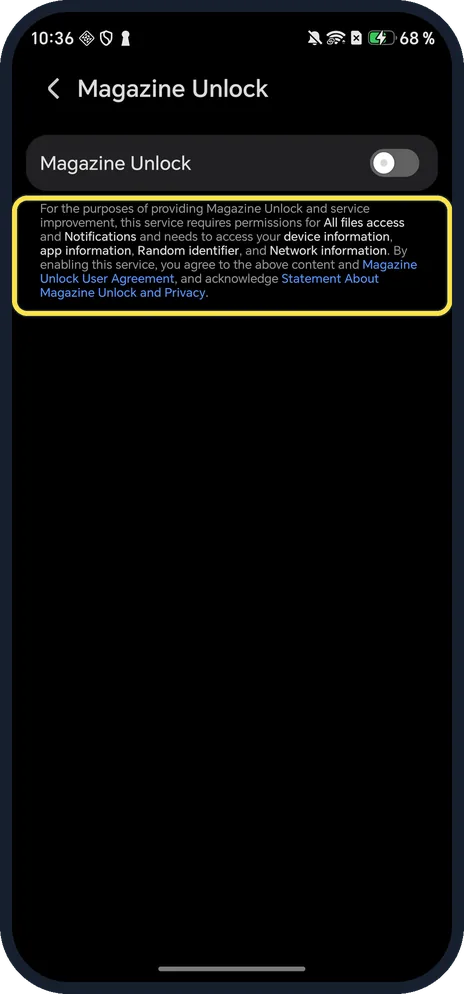
Go back and tap the switch. Ours turned off with one tap and no confirm. The page then shows only the switch and the permissions notice, with no three-dot menu.
If you do not see this option
- Want to keep it but stop the changes? HONOR says: swipe up from the bottom of the lock screen to open the management screen, tap the menu at the top and tap Pin; the image will not change each time you turn on the screen. Source: Use Magazine Unlock
- What does it need permission for? The notice under the switch lists All files access, Notifications, device information, app information, Random identifier and Network information. Turning it on means you agree to the Magazine Unlock User Agreement.
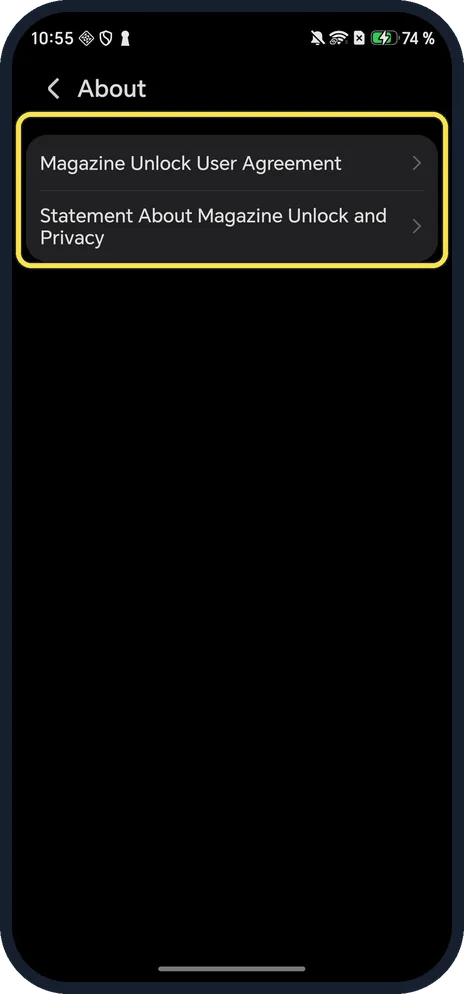
- Where are the agreements? Three dots, About: Magazine Unlock User Agreement and Statement About Magazine Unlock and Privacy.
- Older HONOR phone (EMUI 8)? An HONOR Club tutorial gives Settings, Security & privacy, Screen lock & passwords, Magazine unlock on EMUI 8. Source: What to do if the Magazine unlock covers aren't updating
- Stop new downloads only? HONOR says deselect all types on the Magazine Unlock page; the phone then only shows images it already downloaded. Source: Use Magazine Unlock
If this does not work
- Saved images still in Gallery? HONOR says favourites and local images are not cleared when you turn it off. Delete them in Gallery, Albums, Others, Magazine Unlock. Source: Use Magazine Unlock
- No new pictures with it on? HONOR says images download automatically when the phone is on Wi-Fi. Source: Use Magazine Unlock
About this guide
Magazine Unlock shows a different picture on the lock screen each time the screen turns on, and downloads new ones over Wi-Fi.
The screenshots are from our HONOR Magic7 Lite, the European model BRP-NX1M, with MagicOS 10.0 and Android 16 (build 10.0.0.169(C430E7R2P1)), in Dark mode. Ours was off. We turned it on to shoot the page, then off again.
Good to know
For other ad and recommendation switches, see turn off personalised ads and recommendations.
In short: Settings, Home screen & style, Magazine Unlock, switch off.
- HONOR Support: Use Magazine Unlock
- HONOR Club: What to do if the Magazine unlock covers aren't updating
Links checked in October 2026. Menus and features can change after software updates. These steps match the version named at the top.
Did this guide work for you?
Sorry about that. What happened?