
howtosimply.com/guides/how-to-use-circle-to-search-on-a-samsung-galaxy/ · Checked October 2026 · Samsung Galaxy A57 5G (SM-A576B), One UI 8.5, Android 16
In this guide
On any screen, touch and hold the Home button (or the handle at the bottom if you use swipe gestures). Then circle, tap or scribble on what you want to search. Google's results open in a sheet at the bottom without leaving the app.
4 of 4 steps with real screenshots · 2 official sources below
- Device
- Android
- Shown on
- Samsung Galaxy A57 5G (SM-A576B), One UI 8.5, Android 16
- Real screenshots
- 4 of 4 steps
- What we did
- Observed: looked at each screen, changed nothing
- Our phone
- Shown on Galaxy A57, One UI 8.5
- Checked
- October 2026
- Sources
- 2 official, linked below
Step by step
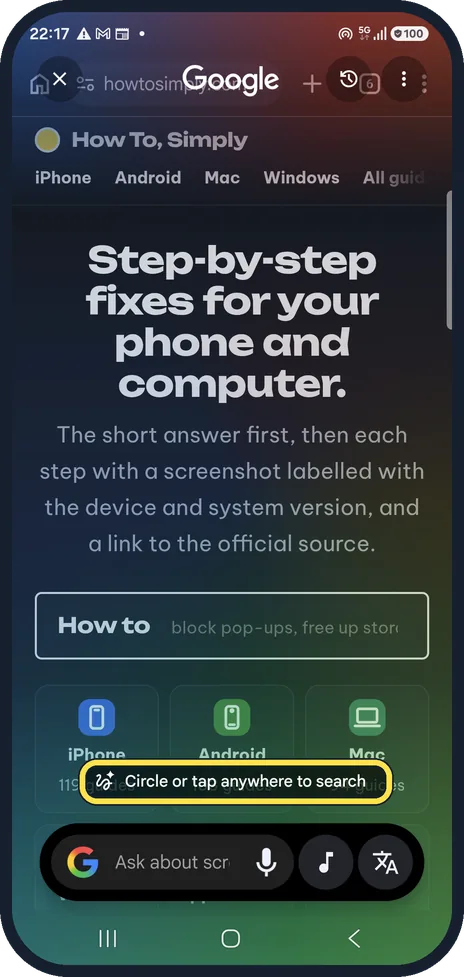
Touch and hold Home
Open the app with the thing you want to search, then touch and hold the Home button. The screen dims and shows Circle or tap anywhere to search.
Watch these steps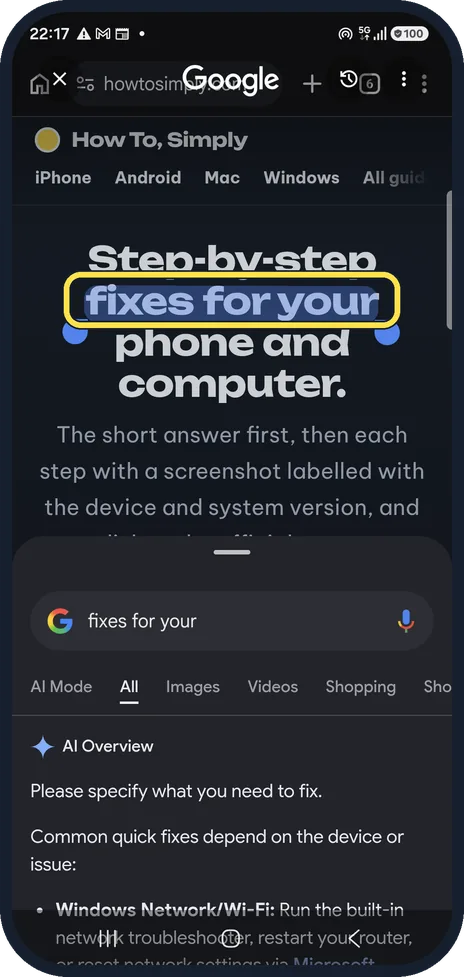
Circle what you want
Draw a circle around it, or tap a word. We tapped words in a heading on our own site; they turn blue.
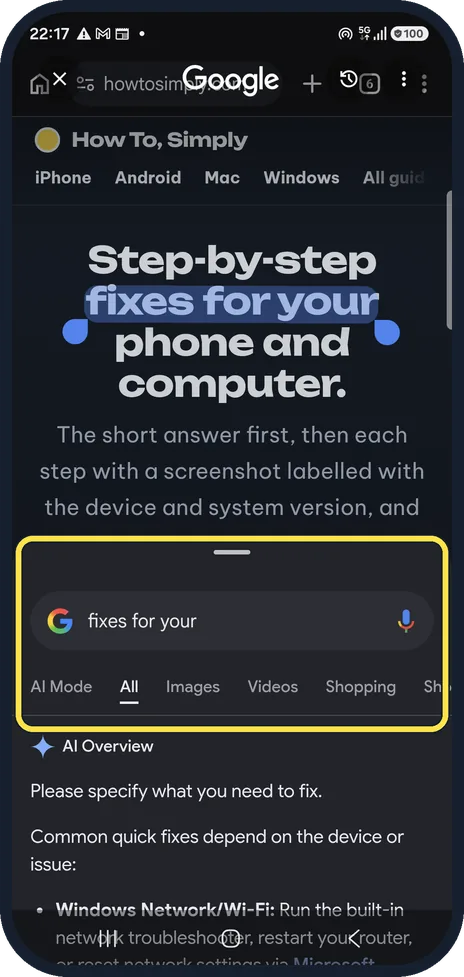
Read the results
Results open in a sheet at the bottom. Swipe it up for more, or switch to Images, Videos or AI Mode.
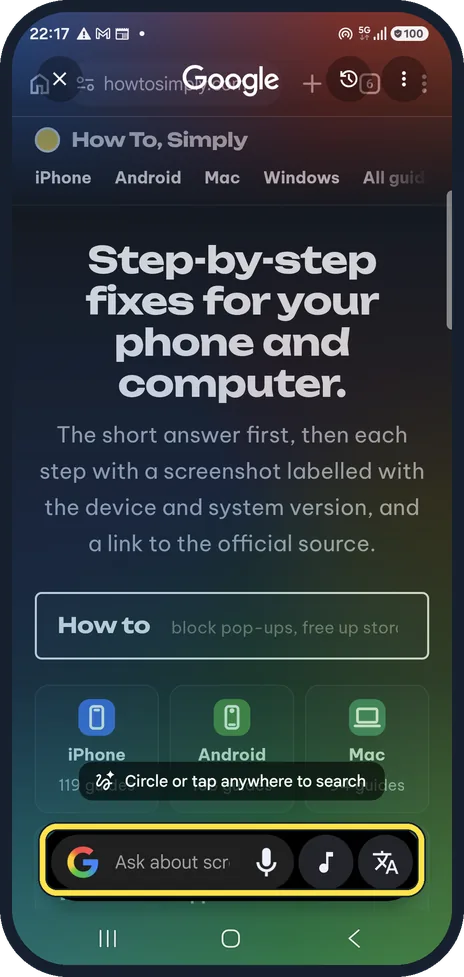
Ask, listen or translate
The bar at the bottom also lets you type a question about the screen, search by voice, identify a song or translate the whole screen.
Watch these steps
If you do not see this option
- Holding Home does nothing Samsung says Circle to Search is only on select phones and tablets with Android 14 and One UI 6.1 or later, so an older phone may not have it. Update the phone first. Source: How to use Circle to Search on your Galaxy phone or tablet
- Circle to Search is switched off Samsung says it is on by default; check Settings, Display, Navigation bar, where Circle to Search is at the bottom. Source: How to use Circle to Search on your Galaxy phone or tablet
If this does not work
- Nothing is found in one app Samsung says Circle to Search does not work in apps that block screen capture for security or copyright reasons. Source: How to use Circle to Search on your Galaxy phone or tablet
- Results are poor or missing Samsung says it needs an internet connection, and results depend on how clear and well framed the circled item is. Circle a tighter area. Source: How to use Circle to Search on your Galaxy phone or tablet
About this guide
Circle to Search searches whatever is on the screen: a word, a product in a photo, a place. It is Google's feature and needs an internet connection.
Good to know
If holding Home does nothing, check Settings, Display, Navigation bar, where Circle to Search can be switched on or off. It needs an internet connection and does not work in apps that block screenshots, such as some banking apps.
In short: Touch and hold Home, circle or tap, read the results sheet.
- Samsung Latin: How to use the Circle to Search feature on Galaxy devices
- Samsung US: How to use Circle to Search on your Galaxy phone or tablet
Links checked in October 2026. Menus and features can change after software updates. These steps match the version named at the top.
📷 See real photos from the Galaxy A57 in our Camera Lab, next to 10 other phones.
Did this guide work for you?
Sorry about that. What happened?