
howtosimply.com/guides/how-to-use-magic-portal-on-an-honor-phone/ · Checked October 2026 · BRP-NX1M, EEA), MagicOS 10.0, Android 16 (build 10.0.0.169(C430E7R2P1) · HONOR Magic7 Lite
In this guide
Open Settings, Honor AI, Magic Portal and turn on the Magic Portal switch. Then circle something on screen with one knuckle (Knuckle Circle), or touch and hold it and drag it to the screen edge, and pick a suggested service such as Share or Save to Gallery.
4 of 4 steps with real screenshots · 1 official source below
- Device
- Android
- Shown on
- HONOR Magic7 Lite (BRP-NX1M, EEA), MagicOS 10.0, Android 16 (build 10.0.0.169(C430E7R2P1))
- App
- Settings
- Path
- Settings › Honor AI
- Real screenshots
- 4 of 4 steps
- Checked
- October 2026
- Sources
- 1 official, linked below
Step by step
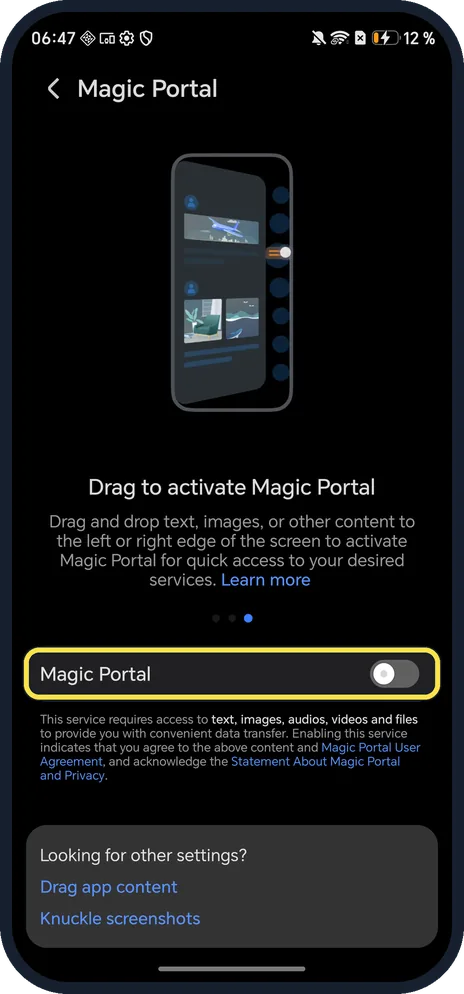
Open Magic Portal
Open Settings, Honor AI, Magic Portal. Ours was off, under a "Drag to activate Magic Portal" picture.
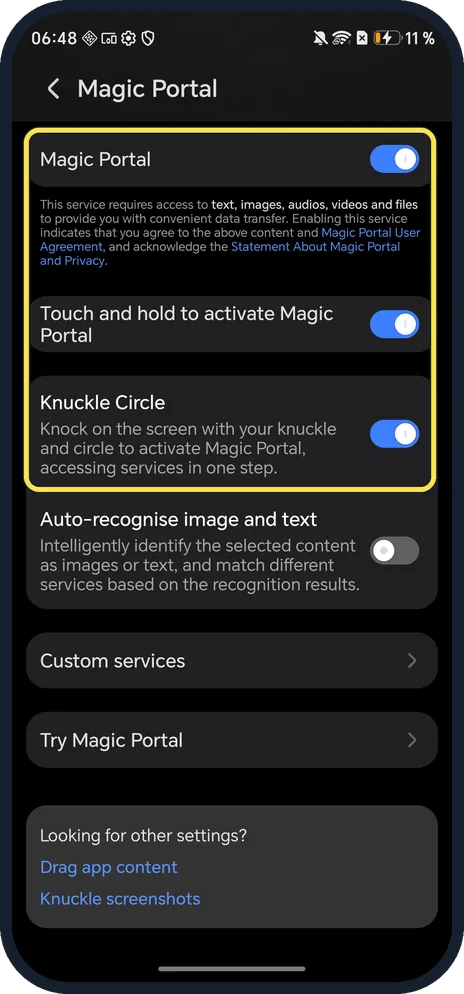
Turn on Magic Portal and check Knuckle Circle
The note under the switch says the service needs access to text, images, audio, video and files, and that turning it on means you agree to the Magic Portal User Agreement. Knuckle Circle (knock and circle with your knuckle) and Touch and hold to activate Magic Portal were on in ours.
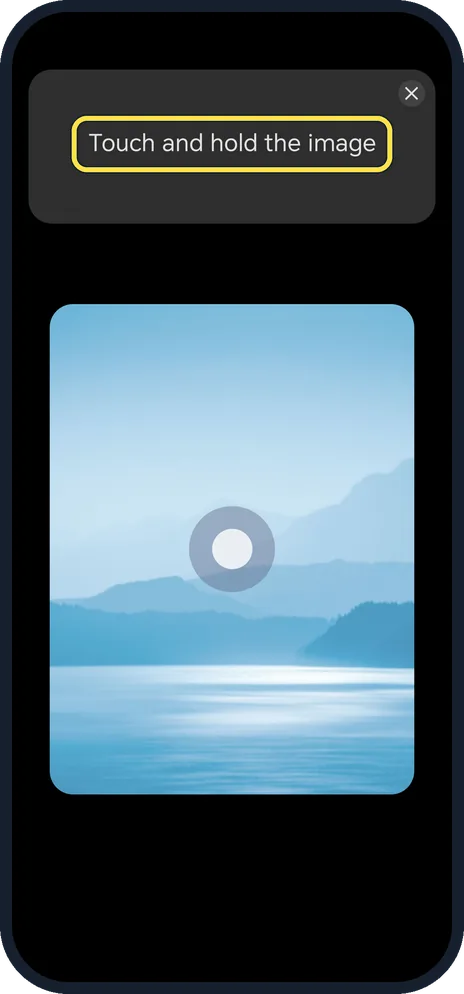
Try the demo
Tap Try Magic Portal. It says Touch and hold the image; hold it until a ring appears.
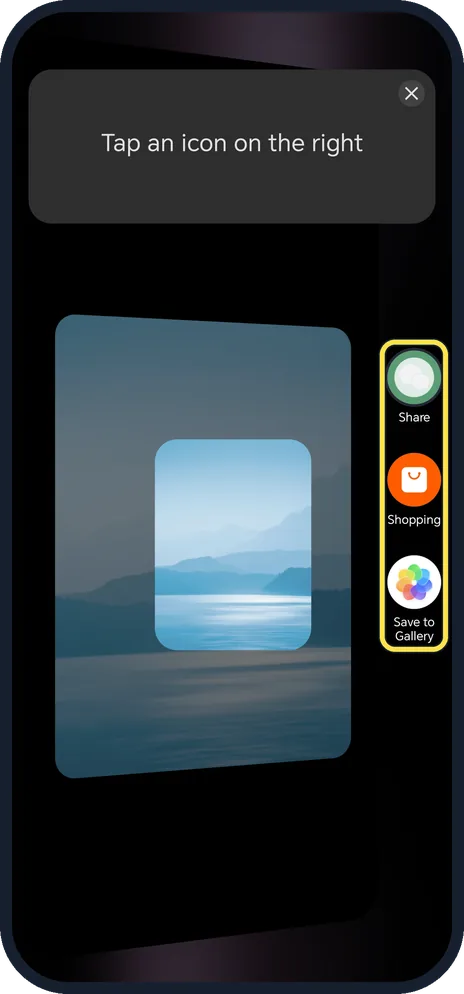
Tap a service
Tap an icon on the right: ours offered Share, Shopping and Save to Gallery.
If you do not see this option
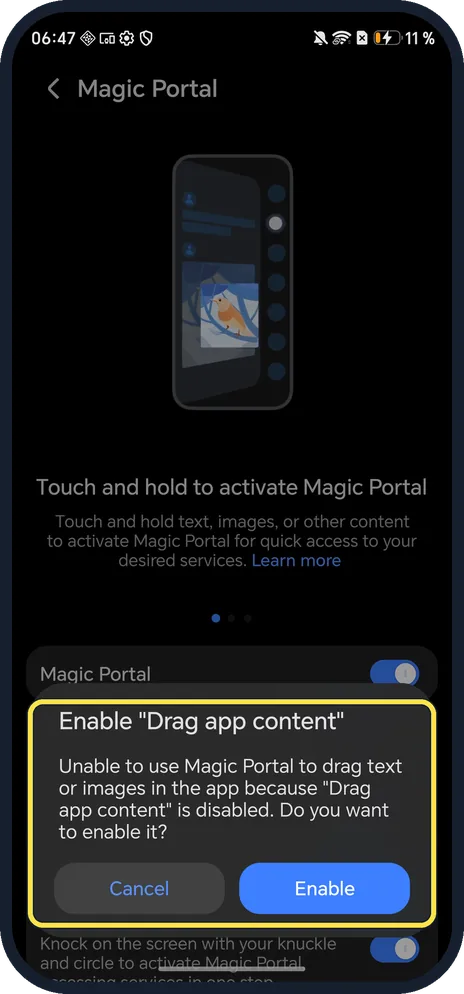
- Asked to enable "Drag app content"? Ours asked when we turned Magic Portal on: without it, Magic Portal can't drag text or images. Tap Enable if you want dragging; we tapped Cancel.
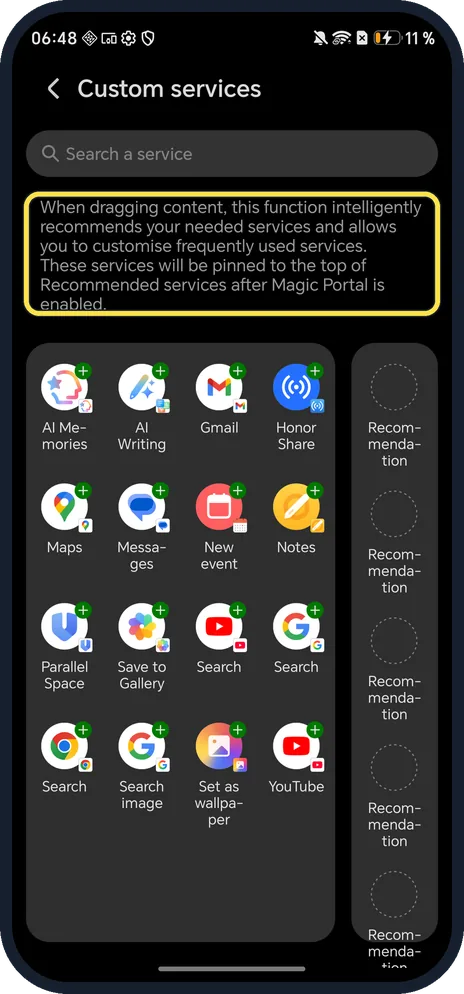
- Want your own services first? Custom services listed AI Memories, Gmail, Honor Share, Maps, Notes, Save to Gallery and YouTube on ours. HONOR says services you add are pinned to the top of Recommended services (MagicOS 9.0 and above). Source: Magic Portal
- Other ways to open it? HONOR says to tap and circle content with one knuckle on any screen, or touch and hold text, an image or a file and drag it to the left or right edge, then release on the service you want. Source: Magic Portal
- Screen won't let you select anything? HONOR says to take a screenshot, then touch and hold the thumbnail and drag it to the edge. Source: Magic Portal
If this does not work
- No services suggested after circling? HONOR says to turn on Auto-recognise image and text (it was off on ours), or tap Extract text on the circle screen. Source: Magic Portal
- Knuckle circle only takes a screenshot? HONOR says that with Knuckle Circle off, knuckle gestures only take partial screenshots. Turn it on under Magic Portal. Source: Magic Portal
- Holding doesn't start a drag? HONOR says the hold time varies by app, so hold for about 1 to 3 seconds or use the knuckle circle. Some apps block dragging and screenshots altogether. Source: Magic Portal
About this guide
Magic Portal suggests apps for whatever you select on screen: circle it with a knuckle, or hold it and drag it to the edge.
The screenshots are from our HONOR Magic7 Lite, the European model BRP-NX1M, with MagicOS 10.0 and Android 16 (build 10.0.0.169(C430E7R2P1)), in Dark mode. Magic Portal was off. We turned it on for the screenshots, declined the AI Suggestions and "Drag app content" prompts, and turned it off again.
Good to know
For knuckle screenshots, see take a screenshot on an HONOR phone.
To run two copies of an app, see App Twin.
In short: Settings, Honor AI, Magic Portal on; circle with a knuckle or drag to the edge, then pick a service.
Links checked in October 2026. Menus and features can change after software updates. These steps match the version named at the top.
Did this guide work for you?
Sorry about that. What happened?