
howtosimply.com/guides/how-to-turn-auto-rotate-on-or-off-on-a-nothing-phone/ · Checked October 2026 · 4a) Pro (A069P, EEA), Nothing OS 4.1, Android 16 (build FroggerPro-B4.1-260907-1153-EEA · Nothing Phone
In this guide
Swipe down twice and tap the Auto-rotate tile, or open Settings, Display and switch Auto-rotate screen. With it off, the screen stays upright.
3 of 3 steps with real screenshots · 1 official source below
- Device
- Android
- Shown on
- Nothing Phone (4a) Pro (A069P, EEA), Nothing OS 4.1, Android 16 (build FroggerPro-B4.1-260907-1153-EEA)
- App
- Settings
- Path
- Settings › Display › Auto-rotate screen
- Real screenshots
- 3 of 3 steps
- Checked
- October 2026
- Sources
- 1 official, linked below
Step by step
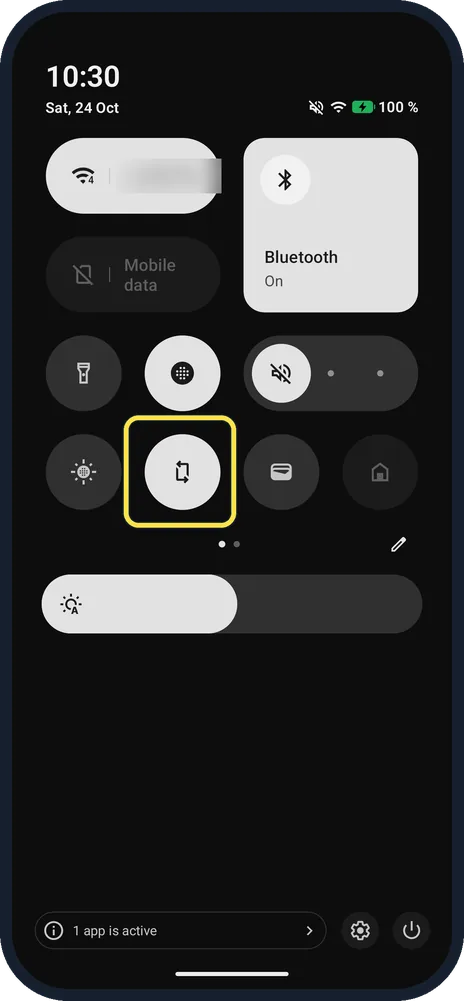
Open Quick Settings
Swipe down from the top twice. The Auto-rotate tile (phone with arrows) was lit on ours.
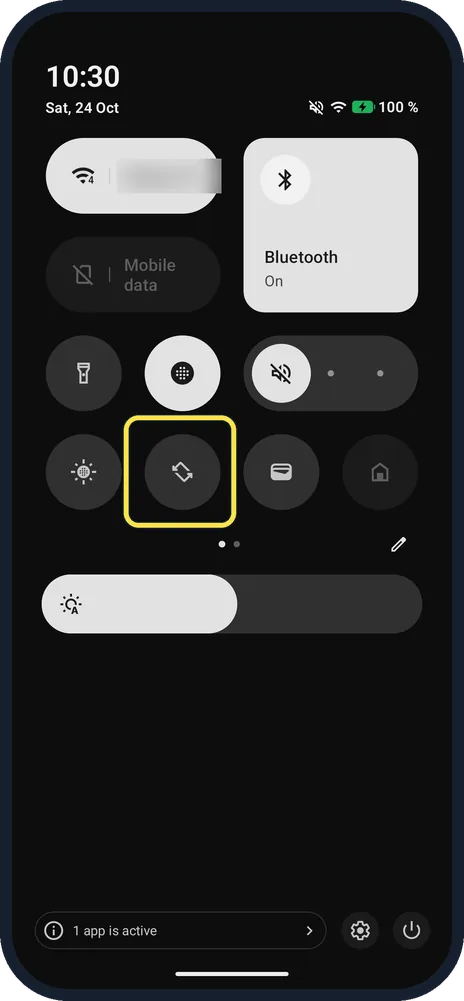
Tap Auto-rotate
The tile goes dark when it is off.
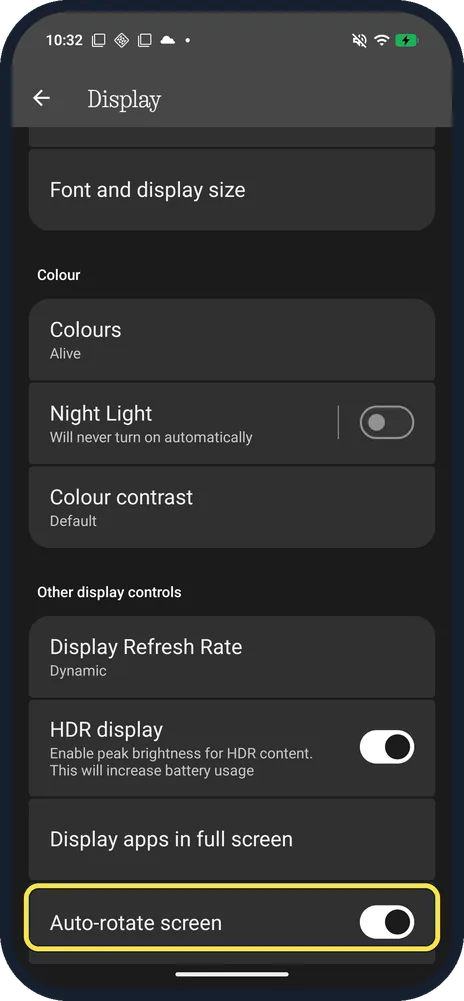
Or switch it in Display
Open Settings, Display and scroll to Auto-rotate screen.
If you do not see this option
- Is it the same setting? Yes: after we tapped the tile off, the Display switch showed off too.
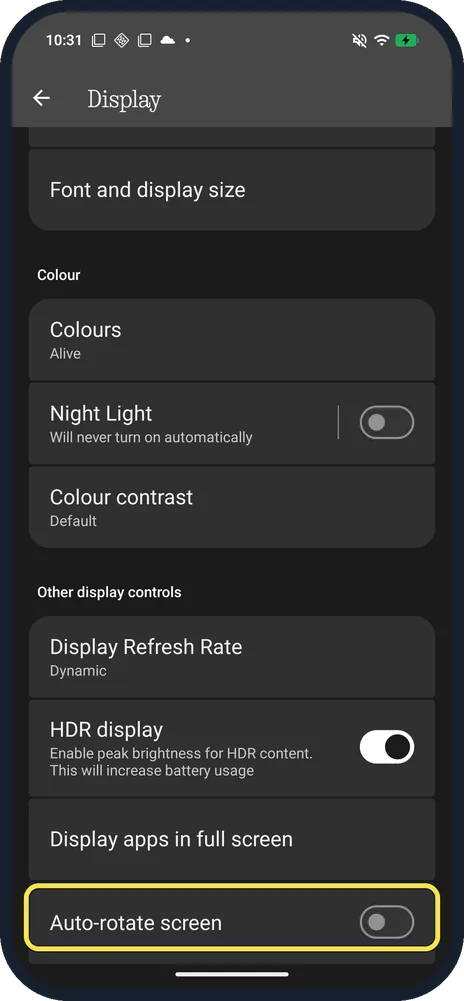
- Not under Display? Google gives Settings, Display and touch, Auto-rotate screen; Nothing OS 4.1 calls it Display. Source: How to make your screen rotate all by itself
- Tile missing? Tap the pencil under the tiles to add it; see edit Quick Settings.
If this does not work
- Videos stay upright? Turn Auto-rotate on, then turn the phone sideways. Source: How to make your screen rotate all by itself
- Screen turns in bed? Turn Auto-rotate off; the screen then stays in portrait. Source: How to make your screen rotate all by itself
About this guide
The screenshots are from our Nothing Phone (4a) Pro, the European model A069P, with Nothing OS 4.1 and Android 16 (build FroggerPro-B4.1-260907-1153-EEA), in Dark theme. Auto-rotate was on; we turned it off and back on.
Good to know
To change the tiles, see edit Quick Settings.
In short: Quick Settings, Auto-rotate tile; or Settings, Display, Auto-rotate screen.
Links checked in October 2026. Menus and features can change after software updates. These steps match the version named at the top.
Did this guide work for you?
Sorry about that. What happened?