ONEPLUS
How to change keyboard and autocorrect settings on a OnePlus (OxygenOS 16)

In short
Go to Settings, System & update, Input method, Manage keyboards and tap Gboard. Corrections and suggestions has Auto-correction, Auto-capitalisation and spell check. Preferences has the number row and emoji key.
5 of 5 steps show a real screenshot from our Nord 5. Each step was checked against the maker's own instructions, linked at the end.
Steps
- 1
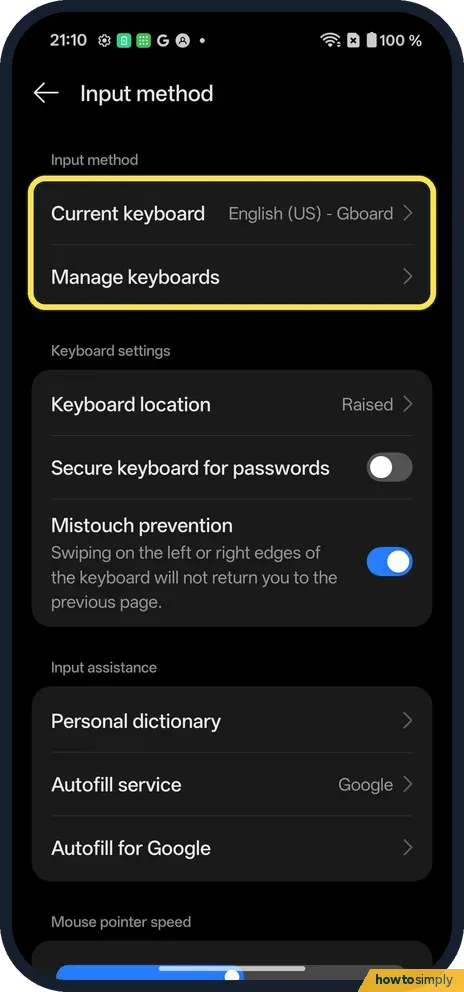
Open Input method
Open Settings, System & update, Input method. Current keyboard: Gboard on ours.
- 2
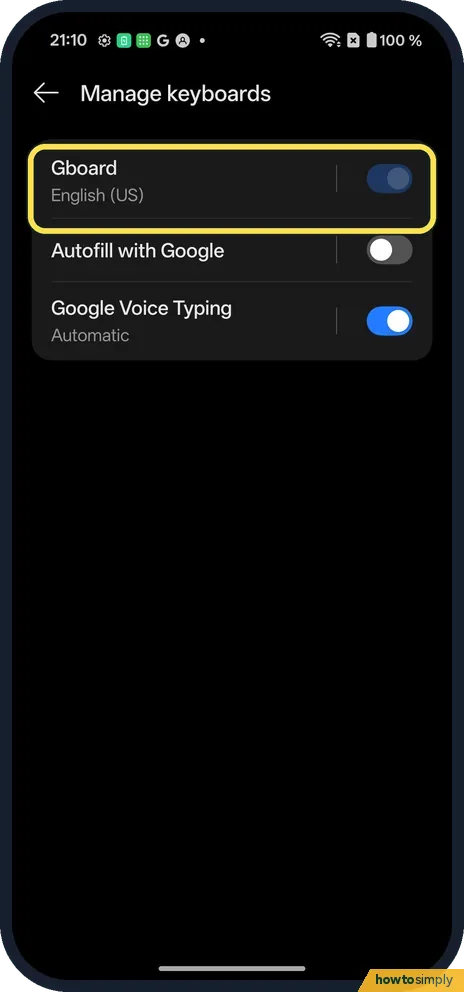
Open Gboard
Tap Manage keyboards, then Gboard.
- 3
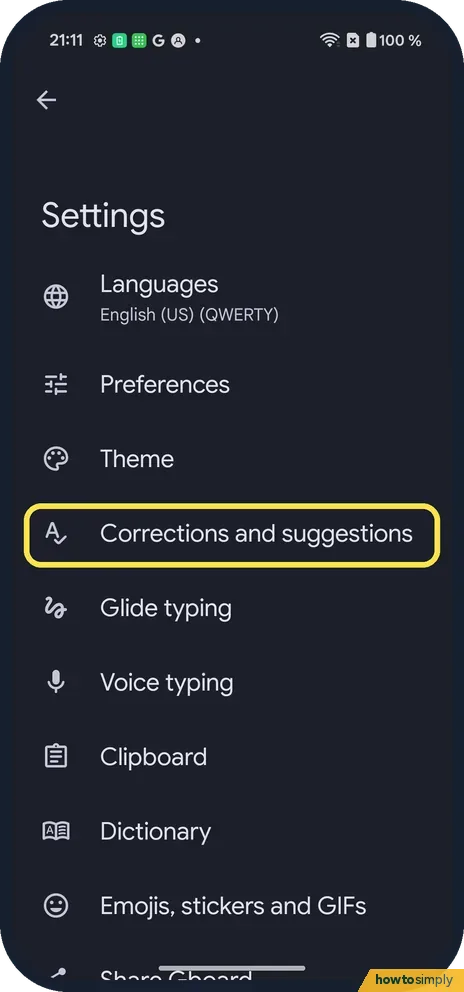
Pick a section
Tap Corrections and suggestions. Preferences, Theme and Glide typing are here too.
- 4
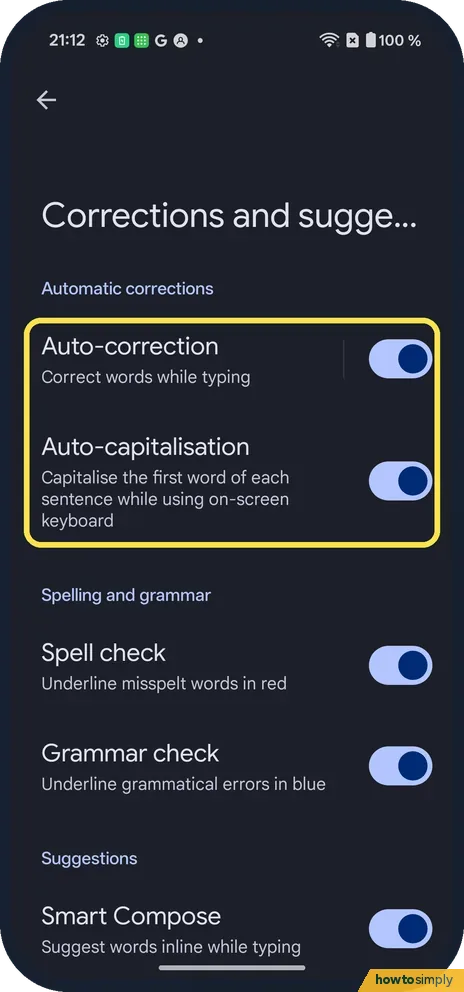
Switch off Auto-correction
Auto-correction and Auto-capitalisation were on on ours.
- 5
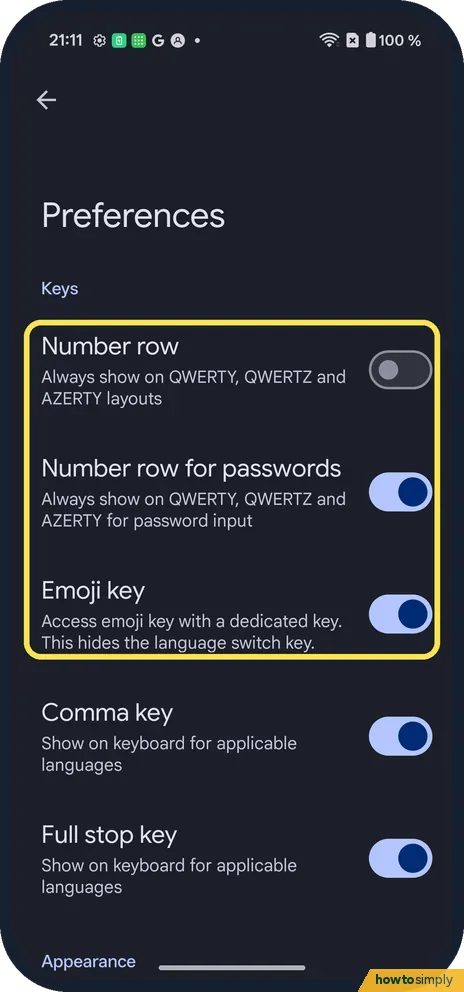
Number row and emoji key
Back on Gboard settings, Preferences: Number row was off, Number row for passwords and Emoji key were on.
If you do not see this option
- Gboard not listed? Another keyboard may be the current one: check Current keyboard on Input method. Source: Fix problems with Gboard
- Older OxygenOS? OnePlus's OxygenOS 14 manual uses Additional settings, Keyboard & input method, Manage keyboards. Source: OxygenOS 14.0 User Manual
If this does not work
- Keyboard too high? Keyboard location was Raised on ours; change it on Input method.
- Gboard misbehaves? Google's Gboard help covers it.
- Keyboard keeps suggesting a wrong word? Gboard learns from what you type. Google's help says you can clear this in the keyboard's Settings, Dictionary, Delete learned words; you enter the number shown and tap Ok.
- Text still changes after Auto-correction is off? Auto-capitalisation is a separate switch on the same page and capitalises the first letter of sentences. Turn it off too if you do not want any automatic changes.
- Changes not showing in one app? Close the app and open it again so it loads the keyboard afresh. Some apps show their own number pad for codes, and those screens do not use Gboard settings at all.
- Keyboard lags or presses wrong keys? Google suggests clearing Gboard's cache in the phone's app settings and keeping only one or two languages active. Restart the phone first if you have not already.
Good to know
Change the language on a OnePlus.
Your choices take effect the next time the keyboard opens, in every app that uses Gboard. To undo, go back to Corrections and suggestions and switch the rows on again. With Auto-correction off, typos stay as you type them, so read messages through before sending. Google's help says words Gboard saves stay on your device and are not sent to Google.
Sound and vibration on key taps are set in Gboard too: Google's help points to Settings, Preferences and the Key tap section. If you type in more than one language, see how to change the language on a OnePlus.
About this guide
- Device
- Android
- Shown on
- OnePlus Nord 5 (CPH2709), OxygenOS 16.0.5.1201, Android 16
- App
- Settings
- Path
- Settings › System & update › Input method
- Real screenshots
- 5 of 5 steps
- Checked
- October 2026
- Sources
- 3 official, linked below
Sources
Links checked October 2026. Menus and features can change with updates.Spotted a mistake? Menus change with updates, and we want every step to match your screen. Email us about this page or use the contact form. We read every report, and fixes are listed on What changed.
Liked this guide?
Follow us for new guides and short how-to videos.
Did this guide work for you?
Sorry about that. What happened?