ONEPLUS
How to turn on mono audio on a OnePlus (OxygenOS 16)

In short
Go to Settings, Accessibility & convenience, Accessibility, open the Hearing tab and switch on Mono audio. Channel volume balancing, below it, moves sound towards the left or right.
3 of 3 steps show a real screenshot from our Nord 5. Each step was checked against the maker's own instructions, linked at the end.
Steps
- 1
Open Accessibility
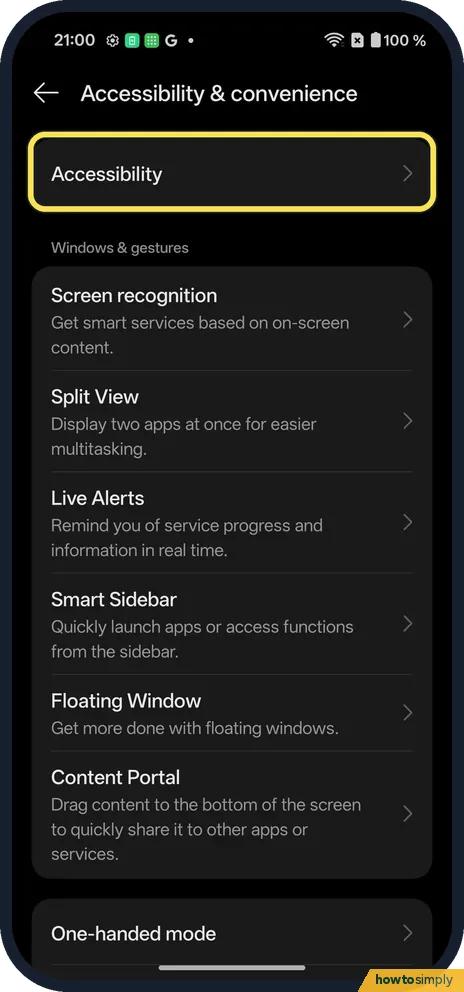
Open Settings, Accessibility & convenience, Accessibility.
- 2
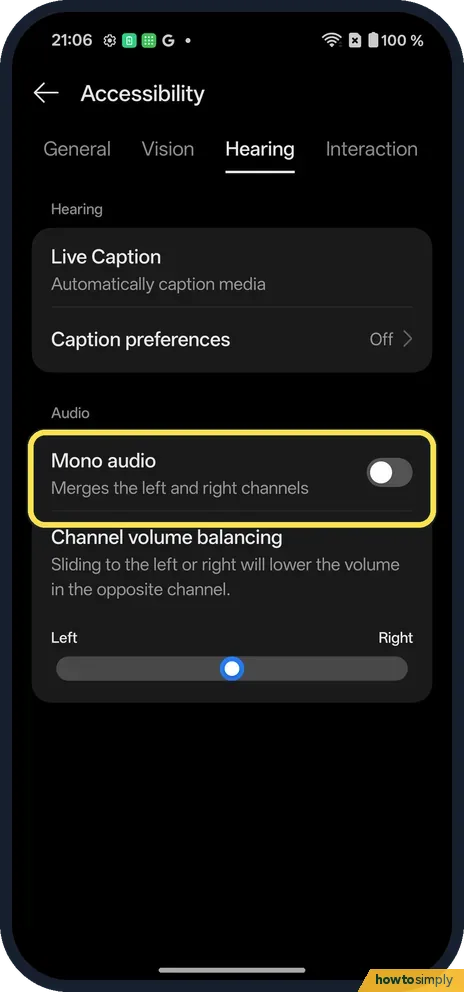
Switch on Mono audio
On the Hearing tab, under Audio: it merges the left and right channels.
- 3
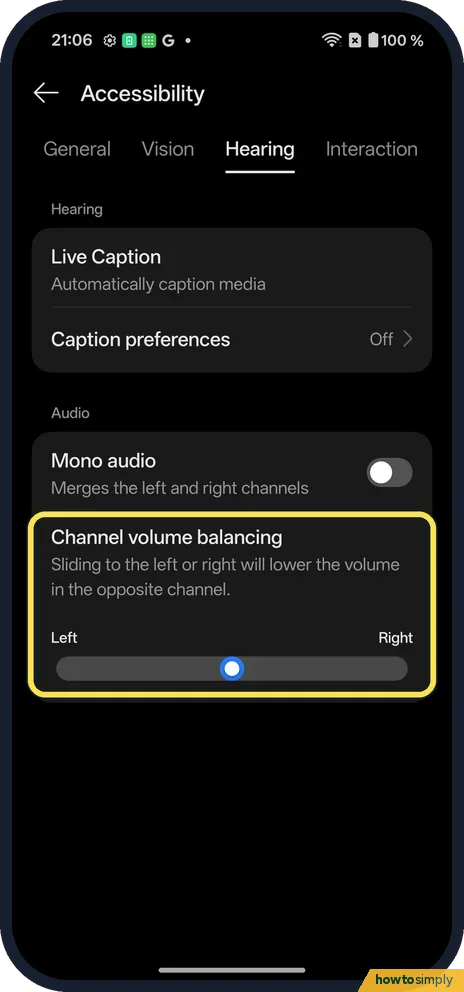
Balance left and right
Drag Channel volume balancing towards Left or Right.
If you do not see this option
- Captions? Live Caption and Caption preferences are on the same Hearing tab.
- Older OxygenOS? OnePlus's OxygenOS 14 manual puts Accessibility under Additional settings. Source: OxygenOS 14.0 User Manual
If this does not work
- Still one side only? Check the balance slider is in the middle, and test with another pair of earbuds.
- Music sounds flat? That is mono: switch it off for stereo.
- Mono is on but nothing changed? Mono audio only makes a difference when the left and right channels carry different sound, such as music or films in stereo. Voice notes, podcasts and most phone calls are often mono already, so they sound the same either way.
- Earbuds still sound uneven? Many earbuds have their own companion app with sound or balance settings that apply on top of the phone's. Check that app as well, and clean the earbud mesh, since wax build-up can make one side quieter.
- Switch seems to have reset? If Mono audio is off again after a restart or a software update, switch it back on from the Hearing tab and check whether Channel volume balancing also moved.
Good to know
Remove animations on a OnePlus.
Mono audio applies to everything the phone plays, in every app, through wired headphones, Bluetooth earbuds and the built-in speakers alike. It has no noticeable effect on battery or data. To undo it, switch Mono audio off and drag Channel volume balancing back to the middle. Nothing else on the phone changes, and your volume levels stay where they were. If you also want louder or clearer sound for one app only, see app-specific volume on a OnePlus.
If you use mono because of hearing loss, the captions on the same Hearing tab can help with videos played in a noisy place.
About this guide
- Device
- Android
- Shown on
- OnePlus Nord 5 (CPH2709), OxygenOS 16.0.5.1201, Android 16
- App
- Settings
- Path
- Settings › Accessibility & convenience › Accessibility › Hearing
- Real screenshots
- 3 of 3 steps
- Checked
- October 2026
- Sources
- 2 official, linked below
Sources
Links checked October 2026. Menus and features can change with updates.Spotted a mistake? Menus change with updates, and we want every step to match your screen. Email us about this page or use the contact form. We read every report, and fixes are listed on What changed.
Liked this guide?
Follow us for new guides and short how-to videos.
Did this guide work for you?
Sorry about that. What happened?