GOOGLE PIXEL
How to change the system language on a Google Pixel (Android 17)

In short
Open Settings, System, Language and region. Tap Add a language and pick yours; it is added as number 2. To make it the phone's language, tap the three dots next to it and tap Move up. Region, temperature and units are on the same page.
9 of 9 steps show a real screenshot from our Pixel 10a. Each step was checked against the maker's own instructions, linked at the end.
Steps
- 1
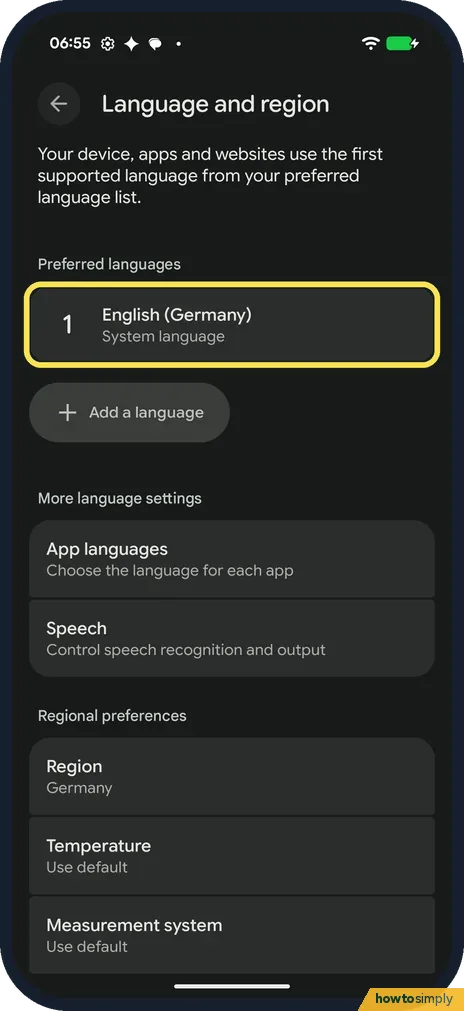
Check Preferred languages
Open Settings, tap System, then Language and region. Under Preferred languages, number 1 is the system language. Ours was English (Germany).
- 2
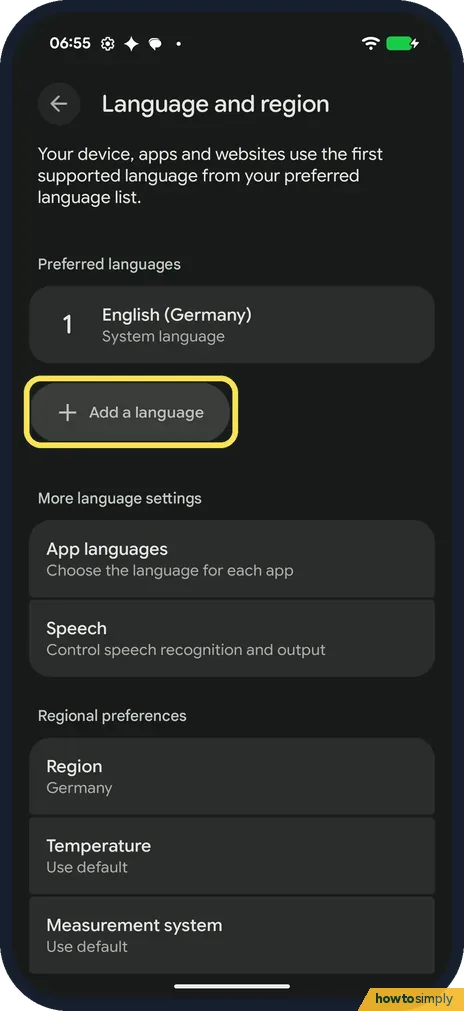
Tap Add a language
Tap Add a language, below the list.
- 3
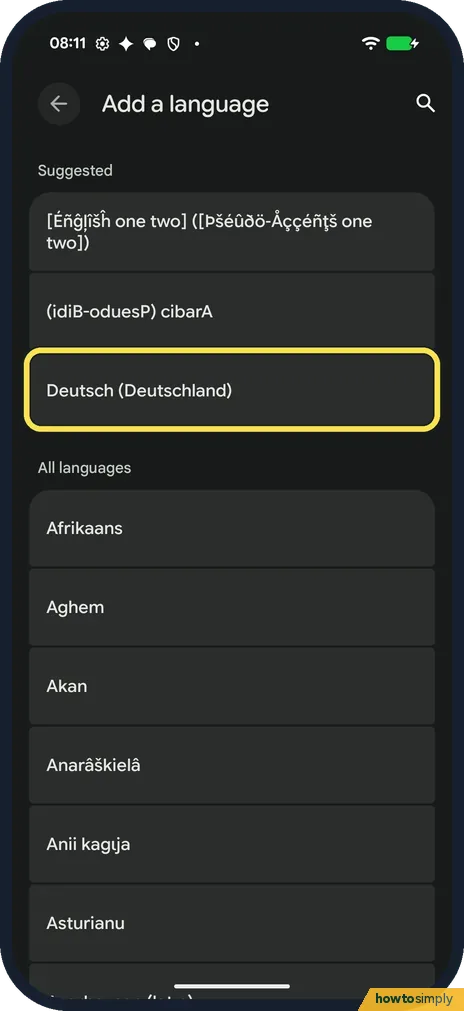
Pick your language
The list starts with Suggested, then All languages. Tap yours, or use the search icon at the top right. We picked Deutsch (Deutschland).
- 4
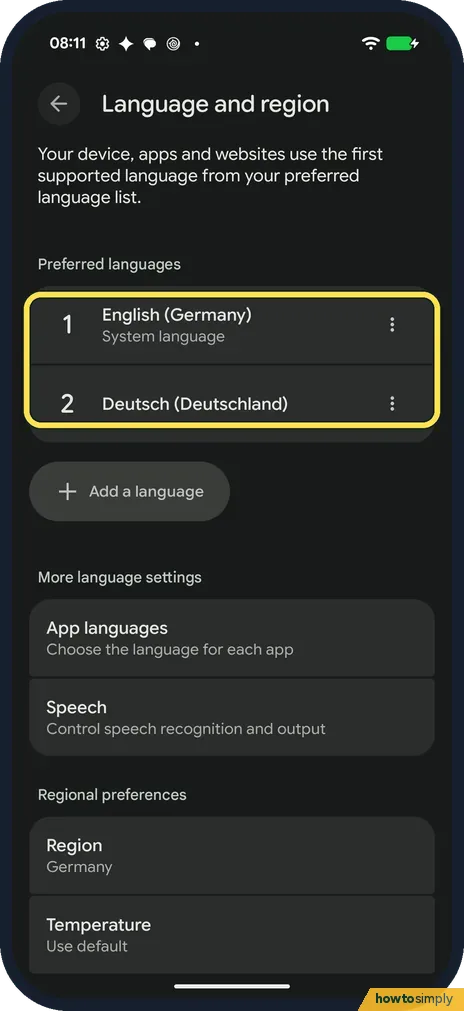
It is added as number 2
The new language goes below the current one. On ours no pop-up asked whether to make it the system language.
- 5
Move it to the top
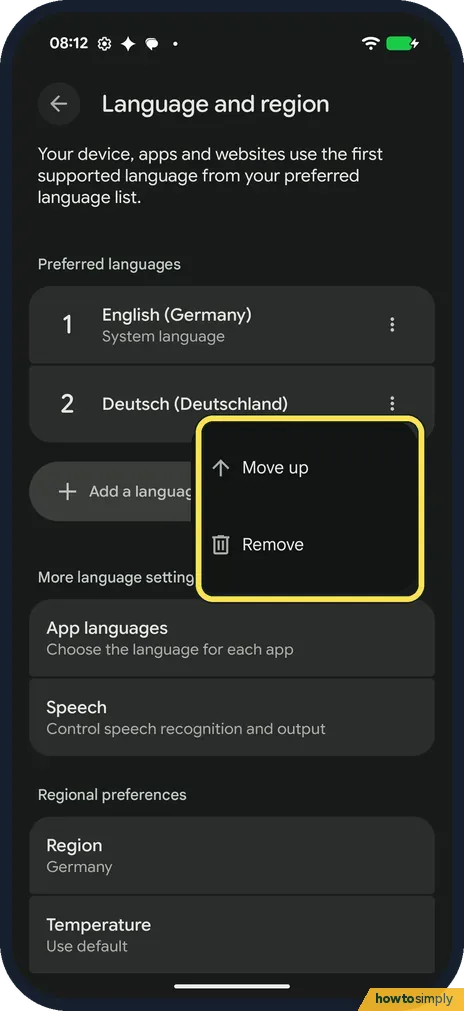
There were no drag handles on ours. Tap the three dots on the right of the language, then Move up. Whatever is number 1 becomes the system language. We didn't move it.
- 6
Remove a language
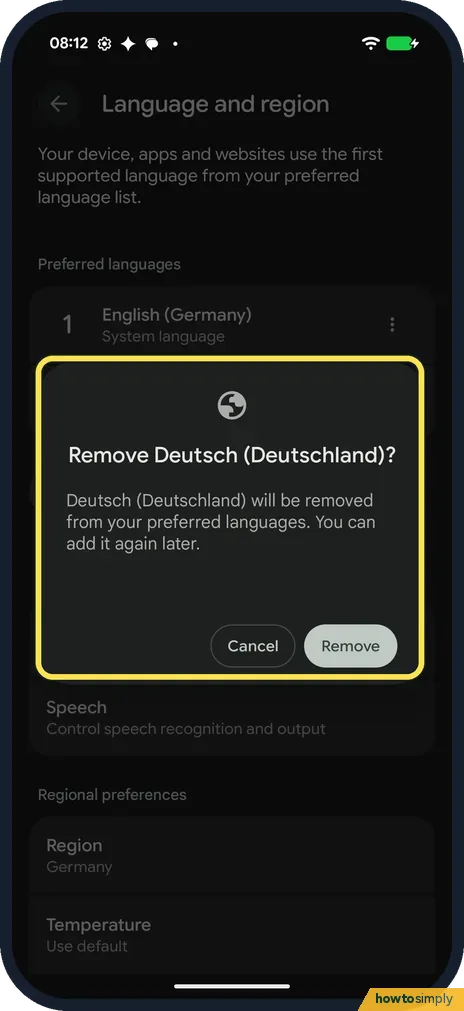
The same three-dot menu has Remove. It asks, for example, Remove Deutsch (Deutschland)? Tap Remove.
- 7
Check the list
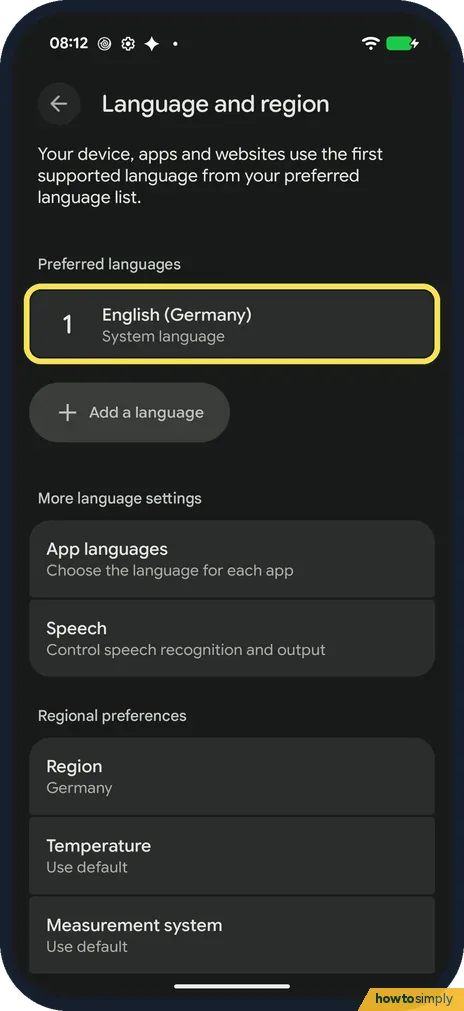
Ours was back to English (Germany) only, still marked System language.
- 8
Set the region
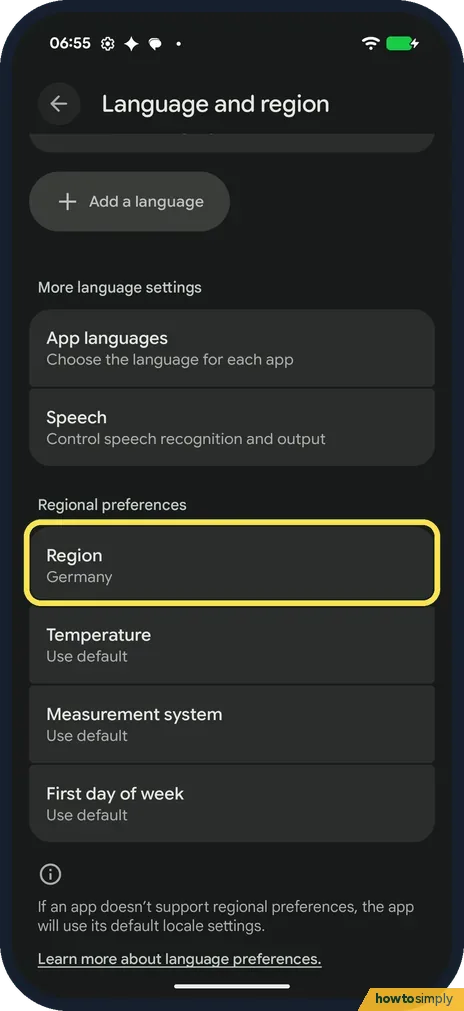
Under Regional preferences, tap Region to change it. Ours was Germany. Temperature, Measurement system and First day of week were Use default.
- 9
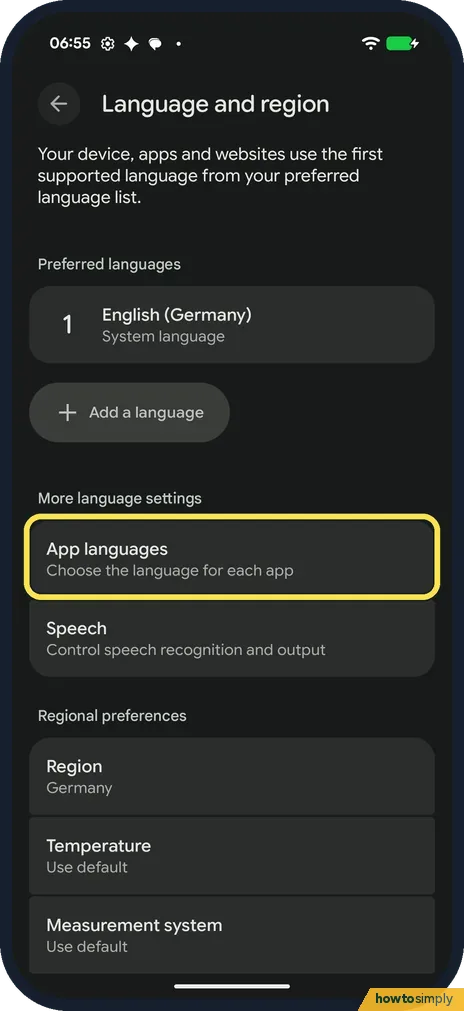
One app in another language
App languages lets you choose the language for each app, without changing the whole phone.
If you do not see this option
- No drag handles? Google's help says to touch and drag your language to the top. Our Pixel with Android 17 had no drag handles: each language has a three-dot menu with Move up and Remove instead. Source: Change language or region settings on a Pixel phone or tablet
- No More, Remove at the top? Google's help removes a language with More, Remove at the top, then Delete. On ours, Remove was in each language's three-dot menu, with a Remove button to confirm. Source: Change language or region settings on a Pixel phone or tablet
- Strange entries under Suggested? Ours showed two scrambled pseudo-languages, with accents on every letter, at the top of the picker. Developer options was on on our phone. Skip them and pick a real language.
- Your region is not offered? Google says the most common regions are available for each language, and that you can also set each regional preference, such as temperature or measurement, on its own. Source: Change language or region settings on a Pixel phone or tablet
- App not in the App languages list? Google says only apps whose developers opt in show up there; some apps let you change the language inside the app. Source: Change app language on your Android phone
If this does not work
- Picked the wrong language? Tap the three dots next to the right language and tap Move up until it is number 1, or Remove the wrong one. Both are in the menu on ours.
- App still in the wrong language? Google suggests restarting the app and adding the language as a second language. Or set it in App languages.
Good to know
If dates, units or the week start look wrong, check Regional preferences on the same page.
About this guide
- Device
- Android
- Shown on
- Google Pixel 10a, Android 17 (build CP3A.261005.005)
- App
- Settings
- Path
- Settings › System
- Real screenshots
- 9 of 9 steps
- Checked
- October 2026
- Sources
- 2 official, linked below
Sources
Links checked October 2026. Menus and features can change with updates.Spotted a mistake? Menus change with updates, and we want every step to match your screen. Email us about this page or use the contact form. We read every report, and fixes are listed on What changed.
Liked this guide?
Follow us for new guides and short how-to videos.
Did this guide work for you?
Sorry about that. What happened?