SAMSUNG GALAXY
How to change the wallpaper on a Samsung Galaxy (One UI 9)

In short
Open Settings, Wallpaper and style and tap Change wallpapers. Pick a group such as Graphical, tap a wallpaper, then under Choose where to apply tick Lock screen, Home screen or both and tap Next.
6 of 6 steps show a real screenshot from our Galaxy A57. Each step was checked against the maker's own instructions, linked at the end.
Steps
- 1
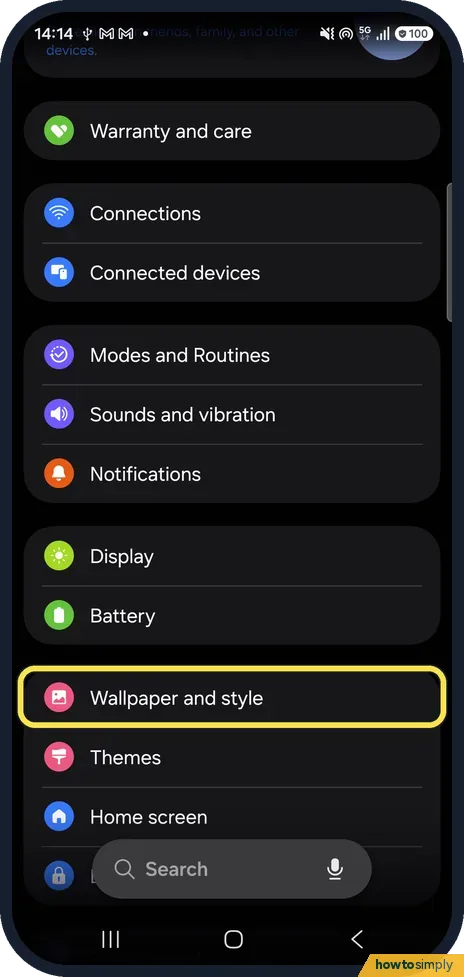
Open Wallpaper and style
Open Settings and tap Wallpaper and style, between Battery and Themes.
- 2
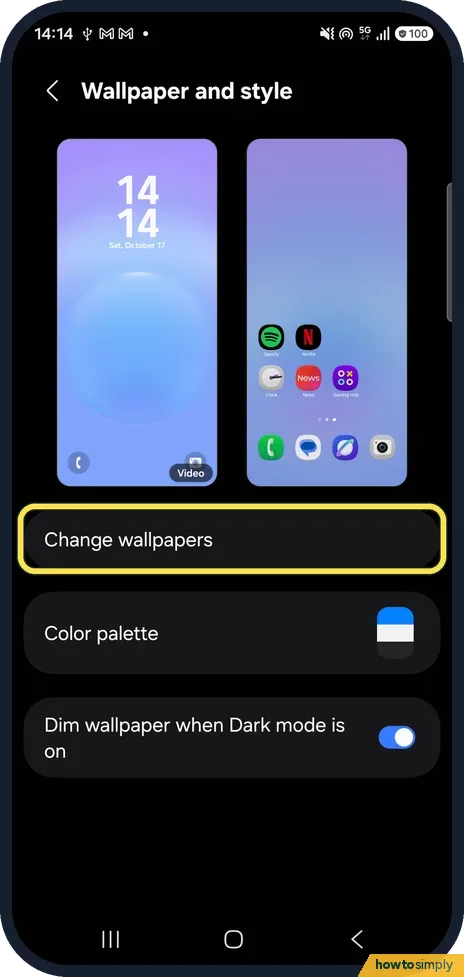
Tap Change wallpapers
The page shows your Lock screen and Home screen side by side. Below them, tap Change wallpapers.
- 3
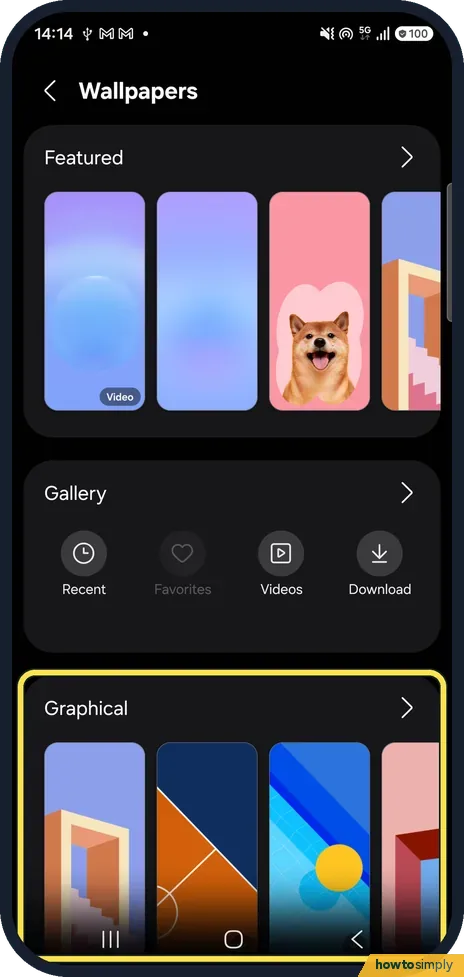
Pick a group
Featured shows Samsung's picks, Gallery your own photos and videos (Recent, Favorites, Videos, Download), and Graphical built-in designs. Tap Graphical, or the arrow next to any group.
- 4
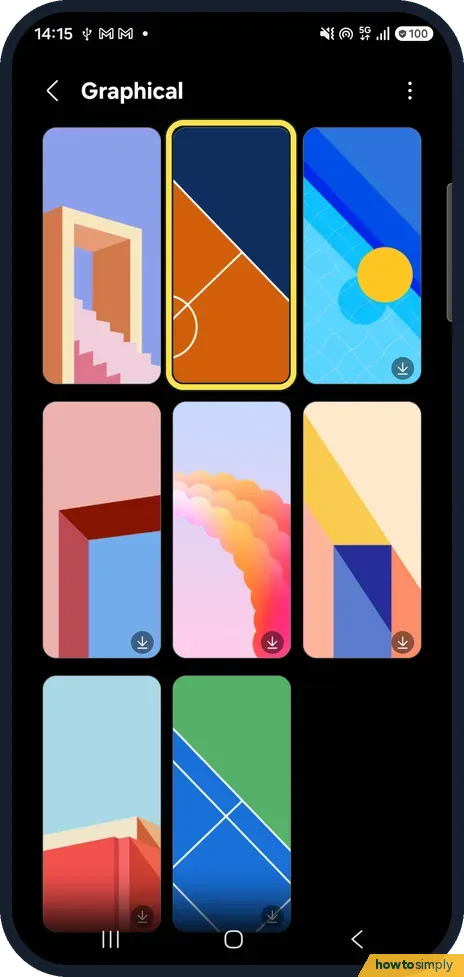
Tap a wallpaper
Graphical opens a grid of wallpapers. Tap the one you want. We tapped the orange and navy one.
- 5
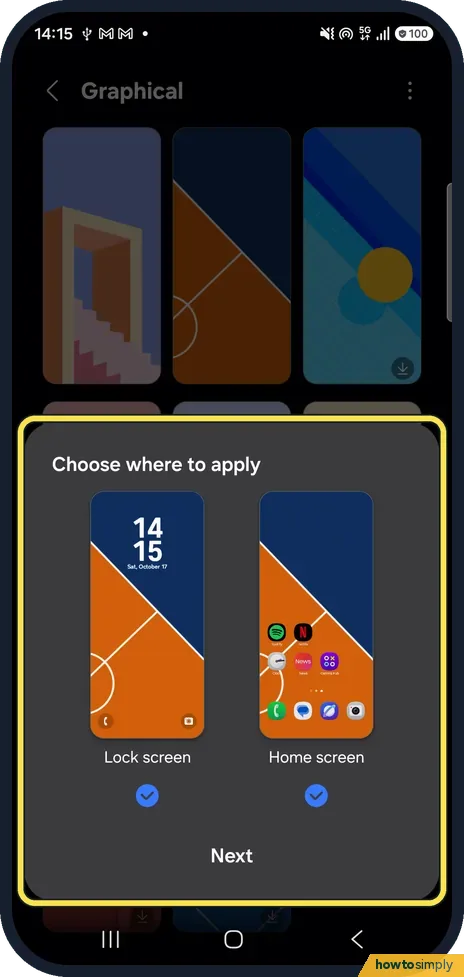
Choose where to apply
A panel asks Choose where to apply, with a preview of Lock screen and Home screen. Both were ticked on ours. Untick the one you want to keep, then tap Next. We pressed Back here instead.
- 6
Dim it in Dark mode
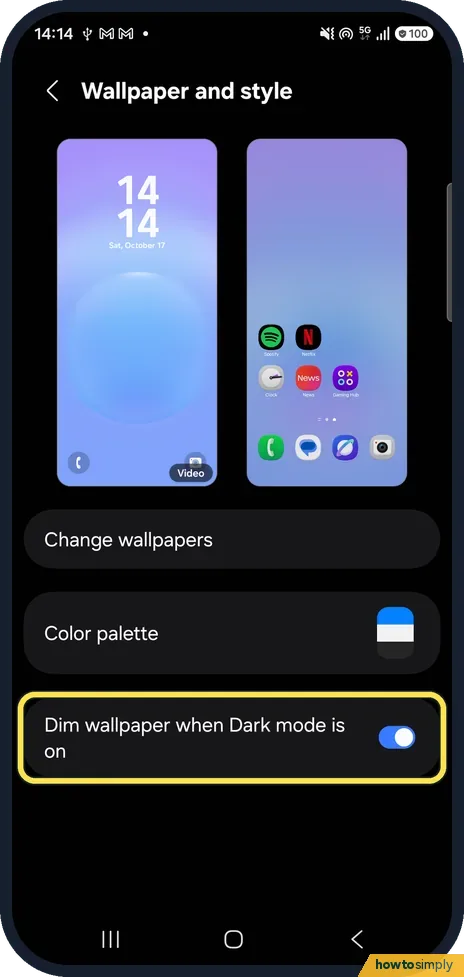
Back on Wallpaper and style, Dim wallpaper when Dark mode is on darkens the wallpaper while Dark mode is on. It was on on ours.
If you do not see this option
- No Wallpaper and style in Settings? Touch and hold a blank area of the home screen and tap the Wallpaper and style icon. Samsung gives that route; we used Settings. Source: How to set Generative wallpaper on Galaxy devices
- No Graphical group? Ours had Featured, Gallery and Graphical. The groups you see can differ; tap the arrow next to any group to see all of it.
If this does not work
- What comes after Next? We stopped before Next. For its generative wallpapers Samsung says you tap Next and then Done.
- Only one screen changed? Under Choose where to apply, check that both Lock screen and Home screen are ticked.
- Wallpaper looks dark? With Dark mode on, Dim wallpaper when Dark mode is on darkens it. Switch it off on the Wallpaper and style page.
- Want a video on the lock screen? Samsung says Galaxy phones can use a video as the lock screen wallpaper. Choose it from Gallery, Videos, and use the Trim slider Samsung describes to shorten it.
- Menu colours changed with the wallpaper? Samsung's help describes a Color palette option, reached from Wallpaper and style, where you choose the colours used around the phone and tap Apply. If yours has it, pick a different palette when the new colours do not suit you.
Good to know
Dark mode itself is in Display: turn on Dark mode on a Galaxy. Tidy the home screen too: make an app folder.
On a Pixel: change the wallpaper on a Google Pixel.
A new wallpaper changes nothing else: apps, widgets and their positions stay where they were. Built-in still wallpapers have no real effect on battery, while a video wallpaper on the lock screen plays each time you wake the phone, so it may use a little more. Samsung notes that a lock screen must be set up before you can use a video there. If you might want your old wallpaper back, note which design it was or keep the photo in Gallery first. To keep icons tidy over a new picture, group apps into folders.
About this guide
- Device
- Android
- Shown on
- Samsung Galaxy A57 (SM-A576B), One UI 9, Android 17 (build A576BXXU6BZIE)
- App
- Settings
- Path
- Settings › Wallpaper and style › Change wallpapers
- Real screenshots
- 6 of 6 steps
- Checked
- October 2026
- Sources
- 3 official, linked below
Sources
Links checked October 2026. Menus and features can change with updates.Spotted a mistake? Menus change with updates, and we want every step to match your screen. Email us about this page or use the contact form. We read every report, and fixes are listed on What changed.
Liked this guide?
Follow us for new guides and short how-to videos.
Did this guide work for you?
Sorry about that. What happened?