XIAOMI REDMI
How to change the text size and font on a Xiaomi phone (HyperOS 3)

In short
Go to Settings, Display & brightness and tap Font settings. Drag the slider under the percentage to make text bigger or smaller (ours was 100%). The slider below it makes letters thinner or bolder. Default and MiSans are the font choices at the top.
5 of 5 steps show a real screenshot from our Redmi Note 15 Pro 5G. Each step was checked against the maker's own instructions, linked at the end.
Steps
- 1
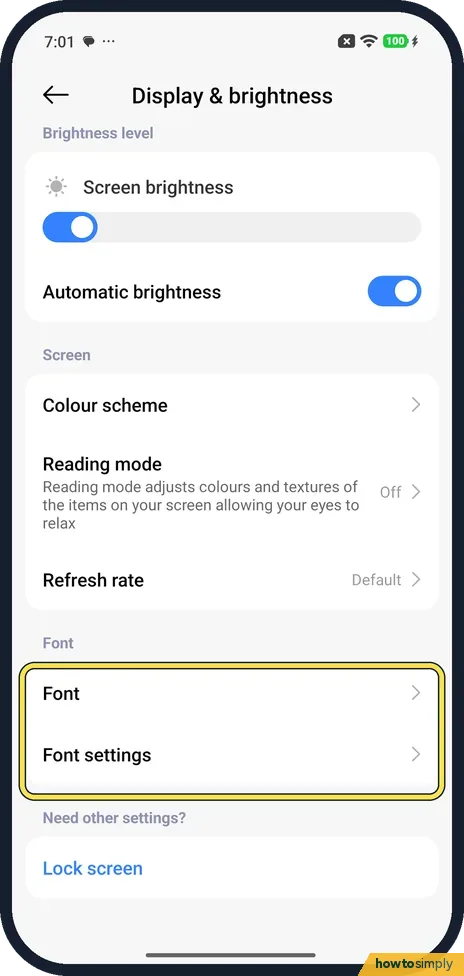
Open Font settings
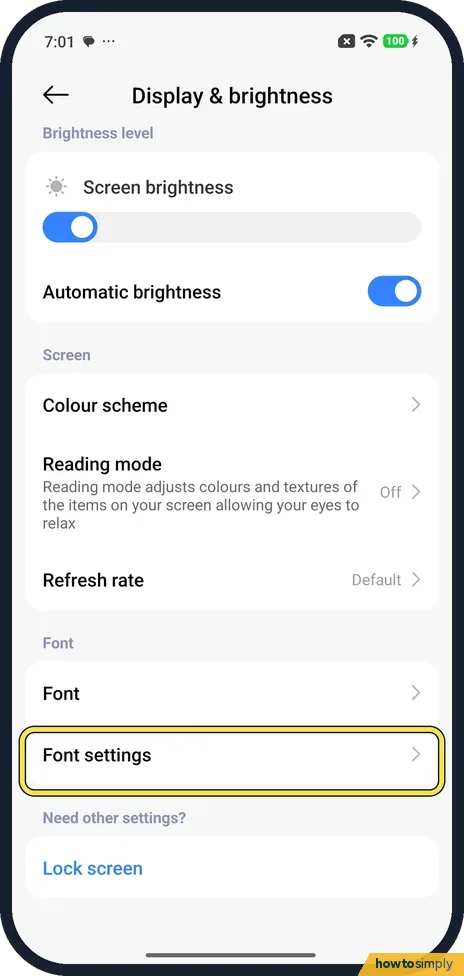
Open Settings, tap Display & brightness and scroll to the bottom. Under Font, tap Font settings.
- 2
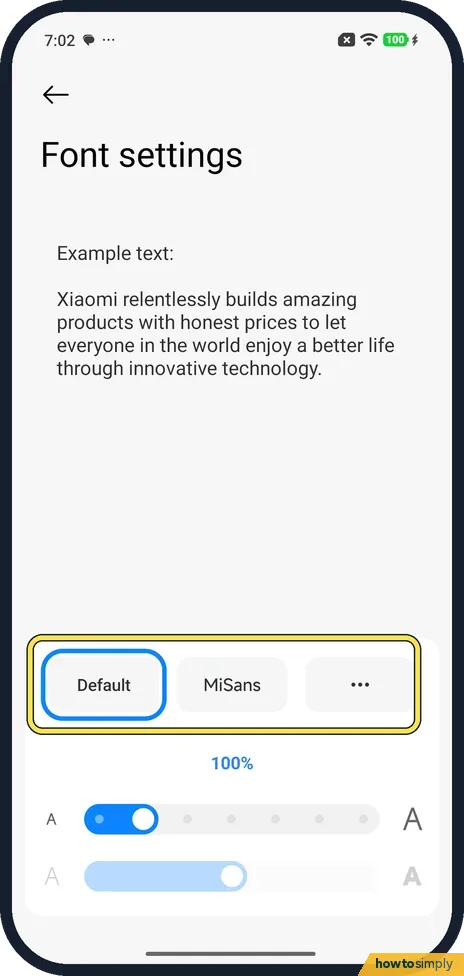
Watch the example text
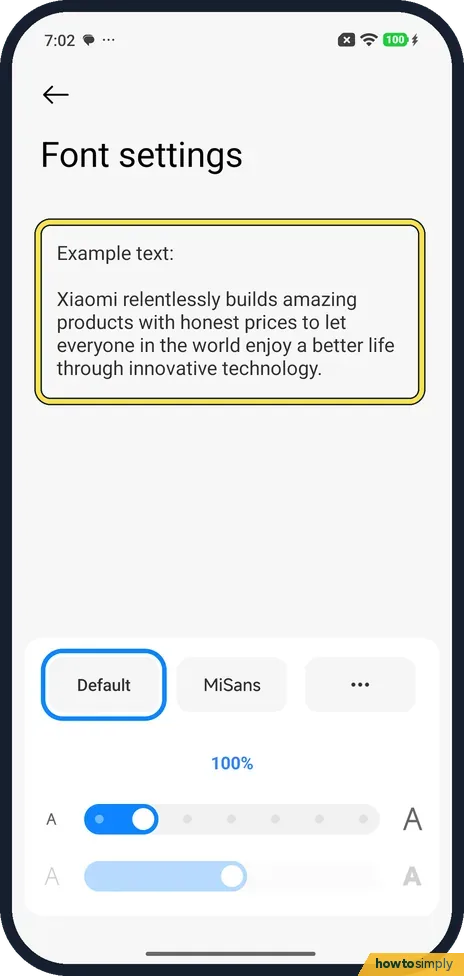
The top of the page shows example text in the current font and size.
- 3
Drag the size slider
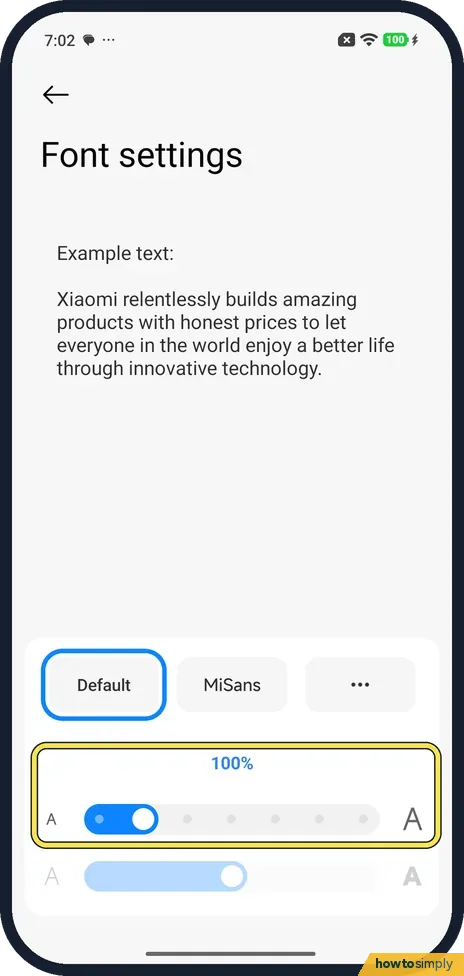
The first slider, from a small A to a big A, sets the text size. Ours was at 100%. Drag it right for bigger text.
- 4
Make letters bolder
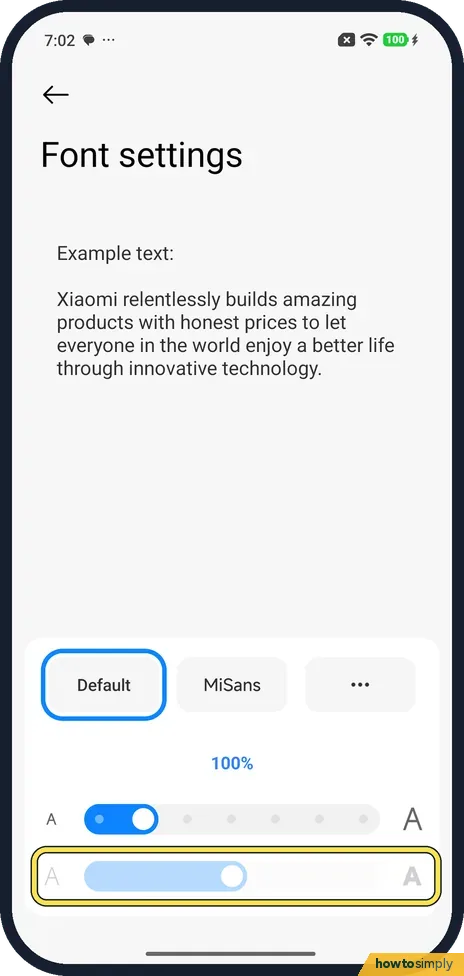
The second slider, from a thin A to a bold A, sets how thick the letters are. Drag it right for bolder text.
- 5
Pick a font
At the top of the card, Default was selected. MiSans is the other built-in choice; the button with three dots offers more.
If you do not see this option
- No Text size row? Not on our phone. Look under Font in Display & brightness: Font and Font settings.
- How big can it go? Xiaomi's HyperOS 3 guide says the slider runs from 90% to 200%. Source: Generic User Guide for HyperOS 3.0
- Want a different font? Xiaomi's guide says the Font row opens a Fonts page where you download and apply a font. We did not open it. Source: Generic User Guide for HyperOS 3.0
If this does not work
- Expecting a Themes prompt? Font settings opened straight away on ours, with no Themes consent screen. We did not open the Font row.
- Changed it and don't like it? Go back to Font settings and drag the size slider to 100% again, and pick Default.
- One app ignores the new size? Google's Android accessibility help says the font size setting does not apply to some apps. Check the app's own settings for a text size option, or zoom inside it.
- Text is cut off or overlaps? Very large sizes can push words off buttons in some apps. Move the slider back a step or two until labels fit again.
Good to know
Change the phone's language: how to change the language on a Xiaomi phone.
Quieter typing: how to turn off keyboard and touch sounds.
The new size applies across the system right away: Settings, notifications and most apps. Pages show less on screen at once, so you scroll more. Nothing is lost, and you can return to 100% at any time.
For easier reading at night, Reading mode changes the colour of the screen rather than the text.
About this guide
- Device
- Android
- Shown on
- Xiaomi Redmi Note 15 Pro 5G (25080RABDG), HyperOS 3.0.308.0, Android 16
- App
- Settings
- Path
- Settings › Display & brightness › Font settings: size slider
- Real screenshots
- 5 of 5 steps
- Checked
- October 2026
- Sources
- 2 official, linked below
Sources
Links checked October 2026. Menus and features can change with updates.Spotted a mistake? Menus change with updates, and we want every step to match your screen. Email us about this page or use the contact form. We read every report, and fixes are listed on What changed.
Liked this guide?
Follow us for new guides and short how-to videos.
Did this guide work for you?
Sorry about that. What happened?