
howtosimply.com/guides/how-to-take-a-screenshot-on-a-samsung-galaxy-phone/ · Checked October 2026 · Samsung Galaxy A57 5G (SM-A576B), One UI 8.5, Android 16
In this guide
Press the Side button and the Volume down button together and release them; the screen flashes. Or switch on Palm swipe to capture under Settings, Advanced features, Motions and gestures, and swipe the edge of your hand across the screen.
2 of 4 steps with real screenshots · 1 official source below
- Device
- Android
- Shown on
- Samsung Galaxy A57 5G (SM-A576B), One UI 8.5, Android 16
- Starts in
- The phone's buttons
- Real screenshots
- 2 of 4 steps
- Our phone
- Shown on Galaxy A57, One UI 8.5
- Checked
- October 2026
- Sources
- 1 official, linked below
Step by step
Press the two buttons
Press and hold the Side button and the Volume down button at the same time, then release them. The screen flashes and a small toolbar appears.
Watch these steps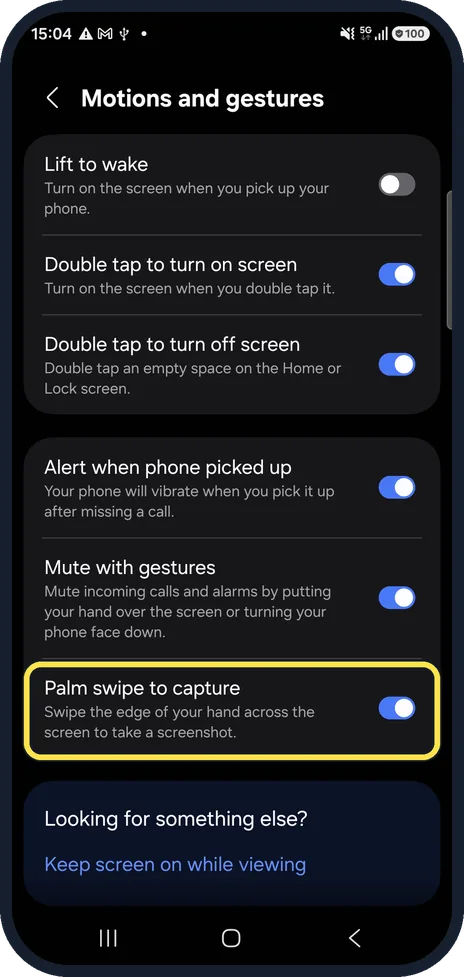
Find Palm swipe to capture
Open Settings, Advanced features, Motions and gestures. Palm swipe to capture is near the bottom.
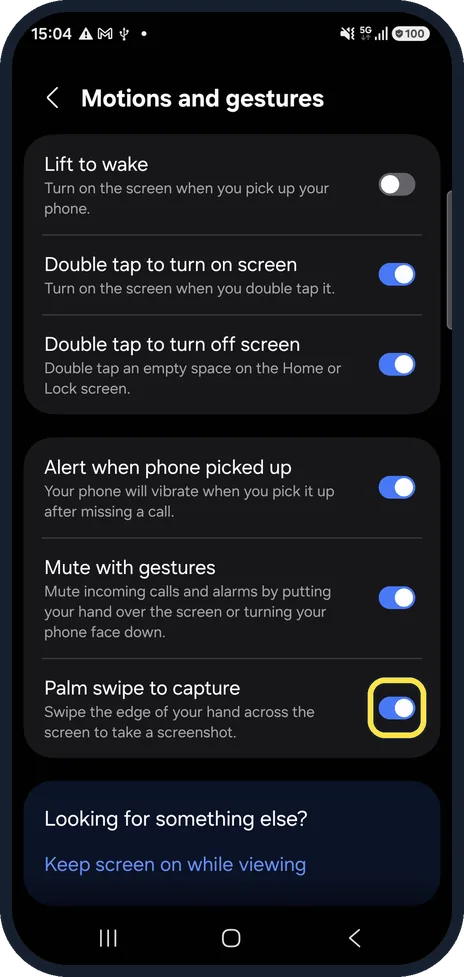
Switch it on
Tap the Palm swipe to capture switch so it is on, as here.
Swipe with your hand
Hold your hand upright, like a karate chop, and swipe its edge across the screen from one side to the other.
Watch these steps
If you do not see this option
- Palm swipe is not where you expect Samsung's route is the gear in the quick panel, then Advanced features, Palm swipe to capture. Source: How to take a screenshot on a Samsung phone or tablet
- Your phone has an S Pen Samsung says you can also take a screenshot with the S Pen: tap the Air command icon, then Screen write. Source: How to take a screenshot on a Samsung phone or tablet
If this does not work
- Nothing happens on one screen Samsung says some apps and screens block screenshots for privacy or security reasons. Source: How to take a screenshot on a Samsung phone or tablet
- You cannot find the screenshot Samsung says to open Gallery, the Albums tab, then Screenshots, or My Files, Images. Source: How to take a screenshot on a Samsung phone or tablet
- You need the whole page Samsung says to tap the Scroll capture icon (two arrows pointing down) right after you take the screenshot. Source: How to take a screenshot on a Samsung phone or tablet
About this guide
Galaxy phones have two everyday ways to take a screenshot: the button press, and a swipe of your hand that needs no buttons at all.
Good to know
Screenshots are saved in Gallery, in the Screenshots album.
Record a video of the screen instead: How to record your screen on a Samsung Galaxy.
Screen recording silent? Samsung screen recording has no sound? How to fix it.
In short: Side + Volume down together, or Settings, Advanced features, Motions and gestures, Palm swipe to capture.
Links checked in October 2026. Menus and features can change after software updates. These steps match the version named at the top.
📷 See real photos from the Galaxy A57 in our Camera Lab, next to 10 other phones.
Did this guide work for you?
Sorry about that. What happened?