
howtosimply.com/guides/how-to-change-the-screen-timeout-on-a-samsung-galaxy-phone/ · Checked October 2026 · Samsung Galaxy A57 (One UI 9, Android 17 (build A576BXXU6BZIE)) and Samsung Galaxy A57 5G (One UI 8.5, Android 16)
In this guide
Open Settings, Display, Screen timeout and pick a time from 15 seconds to 10 minutes. Keep screen on while viewing, on the same page, uses the front camera to keep the screen on while you look at it.
4 of 4 steps with real screenshots · 2 official sources below
- Device
- Android
- Shown on
- Samsung Galaxy A57 (SM-A576B), One UI 9, Android 17 (build A576BXXU6BZIE), Samsung Galaxy A57 5G (SM-A576B), One UI 8.5, Android 16
- App
- Settings
- Path
- Settings › Display
- Real screenshots
- 4 of 4 steps
- Our phone
- Shown on Galaxy A57, One UI 8.5
- Checked
- October 2026
- Sources
- 2 official, linked below
Step by step
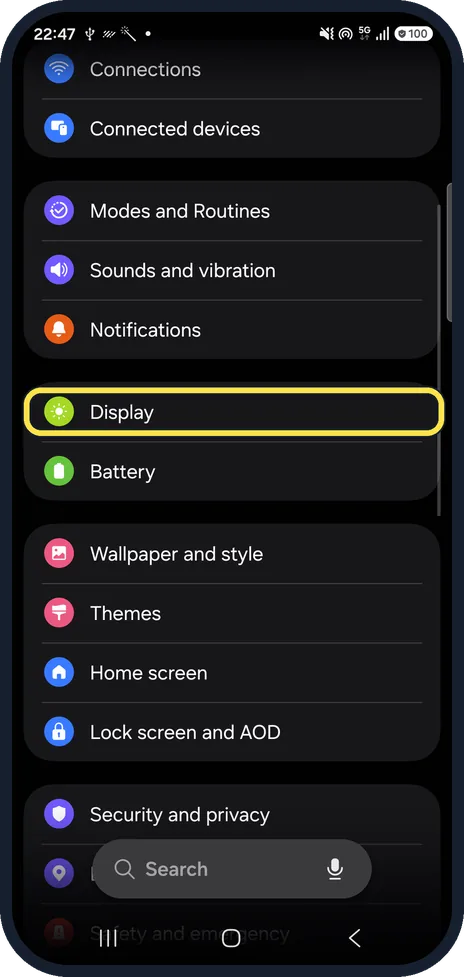
Open Display
Open Settings and tap Display.
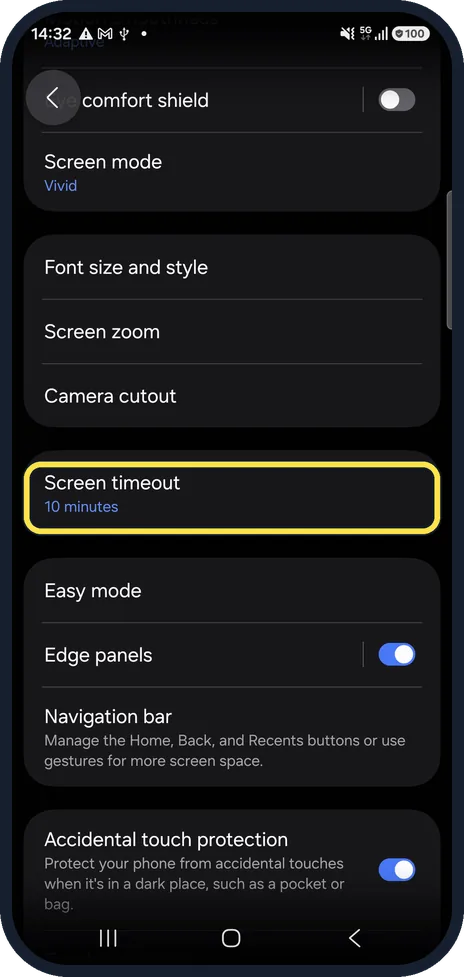
Open Screen timeout
Scroll down the Display page and tap Screen timeout.
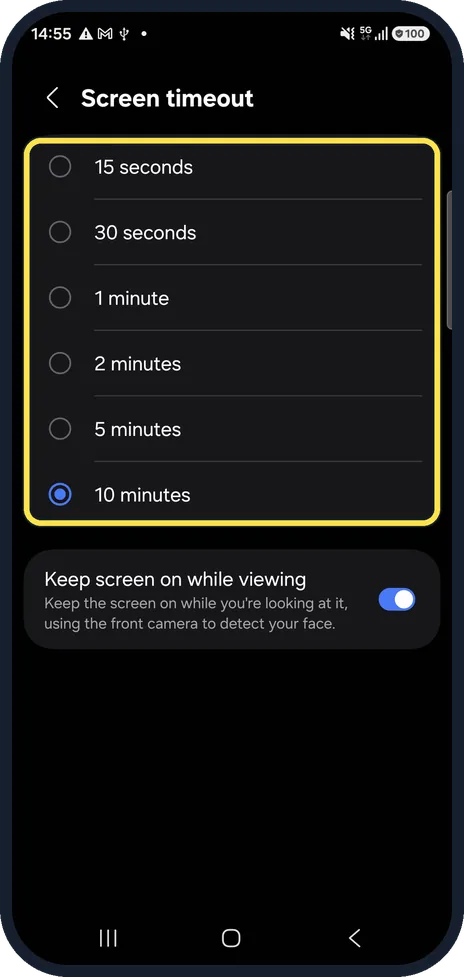
Pick a time
Choose 15 seconds, 30 seconds, 1 minute, 2 minutes, 5 minutes or 10 minutes. Samsung suggests 1 minute or less to save battery.
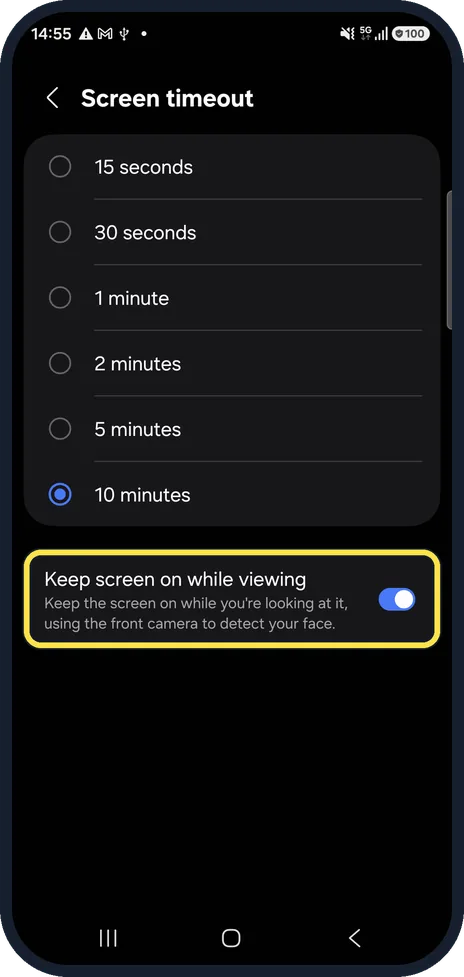
Keep the screen on while you look at it
Keep screen on while viewing uses the front camera to detect your face and keeps the screen on as long as you look at it. It works less well in dim light.
If you do not see this option
- You want longer than 10 minutes Samsung says only the times in the list can be chosen, and the timeout cannot be turned off, because that would affect battery life and performance. Source: Change the screen timeout on your Samsung Galaxy to save power
- The lock screen goes dark sooner Samsung says Screen timeout applies to the main screen. The lock screen may turn off after a shorter time, and that cannot be changed. Source: Change the screen timeout on your Samsung Galaxy to save power
- There is no Keep screen on while viewing Samsung says older software calls it Smart stay. Search Settings for either name. Source: Stop the screen brightness from dimming on your Galaxy phone or tablet
If this does not work
- Keep screen on while viewing does not keep it on Samsung says it may not work well in low light or when the front camera cannot see your face clearly. Source: Change the screen timeout on your Samsung Galaxy to save power
- The screen turns off during a video in a browser Samsung says apps such as YouTube keep the screen on while a video plays, but a video in a browser may not. Tap the video, then its full screen icon. Source: Change the screen timeout on your Samsung Galaxy to save power
About this guide
The screen timeout decides how long the screen stays on after your last touch. Shorter saves battery; longer is handy for reading or recipes.
Good to know
There is no setting to keep the screen on forever.
In short: Settings, Display, Screen timeout: 15 seconds to 10 minutes. Keep screen on while viewing for reading.
- Samsung CA: Change the screen timeout on your Samsung Galaxy to save power
- Samsung US: Stop the screen brightness from dimming on your Galaxy phone or tablet
Links checked in October 2026. Menus and features can change after software updates. These steps match the version named at the top.
📷 See real photos from the Galaxy A57 in our Camera Lab, next to 10 other phones.
Did this guide work for you?
Sorry about that. What happened?