XIAOMI REDMI
How to change the screen timeout on a Xiaomi phone (HyperOS 3)

In short
Go to Settings, Lock screen, Sleep, and pick a time: 15 seconds, 30 seconds, 1, 2, 5 or 10 minutes. The screen turns off and locks after that much time without use. On our phone 10 minutes was the longest choice.
4 of 4 steps show a real screenshot from our Redmi Note 15 Pro 5G. Each step was checked against the maker's own instructions, linked at the end.
Steps
- 1
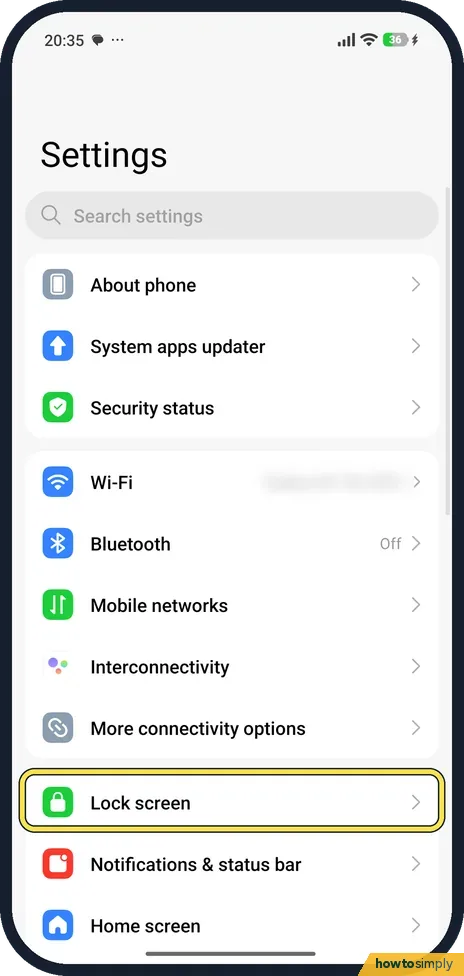
Open Lock screen
Open Settings and tap Lock screen, below More connectivity options.
- 2
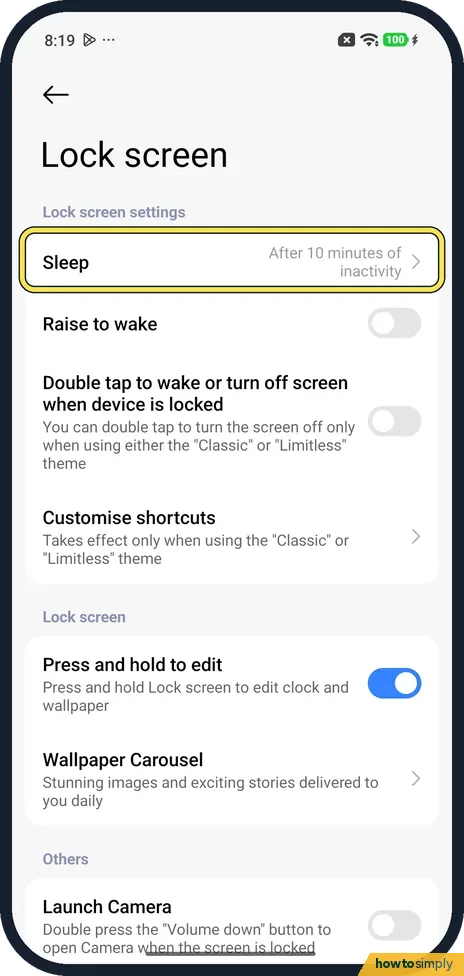
Tap Sleep
Sleep is the first row, under Lock screen settings. Ours said After 10 minutes of inactivity.
- 3
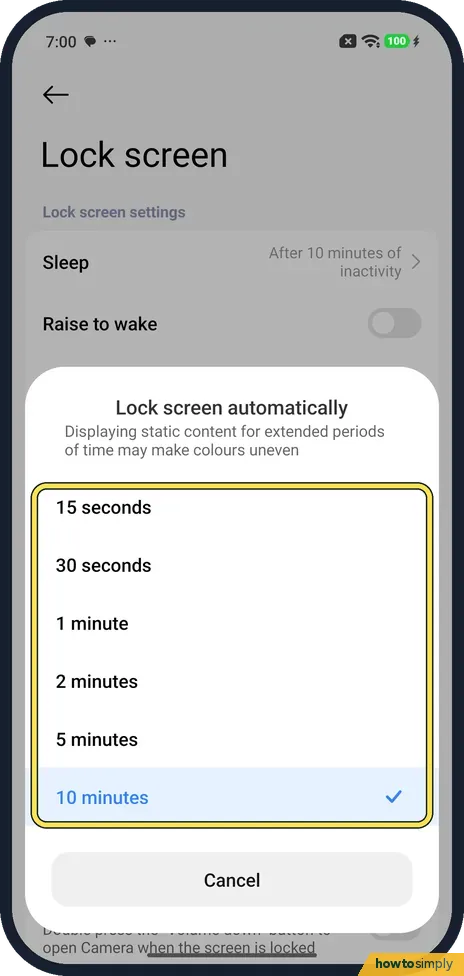
Pick a time
A sheet called Lock screen automatically opens with 15 seconds, 30 seconds, 1 minute, 2 minutes, 5 minutes and 10 minutes. Tap the one you want. Ours had 10 minutes ticked, with no longer option and no Never.
- 4
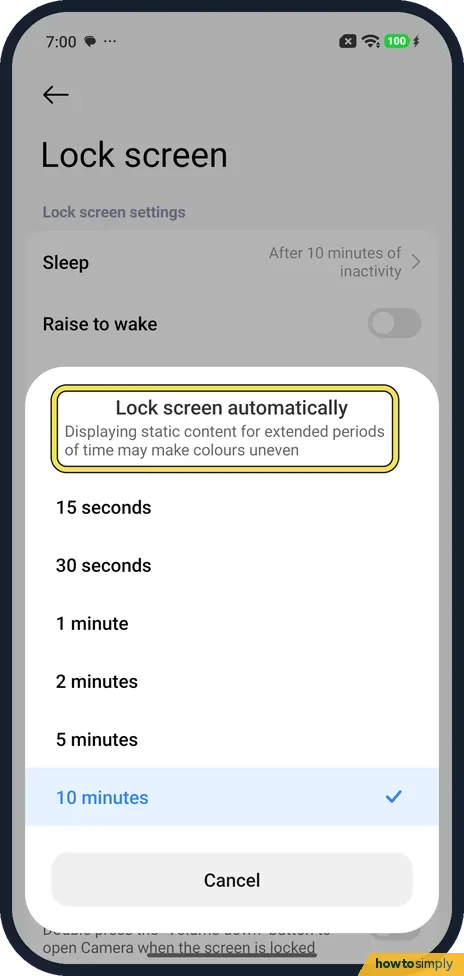
Read the note
The sheet warns: Displaying static content for extended periods of time may make colours uneven. We tapped Cancel.
If you do not see this option
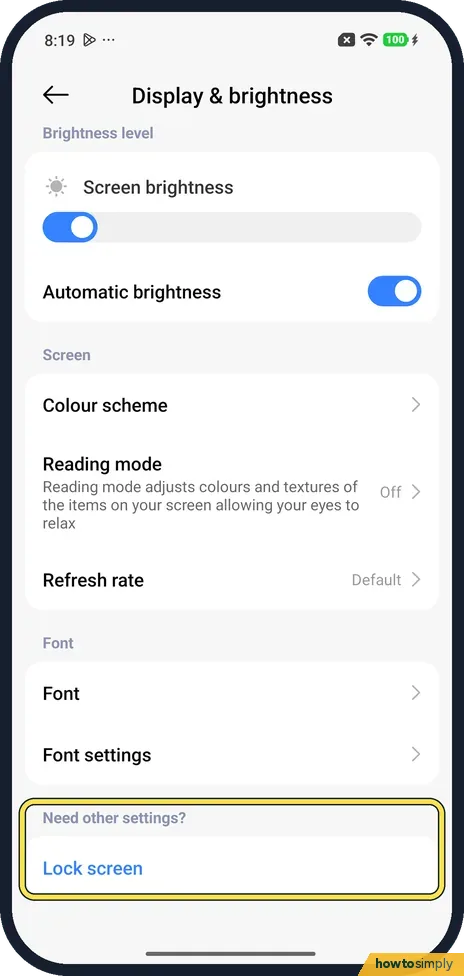
- Looking under Display? Our Display & brightness page had no timeout row. At the bottom, Need other settings? links to Lock screen.
- No Lock screen row? Xiaomi says that on some phones the route is Settings, Always-on display & Lock screen, Sleep. Source: How to set screen sleep time?
- Want Never? Not on our phone. Xiaomi says the REDMI Pad SE 8.7 tablet offers 1, 2, 5 or 10 minutes or Never under Lock screen, Sleep. Source: How to set the sleep time on the REDMI Pad SE 8.7?
If this does not work
- Screen turns off while you watch a video? Xiaomi suggests picking 10 minutes under Sleep, turning off Battery saver, and checking the video app's own Sleep timer.
- Battery drains faster? A long Sleep time keeps the screen on longer. Check what uses power: battery mode and battery use.
- Sleep row is greyed out? A work profile or a device management app set up by an employer or school can fix the lock time. Ask whoever manages the phone, since the setting cannot be changed while that policy applies.
- Screen stays on longer than you set? Some apps keep the screen awake on purpose, such as video players, maps during navigation and video calls. The timer starts again once you leave the app.
Good to know
Raise to wake, just below Sleep, wakes the screen when you lift the phone. It was off on ours.
Other lock screen settings: how to customise the lock screen clock.
Show the time while the screen is off: how to turn on Always-on display.
The new time applies straight away and stays after a restart. A shorter time saves battery and locks the phone sooner; a longer one keeps the screen readable without touching it but uses more power. Nothing else on the phone changes. To undo, open Sleep again and pick the old time.
Ultra battery saver changes the timeout as well. On our Redmi with HyperOS 3.0.309.0, on 1 November 2026, Sleep went from 10 minutes to 15 seconds while Ultra battery saver was on, and returned to 10 minutes when we left it. We could not check the ordinary Battery saver: its switch was greyed out while the phone was charging.
About this guide
- Device
- Android
- Shown on
- Xiaomi Redmi Note 15 Pro 5G (25080RABDG), HyperOS 3.0.308.0, Android 16
- App
- Settings
- Path
- Settings › Lock screen › Sleep
- Real screenshots
- 4 of 4 steps
- Checked
- October 2026
- Sources
- 4 official, linked below
Sources
Links checked October 2026. Menus and features can change with updates.Spotted a mistake? Menus change with updates, and we want every step to match your screen. Email us about this page or use the contact form. We read every report, and fixes are listed on What changed.
Liked this guide?
Follow us for new guides and short how-to videos.
Did this guide work for you?
Sorry about that. What happened?