GOOGLE PIXEL
How to change the torch (flashlight) brightness on a Google Pixel (Android 17)

In short
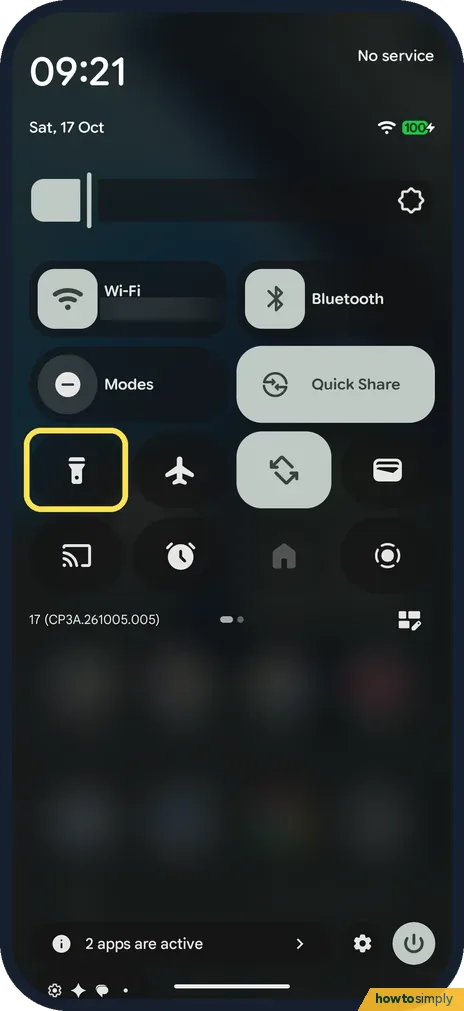
Swipe down twice to open Quick Settings and touch and hold the torch tile. On our Pixel 10a the torch came on and a Torch strength panel opened. Drag the beam in the middle to set the brightness, then tap Done, or Turn off to switch the torch off.
5 of 5 steps show a real screenshot from our Pixel 10a. Each step was checked against the maker's own instructions, linked at the end.
Steps
- 1
Open Quick Settings
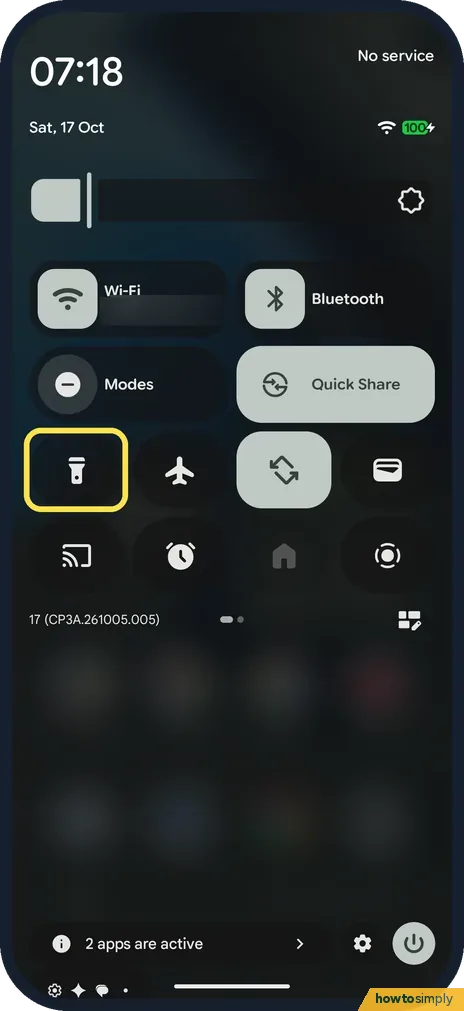
Swipe down twice from the top of the screen. On ours the torch was a small round tile with a torch icon, below Modes.
- 2
Touch and hold the torch tile
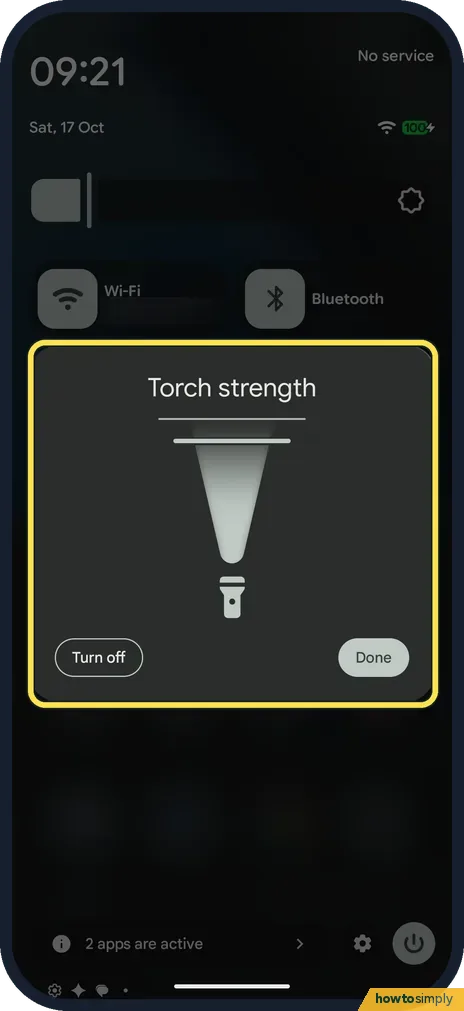
Touch and hold the tile instead of tapping it. On ours the torch came on and the Torch strength panel opened at full strength: the beam drawn in the middle reached all the way up to the line at the top.
- 3
Drag the beam
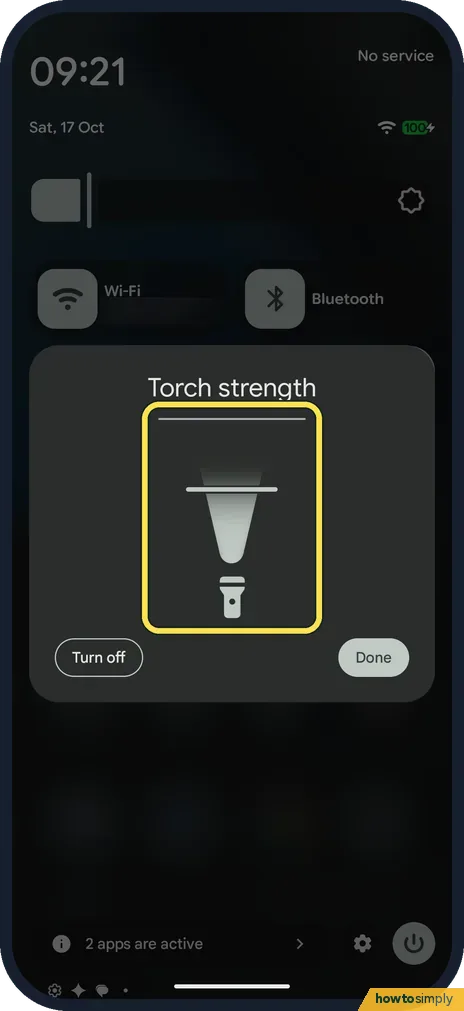
The panel shows a beam, not a numbered slider. Drag the beam down for a dimmer torch or up for a brighter one. We dragged ours about halfway down, and the beam got shorter.
- 4
Tap Done or Turn off
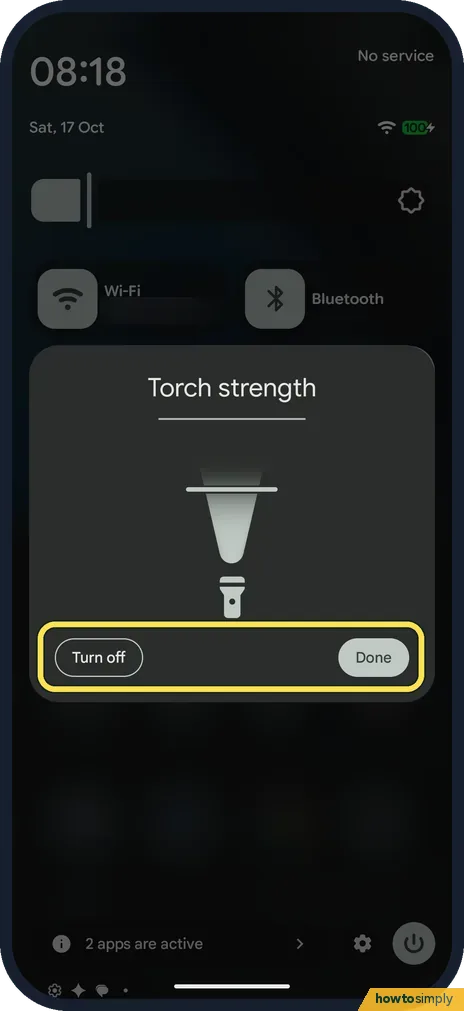
With the strength set, tap Done at the bottom right to keep the torch on, or Turn off at the bottom left. We tapped Turn off.
- 5
Check the tile
The panel closes. Back in Quick Settings, our torch tile was dark again, so the torch was off.
If you do not see this option
- No Torch strength panel? 9to5Google says torch brightness came to Pixels with Android 16 QPR3, due in March 2026. On older software the tile only turns the torch on and off, so update the phone first. Source: Android 16 QPR3 lets you adjust flashlight brightness on Pixel
- Wide torch tile? 9to5Google says that on a wide tile, tapping the space to the right of the icon opens the strength panel. On a small round tile, like ours, touch and hold it. Source: Android 16 QPR3 lets you adjust flashlight brightness on Pixel
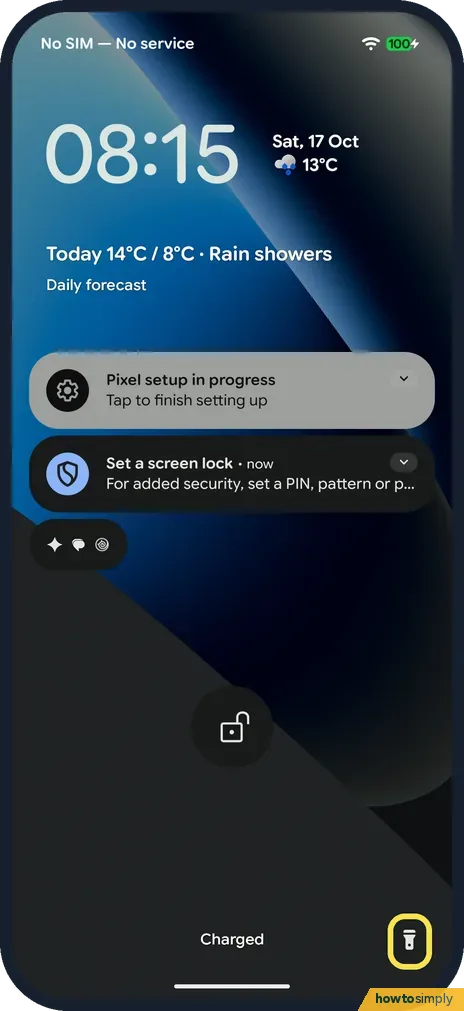
- No torch button on the lock screen? It only shows if you set it as a lock screen shortcut. Ours had none while the right shortcut was set to None. With Torch picked, ours showed it in the bottom right corner.
- Want the wide tile instead? Google says that in Quick Settings you tap Edit, then drag a tile's right edge to the right to show its name, or to the left to show only the icon. A wide torch tile gives you more room to tap. Source: Change settings quickly on your Android phone
If this does not work
- No torch tile? Add it back: how to edit Quick Settings tiles on a Google Pixel.
- The strength panel doesn't open? Touch and hold the tile, don't tap it. Google says touching and holding a Quick Settings icon opens more settings.
- Torch too dim next time? Open the panel again with a long press and drag the beam up. We switched ours off at about half strength.
Good to know
9to5Google says sliding the strength all the way down turns the torch off.
To put the torch on the lock screen, see how to change the lock screen shortcuts.
Or switch it with two taps on the back (Toggle torch in Quick Tap): how to use Quick Tap on a Google Pixel.
To go back to a full beam, open the panel again and drag the beam right to the top.
About this guide
- Device
- Android
- Shown on
- Google Pixel 10a, Android 17 (build CP3A.261005.005)
- Starts in
- Quick Settings
- Real screenshots
- 5 of 5 steps
- Checked
- October 2026
- Sources
- 1 official, 1 other, linked below
Sources
Links checked October 2026. Menus and features can change with updates.Spotted a mistake? Menus change with updates, and we want every step to match your screen. Email us about this page or use the contact form. We read every report, and fixes are listed on What changed.
Liked this guide?
Follow us for new guides and short how-to videos.
Did this guide work for you?
Sorry about that. What happened?