
What changed: the screenshots are now our own iPhone 17e on iOS 27.0.1, dark mode, and the wording is checked against those screens and Apple's iOS 27 guide.
howtosimply.com/guides/iphone-not-ringing-for-calls-9-settings-to-check/ · Checked October 2026 · iPhone 17e · iOS 27.0.1
In this guide
Check the Silent mode switch or Action button, turn off any Focus such as Do Not Disturb, and raise the ringer volume under Settings, Sounds & Haptics. Then make sure unknown callers are not being silenced, no Bluetooth headphones are connected and Call Forwarding is off.
7 of 7 steps with real screenshots · 8 official sources below
- Device
- iPhone
- Shown on
- iOS 27.0.1 (iPhone 17e)
- App
- Settings
- Real screenshots
- 7 of 7 steps
- Checked
- October 2026
- Sources
- 8 official, linked below
Step by step
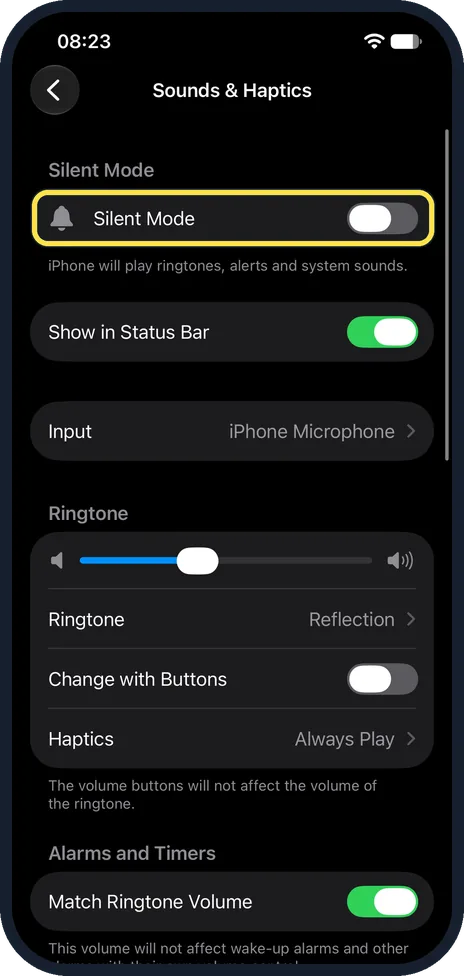
Turn off Silent mode
On a model with an Action button, Apple says to press and hold it to turn Silent mode on or off. If the Action button is set to something else, open Settings, Sounds & Haptics and switch Silent Mode off. On other models, flip the Ring/Silent switch towards the front of the iPhone. On our iPhone 17e with iOS 27, Silent Mode was the first switch on the Sounds & Haptics page. It was off, with the note: iPhone will play ringtones, alerts and system sounds.
Watch these steps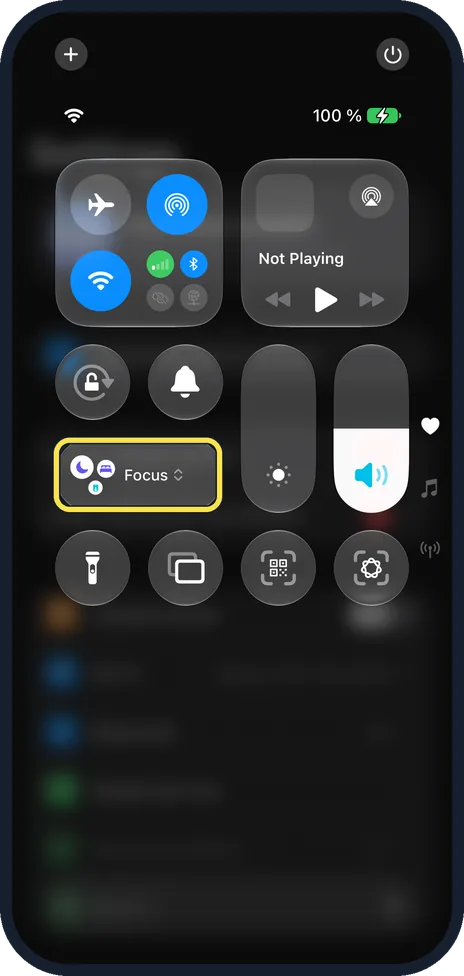
Turn off Focus
Open Control Centre and tap Focus. If Do Not Disturb, Sleep or another Focus is on, tap it to turn it off. Apple says a Focus that is on shows its icon in the status bar and on the Lock Screen. On our iPhone 17e the Focus button sat below the Wi-Fi and Bluetooth group in Control Centre.
Raise the ringer volume
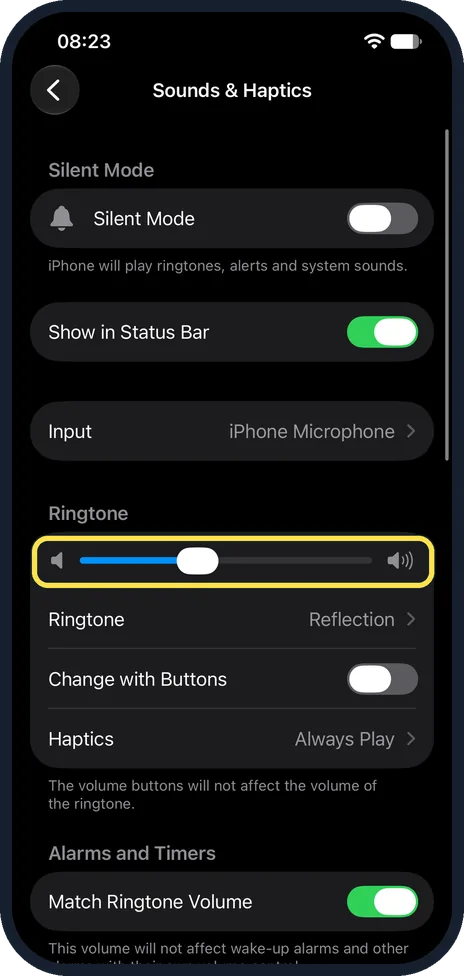
Open Settings, Sounds & Haptics and drag the slider under Ringtone to the right (Ringtone and Alerts on iOS 26 and earlier). The volume buttons only change the ringer if Change with Buttons is on. On our iPhone 17e Change with Buttons was off, with the note: The volume buttons will not affect the volume of the ringtone.
Check the ringtone
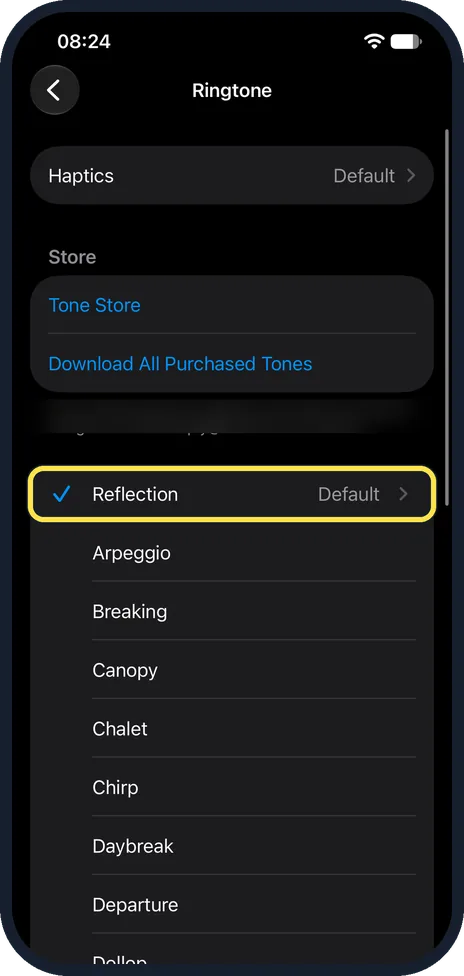
In Settings, Sounds & Haptics, tap Ringtone, then tap a ringtone to hear it and select it. On our iPhone 17e the Ringtone row read Reflection, and on the Ringtone page Reflection was ticked and marked Default.
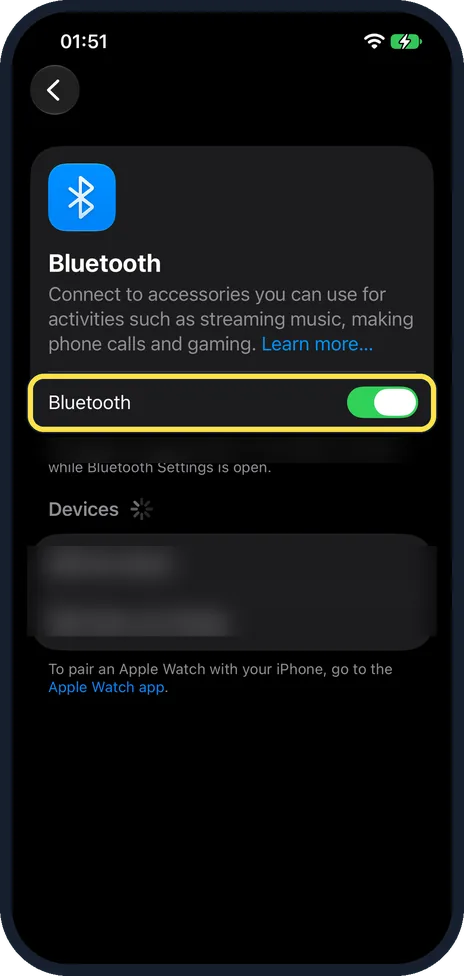
Disconnect Bluetooth
If headphones or a car kit are connected, switch Bluetooth off under Settings, Bluetooth as a test. On our iPhone 17e it was on. Switch it back on afterwards if you use Bluetooth devices.
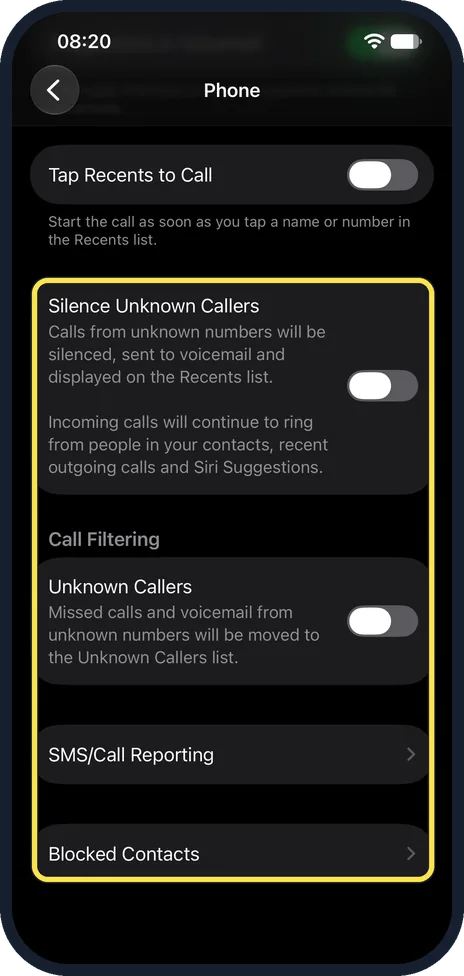
Check unknown callers and blocked contacts
Open Settings, Apps, Phone. If there is a Silence Unknown Callers switch, as on our iPhone with iOS 27.0.1, switch it off. While it is on, calls from unknown numbers are silenced, sent to voicemail and shown in Recents, as the note under the switch on our iPhone 17e says. Then tap Blocked Contacts and remove the number if it is listed. On our iPhone 17e Blocked Contacts was the last row of the Phone page, below SMS/Call Reporting.
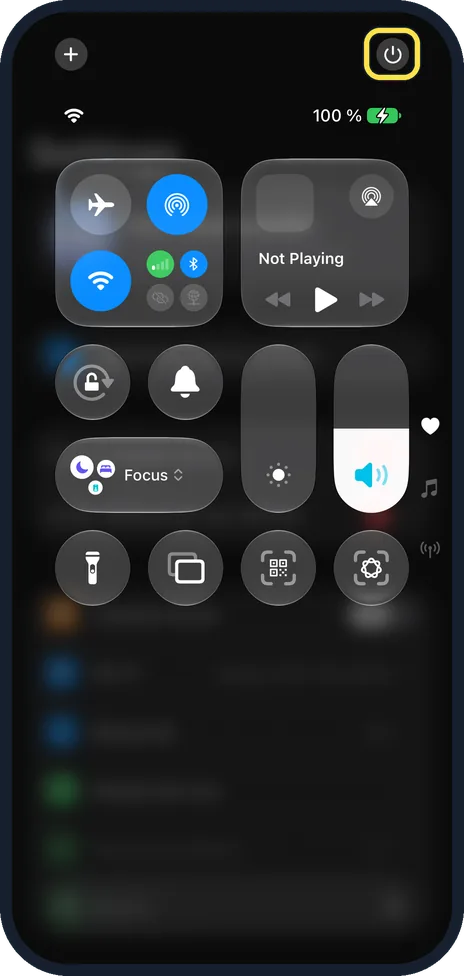
Restart the iPhone
Apple says to try restarting an iPhone that is not working as expected: turn it off, then on again. To turn it off in Control Centre, touch and hold in the top-right corner, then drag the slider. On our iPhone 17e that corner showed a power symbol.
What changed: the screenshots are now our own iPhone 17e on iOS 27.0.1, dark mode, and the wording is checked against those screens and Apple's iOS 27 guide.
Watch these steps
What we saw on our device
- Turn off Silent mode: On our iPhone 17e with iOS 27, Silent Mode was the first switch on the Sounds & Haptics page.
- Turn off Focus: On our iPhone 17e the Focus button sat below the Wi-Fi and Bluetooth group in Control Centre.
- Raise the ringer volume: On our iPhone 17e Change with Buttons was off, with the note: The volume buttons will not affect the volume of the ringtone.
- Check the ringtone: On our iPhone 17e the Ringtone row read Reflection, and on the Ringtone page Reflection was ticked and marked Default.
- Disconnect Bluetooth: On our iPhone 17e it was on.
- Check unknown callers and blocked contacts: On our iPhone 17e Blocked Contacts was the last row of the Phone page, below SMS/Call Reporting.
If you do not see this option
- No Silent Mode switch in Sounds & Haptics Apple says that on a model with an Action button you can press and hold the button to turn Silent mode off, and on other models you flip the Ring/Silent switch towards the front. On our iPhone 17e with iOS 27 the Silent Mode switch was at the top of Sounds & Haptics. Source: Silence iPhone
- No Call Forwarding row under Apps, Phone Apple says call forwarding needs mobile service through a GSM network. Our iPhone 17e had no SIM, so we could not show the Call Forwarding row. Source: Set up call forwarding on iPhone
- Screen Unknown Callers instead of a switch Apple says Screen Unknown Callers, under Settings, Apps, Phone, offers Never, Ask Reason for Calling and Silence. With Never, calls from unsaved numbers ring like any other call. With Ask Reason for Calling, the caller is asked why they are calling before the phone rings, and with Silence the calls are silenced and sent to voicemail. Our iPhone 17e with iOS 27.0.1 showed a Silence Unknown Callers switch instead. Source: Manage unknown callers on iPhone
If this does not work
- Calls ring on another number or not at all Check Call Forwarding: open Settings, Apps, Phone, Call Forwarding and switch it off. Apple says a Call Forwarding icon appears in the status bar while it is on. Source: Set up call forwarding on iPhone
- Only calls from unknown numbers do not ring On our iPhone 17e the Phone page had Silence Unknown Callers, with the note that incoming calls continue to ring from people in your contacts, recent outgoing calls and Siri Suggestions. Switch it off, or save the number as a contact.
- Alarms and music play, but calls stay silent Apple says Clock alarms, audio apps such as Music and many games play sounds even when Silent mode is on. Sound from those does not mean Silent mode is off. Source: Silence iPhone
- No sound from the speaker at all Apple's speaker article says to go to Settings, Sounds & Haptics and drag the Ringtone slider a few times. If you hear no sound, or the speaker button on the slider is dimmed, the speaker may need service: remove any case or screen film first, then contact Apple Support. On our iPhone 17e the slider sat under the Ringtone heading. Source: If you hear no sound or distorted sound from your iPhone, iPad, or iPod touch speaker
About this guide
When calls come in silently or go straight to voicemail, check the settings below. Each of them can stop a call from ringing.
Screenshots: iPhone 17e, iOS 27.0.1, dark mode.
Good to know
If the phone does not ring for one caller only, check that contact's ringtone: Apple says to open Contacts, tap the person's name, tap Edit and choose a ringtone.
Apple says that when Silent mode is on, the iPhone does not ring but may still vibrate.
Apple says a Focus can be scheduled to turn on at certain times. If calls are silent at the same time every day, check the Focus schedules under Settings, Focus.
In short: Silent mode off, Focus off, ringer volume up, then check unknown callers, forwarding and Bluetooth.
- Apple Support: If you hear no sound or distorted sound from your iPhone, iPad, or iPod touch speaker
- Apple Support: Manage unknown callers on iPhone
- Apple iPhone User Guide: Silence iPhone
- Apple iPhone User Guide: Turn on or schedule a Focus on iPhone
- Apple iPhone User Guide: Change iPhone sounds and vibrations
- Apple Support: Set up call forwarding on iPhone
- Apple Support: Block phone numbers, contacts and emails on your iPhone
- Apple iPhone User Guide: Turn iPhone on or off
Links checked in October 2026. Menus and features can change after software updates. These steps match the version named at the top.
Did this guide work for you?
Sorry about that. What happened?