
What changed: the screenshots are now our own iPhone 17e on iOS 27.0.1, dark mode, and the wording is checked against those screens.
howtosimply.com/guides/how-to-turn-on-keyboard-vibration-on-an-iphone/ · Checked October 2026 · iPhone 17e · iOS 27.0.1
In this guide
Open Settings, tap Sounds & Haptics, then Keyboard Feedback, and switch on Haptic. The iPhone then gives a light tap for every key you press. There is also a Haptic Feedback switch under Settings, General, Keyboard.
5 of 5 steps with real screenshots · 1 official source below
- Device
- iPhone
- Shown on
- iOS 27.0.1 (iPhone 17e)
- App
- Settings
- Path
- Settings › Sounds & Haptics › Keyboard Feedback
- Real screenshots
- 5 of 5 steps
- Checked
- October 2026
- Sources
- 1 official, linked below
Step by step
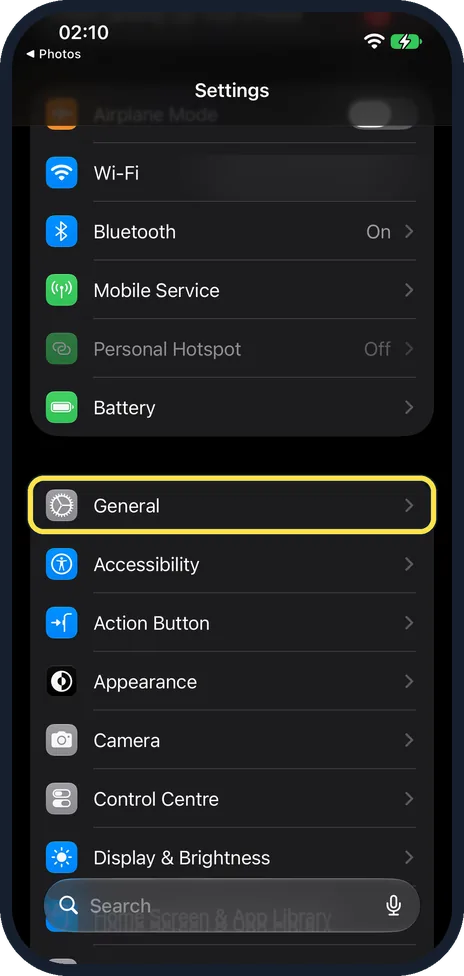
Open Settings and tap General
General is the first row of the group below Battery, after Airplane Mode, Wi-Fi and Bluetooth.
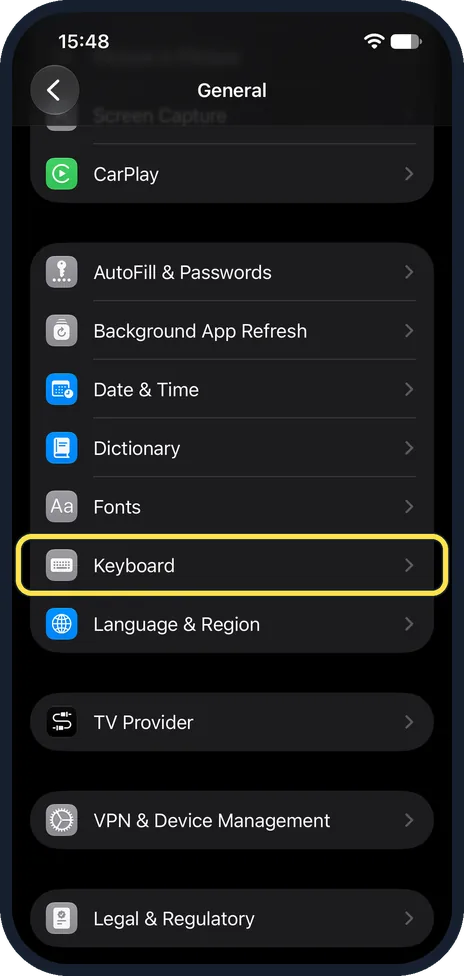
Tap Keyboard
It is just below Fonts on the General page. The page that opens is titled Keyboards.
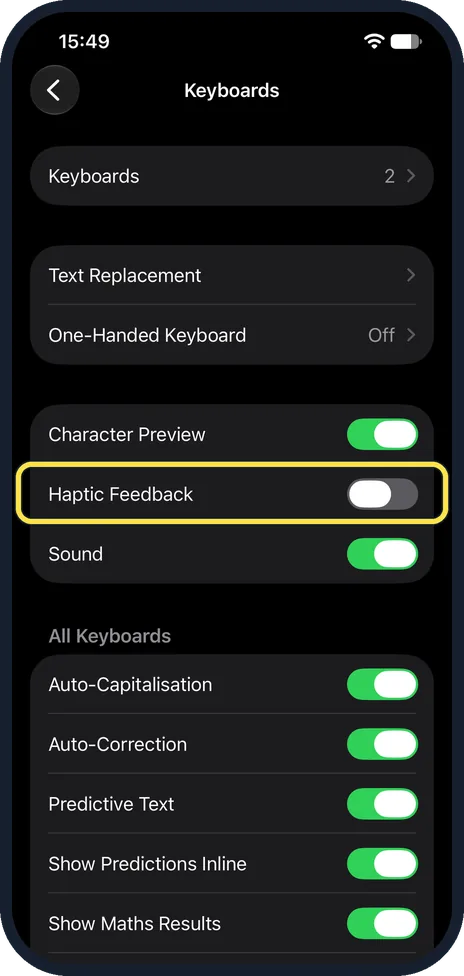
Switch on Haptic Feedback
It is in the group with Character Preview and Sound. On our iPhone 17e it was off and Sound was on.
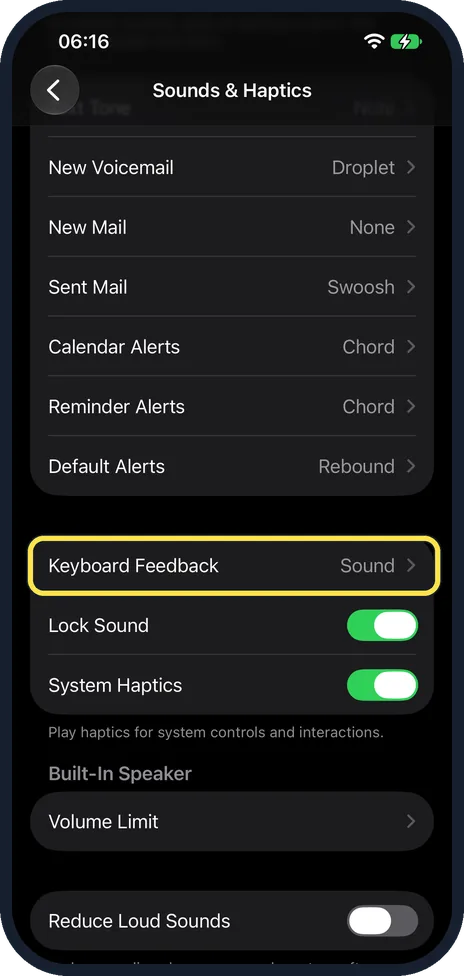
Or: open Sounds & Haptics and tap Keyboard Feedback
The same setting is also under Settings, Sounds & Haptics. Keyboard Feedback is in the group with Lock Sound and System Haptics; ours read Sound.
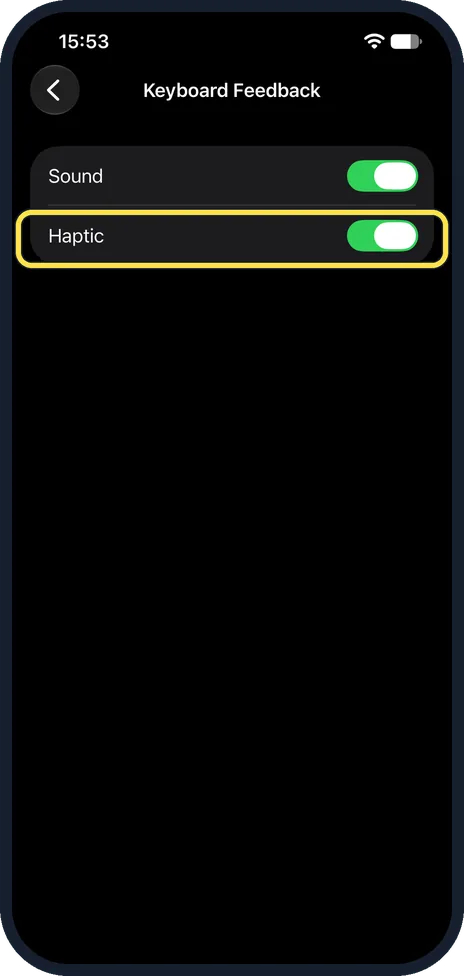
Switch on Haptic
On the Keyboard Feedback page the same setting is called Haptic. Here it is switched on.
What changed: the screenshots are now our own iPhone 17e on iOS 27.0.1, dark mode, and the wording is checked against those screens.
If you do not see this option
- Change it from the keyboard. While typing, touch and hold the emoji or globe key and tap Keyboard Settings. On our iPhone 17e the menu listed Keyboard Settings, English (US) and Emoji. Source: Type with the onscreen keyboard on iPhone
- Search for it. Open Settings, tap the search field at the bottom and type Haptic. Apple notes that the sections in Settings depend on the iPhone model. Source: Find settings on iPhone
If this does not work
- You hear clicks but feel no taps. Sound and Haptic Feedback are separate switches. Ours had Sound on and Haptic Feedback off at first.
- You only want the taps, not the clicks. Switch off Sound, just below Haptic Feedback, or on the Keyboard Feedback page. Source: Type with the onscreen keyboard on iPhone
About this guide
Apple puts it this way: you can hear clicks or feel taps as you type. The taps are called haptic feedback. On our iPhone 17e the Haptic Feedback switch was off until we turned it on.
The screenshots are our own, taken on an iPhone 17e running iOS 27.0.1, in dark mode.
Good to know
The click sound has its own switch called Sound, just below Haptic Feedback on the Keyboards page: how to turn off keyboard clicks on an iPhone.
In short: Settings, Sounds & Haptics, Keyboard Feedback, Haptic on.
Links checked in October 2026. Menus and features can change after software updates. These steps match the version named at the top.
📷 See real photos from the iPhone 17e in our Camera Lab, next to 10 other phones.
Did this guide work for you?
Sorry about that. What happened?