
howtosimply.com/guides/how-to-turn-on-always-on-display-on-an-oppo-phone/ · Checked October 2026 · CPH2689, EEA), ColorOS 16.0.5, Android 16 (build CPH2689_16.0.5.1001(EX01) · OPPO Reno13 5G
In this guide
Open Settings, Home screen, Lock screen & style, scroll to Always-On Display and turn on its switch. Then pick a Mode: Full screen, Seamless or Classic. It was off on our Reno13.
3 of 3 steps with real screenshots · 2 official sources below
- Device
- Android
- Shown on
- OPPO Reno13 5G (CPH2689, EEA), ColorOS 16.0.5, Android 16 (build CPH2689_16.0.5.1001(EX01))
- App
- Settings
- Path
- Settings › Home screen › Lock screen & style › Always-On Display
- Real screenshots
- 3 of 3 steps
- Checked
- October 2026
- Sources
- 2 official, linked below
Step by step
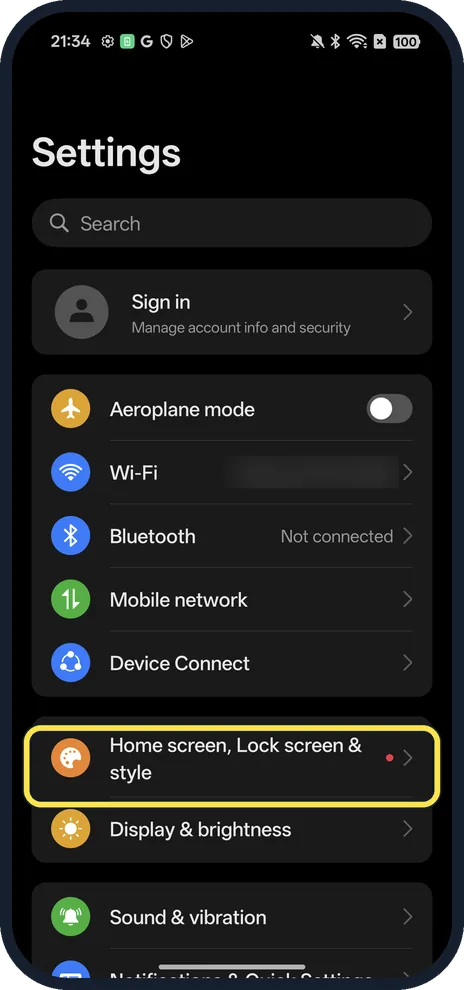
Open Home screen, Lock screen & style
Open Settings; it is under Device Connect.
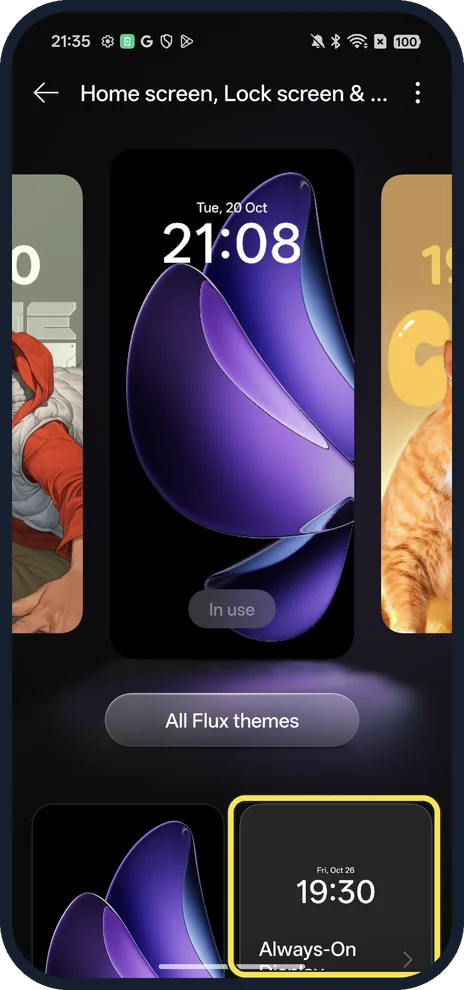
Tap Always-On Display
Scroll down to the Always-On Display card.
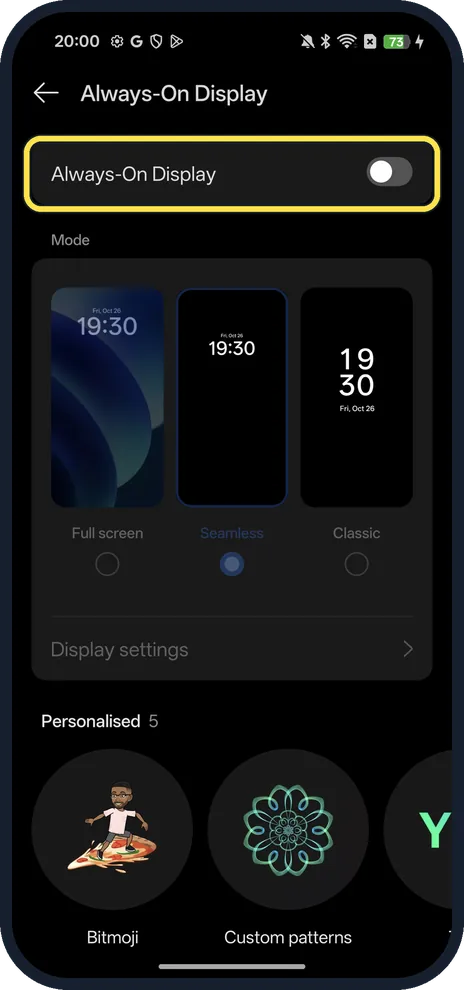
Turn on the switch, then pick a Mode
The Always-On Display switch is at the top of the page. Under Mode: Full screen, Seamless (selected on ours) or Classic. Personalised styles include Bitmoji and Custom patterns.
If you do not see this option
- Older ColorOS? OPPO's help for ColorOS 12 and later gives Settings, Personalizations or Wallpaper & style, Always On Display. On our ColorOS 16.0.5 the menu is called Home screen, Lock screen & style. Source: How to Customize OPPO Omoji on "Always on Display"
- No Always-On Display card on the first screen? Scroll down the Home screen, Lock screen & style page; on ours the card was at the bottom right, below the lock screen previews.
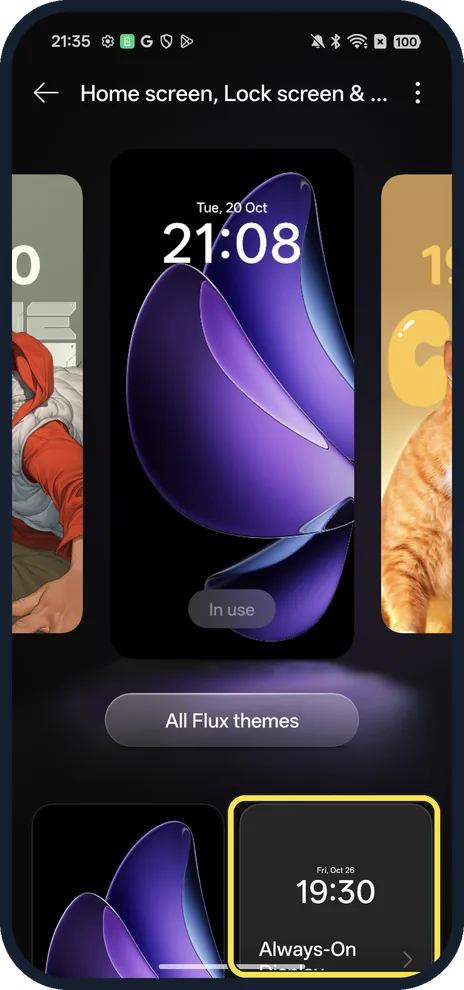
- Want a character or your own design? Scroll to Personalised: ours offered Bitmoji and Custom patterns. OPPO says ColorOS 12 and later can also show an Omoji you created. Source: How to Customize OPPO Omoji on "Always on Display"
If this does not work
- Screen still goes fully black? Check the switch at the top of the Always-On Display page is on; it was off on ours. Then pick a Mode below it.
- Battery drains overnight? Turn the switch off again. Google's battery tips include letting the screen turn off sooner and setting brightness to change automatically. Source: Get the most life from your Android battery
About this guide
The screenshots are from our OPPO Reno13 5G, the European model CPH2689, with ColorOS 16.0.5 and Android 16 (build CPH2689_16.0.5.1001(EX01)), in Dark mode. We did not switch it on.
Good to know
Pair it with darker colours: turn on Dark mode.
Change what the side button does: power button settings.
In short: Settings, Home screen, Lock screen & style, Always-On Display, switch on, pick a Mode.
- OPPO Support: How to Customize OPPO Omoji on "Always on Display"
- Google Android Help: Get the most life from your Android battery
Links checked in October 2026. Menus and features can change after software updates. These steps match the version named at the top.
Did this guide work for you?
Sorry about that. What happened?