
What changed: every step re-shot on our own Galaxy S26 (Korean model SM-S942N) on One UI 9, dark mode, with the steps rewritten for the One UI 9 screens.
howtosimply.com/guides/how-to-turn-on-dark-mode-on-a-samsung-galaxy-phone/ · Checked October 2026 · SM-S942N, Korean model), One UI 9, Android 17 (build S942NKSS4BZIG · Samsung Galaxy S26
In this guide
Open Settings, tap Display and tap Dark at the top of the page. To switch it on and off automatically, tap Dark mode schedule and turn on Turn on as scheduled. Tap Light to go back.
4 of 4 steps with real screenshots · 1 official source below
- Device
- Android
- Shown on
- Samsung Galaxy S26 (SM-S942N, Korean model), One UI 9, Android 17 (build S942NKSS4BZIG)
- App
- Settings
- Path
- Settings › Display › Dark
- Real screenshots
- 4 of 4 steps
- Checked
- October 2026
- Sources
- 1 official, linked below
Step by step
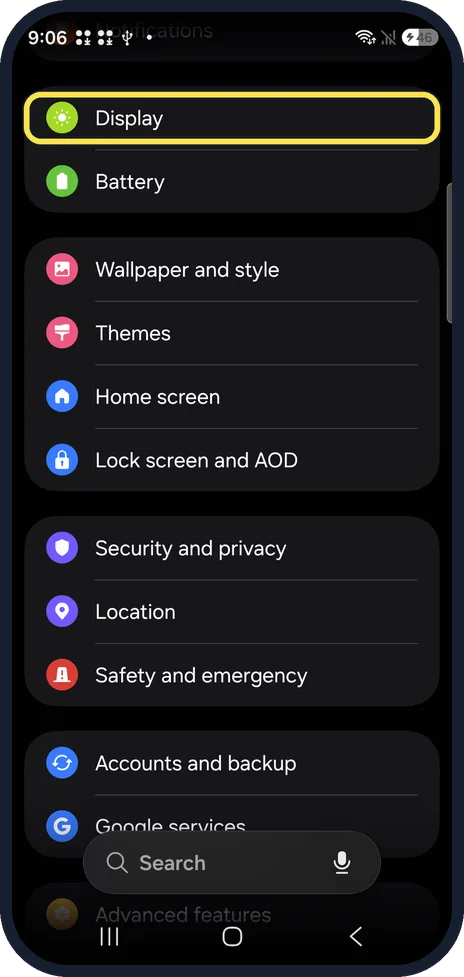
Open Display
Open Settings and tap Display, just above Battery.
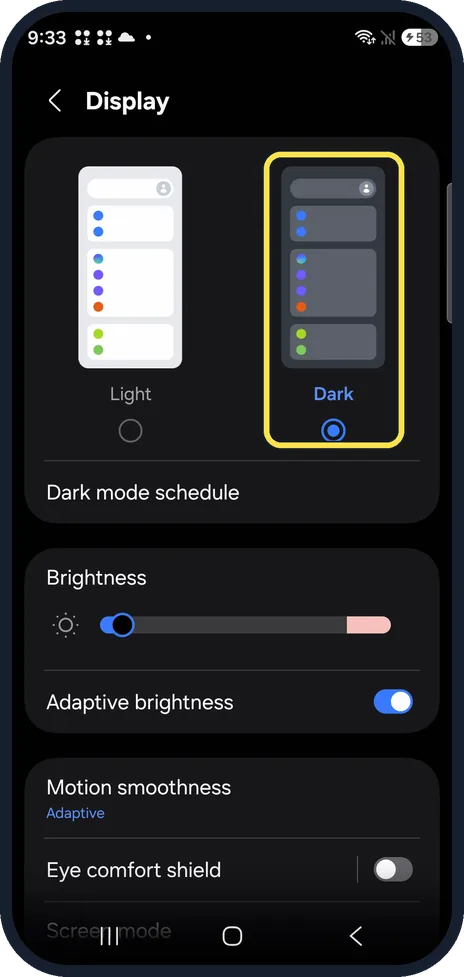
Tap Dark
At the top of the page, tap Dark. Tap Light to switch back.
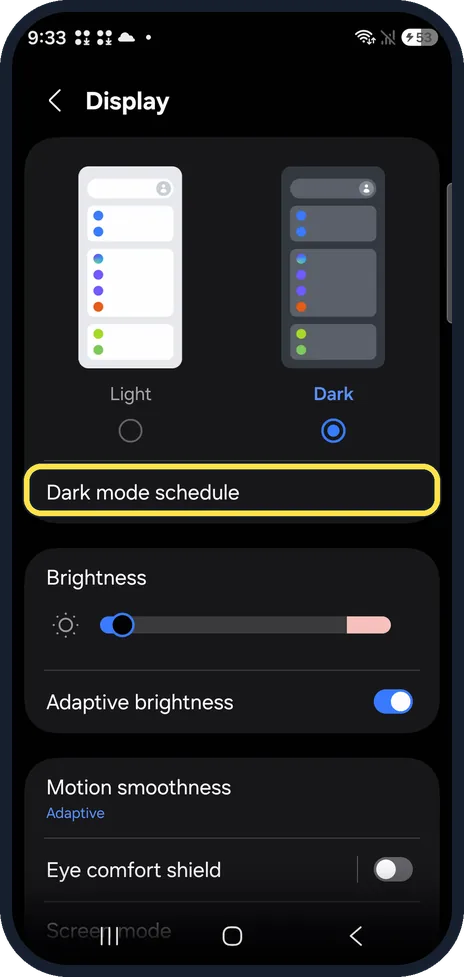
Open Dark mode schedule
To switch dark mode on and off automatically, tap Dark mode schedule, just below Light and Dark.
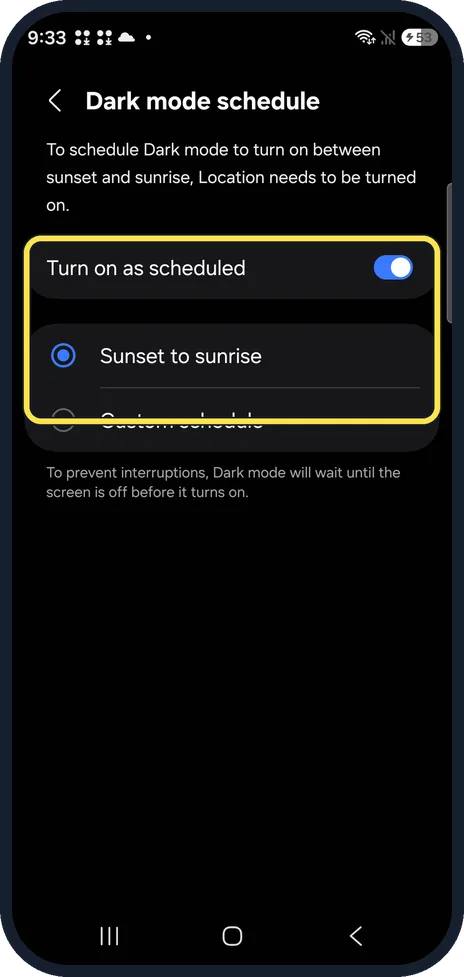
Turn on Turn on as scheduled
Then choose Sunset to sunrise, the default, or Custom schedule and set your times.
What changed: every step re-shot on our own Galaxy S26 (Korean model SM-S942N) on One UI 9, dark mode, with the steps rewritten for the One UI 9 screens.
If you do not see this option
- No Display in Settings Scroll down the Settings list, or tap Search at the bottom of Settings and type Dark mode.
- No Sunset to sunrise or Custom schedule They appear only after you switch on Turn on as scheduled.
- On One UI 8.5 Our Galaxy A57 with One UI 8.5 had the same Light and Dark choice at the top of Display, with Dark mode schedule just below it.
If this does not work
- Sunset to sunrise does not work The Dark mode schedule page says Location needs to be turned on to schedule Dark mode between sunset and sunrise.
- Dark mode does not switch on at the set time The page notes that Dark mode will wait until the screen is off before it turns on.
- The phone is back in Light If the phone shows Light after you switch the schedule off, tap Dark again on the Display page.
About this guide
Dark mode turns the white backgrounds of Settings, Samsung apps and most other apps black or dark grey, which is easier on the eyes at night.
The screenshots are from our Samsung Galaxy S26, the Korean model SM-S942N, with One UI 9 and Android 17 (build S942NKSS4BZIG), in Dark mode. Menus can differ on models sold in other regions. We switched the schedule on and off again.
Good to know
Some apps from other developers ignore the system setting and have their own theme option in their settings.
Eye comfort shield, further down the same Display page, is a separate setting for warmer colours at night.
In short: Settings, Display, Dark. Dark mode schedule, Turn on as scheduled for a schedule.
Links checked in October 2026. Menus and features can change after software updates. These steps match the version named at the top.
📷 See real photos from the Galaxy S26 in our Camera Lab, next to 10 other phones.
Did this guide work for you?
Sorry about that. What happened?