XIAOMI REDMI
How to turn on dark mode on a Xiaomi phone (HyperOS 3)

In short
Go to Settings, Display & brightness and tap the Dark mode card. To switch on a schedule, open Dark mode options, turn on Switch to Dark mode automatically and pick Sunset to sunrise or Custom. The Individual apps list below has a switch for each app.
7 of 7 steps show a real screenshot from our Redmi Note 15 Pro 5G. Each step was checked against the maker's own instructions, linked at the end.
Steps
- 1
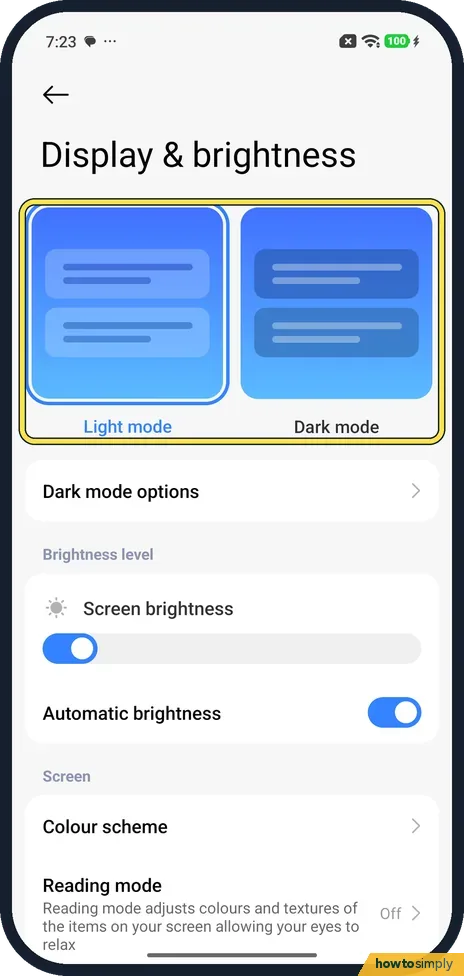
Open Display & brightness
Open Settings and tap Display & brightness. Two cards sit at the top: Light mode and Dark mode. Light mode was selected on ours, with a blue frame.
- 2
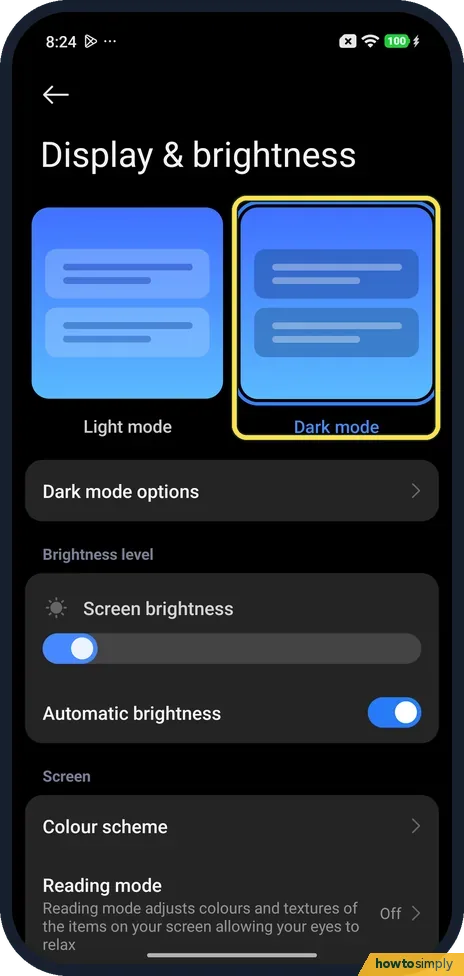
Tap Dark mode
Tap the Dark mode card. On ours the Display & brightness page turned dark at once, and the blue frame moved to Dark mode.
- 3
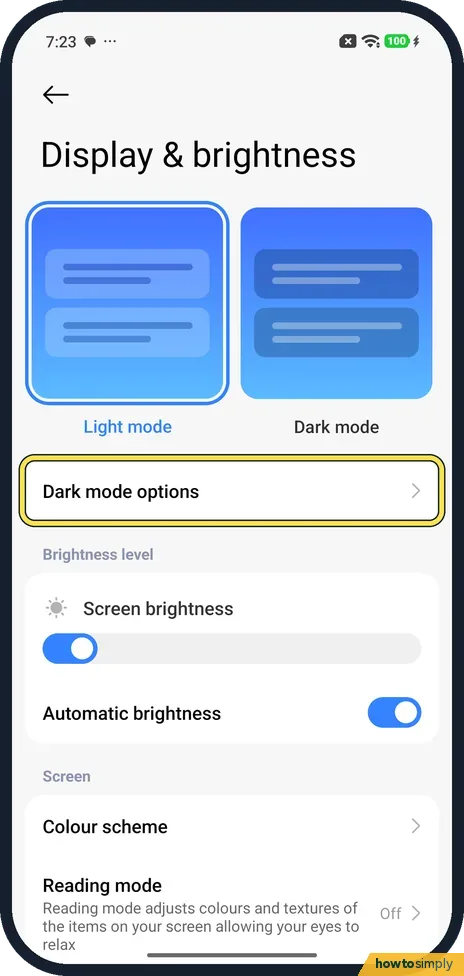
Open Dark mode options
Tap Dark mode options, just below the cards.
- 4
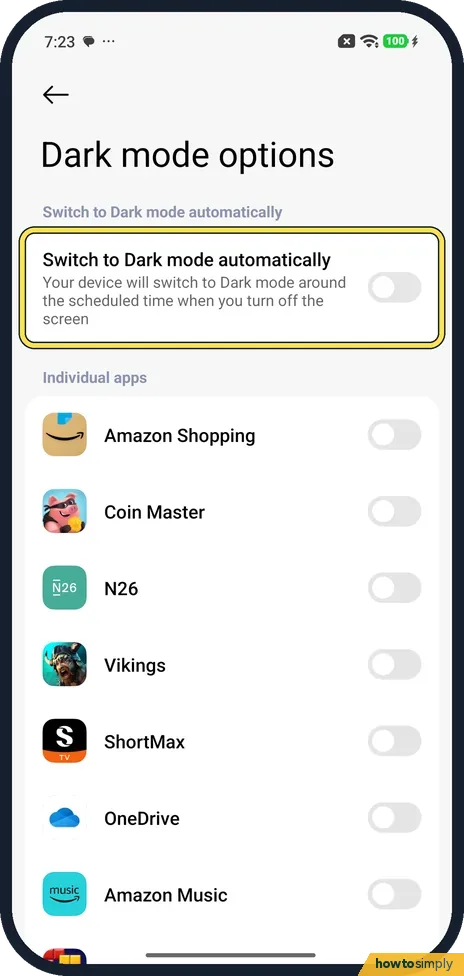
Turn on the schedule
Turn on Switch to Dark mode automatically. Its note says the phone switches around the scheduled time when you turn off the screen. It was off on ours until we tried it.
- 5
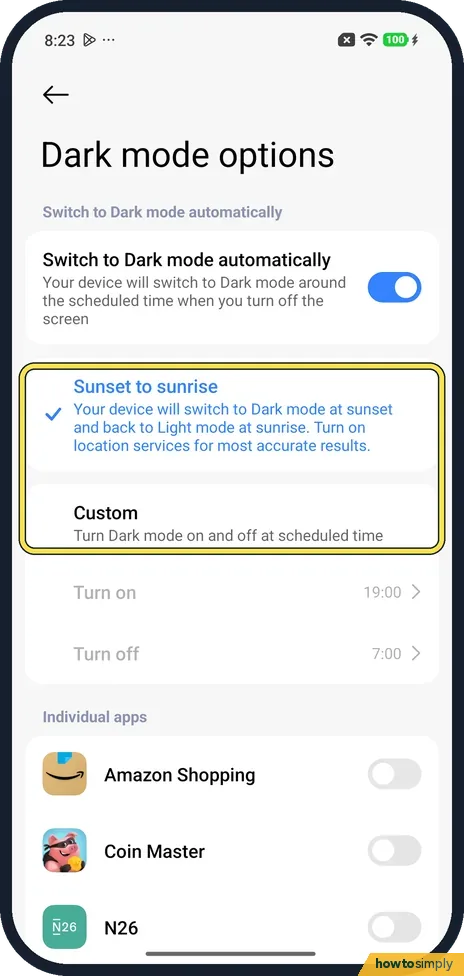
Pick Sunset to sunrise or Custom
Two choices appear. Sunset to sunrise was ticked on ours; its note says to turn on location services for the most accurate results. Custom turns it on and off at times you set.
- 6
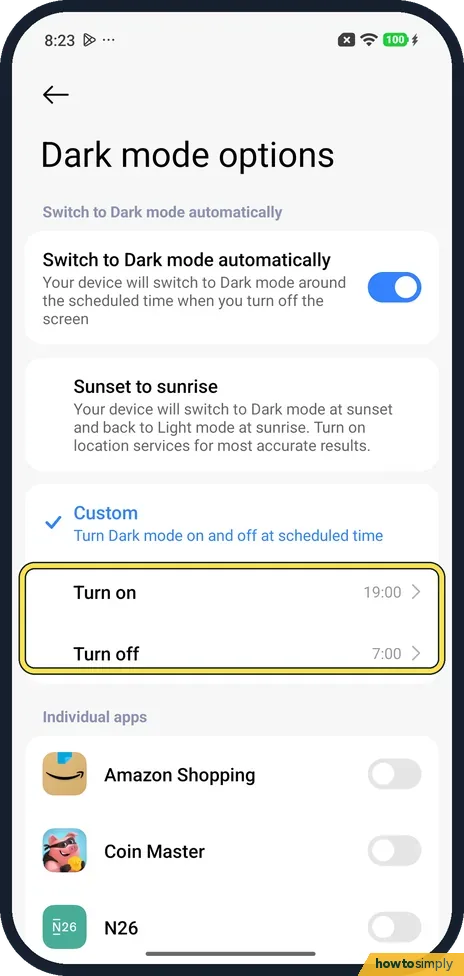
Set the Custom times
With Custom ticked, Turn on and Turn off rows appear. Ours were 19:00 and 7:00. Tap one to change the time on a wheel.
- 7
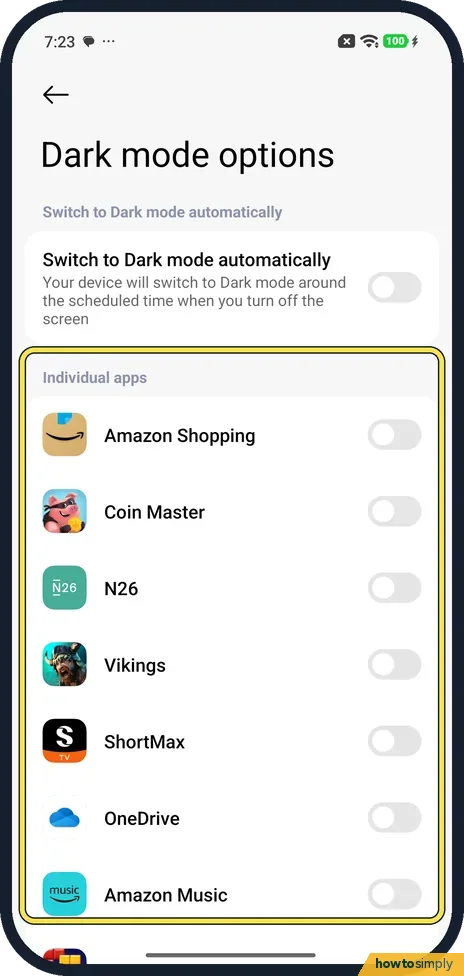
Choose single apps
Under Individual apps each app has its own switch. Ours listed Amazon Shopping, Coin Master, N26, Vikings and more, all off.
If you do not see this option
- No Dark mode cards? Xiaomi's support page gives an older route: Settings, Display, Dark mode, then turn on the Dark mode switch. Source: How to set dark mode?
- No schedule? Xiaomi says the Redmi Note 9 has Dark mode but does not switch it automatically by time. Source: Redmi Note 9 FAQ
- Missing Adjust text and backgrounds automatically? Xiaomi lists that switch in Dark mode options on the REDMI 13C 5G. Our Dark mode options page had only the schedule and Individual apps. Source: How to set Dark mode on the REDMI 13C 5G?
If this does not work
- An app stays white? Google's Android help says dark theme isn't available for all apps. Try that app's switch under Individual apps.
- An app looks wrong in Dark mode? Xiaomi says some third-party apps are not adapted to dark mode and may display abnormally; it returns to normal when you turn Dark mode off. Turn off that app's switch under Individual apps.
- Schedule doesn't switch on time? The note on ours says it switches around the scheduled time when you turn off the screen. Lock the phone and it should change.
- Phone went dark by itself? Check Dark mode options first: Switch to Dark mode automatically may be on. Google also notes that on some Android phones Battery Saver can switch dark theme on.
Good to know
Easier on the eyes without going dark: Reading mode, further down Display & brightness, has a Reading mode switch and a Schedule switch. Both were off on ours.
Xiaomi's HyperOS 3 guide lists Dark mode among the Control centre toggles. To add it: how to edit the Control Centre.
Text hard to read in either mode: how to change the text size and font.
To undo, tap the Light mode card and turn off the schedule, or Dark mode comes back at the set time.
Ultra battery saver switches Dark mode on by itself. On our Redmi with HyperOS 3.0.309.0, on 1 November 2026, Dark mode came on while Ultra battery saver was on and went back to Light mode when we left it. We could not check the ordinary Battery saver, whose switch was greyed out while the phone was charging.
About this guide
- Device
- Android
- Shown on
- Xiaomi Redmi Note 15 Pro 5G (25080RABDG), HyperOS 3.0.308.0, Android 16
- App
- Settings
- Path
- Settings › Display & brightness › Dark mode
- Real screenshots
- 7 of 7 steps
- Checked
- October 2026
- Sources
- 5 official, linked below
Sources
Links checked October 2026. Menus and features can change with updates.Spotted a mistake? Menus change with updates, and we want every step to match your screen. Email us about this page or use the contact form. We read every report, and fixes are listed on What changed.
Liked this guide?
Follow us for new guides and short how-to videos.
Did this guide work for you?
Sorry about that. What happened?