
howtosimply.com/guides/how-to-turn-on-eye-comfort-shield-on-a-samsung-galaxy-phone/ · Checked October 2026 · Samsung Galaxy A57 5G (SM-A576B), One UI 8.5, Android 16
In this guide
Open Settings, Display and tap the switch next to Eye comfort shield. Tap the words to open its page and choose Adaptive or Custom. You can also turn it on or off with the Eye comfort shield button in the quick panel.
4 of 4 steps with real screenshots · 1 official source below
- Device
- Android
- Shown on
- Samsung Galaxy A57 5G (SM-A576B), One UI 8.5, Android 16
- App
- Settings
- Path
- Settings › Display
- Real screenshots
- 4 of 4 steps
- Checked
- October 2026
- Sources
- 1 official, linked below
Step by step
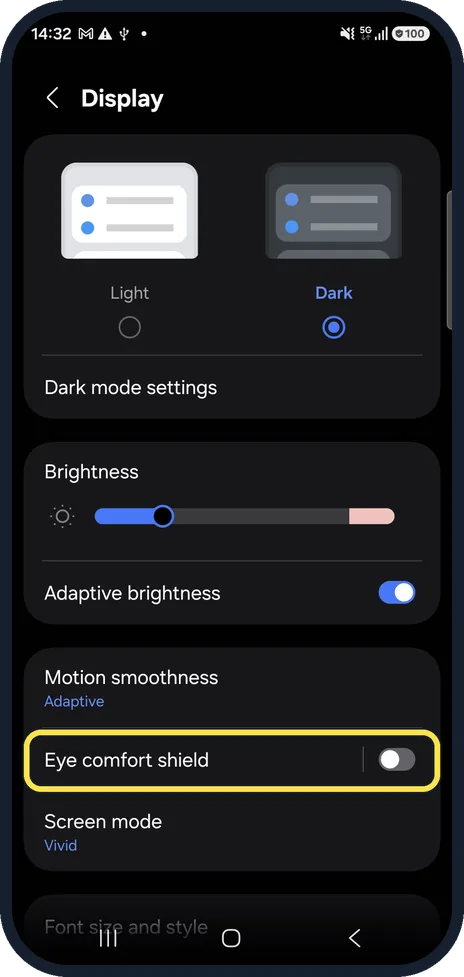
Open Display settings
Open Settings, then Display.
On our Galaxy, Eye comfort shield sits between Motion smoothness and Screen mode, with its switch off.
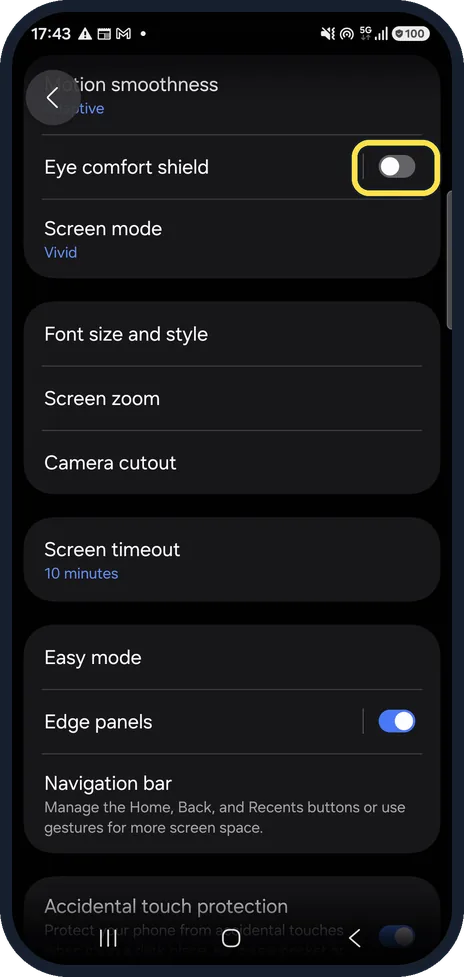
Switch it on
Tap the switch next to Eye comfort shield so it turns blue.
On our Galaxy, the row then shows Adaptive underneath. Tapping the words instead opens the Eye comfort shield page.
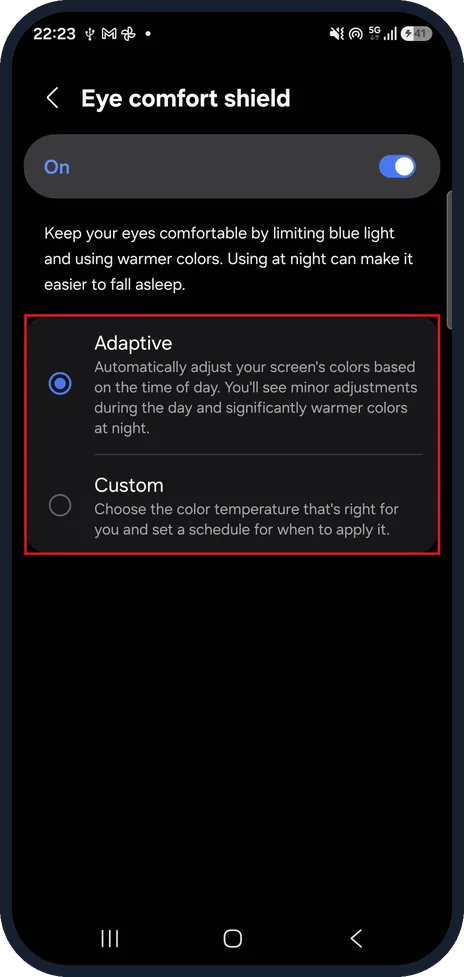
Choose Adaptive or Custom
Tap the words Eye comfort shield to open its page.
On our Galaxy, the page has an On switch at the top and two options, Adaptive and Custom, with Adaptive selected.
Adaptive changes the colours with the time of day; Custom lets you choose the colour temperature and set a schedule.
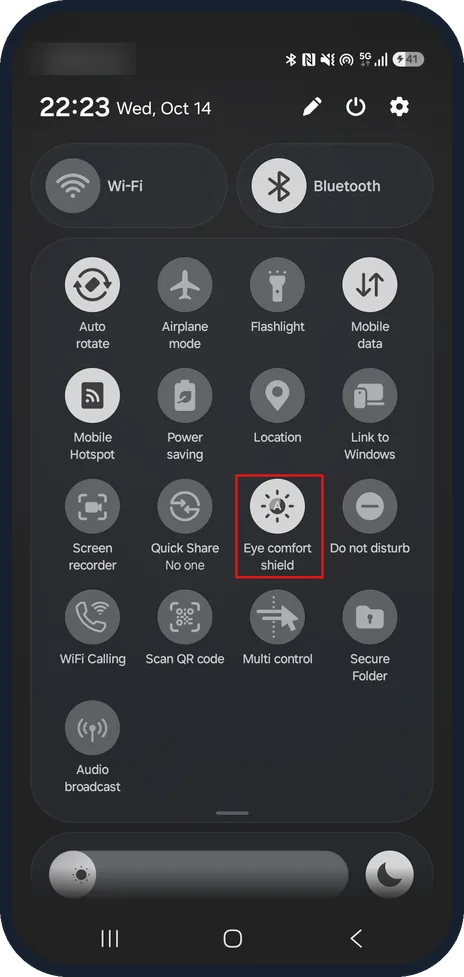
Use the quick panel
Swipe down from the top of the screen with two fingers to open the full quick panel.
Tap Eye comfort shield to turn it on or off. On our Galaxy, it sits between Quick Share and Do not disturb.
If you do not see this option
- Eye comfort shield is not in the Display list On our Galaxy, it is in the third group of Display, between Motion smoothness and Screen mode. Scroll back up if you have moved past it.
- Adaptive and Custom do not appear Tap the words Eye comfort shield rather than the switch. The two options are on its own page, below the On switch.
- The button is not in the quick panel Open the full quick panel. On our Galaxy, Eye comfort shield is in the third row, between Quick Share and Do not disturb.
If this does not work
- A screenshot looks no warmer The warmer tint does not show in screenshots. Look at the screen itself to check it is working.
- The screen barely changes during the day With Adaptive, the page says you'll see minor adjustments during the day and significantly warmer colours at night. Choose Custom to set the colour temperature yourself.
- You only want it at certain times Choose Custom on the Eye comfort shield page. Its description says you can set a schedule for when to apply it.
About this guide
Eye comfort shield is Samsung's blue-light filter. It limits blue light and makes the screen colours warmer, especially at night.
The screenshots are from a Samsung Galaxy A57 5G with One UI 8.5 and Android 16, in dark mode.
Good to know
It works together with dark mode: how to turn on dark mode on a Samsung Galaxy phone.
In short: Settings, Display, Eye comfort shield: switch on, then choose Adaptive or Custom.
Links checked in October 2026. Menus and features can change after software updates. These steps match the version named at the top.
📷 See real photos from the Galaxy A57 in our Camera Lab, next to 10 other phones.
Did this guide work for you?
Sorry about that. What happened?