
howtosimply.com/guides/how-to-turn-off-personalised-ads-and-recommendations-on-an-honor-phone/ · Checked October 2026 · BRP-NX1M, EEA), MagicOS 10.0, Android 16 (build 10.0.0.169(C430E7R2P1) · HONOR Magic7 Lite
In this guide
- Open AI Suggestions
- Tap the three dots, then Privacy management
- Turn off the switches you don't want
- Open HONOR Search settings, Homepage display
- Turn off HONOR Search suggestions
- Open Privacy controls, Ads
- Delete the advertising ID (optional)
- If you do not see this option
- If this does not work
- Good to know
- Sources
Open Settings, Honor AI, AI Suggestions, tap the three dots, Privacy management and turn off Personalised ads and Intelligent recommendations. For HONOR Search, swipe down on the Home screen, open its Settings, Homepage display. Settings, Security and privacy, Privacy controls, Ads deletes the advertising ID.
7 of 7 steps with real screenshots · 2 official sources below
- Device
- Android
- Shown on
- HONOR Magic7 Lite (BRP-NX1M, EEA), MagicOS 10.0, Android 16 (build 10.0.0.169(C430E7R2P1))
- App
- Settings
- Real screenshots
- 7 of 7 steps
- Checked
- October 2026
- Sources
- 2 official, linked below
Step by step
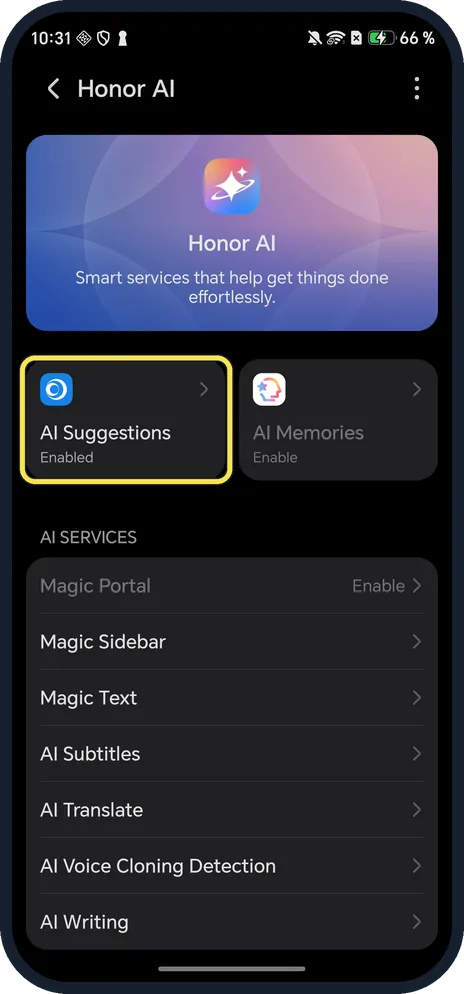
Open AI Suggestions
Open Settings, Honor AI. AI Suggestions is the first tile.
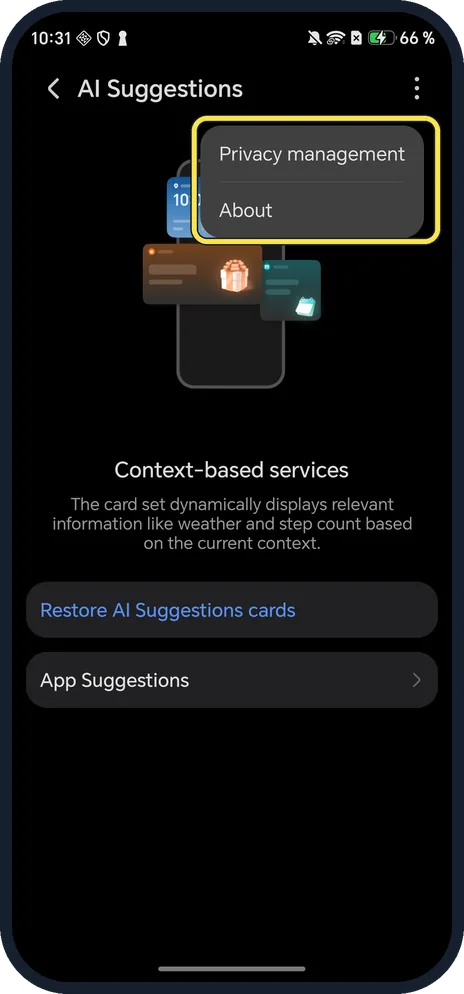
Tap the three dots, then Privacy management
At the top right of the AI Suggestions page.
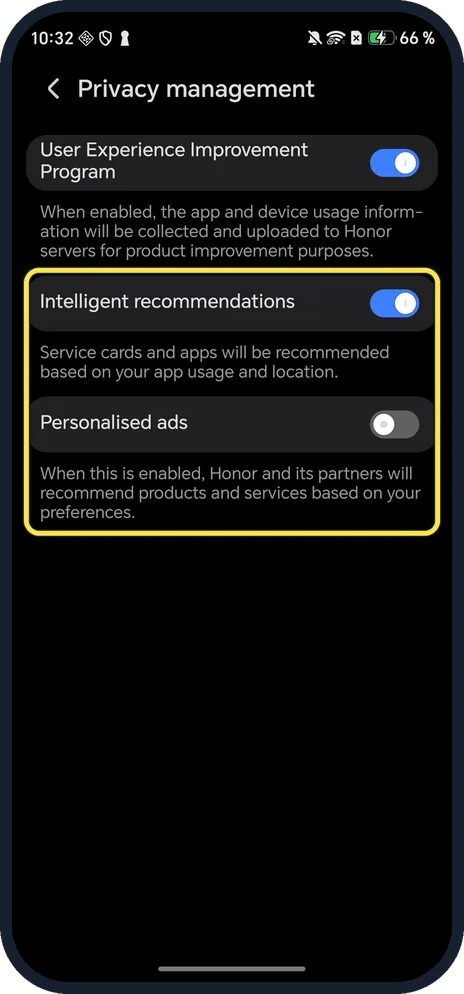
Turn off the switches you don't want
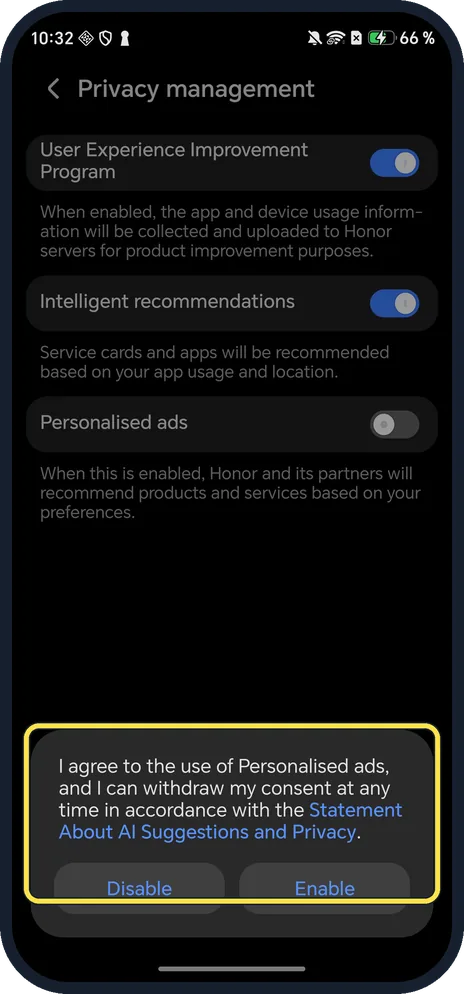
Intelligent recommendations: service cards and apps based on your app usage and location. Personalised ads: Honor and its partners recommend products and services based on your preferences. Ours had Personalised ads off.
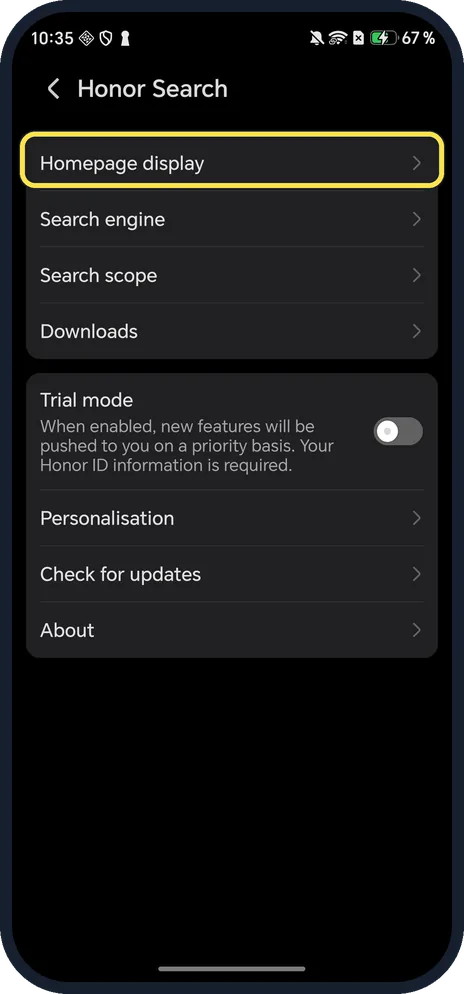
Open HONOR Search settings, Homepage display
Swipe down on the Home screen to open HONOR Search, tap the three dots next to Search, then Settings. Homepage display is the first row.
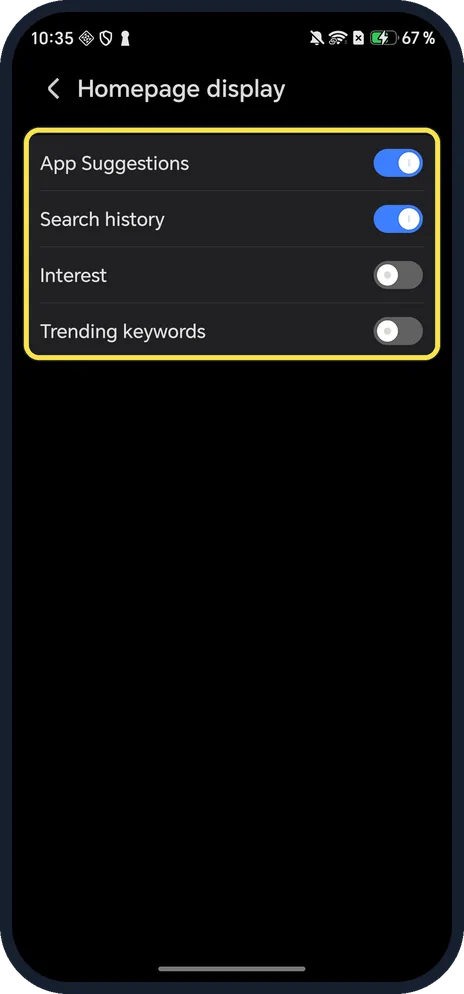
Turn off HONOR Search suggestions
Ours had App Suggestions and Search history on, Interest and Trending keywords off.
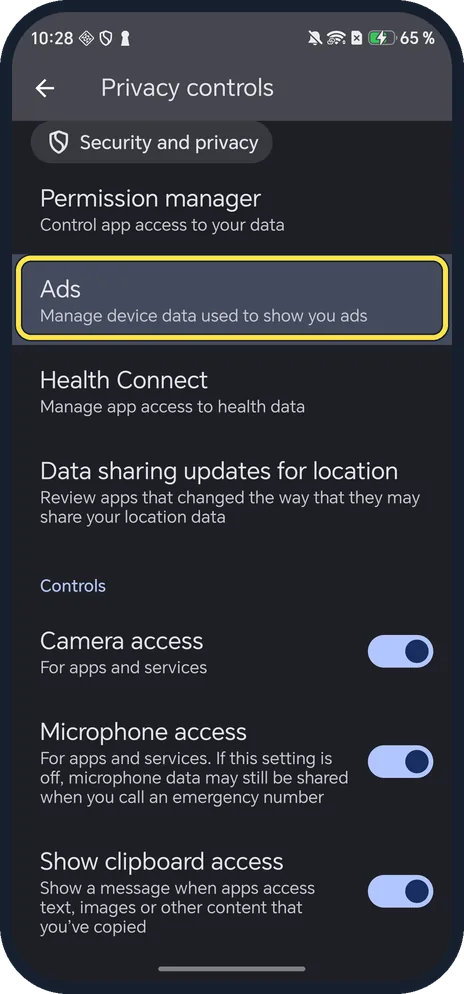
Open Privacy controls, Ads
Settings, Security and privacy, Privacy controls. Ads: Manage device data used to show you ads.
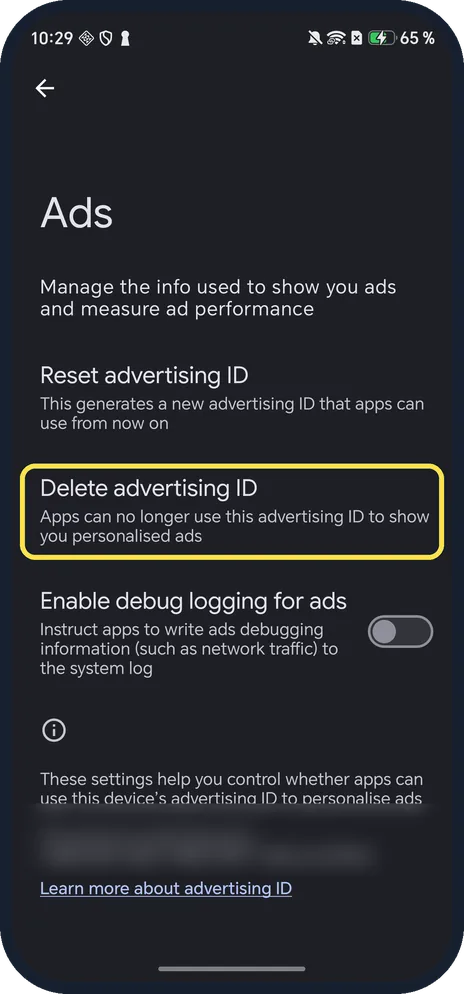
Delete the advertising ID (optional)
Delete advertising ID: apps can no longer use this advertising ID to show you personalised ads. We did not tap it.
If you do not see this option
- Turning Personalised ads on? It asks: I agree to the use of Personalised ads, and I can withdraw my consent at any time. Tap Disable to keep it off.
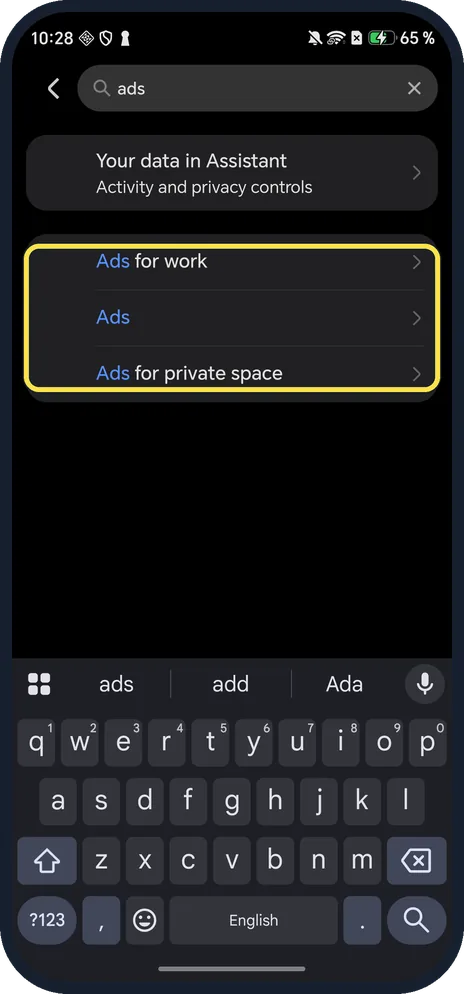
- Searched Settings for "ads"? It found Ads for work, Ads and Ads for private space.
- HONOR Search recommendations? HONOR says open the menu, Settings, Homepage display, Interest, and turn off the switch; the switch depends on the system version. Source: Turn off recommendations on Honor Search
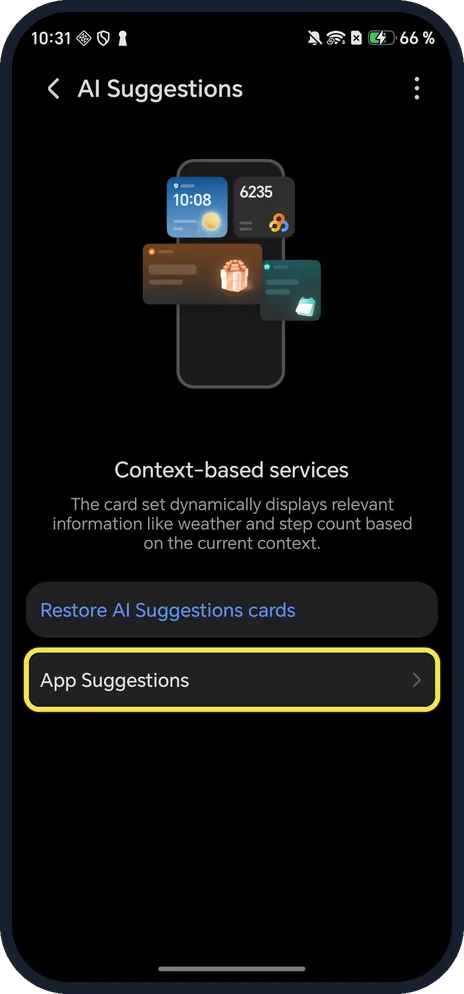
- AI Suggestions card on the Home screen? It is part of AI Suggestions; App Suggestions on the same page sets which apps it shows.
If this does not work
- Still seeing ads? Google says deleting the advertising ID means apps can still show you ads, but they may be less relevant, and apps can have their own ad settings. Source: Manage your ad privacy settings on Android
- Want a fresh ID instead of none? The same Ads page has Reset advertising ID: This generates a new advertising ID that apps can use from now on. Source: Manage your ad privacy settings on Android
About this guide
There is no single ads switch on MagicOS 10. We searched Settings and opened each page that controls ads or recommendations.
The screenshots are from our HONOR Magic7 Lite, the European model BRP-NX1M, with MagicOS 10.0 and Android 16 (build 10.0.0.169(C430E7R2P1)), in Dark mode. Personalised ads was already off; we left the other switches as we found them.
Good to know
For the sidebar that shows suggestions, see Magic Sidebar.
To remove apps you don't want, see uninstall apps.
In short: Honor AI, AI Suggestions, three dots, Privacy management; HONOR Search, Homepage display; Privacy controls, Ads.
- HONOR Support: Turn off recommendations on Honor Search
- Android Help: Manage your ad privacy settings on Android
Links checked in October 2026. Menus and features can change after software updates. These steps match the version named at the top.
Did this guide work for you?
Sorry about that. What happened?