XIAOMI REDMI
How to turn off personalised ads and recommendations on a Xiaomi phone (HyperOS 3)
Open Settings, tap Fingerprints, face data, and screen lock, then Privacy, then Ad services, and turn off Personalized ads. Then turn off Receive recommendations in the settings of the Security app and the Cleaner app. You still see as many ads; they stop being based on your interests.

8 of 8 steps show a real screenshot from our Redmi Note 15 Pro 5G. Each step was checked against the maker's own instructions, linked at the end.
Steps
- 1
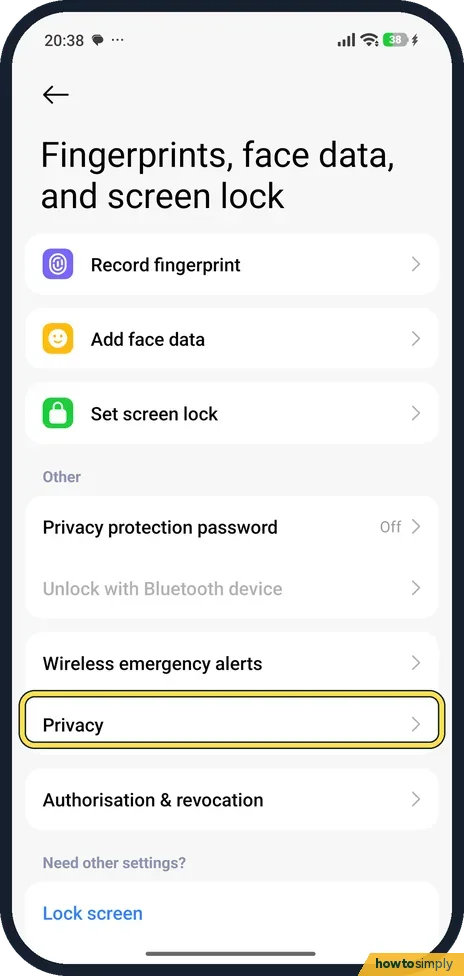
Open Fingerprints, face data, and screen lock, then tap Privacy
In Settings, scroll down and tap Fingerprints, face data, and screen lock. On HyperOS 3 the privacy settings live here. Tap Privacy, under Other.
- 2
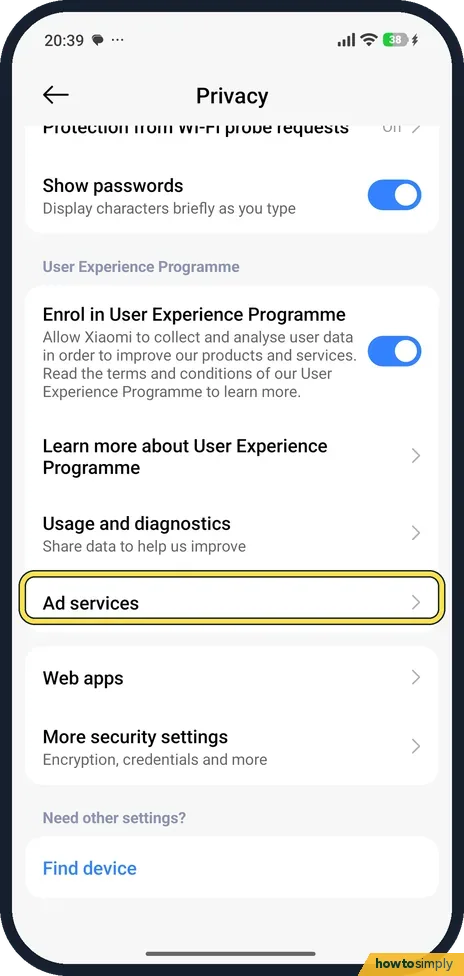
Tap Ad services
The Privacy page is long. Ad services is below Usage and diagnostics.
- 3
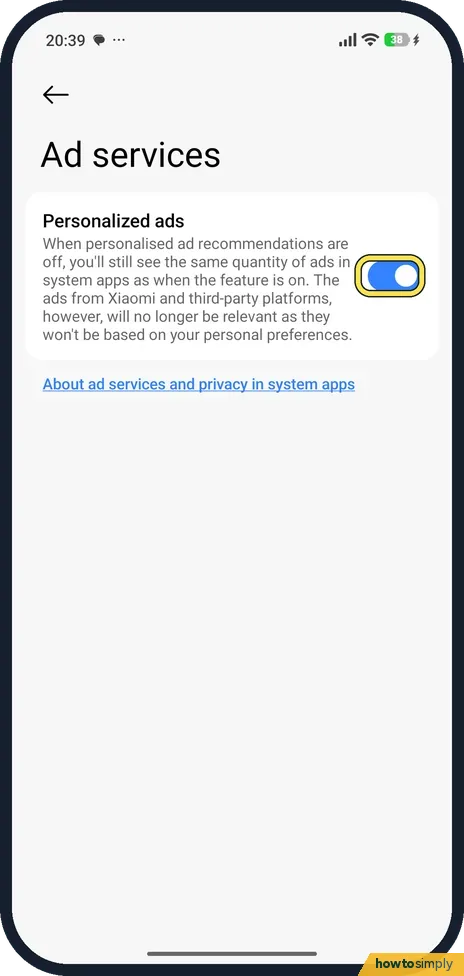
Turn off Personalized ads
Tap the blue switch next to Personalized ads . Read the text under it: you will still see the same quantity of ads in system apps, but ads from Xiaomi and third-party platforms will no longer be based on your personal preferences.
- 4
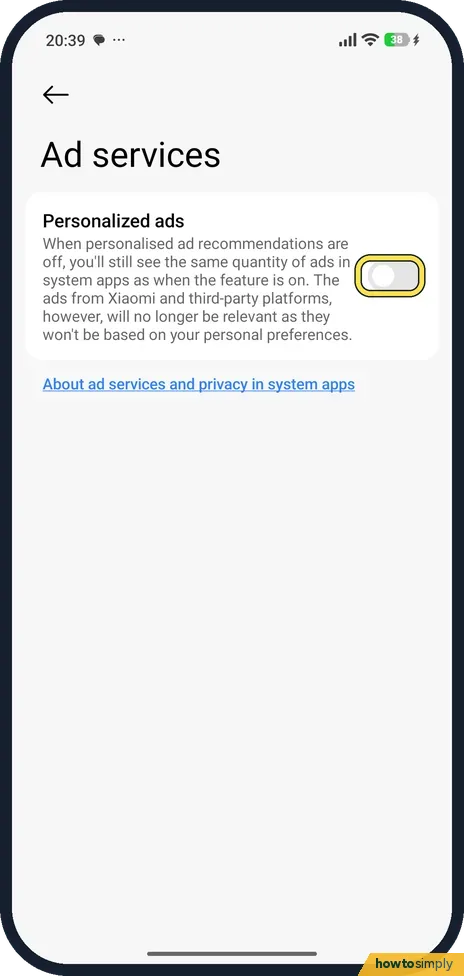
Check that the switch is grey
Personalized ads is off when its switch is grey.
- 5
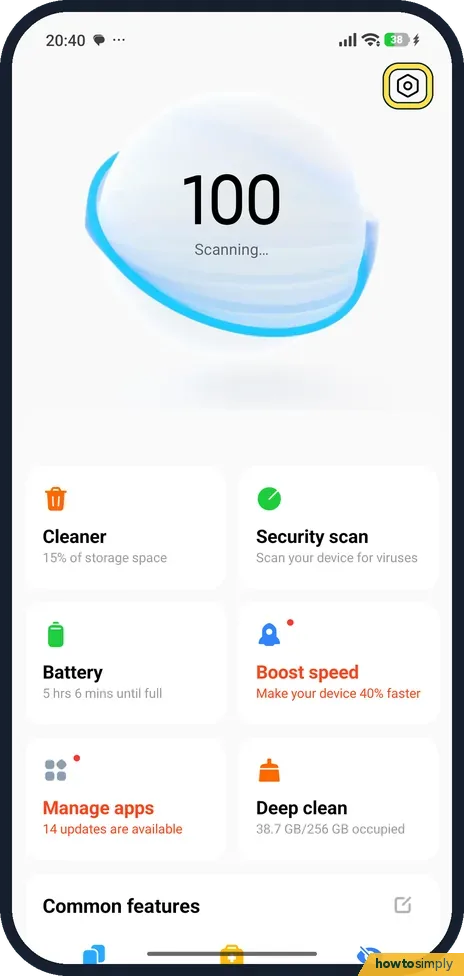
Open the Security app's settings
Open the Security app (the green shield). Tap the gear at the top right of its home screen.
- 6
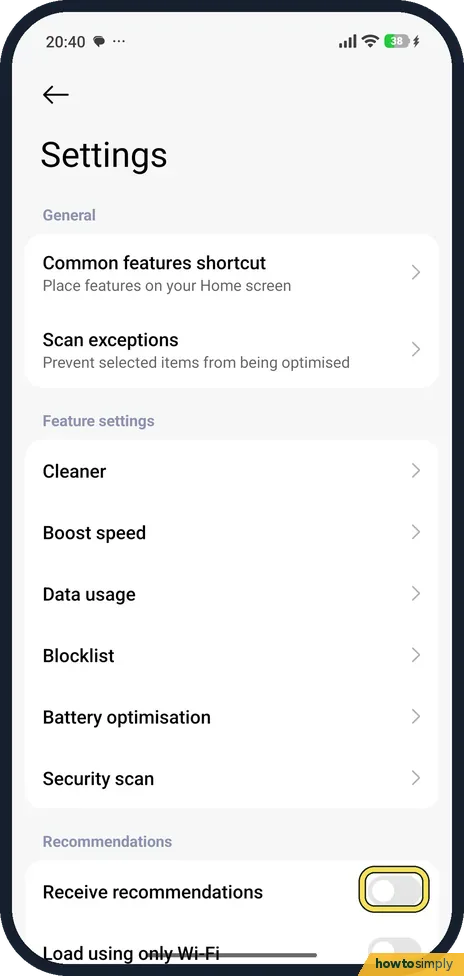
Turn off Receive recommendations in Security
Scroll to the bottom of Settings. Under Recommendations, turn off Receive recommendations. Some guides call this switch Show recommendations; on our phone it is Receive recommendations. Here it is switched off.
- 7
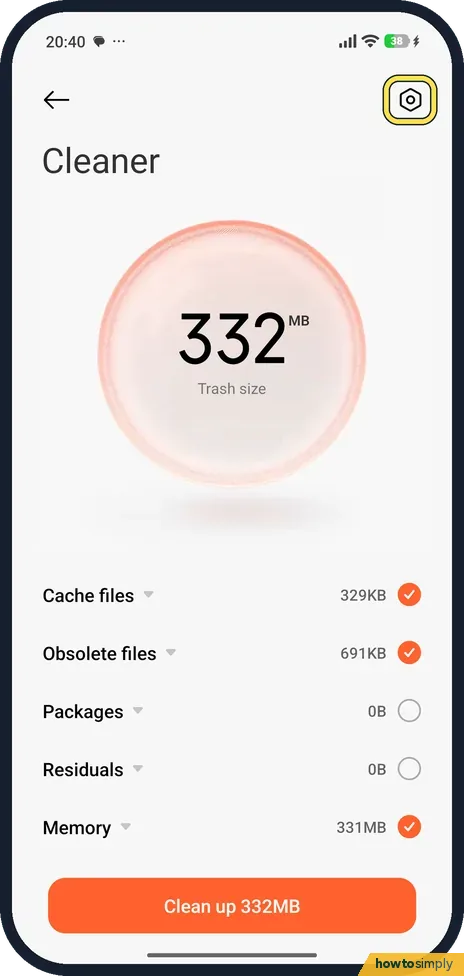
Open the Cleaner app's settings
Open the Cleaner app (the orange bin) and tap the gear at the top right. You do not have to run a clean.
- 8
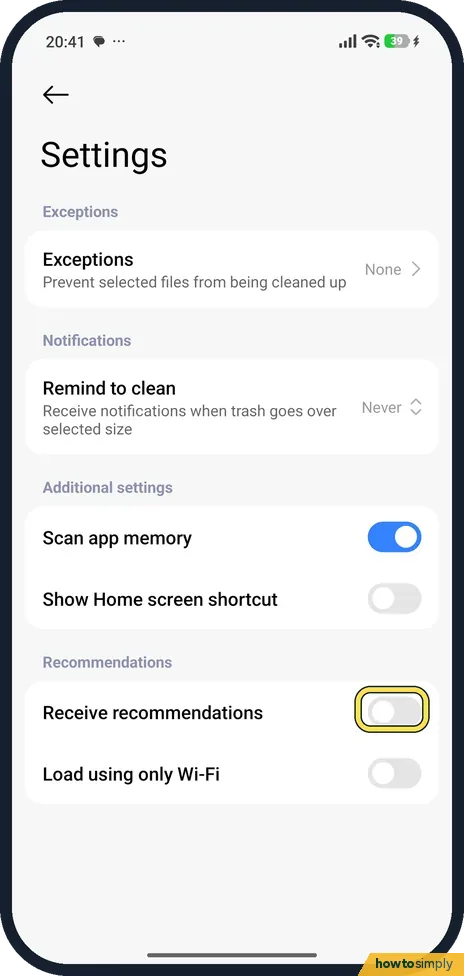
Turn off Receive recommendations in Cleaner
Under Recommendations, turn off Receive recommendations. Here it is switched off.
If you do not see this option
- No Ad services under Passwords & security? Xiaomi's older help article sends you to Passwords & security. On our HyperOS 3 phone Ad services is under Fingerprints, face data, and screen lock, then Privacy, as Xiaomi's newer article for the Xiaomi 14T says. Sources: How to close Ad services?, How to turn off Personalize ads
- Switch called Personalize ads? Xiaomi's help page for the Xiaomi 14T names it Personalize ads. Our HyperOS 3 phone shows Personalized ads. It is the same switch. Source: How to turn off Personalize ads
If this does not work
- Still seeing as many ads? That is expected. Xiaomi says the number of ads stays the same; only the personalisation stops.
- Suggestions still in App vault? Gizmochina and Notebookcheck describe a separate switch in App vault's menu, under Manage services.
- Ads in Google apps still feel personal? Xiaomi's switch does not cover Google's ads. Google says turning off Personalised ads in My Ad Centre affects Google services and partner apps; in the YouTube app you reach it through Account, Settings, Privacy, Google ad settings.
Good to know
App finder has its own list of games, with its own switch: how to turn off game suggestions in App finder.
Gizmochina and Notebookcheck also suggest revoking msa under Authorisation & revocation, the row below Privacy in step 1. We did not; turning off Personalized ads did not need it.
About this guide
- Device
- Android
- Shown on
- Xiaomi Redmi Note 15 Pro 5G (25080RABDG), HyperOS 3.0.308.0, Android 16
- App
- Settings
- Path
- Settings › Fingerprints
- Real screenshots
- 8 of 8 steps
- Checked
- October 2026
- Sources
- 3 official, 2 other, linked below
Sources
Links checked October 2026. Menus and features can change with updates.Spotted a mistake? Menus change with updates, and we want every step to match your screen. Email us about this page or use the contact form. We read every report, and fixes are listed on What changed.
Liked this guide?
Follow us for new guides and short how-to videos.
Did this guide work for you?
Sorry about that. What happened?