
howtosimply.com/guides/how-to-turn-off-notifications-for-one-app-on-an-oppo-phone/ · Checked October 2026 · CPH2689, EEA), ColorOS 16.0.5, Android 16 (build CPH2689_16.0.5.1001(EX01) · OPPO Reno13 5G
In this guide
Open Settings, Apps, App management, tap the app, then Manage notifications and turn off Allow notifications. With it on, you can also set the app to silent or turn off its sound, vibration and lock screen display.
5 of 5 steps with real screenshots · 3 official sources below
- Device
- Android
- Shown on
- OPPO Reno13 5G (CPH2689, EEA), ColorOS 16.0.5, Android 16 (build CPH2689_16.0.5.1001(EX01))
- App
- Settings
- Path
- Settings › Apps › App management
- Real screenshots
- 5 of 5 steps
- Checked
- October 2026
- Sources
- 3 official, linked below
Step by step
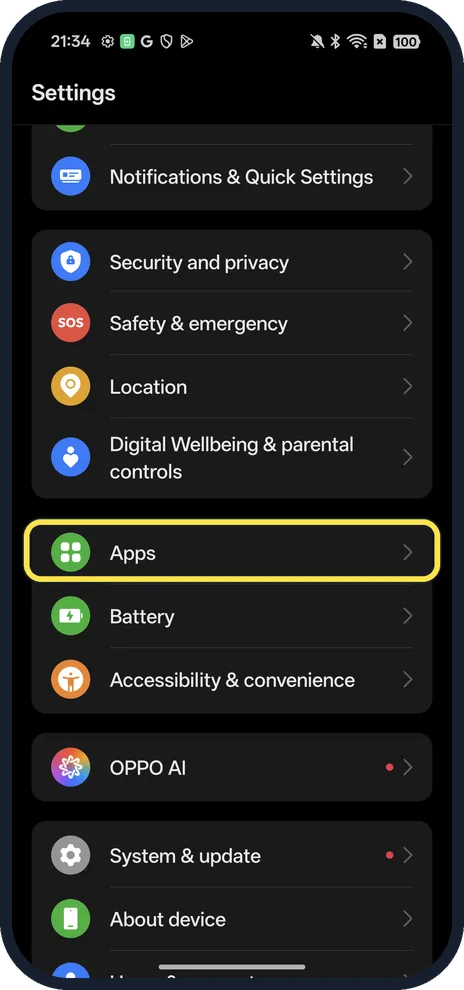
Open Apps
Open Settings and tap Apps.
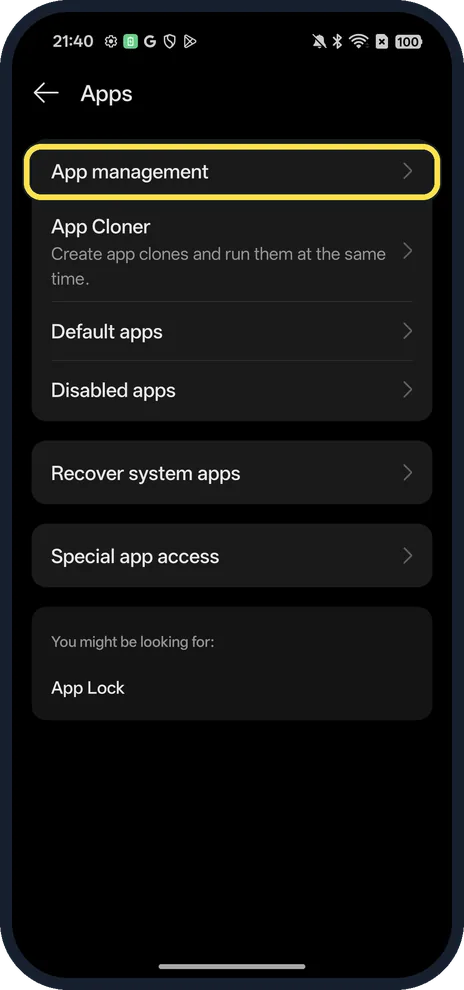
Tap App management
The first row.
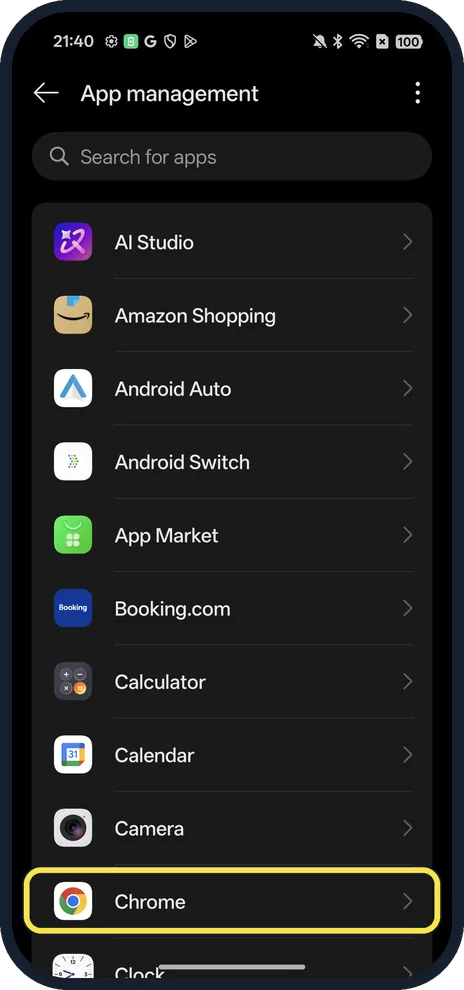
Tap the app
We tapped Chrome. You can search at the top.
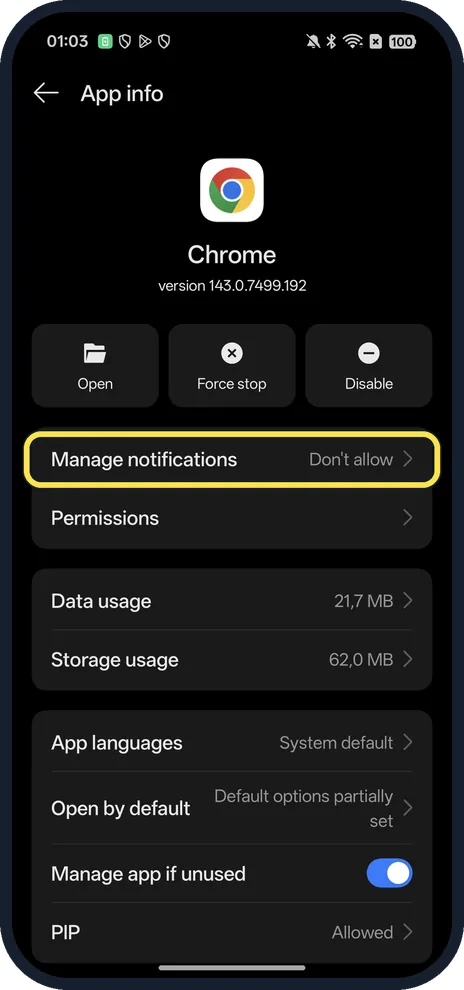
Tap Manage notifications
Ours said Don't allow.
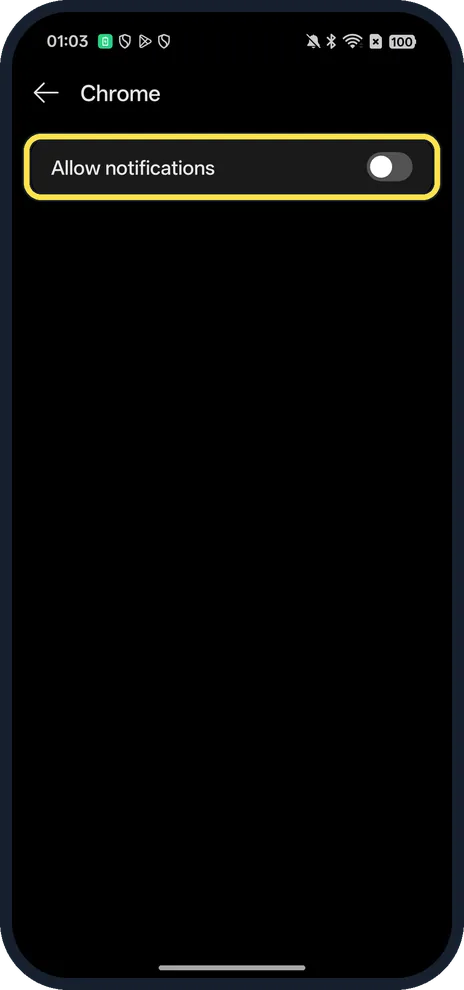
Turn off Allow notifications
The app can no longer show notifications. The options below the switch disappear.
If you do not see this option
- Older OPPO phone? OPPO gives the route as Settings, Notification & status bar, Manage notifications, the app, then Allow notifications. Source: What to Do if OPPO Phone is Not Receiving App Notifications
- Faster way from a notification? OPPO says to swipe the notification to the left and tap the Settings icon to reach that app's notification settings. Source: What Is OPPO Reno's Notification Center and Status Bar
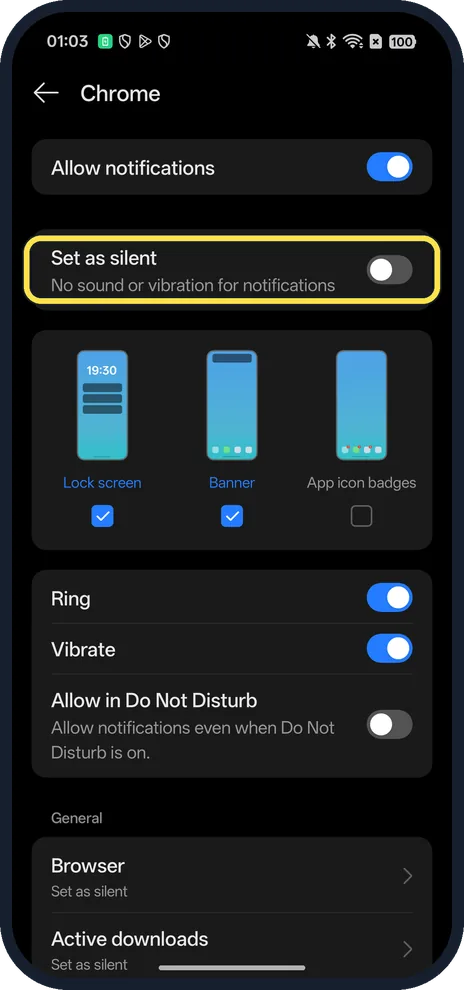
- Want it quiet, not off? With Allow notifications on, turn on Set as silent: no sound or vibration for notifications.
If this does not work
- Still shows on the lock screen? With notifications on, untick Lock screen among Lock screen, Banner and App icon badges.
- Only want some kinds off? Scroll down: under the General heading, Chrome listed Browser and Active downloads, each with its own setting.
- App still beeps in Do Not Disturb? Turn off Allow in Do Not Disturb for that app.
About this guide
The screenshots are from our OPPO Reno13 5G, the European model CPH2689, with ColorOS 16.0.5 and Android 16 (build CPH2689_16.0.5.1001(EX01)), in Dark mode. Chrome's notifications were off on ours; we turned them on for the screenshot and off again.
Good to know
To silence everything at night, turn on Do Not Disturb.
To see what you missed, see notification history.
In short: Settings, Apps, App management, the app, Manage notifications.
- Google Android Help: Control notifications on Android
- OPPO Support: What to Do if OPPO Phone is Not Receiving App Notifications
- OPPO Support: What Is OPPO Reno's Notification Center and Status Bar
Links checked in October 2026. Menus and features can change after software updates. These steps match the version named at the top.
Did this guide work for you?
Sorry about that. What happened?