ONEPLUS
How to turn off camera and microphone access on a OnePlus

In short
Go to Settings, Security and privacy, Privacy controls and switch off Camera access or Microphone access. That blocks every app. For a quicker switch, add the Camera access or Microphone access tile to Quick Settings: they are under Tools in the list of tiles to add.
5 of 5 steps show a real screenshot from our Nord 5. Each step was checked against the maker's own instructions, linked at the end.
Steps
- 1
Search or open Privacy controls
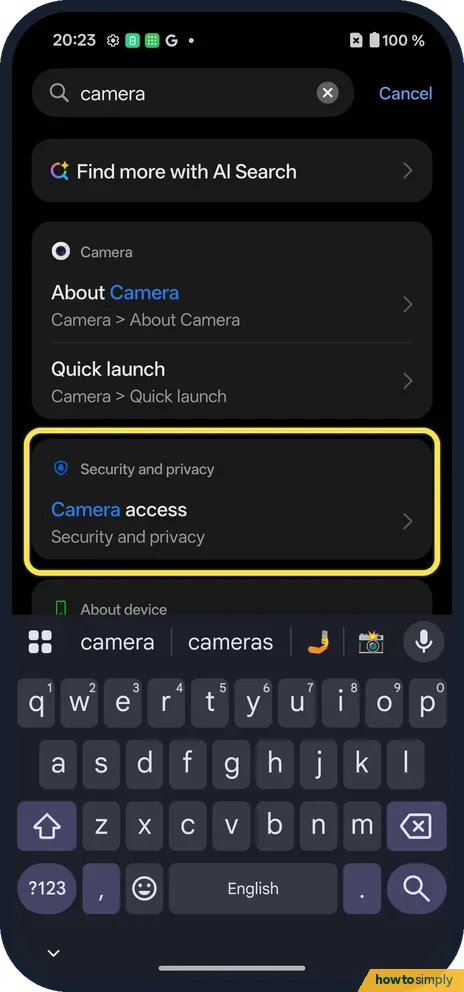
Searching Settings for camera finds Camera access under Security and privacy.
- 2
Switch them off
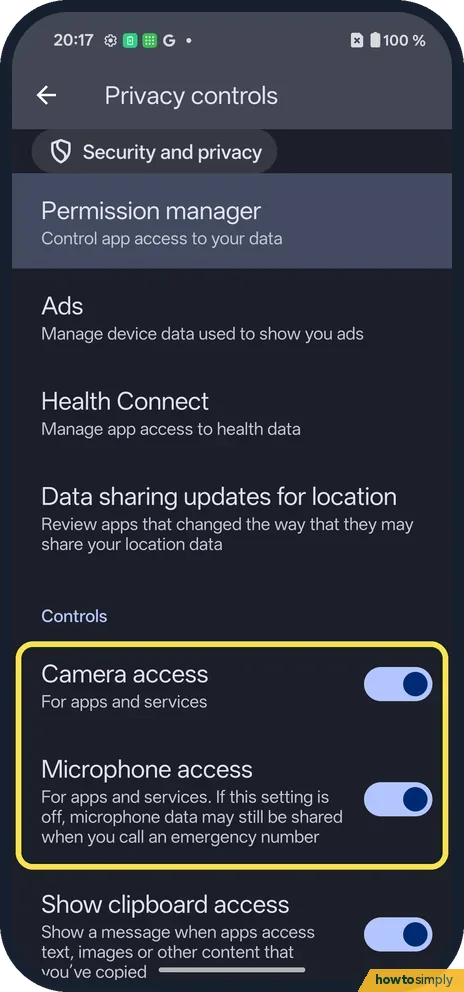
Under Controls: Camera access and Microphone access. The Microphone note says microphone data may still be shared when you call an emergency number.
- 3
Quick Settings: tap +
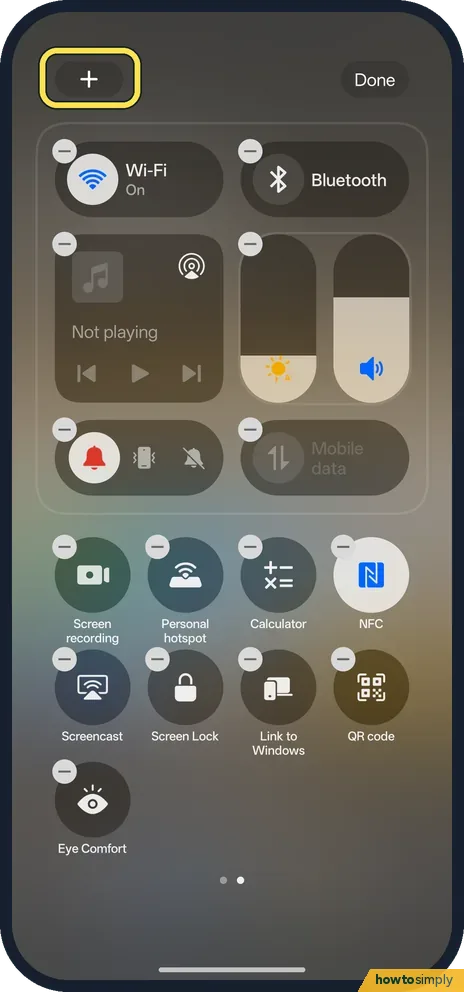
Swipe down twice and tap the pencil. In the edit view, tap + at the top left to see tiles you can add.
- 4
Find Camera access
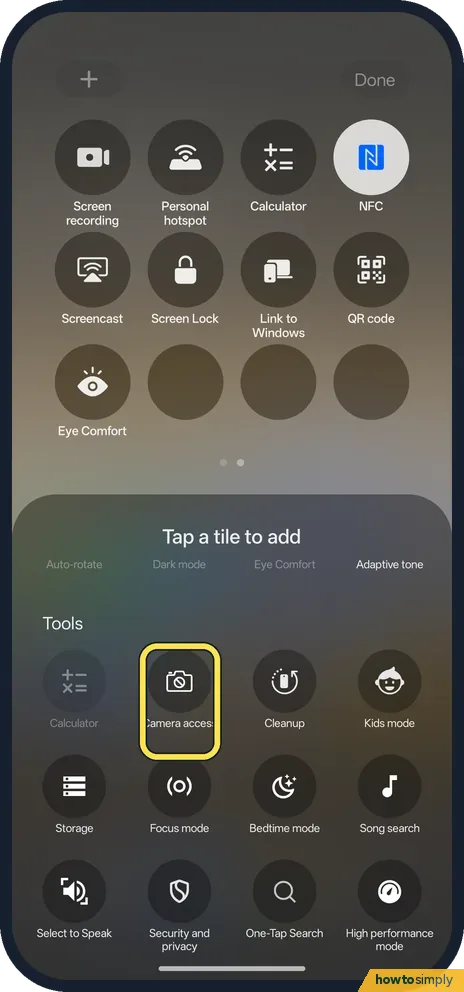
Scroll the tiles to add down to Tools. Camera access sits next to Cleanup and Kids mode; Microphone access is in the same list.
- 5
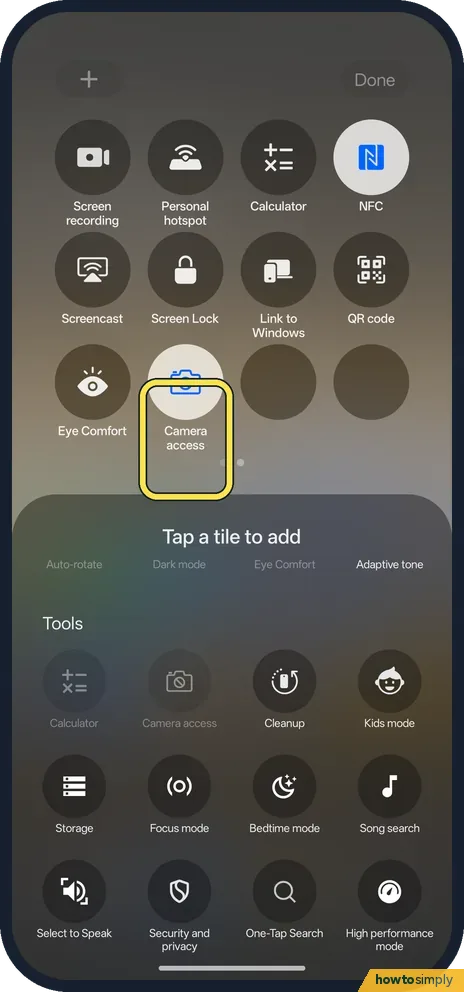
Tap it to add it
Camera access moved up into your tiles. Tap Done. Tap the tile to block or allow the camera for every app.
If you do not see this option
- No Camera access tile? It is not there by default. Add it from Tools in the Quick Settings edit view, as above. We added it, then removed it again.
- Just one app? Change only that app: Settings, Apps, the app, Permissions.
If this does not work
- Camera app shows a blocked message? Turn Camera access back on.
- Calls have no sound out? Check Microphone access is on.
- Voice typing stopped working? Voice typing in the keyboard needs the microphone. Google's Gboard help points to the app's Microphone permission; with Microphone access off for the whole phone, voice typing cannot hear you either.
- Video call shows a black picture? Camera access is probably still off. Turn it back on in Privacy controls or with the tile, then leave and rejoin the call.
- Not sure which app used the camera? The Privacy dashboard lists which apps used Camera and Microphone recently, with a timeline. Use it to decide whether one app needs blocking rather than the whole phone.
Good to know
Change app permissions on a OnePlus.
While a switch is off, every app that needs the camera or microphone loses it, including the Camera app, video calls, voice notes, voice assistants and voice typing. Nothing else changes: photos and recordings you already have stay. To undo, turn Camera access or Microphone access on again in Privacy controls, or tap the tile.
For a regular check on which apps actually use these sensors, see the Privacy dashboard. To keep the tile handy, you can also rearrange Quick Settings so it sits in the first row.
About this guide
- Device
- Android
- Shown on
- OnePlus Nord 5 (CPH2709), OxygenOS 16.0.5.1201, Android 16
- App
- Settings
- Path
- Settings › Security and privacy › Privacy controls
- Real screenshots
- 5 of 5 steps
- Checked
- October 2026
- Sources
- 1 official, linked below
Sources
Links checked October 2026. Menus and features can change with updates.Spotted a mistake? Menus change with updates, and we want every step to match your screen. Email us about this page or use the contact form. We read every report, and fixes are listed on What changed.
Liked this guide?
Follow us for new guides and short how-to videos.
Did this guide work for you?
Sorry about that. What happened?