XIAOMI REDMI
How to turn off game suggestions in App finder on a Xiaomi phone
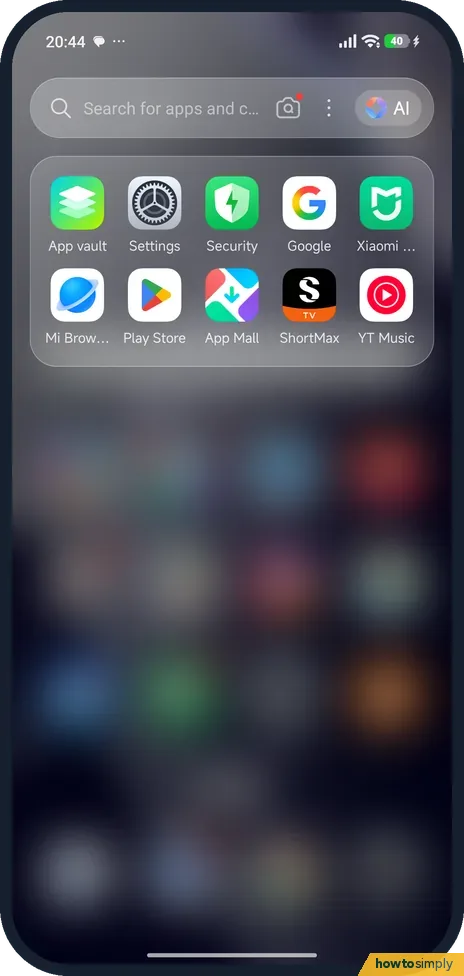
Swipe down on the Home screen to open App finder, tap the three dots next to the search bar, then Settings, then Popular content, and turn off Games. The Games list disappears from App finder.

6 of 6 steps show a real screenshot from our Redmi Note 15 Pro 5G. Each step was checked against the maker's own instructions, linked at the end.
Steps
- 1
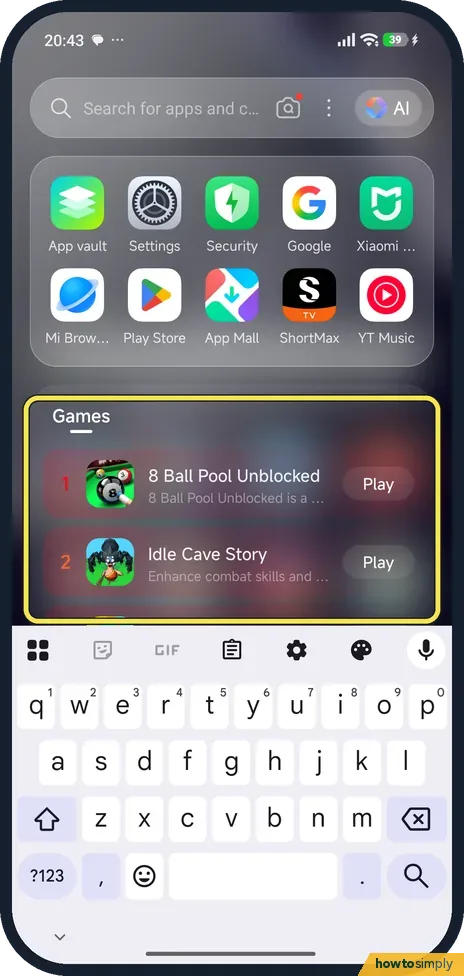
Swipe down on the Home screen
Swipe down anywhere on the Home screen. App finder opens, and the Games list is under your apps.
- 2
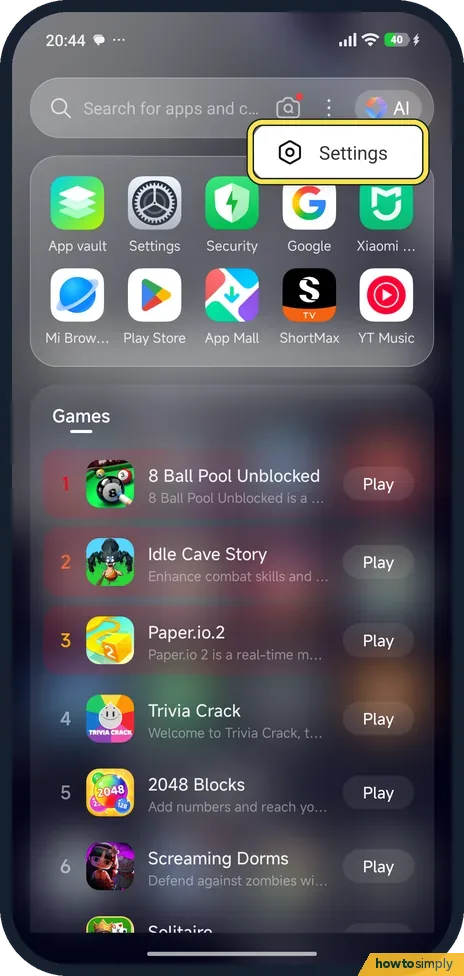
Tap the three dots, then Settings
Tap the three dots inside the search bar, between the camera icon and AI, then tap Settings.
- 3
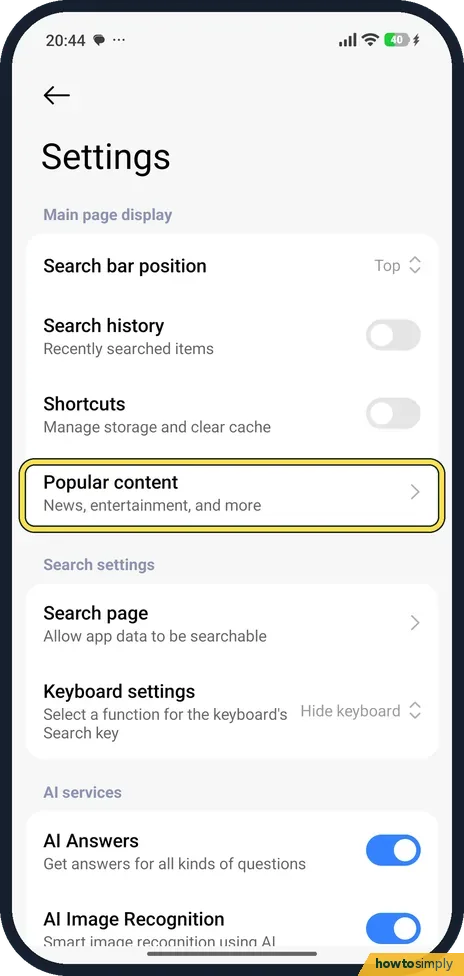
Tap Popular content
Popular content is under Main page display. Its description says News, entertainment, and more.
- 4
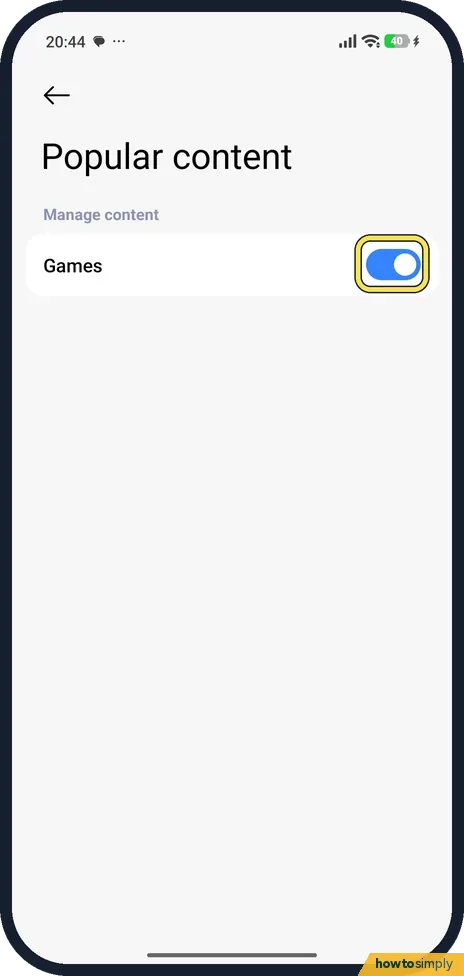
Turn off Games
Under Manage content, Games was the only item on our phone. Turn its switch off.
- 5
Check App finder
Swipe down on the Home screen again. App finder now shows the search bar and your apps, with no Games list.
- 6
Or change what the swipe opens
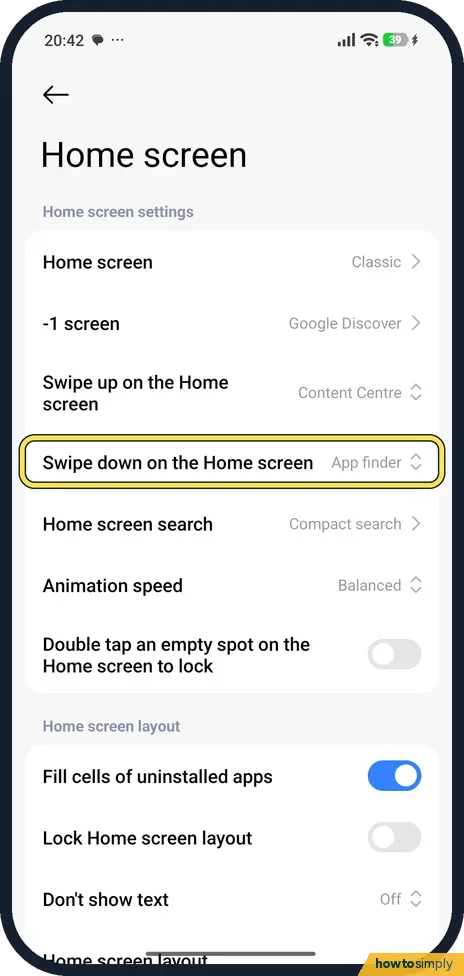
In Settings, tap Home screen. Swipe down on the Home screen shows App finder; tap it to pick a different action.
If you do not see this option
- Swipe opens something else? Swipe down on the Home screen can be set to another action, so App finder does not open. Set it back to App finder in Settings, Home screen (step 6).
- Phone still on MIUI or using App vault? Gizmochina and Notebookcheck turn off the suggestions there in App vault's menu, under Manage services. Sources: How to Turn Off Ads in Xiaomi's HyperOS System Apps, How to turn off ads on Xiaomi phones quickly
If this does not work
- Other ads still showing? Games in App finder are only one feed. Personalised ads and the Security and Cleaner recommendations have their own switches: how to turn off personalised ads and recommendations.
- Games list back? Open App finder Settings, Popular content again and check that Games is still off.
- No three dots in the search bar? Swipe down again from the middle of the Home screen, not from the very top edge. A swipe from the top edge opens notifications or Control Centre instead of App finder.
- Tapped Play by accident? Close the game and remove it if it was installed. See uninstall or disable apps on a Xiaomi phone.
Good to know
For the ads in the rest of the phone: how to turn off personalised ads and recommendations on a Xiaomi phone.
With Games off, App finder shows only the search bar and your own apps. Nothing is uninstalled, and games you already installed stay where they are. Switching Games back on brings the list back, so you can undo it at any time from the same page.
If the lock screen also shows stories or pictures you did not choose, that is a separate feature: see remove news and stories from the lock screen.
About this guide
- Device
- Android
- Shown on
- Xiaomi Redmi Note 15 Pro 5G (25080RABDG), HyperOS 3.0.308.0, Android 16
- Starts in
- Home screen
- Real screenshots
- 6 of 6 steps
- Checked
- October 2026
- Sources
- 0 official, 2 other, linked below
Sources
Links checked October 2026. Menus and features can change with updates.Spotted a mistake? Menus change with updates, and we want every step to match your screen. Email us about this page or use the contact form. We read every report, and fixes are listed on What changed.
Liked this guide?
Follow us for new guides and short how-to videos.
Did this guide work for you?
Sorry about that. What happened?