XIAOMI REDMI
How to customise the lock screen clock on a Xiaomi phone (HyperOS 3)
Press and hold an empty part of the lock screen to open the editor, tap Customise, then tap the time to choose a clock style and font. Tap below the time to add a signature, then tap Apply. In the Classic layout only the date and time and the signature can be changed.

6 of 6 steps show a real screenshot from our Redmi Note 15 Pro 5G. Each step was checked against the maker's own instructions, linked at the end.
Steps
- 1
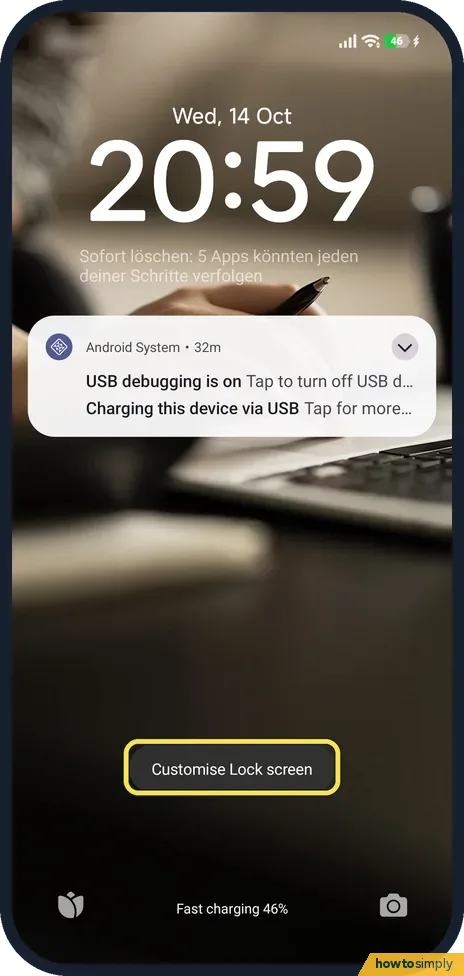
Press and hold the lock screen
Wake the phone and press and hold an empty part of the lock screen, below the notifications. Customise Lock screen shows at the bottom and the editor opens.
- 2
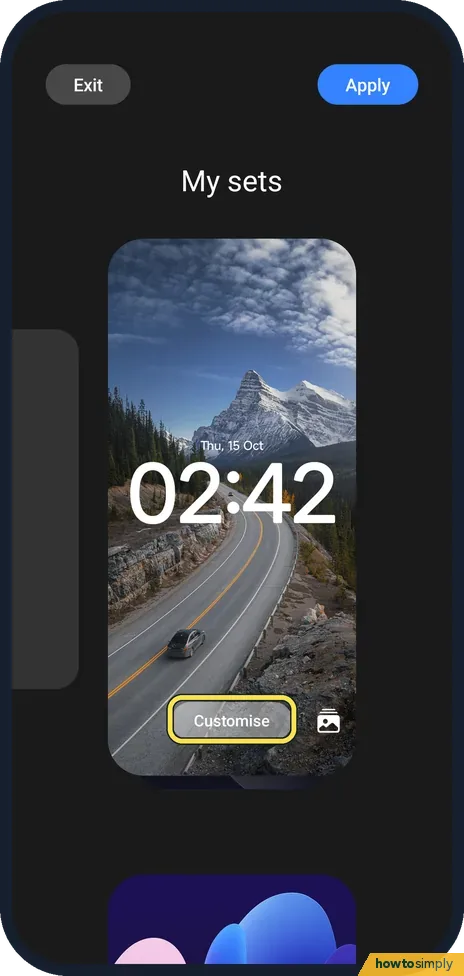
Tap Customise
The editor opens on My sets, with your current lock screen in the middle. Tap Customise under it. Exit at the top left leaves without changes.
- 3
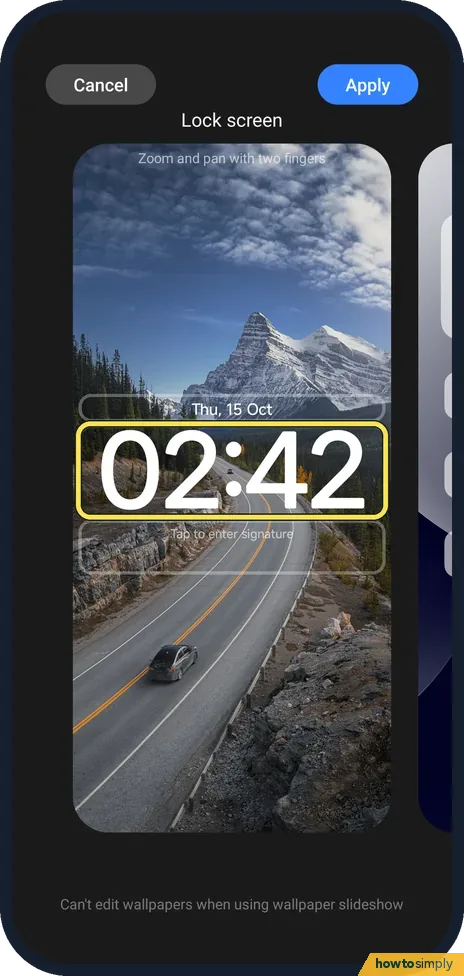
Tap the time
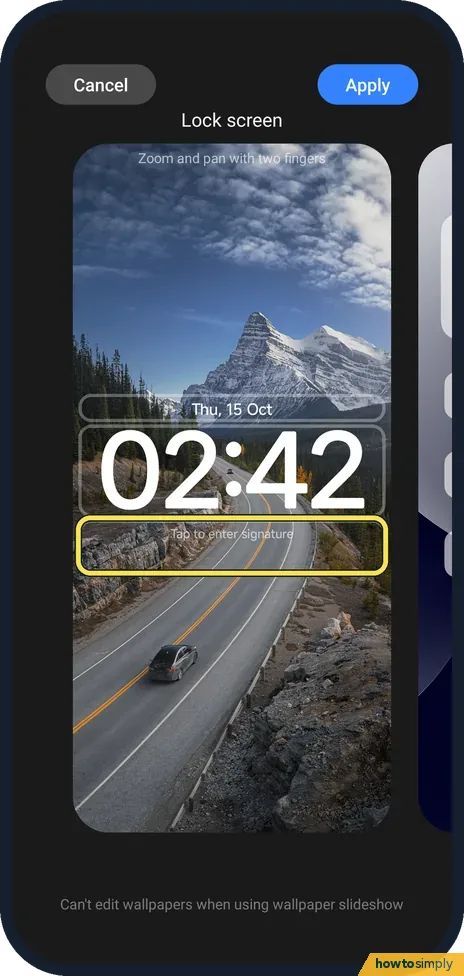
Customise outlines the parts you can change: the date and time, and Tap to enter signature below them. Tap the time.
- 4
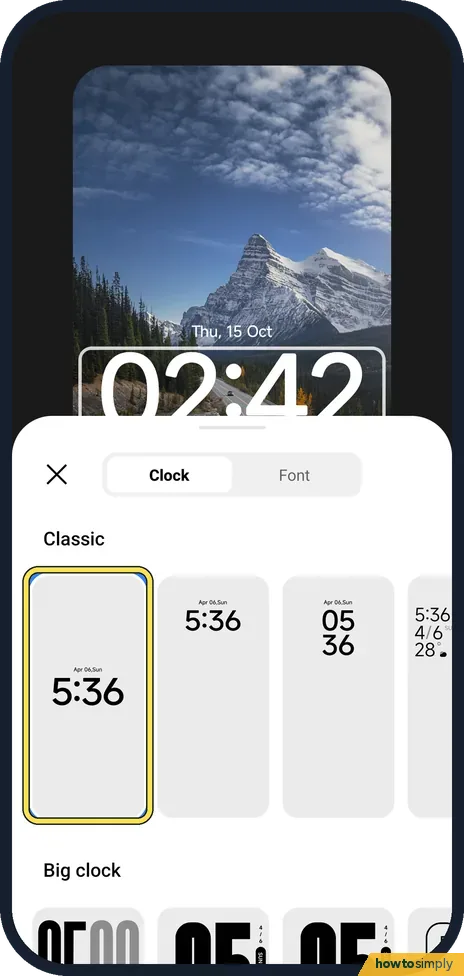
Pick a clock style
A sheet opens with two tabs, Clock and Font. Under Classic, the first style was selected on ours; scroll down for Big clock styles. Tap one to try it.
- 5
Add a signature
Tap Tap to enter signature, below the time, to put your own short line of text on the lock screen.
- 6
Tap Apply
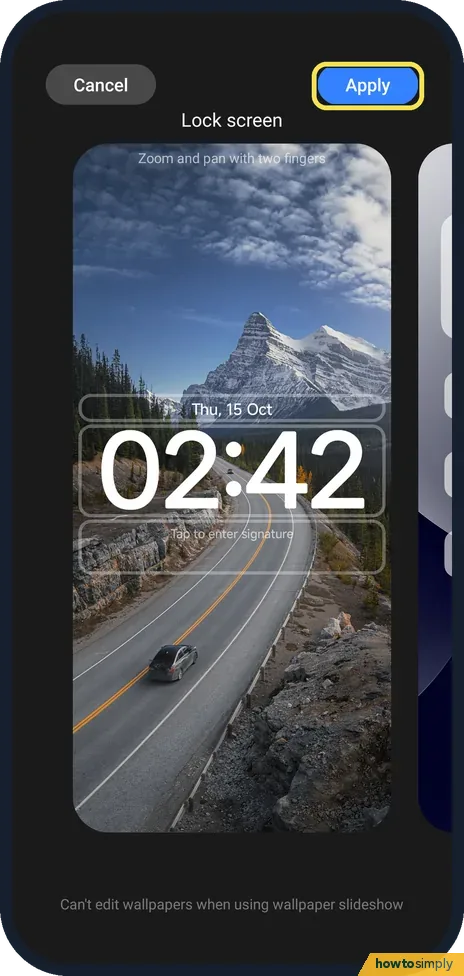
Tap Apply at the top right to keep the changes, or Cancel to drop them.
If you do not see this option
- No widgets to add? In the Classic layout on our phone, only the date and time (clock style and font) and the signature can be changed. There is no widget picker.
- Can't change the wallpaper here? Our lock screen showed a different picture with a news headline each time. That is a wallpaper slideshow, and the editor says Can't edit wallpapers when using wallpaper slideshow.
- Phone still on MIUI 14? Xiaomi's steps for MIUI 14 go through Settings, Lock screen, Lock screen clock format, where you choose a clock layout. Source: How to set the Lock screen clock format on a MIUI 14 phone?
If this does not work
- Editor does not open? Press and hold for longer on an empty area, not on a notification or the camera icon.
- Clock style won't change? Xiaomi says the layout cannot be changed with a third-party theme, and on MIUI 14 the format cannot be changed while Dual clock is on.
- Changes gone? They are kept only after you tap Apply. Cancel and Exit leave the lock screen as it was.
- Clock changed after applying a theme? Xiaomi's HyperOS 3 guide says a theme can change the wallpaper and clock on the lock screen, and that you can choose whether to apply it to the lock screen. Pick the clock again in the editor afterwards.
- Want the clock to stay visible with the screen off? That is Always-on display, a separate feature. Xiaomi's guide says it can show items such as a signature, analog or digital clock while the screen is off.
Good to know
Notifications missing on the lock screen? Xiaomi lock screen notifications not showing?.
The new style shows the next time you lock the phone. To undo it, open the editor again and pick the first Classic style, which was the one selected on ours. To stop the changing pictures and headlines that sometimes sit around the clock, see remove news and stories from the lock screen.
About this guide
- Device
- Android
- Shown on
- Xiaomi Redmi Note 15 Pro 5G (25080RABDG), HyperOS 3.0.308.0, Android 16
- Starts in
- Lock screen
- Real screenshots
- 6 of 6 steps
- Checked
- October 2026
- Sources
- 1 official, linked below
Sources
Links checked October 2026. Menus and features can change with updates.Spotted a mistake? Menus change with updates, and we want every step to match your screen. Email us about this page or use the contact form. We read every report, and fixes are listed on What changed.
Liked this guide?
Follow us for new guides and short how-to videos.
Did this guide work for you?
Sorry about that. What happened?