ONEPLUS
How to switch between gestures and buttons on a OnePlus (OxygenOS 16)

In short
Go to Settings, System & update, System navigation and choose Buttons or Gestures. With Buttons, pick the order under Button layout. System navigation was set to Gestures on our Nord 5.
5 of 5 steps show a real screenshot from our Nord 5. Each step was checked against the maker's own instructions, linked at the end.
Steps
- 1
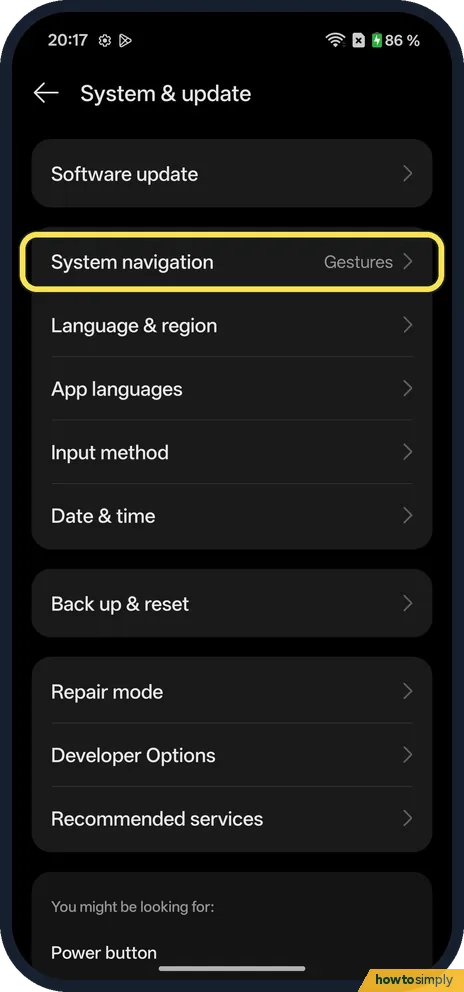
Open System navigation
Go to Settings, System & update. System navigation said Gestures on ours. Tap it.
- 2
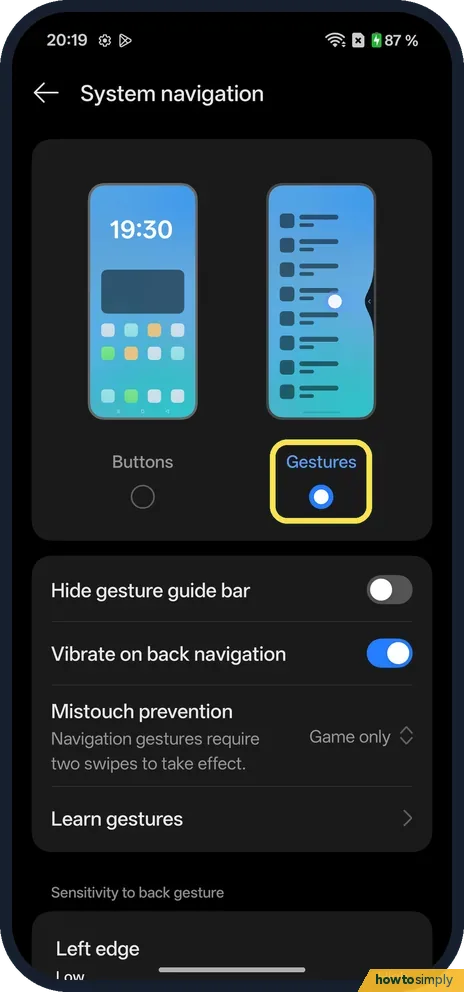
Gestures settings
Gestures was selected. Below: Hide gesture guide bar (off), Vibrate on back navigation (on) and Learn gestures.
- 3
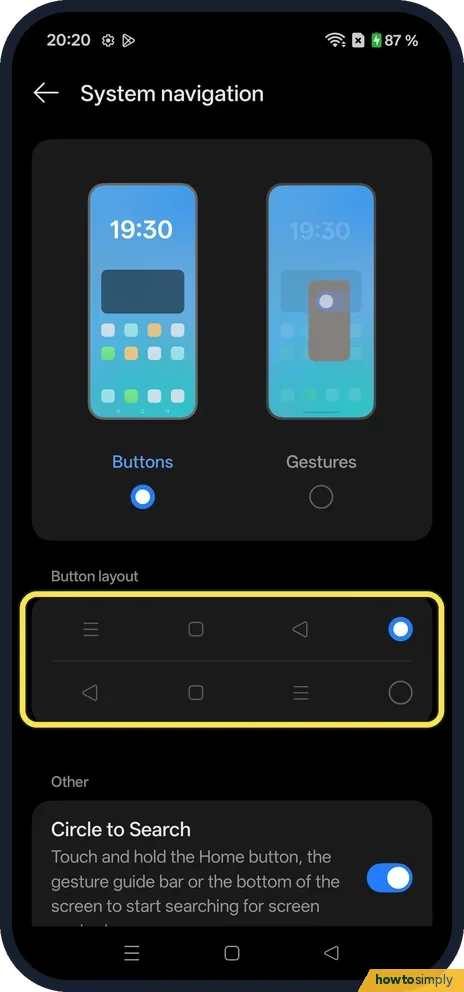
Choose Buttons
Tap Buttons. Under Button layout, choose the order of the three buttons.
- 4
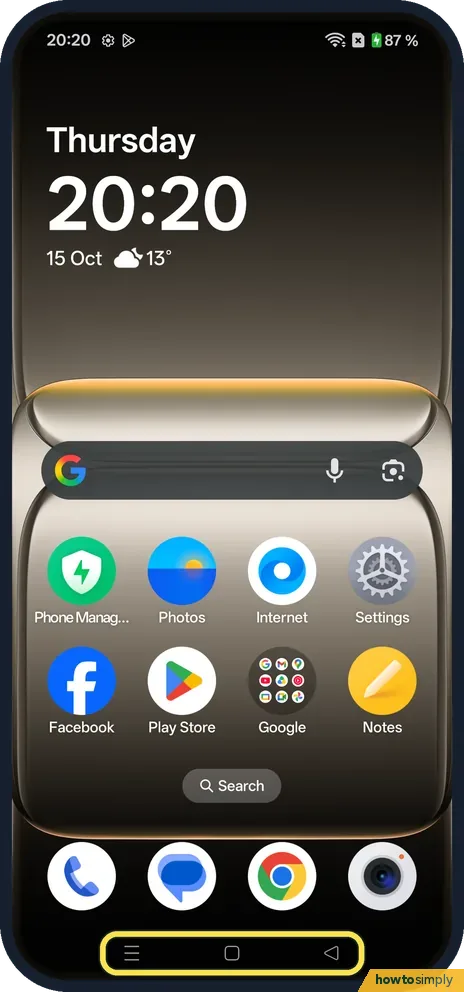
Check the buttons
The buttons appear at the bottom of every screen: Recents, Home and Back on ours.
- 5
Switch back to gestures
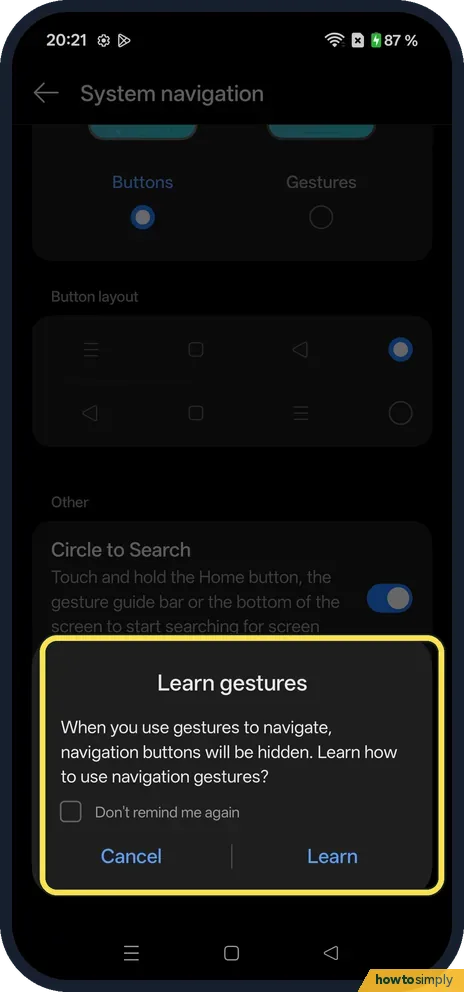
Choose Gestures again. The phone asks if you want to learn how to use navigation gestures. Tap Learn for a tutorial or Cancel.
If you do not see this option
- Older OxygenOS? OnePlus's OxygenOS 14 manual has System navigation under Settings, Additional settings. On our OxygenOS 16 phone it is under System & update. Source: OxygenOS 14.0 User Manual
- Circle to Search? With Buttons, the Other section had Circle to Search, on: touch and hold the Home button to search what is on the screen.
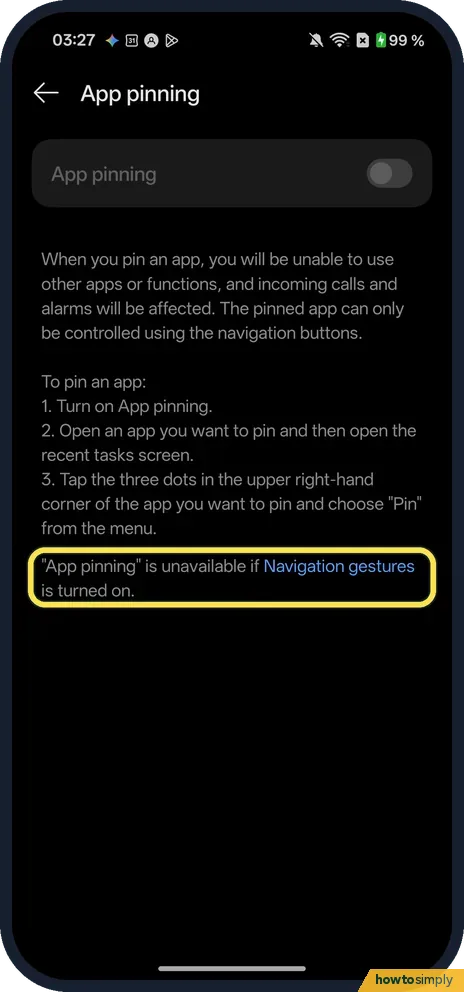
- App pinning greyed out? OnePlus's OxygenOS 14 manual says App pinning is available only when you use button navigation. Our OxygenOS 16 Nord 5 says the same on its App pinning page: App pinning is unavailable if Navigation gestures is turned on, and the pinned app can only be controlled using the navigation buttons. Switch to Buttons first, then turn on pinning: why App pinning is greyed out. Source: OxygenOS 14.0 User Manual
If this does not work
- Gestures don't work in games? With Gestures, Mistouch prevention said Game only on ours: the page says navigation gestures then need two swipes.
- Back swipe too sensitive? Under Gestures, scroll to Sensitivity to back gesture. It starts with a Left edge slider.
- Split View swipe not working? The swipe-up Split View shortcut only works with gestures: see Split View and floating windows.
- Back swipe fights an app's side menu? Some apps open their own side menu with a swipe from the left edge, which overlaps the back gesture. Use the app's menu button instead, or switch to Buttons if it happens often.
Good to know
See what the buttons do in multitasking: Split View and floating windows.
Switching takes effect at once and nothing else changes: your apps, home screen and settings stay as they are. With buttons, the bar at the bottom takes a strip of the screen in every app; with gestures, apps use that space. The OxygenOS 14 manual lists the gesture set: swipe up for home, swipe up and hold for recent apps, swipe in from the lower left or right for back. It also lists Switch to previous app, but a Settings search for it on our OxygenOS 16 phone found only Swap apps, under Floating Window. With buttons, recent apps is a tap on the Recents button instead: close all apps on a OnePlus.
About this guide
- Device
- Android
- Shown on
- OnePlus Nord 5 (CPH2709), OxygenOS 16.0.5.1201, Android 16
- App
- Settings
- Path
- Settings › System & update › System navigation
- Real screenshots
- 5 of 5 steps
- Checked
- October 2026
- Sources
- 1 official, linked below
Sources
Links checked October 2026. Menus and features can change with updates.Spotted a mistake? Menus change with updates, and we want every step to match your screen. Email us about this page or use the contact form. We read every report, and fixes are listed on What changed.
Liked this guide?
Follow us for new guides and short how-to videos.
Did this guide work for you?
Sorry about that. What happened?