GOOGLE PIXEL
How to switch between gestures and 3-button navigation on a Google Pixel (Android 17)

In short
Open Settings, Display and touch, Navigation mode (Google gives Settings, System, Navigation mode), and tap Gesture navigation or 3-button navigation. Gestures use swipes; 3-button puts Back, Home and Recents buttons at the bottom. The gear sets the back swipe.
7 of 7 steps show a real screenshot from our Pixel 10a. Each step was checked against the maker's own instructions, linked at the end.
Steps
- 1
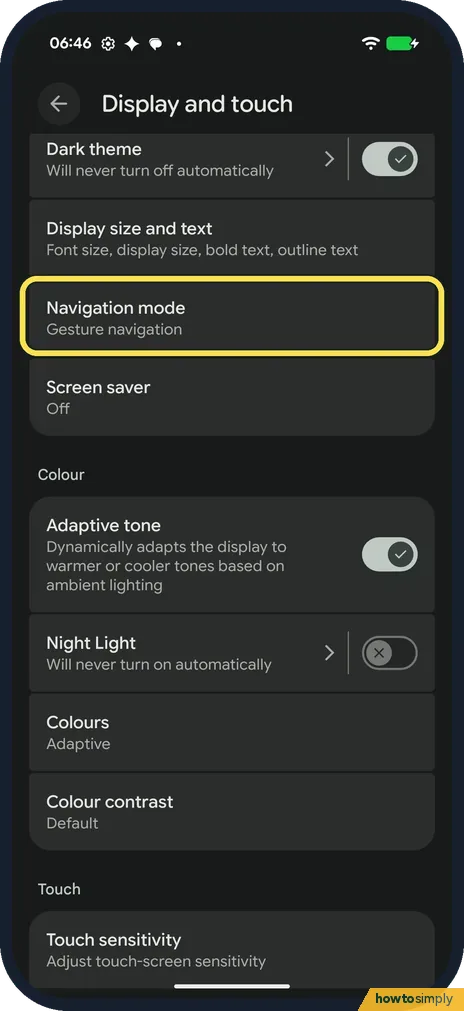
Open Navigation mode
Open Settings and tap Display and touch. Navigation mode is on that page; ours said Gesture navigation. Tap it.
- 2
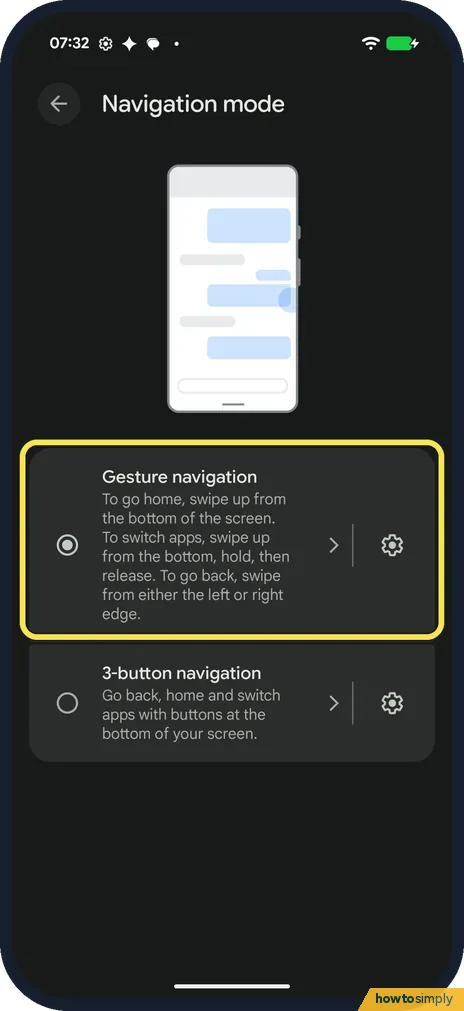
Gesture navigation
The page says: to go home, swipe up from the bottom of the screen. To switch apps, swipe up from the bottom, hold, then release. To go back, swipe from either the left or right edge. Ours was selected.
- 3
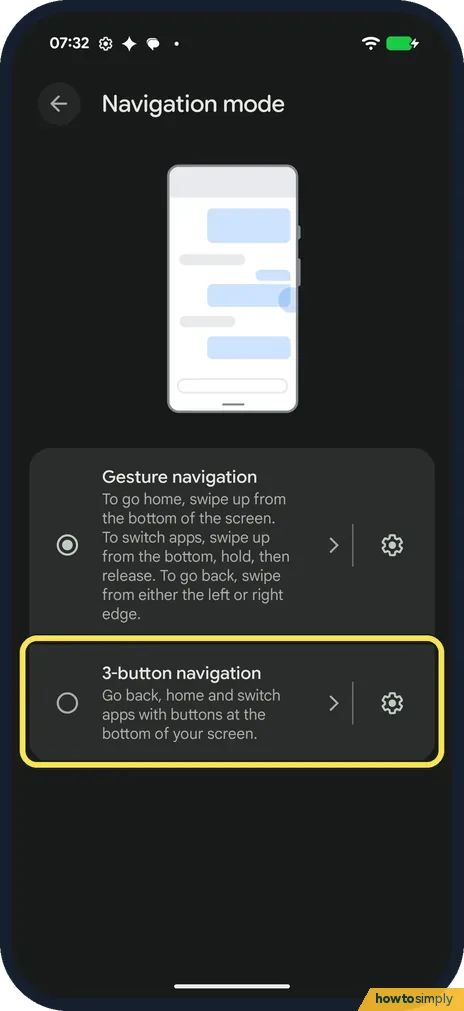
Or 3-button navigation
Tap 3-button navigation to go back, home and switch apps with buttons at the bottom of your screen.
- 4
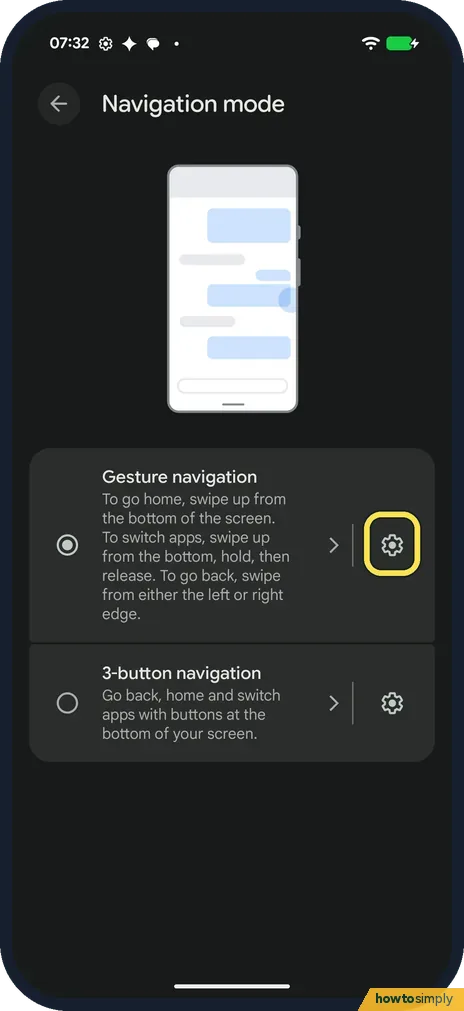
Open the gesture settings
Tap the gear on the right of Gesture navigation.
- 5
Set the back sensitivity
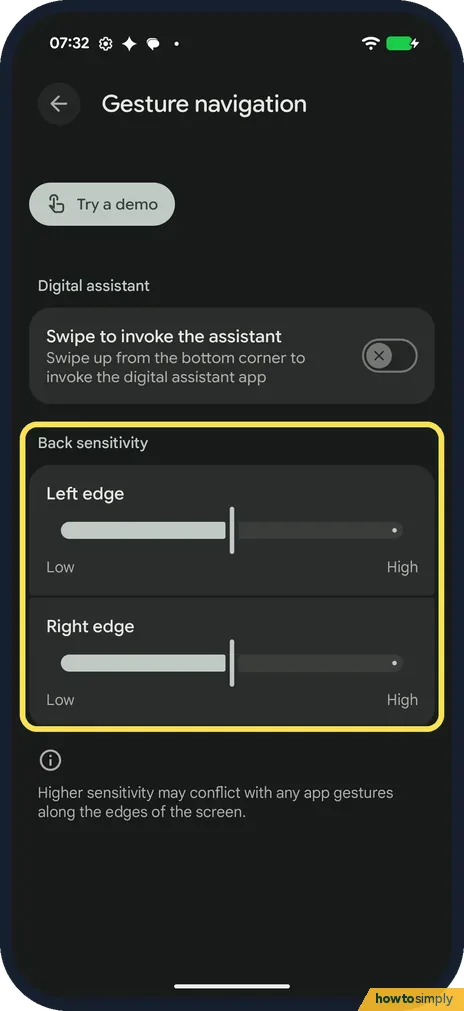
Under Back sensitivity, Left edge and Right edge each have a slider from Low to High. The page warns that higher sensitivity may conflict with app gestures along the edges of the screen.
- 6
Swipe to invoke the assistant
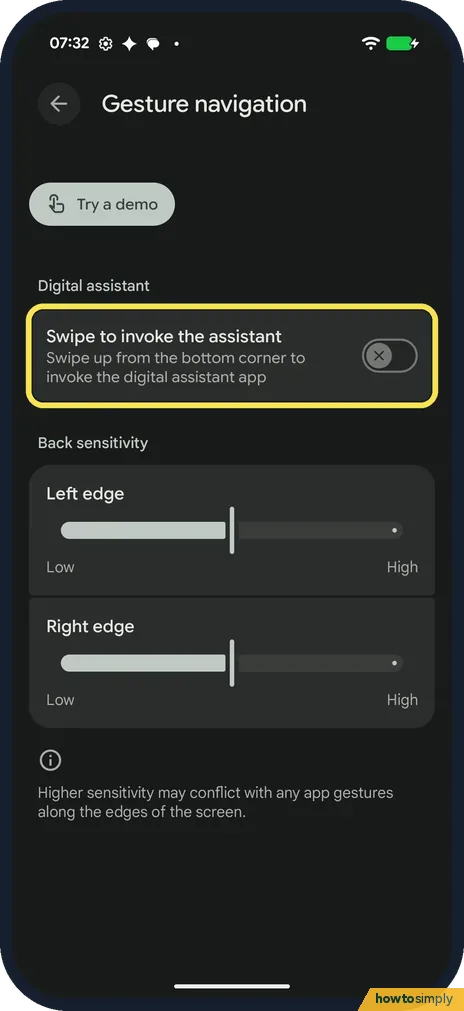
Under Digital assistant, this switch lets you swipe up from the bottom corner to open the digital assistant app. Ours was off.
- 7
Try a demo
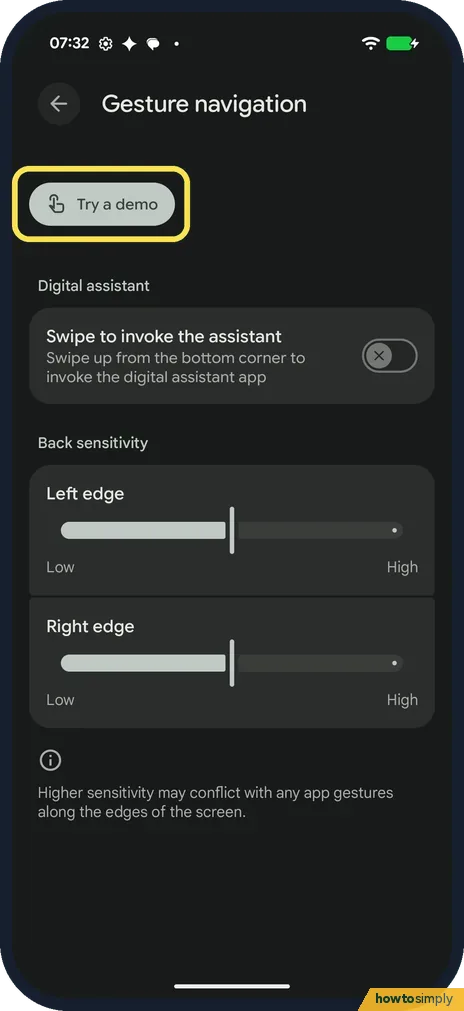
Try a demo at the top lets you practise the gestures.
If you do not see this option
- Looking under System? Google says that on a Pixel it is Settings, System, Navigation mode. Our Pixel 10a has it there too, and also on Display and touch, where we took the picture. Source: Get around on your Android phone
- Not a Pixel? Google says other phones use Settings, System, Gestures, Navigation mode, and that if System or Gestures doesn't show, the phone's maker has the steps. On our Redmi it is Settings, Home screen, System navigation. Source: Get around on your Android phone
- Older Android? Google says that if System navigation doesn't show on a Pixel, the steps for older Android versions apply. Source: Get around on your Android phone
If this does not work
- Back swipe fires by accident in an app? Move the Left edge or Right edge slider towards Low. The page warns that higher sensitivity may conflict with app gestures along the edges.
- Back swipe hard to do with a case on? Google says that if your phone case gets in the way of swiping from the edge, setting the sensitivity higher can help.
- Can't find how to switch apps? With gestures, Google says to swipe from left to right along the very bottom of the screen to jump between open apps. With 3-button navigation, open Overview and swipe right to find the app.
Good to know
3-button navigation has its own gear. Google says it lets you change the button order to Back, Home, Recents or Recents, Home, Back. We didn't open it.
More Pixel shortcuts: how to use Quick Tap and other gestures on a Google Pixel.
Screen hard to reach with one hand? See how to use one-handed mode on a Google Pixel.
Switching mode only changes how you move around; your apps, Home screens and settings stay the same, and you can switch back at any time from the same page. Some features follow the mode you pick: the Screenshot button in your open apps belongs to gestures, while with buttons you reach it through Overview, as our screenshot guide explains.
About this guide
- Device
- Android
- Shown on
- Google Pixel 10a, Android 17 (build CP3A.261005.005)
- App
- Settings
- Path
- Settings › Display and touch
- Real screenshots
- 7 of 7 steps
- Checked
- October 2026
- Sources
- 2 official, linked below
Sources
Links checked October 2026. Menus and features can change with updates.Spotted a mistake? Menus change with updates, and we want every step to match your screen. Email us about this page or use the contact form. We read every report, and fixes are listed on What changed.
Liked this guide?
Follow us for new guides and short how-to videos.
Did this guide work for you?
Sorry about that. What happened?