ONEPLUS
How to lock the home screen layout on a OnePlus (OxygenOS 16)

In short
Touch and hold an empty spot on the home screen, tap Home screen settings and switch Lock layout on. Icons and widgets can no longer be moved or removed. Switch it off to edit again.
4 of 4 steps show a real screenshot from our Nord 5. Each step was checked against the maker's own instructions, linked at the end.
Steps
- 1
Open Home screen settings
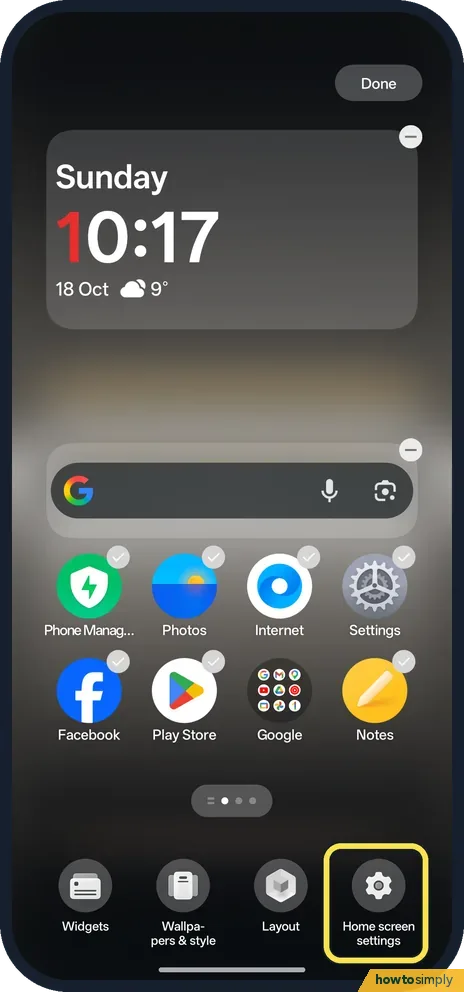
Touch and hold an empty spot on the home screen and tap Home screen settings.
- 2
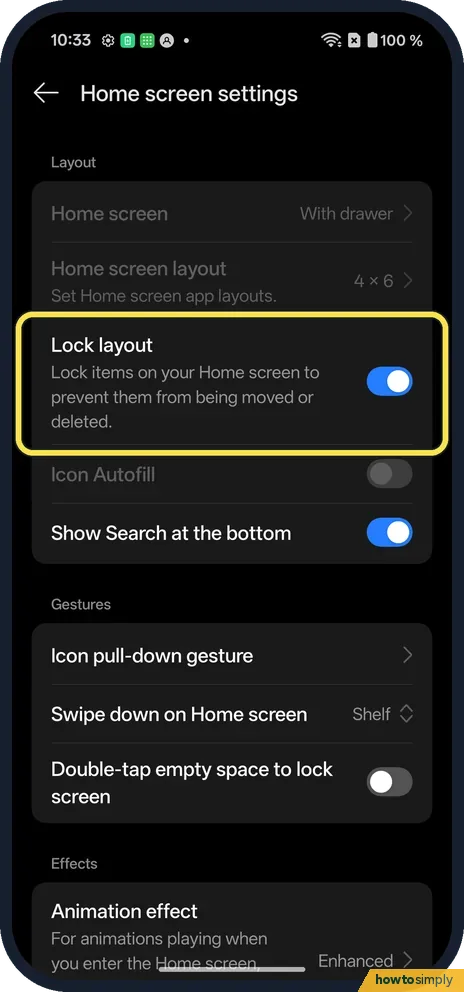
Switch Lock layout on
It locks items on your Home screen to prevent them from being moved or deleted.
- 3
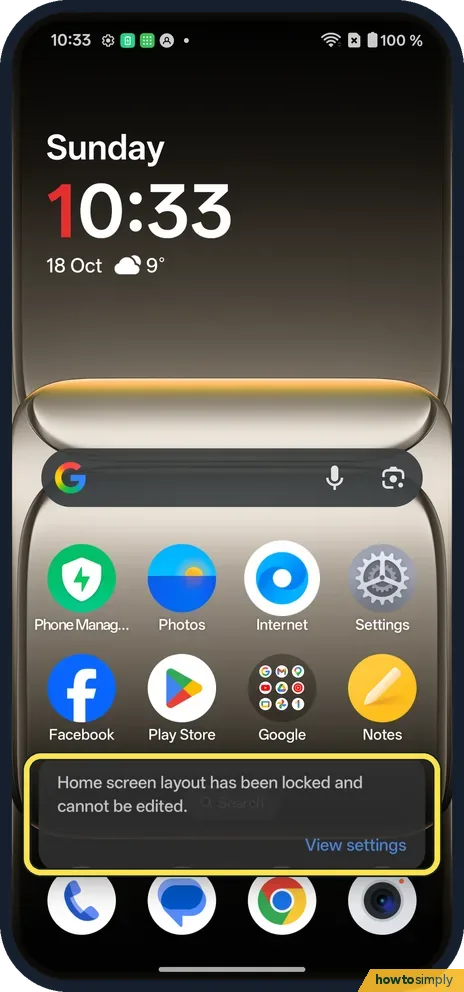
Try to move an icon
Ours said Home screen layout has been locked and cannot be edited, with View settings.
- 4
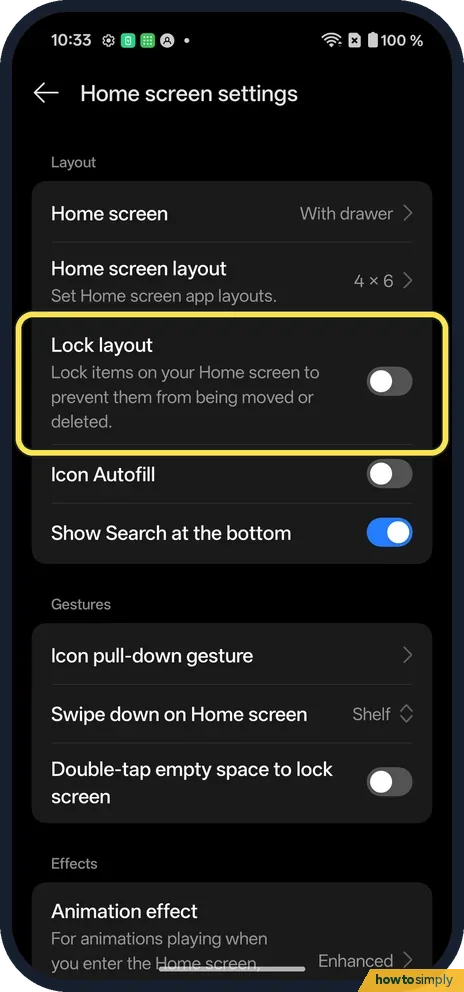
Switch it off to edit
Tap View settings, or go back to Home screen settings.
If you do not see this option
- Drawer or no drawer? Home screen, at the top of the same page: home screen layout.
- Add a widget? Unlock first: add and remove widgets.
- Want bigger icons for someone else? The OxygenOS 14 manual describes Simple mode, with a simpler home screen, larger icons and larger fonts, under Settings, Special features. On our OxygenOS 16 phone it is under Accessibility & convenience, Simple mode. It can suit a relative who keeps moving things by accident. Source: OxygenOS 14.0 User Manual
If this does not work
- Icons still disappear? Check apps were not uninstalled.
- Can't open edit view? With the lock on, touch and hold shows the locked message.
- Icons shifted after unlocking? OnePlus's OxygenOS 14 manual describes Icon autofill, which moves another icon into the gap when one is removed. If icons jump around while you rearrange, check whether that switch is on in your home screen settings.
- Cannot find the switch? Search Settings for Lock layout. If you came in from the home screen, check you tapped Home screen settings rather than another option in that menu.
Good to know
Move or remove an app from the home screen on a OnePlus.
While the lock is on, you can still open apps, swipe between pages, and use widgets as before; only moving, adding to and removing items from the home screen is blocked. Nothing is lost when you switch it off, and your layout stays exactly as it was. Locking is a good last step after tidying your apps into folders, because a single mistaken drag can otherwise break a folder apart: make an app folder on a OnePlus.
Icon Autofill is a separate switch just below Lock layout on the same page; it was off on ours.
About this guide
- Device
- Android
- Shown on
- OnePlus Nord 5 (CPH2709), OxygenOS 16.0.5.1201, Android 16
- App
- Home screen
- Path
- Home screen › Touch and hold › Home screen settings › Lock layout
- Real screenshots
- 4 of 4 steps
- Checked
- October 2026
- Sources
- 1 official, linked below
Sources
Links checked October 2026. Menus and features can change with updates.Spotted a mistake? Menus change with updates, and we want every step to match your screen. Email us about this page or use the contact form. We read every report, and fixes are listed on What changed.
Liked this guide?
Follow us for new guides and short how-to videos.
Did this guide work for you?
Sorry about that. What happened?