ONEPLUS
How to switch between 12-hour and 24-hour time on a OnePlus

In short
Go to Settings, System & update, Date & time and tap Time format. Choose 12-hour (1:00 PM) or 24-hour (13:00). The status bar clock changes at once.
4 of 4 steps show a real screenshot from our Nord 5. Each step was checked against the maker's own instructions, linked at the end.
Steps
- 1
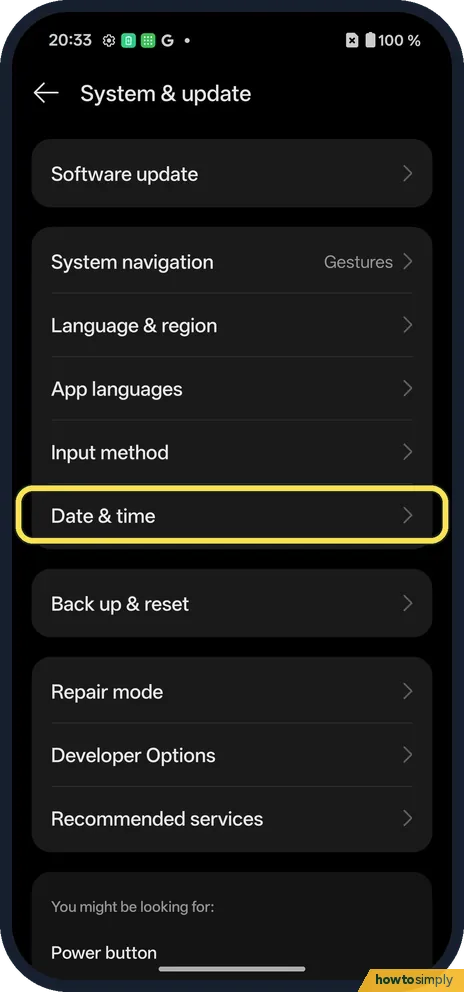
Open Date & time
Open Settings, System & update, Date & time.
- 2
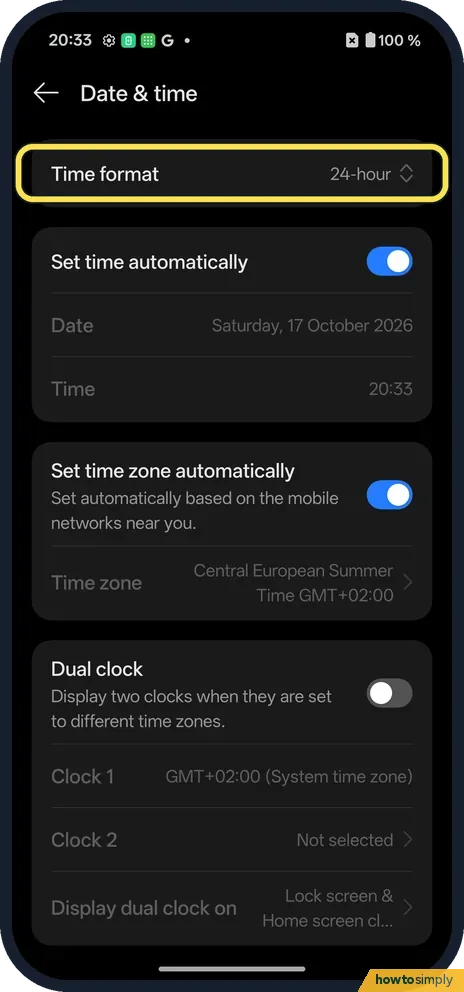
Tap Time format
It is the first row: 24-hour on ours.
- 3
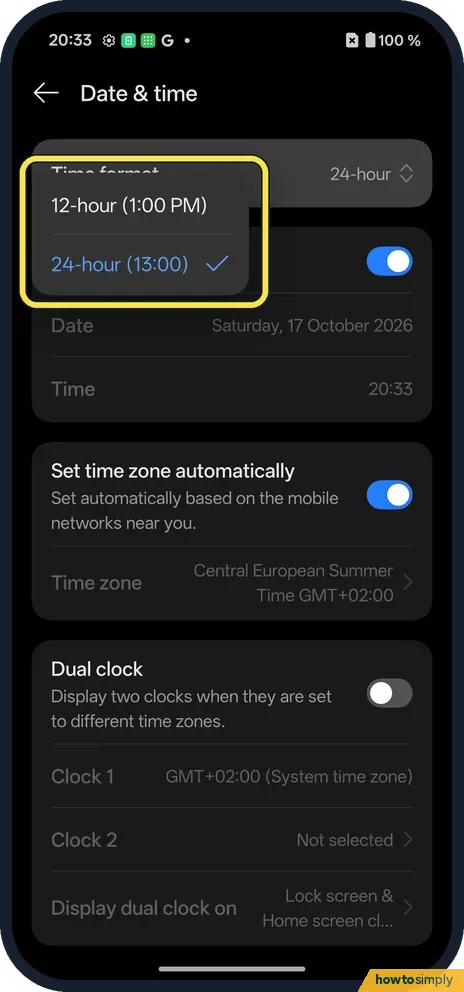
Pick one
12-hour (1:00 PM) or 24-hour (13:00).
- 4
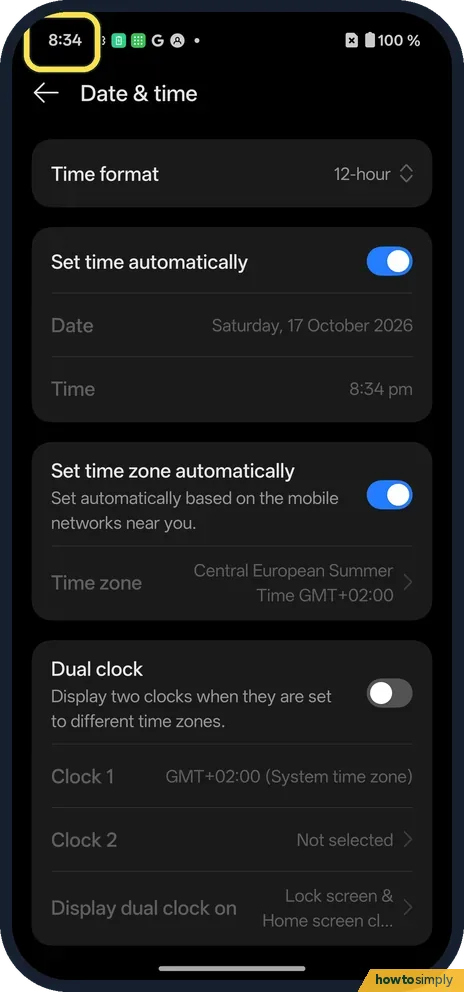
Check the clock
With 12-hour, the status bar showed 8:34 instead of 20:34.
If you do not see this option
- Older OxygenOS? OnePlus's OxygenOS 14 manual uses Settings, Additional settings, Date & time, Time format. On ours it is System & update. Source: OxygenOS 14.0 User Manual
- Time wrong? Set time automatically is on the same page.
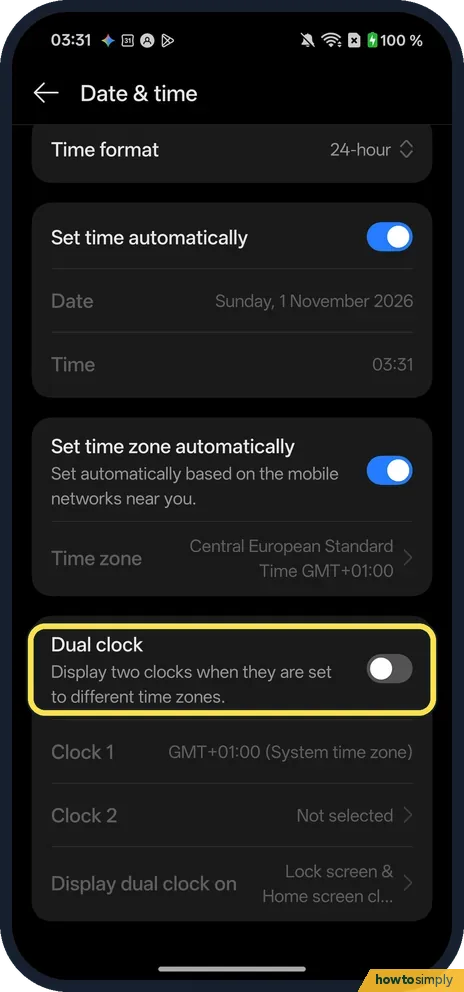
- Want a second clock for another zone? Our OxygenOS 16 phone has Dual clock on the same Date & time page: Display two clocks when they are set to different time zones, off on ours, with Clock 1, Clock 2 and Display dual clock on below it. The Clock app's Settings also has Date & time, described as System time and dual clock widget. OnePlus's OxygenOS 14 manual says it shows your usual home time next to the local time when you are abroad. Source: OxygenOS 14.0 User Manual
If this does not work
- Lock screen still 24-hour? Lock the phone again after changing.
- Wrong time zone? Check Set time zone automatically.
- Clock widget still shows the old format? Home screen clock widgets can keep the old format until they redraw. Wait for the next minute to tick over, or lock and unlock the phone. If it still looks wrong, remove the widget and add it again.
- One app ignores the change? Most apps follow the phone's Time format, but some draw their own clock and keep a separate time setting inside the app. Look in that app's own settings for a 12-hour or 24-hour choice.
- Time is wrong after travel or a restart? OnePlus's manual says to turn on Set time automatically and Set time zone automatically on the Date & time page. If the time is still wrong, turn both off and set the date, time and zone by hand.
Good to know
Check for software updates on a OnePlus.
Only the way the time is written changes. Alarms, timers, reminders and calendar events keep their real times, so an alarm set for 07:00 still rings at 7:00 AM after the switch. Nothing is deleted and there is no effect on battery or data. To undo, go back to Time format and pick the other choice. If you want to see more than one city at once, see add a world clock on a OnePlus.
The lock screen clock has its own styles, which change how the clock looks but not this setting. To change that look, see change the lock screen clock on a OnePlus.
About this guide
- Device
- Android
- Shown on
- OnePlus Nord 5 (CPH2709), OxygenOS 16.0.5.1201, Android 16
- App
- Settings
- Path
- Settings › System & update › Date & time
- Real screenshots
- 4 of 4 steps
- Checked
- October 2026
- Sources
- 1 official, linked below
Sources
Links checked October 2026. Menus and features can change with updates.Spotted a mistake? Menus change with updates, and we want every step to match your screen. Email us about this page or use the contact form. We read every report, and fixes are listed on What changed.
Liked this guide?
Follow us for new guides and short how-to videos.
Did this guide work for you?
Sorry about that. What happened?