ONEPLUS
How to stop Wi-Fi turning on automatically on a OnePlus (OxygenOS 16)

In short
Go to Settings, Wi-Fi, tap the three dots, More settings, and switch Auto Wi-Fi off. Wi-Fi Assistant, on the Wi-Fi page, has Auto-connect to the best Wi-Fi.
3 of 3 steps show a real screenshot from our Nord 5. Each step was checked against the maker's own instructions, linked at the end.
Steps
- 1
Switch Auto Wi-Fi off
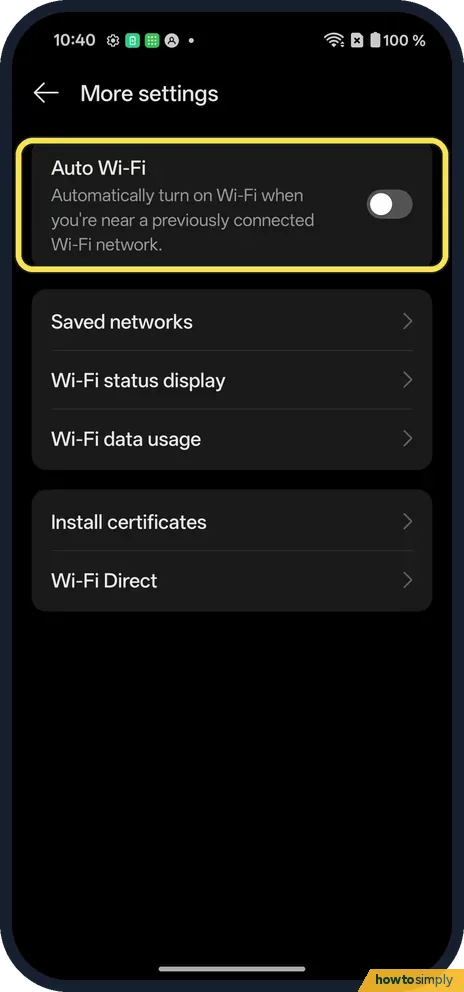
In Settings, Wi-Fi, tap the three dots at the top right, then More settings. Auto Wi-Fi turns Wi-Fi on near a network you connected to before. It was off on ours.
- 2
Check Wi-Fi Assistant
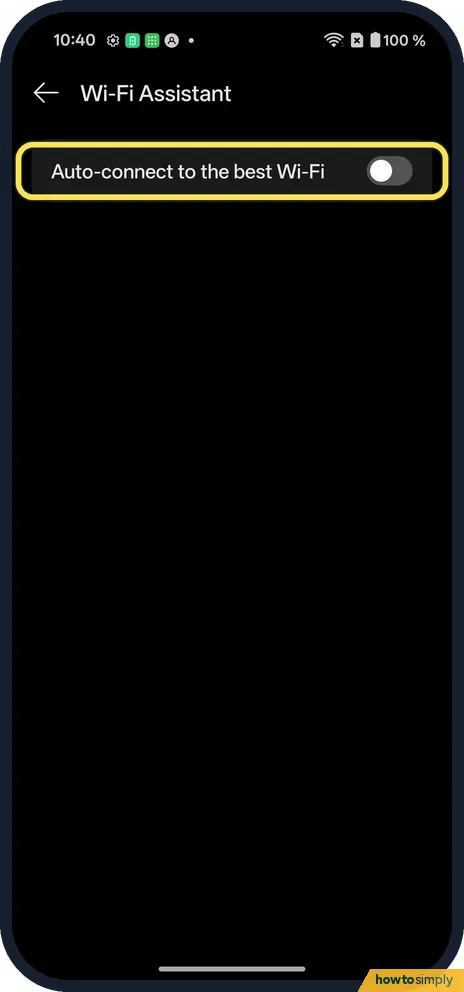
In Settings, Wi-Fi, tap Wi-Fi Assistant. Its only switch on ours was Auto-connect to the best Wi-Fi, off.
- 3
Switch to mobile data?
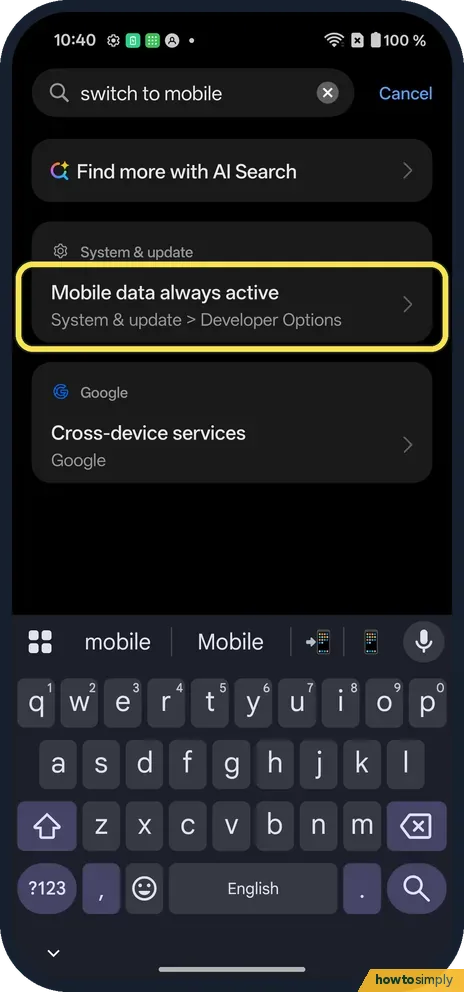
There is no such switch on ours. The only related search result was Mobile data always active, in Developer Options.
If you do not see this option
- OxygenOS 14 (OnePlus manual)? The manual lists Auto switch to mobile network in Wi-Fi assistant. Our OxygenOS 16 phone has no such switch. Source: OxygenOS 14.0 User Manual
- Mobile data always active? It is in Developer Options, System & update. More: Developer options.
If this does not work
- Wi-Fi still turns on? Check Wi-Fi scanning in Location settings: location settings.
- Bad network chosen? Forget it in Saved networks, on More settings.
- Phone keeps joining one network you dislike? You do not have to forget it. The OnePlus manual says you can tap the icon on the right of that network on the Wi-Fi page and turn off Auto connect, so it stays saved but is only used when you tap it.
- Setting does not stick after an update? Open More settings again after a major software update and check Auto Wi-Fi. Updates can bring in new options, so look through the page once.
Good to know
Reset network settings on a OnePlus.
With Auto Wi-Fi off, Wi-Fi only comes on when you switch it on in Quick Settings or Settings. Once it is on, the phone still joins saved networks automatically, as the manual describes, so you do not need to type passwords again. To undo, switch Auto Wi-Fi back on in More settings.
Wi-Fi scanning is a separate setting. Google's help explains that it lets the phone look for nearby Wi-Fi access points to give apps better location information, and you can switch it off under Location, Location Services. If you want to share your home network with a visitor before you forget it, see how to share a Wi-Fi password on a OnePlus.
About this guide
- Device
- Android
- Shown on
- OnePlus Nord 5 (CPH2709), OxygenOS 16.0.5.1201, Android 16
- App
- Settings
- Path
- Settings › Wi-Fi › More settings › Auto Wi-Fi
- Real screenshots
- 3 of 3 steps
- Checked
- October 2026
- Sources
- 3 official, linked below
Sources
Links checked October 2026. Menus and features can change with updates.Spotted a mistake? Menus change with updates, and we want every step to match your screen. Email us about this page or use the contact form. We read every report, and fixes are listed on What changed.
Liked this guide?
Follow us for new guides and short how-to videos.
Did this guide work for you?
Sorry about that. What happened?