ONEPLUS
How to share a Wi-Fi password on a OnePlus (OxygenOS 16)

In short
Go to Settings, Wi-Fi and tap the i next to the connected network. Tap Share. A QR code appears with the network name and the password written underneath; the other phone scans the code. Quick Share sends it too.
3 of 3 steps show a real screenshot from our Nord 5. Each step was checked against the maker's own instructions, linked at the end.
Steps
- 1
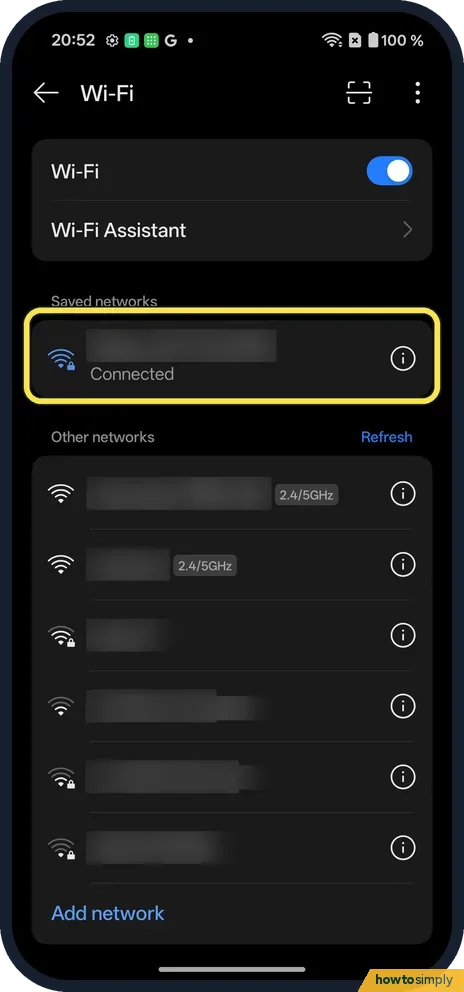
Tap the i next to the network
Open Settings, Wi-Fi. Your network is under Saved networks with Connected.
- 2
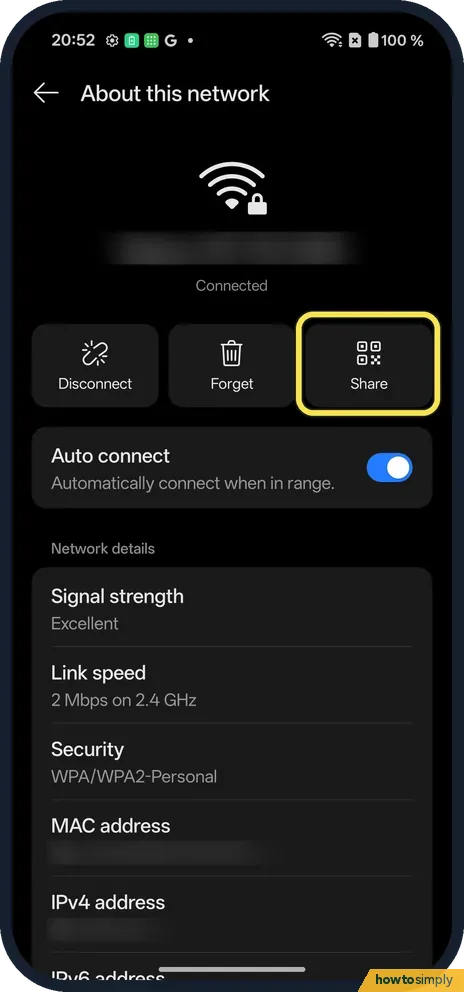
Tap Share
About this network has Disconnect, Forget and Share at the top.
- 3
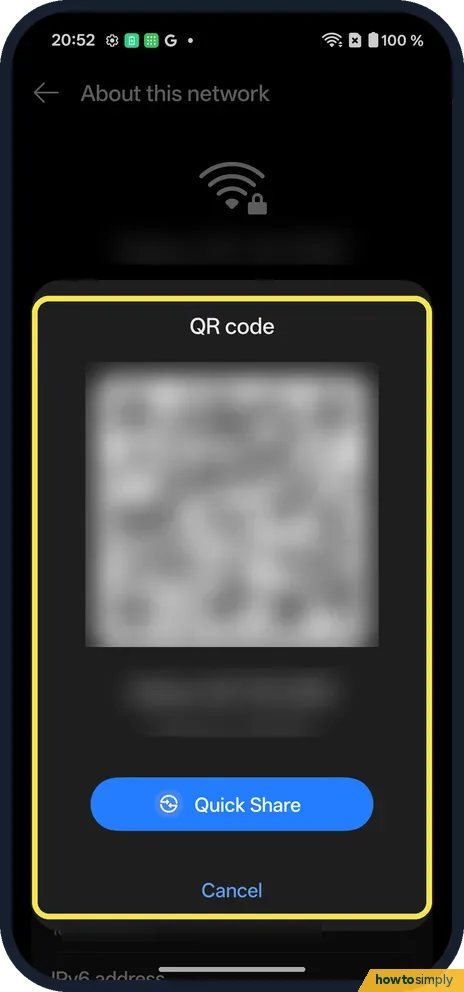
Let them scan it
The QR code sheet shows the code, the network name and the password in plain text, plus a Quick Share button.
If you do not see this option
- Older OxygenOS? OnePlus's OxygenOS 14 manual says the same: tap beside the network, then Share to generate a QR code. Source: OxygenOS 14.0 User Manual
- Scan on an iPhone? Point the Camera at the code. Source: Connect to Wi-Fi networks on your Android device
- Network is hidden? A hidden network does not appear in the other phone's list. OnePlus's manual says to tap Add network and type the network name to join. Source: OxygenOS 14.0 User Manual
If this does not work
- Password visible? It shows in plain text under the code, so watch who sees your screen.
- They can't join? Check they are in range.
- Their camera won't read it? Use Google Lens, or the scan icon on their Wi-Fi page. Ours has one beside the three dots.
- Joined, but no internet? The problem is the connection, not the sharing. Google suggests restarting the router: unplug it, wait 30 seconds, plug it back in and wait for the lights. If that fails, contact your internet provider.
- Typing the password fails? Wi-Fi passwords are case-sensitive, and 0 and O or 1 and l are easy to mix up. Read it slowly from under the code, or scan the code instead of typing.
- Network you want is not listed? You can only share a network the phone has saved. OnePlus's manual describes sharing networks you have saved, so connect to it once first, then the i and Share appear.
Good to know
Stop Wi-Fi turning on by itself on a OnePlus.
Sharing changes nothing on your phone. The other phone saves the network and, as OnePlus's manual notes, connects again automatically next time it is in range. Sharing cannot be taken back from your side: the only way to stop a device joining is to change the Wi-Fi password on the router, after which every device must join again. It uses no mobile data and works offline.
To share your phone's own connection rather than a Wi-Fi network, see turn on a hotspot on a OnePlus. The manual says the hotspot page has its own QR code too.
About this guide
- Device
- Android
- Shown on
- OnePlus Nord 5 (CPH2709), OxygenOS 16.0.5.1201, Android 16
- App
- Settings
- Path
- Settings › Wi-Fi › Network details › Share
- Real screenshots
- 3 of 3 steps
- Checked
- October 2026
- Sources
- 3 official, linked below
Sources
Links checked October 2026. Menus and features can change with updates.Spotted a mistake? Menus change with updates, and we want every step to match your screen. Email us about this page or use the contact form. We read every report, and fixes are listed on What changed.
Liked this guide?
Follow us for new guides and short how-to videos.
Did this guide work for you?
Sorry about that. What happened?