
howtosimply.com/guides/how-to-stop-people-adding-you-to-telegram-groups-on-android/ · Checked October 2026 · Google Pixel 10a, Android 17, Telegram 13.1.1
In this guide
Open Telegram Settings, Privacy & Security, Invites, and choose My Contacts or Nobody under Who can add me? Calls, on the same list, has the same three choices for who can call you.
5 of 5 steps with real screenshots · 1 official source below
- Device
- Android
- Shown on
- Google Pixel 10a, Android 17, Telegram 13.1.1
- App
- Telegram
- Real screenshots
- 5 of 5 steps
- Checked
- October 2026
- Sources
- 1 official, linked below
Step by step
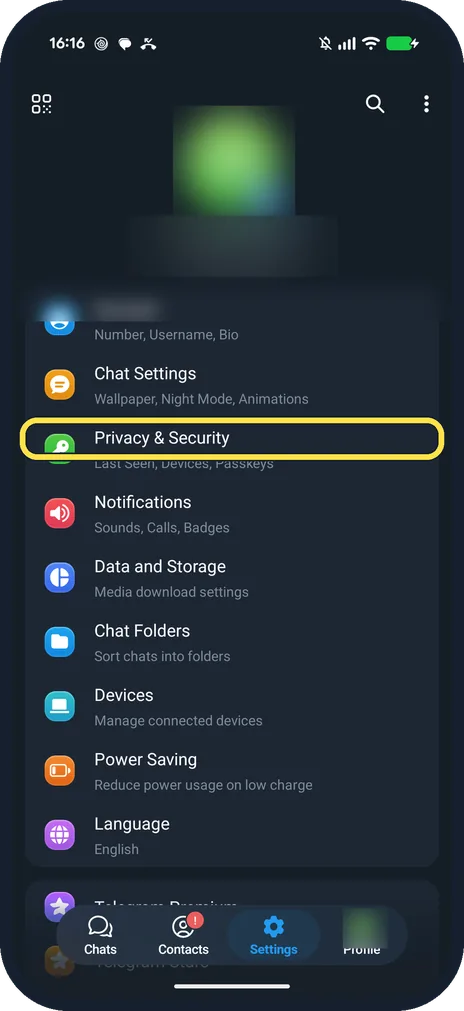
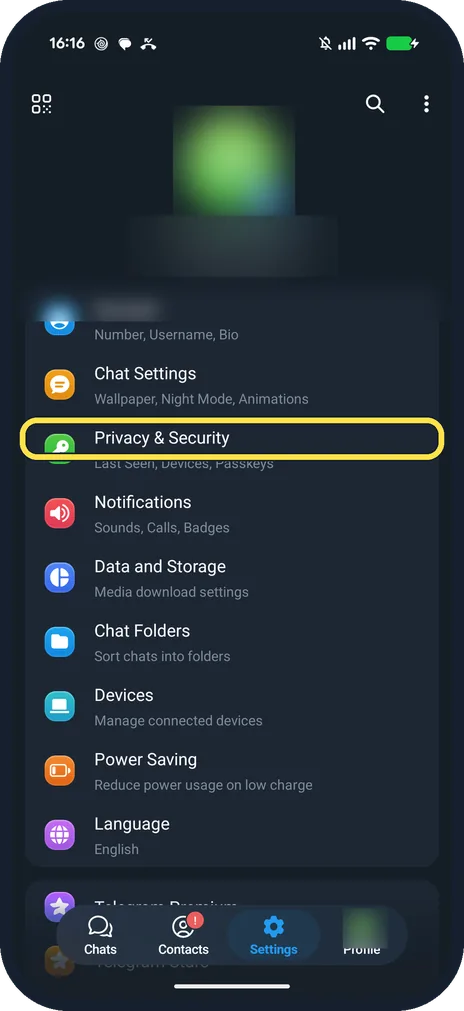
Tap Privacy & Security
It is in the Settings list, below Chat Settings.
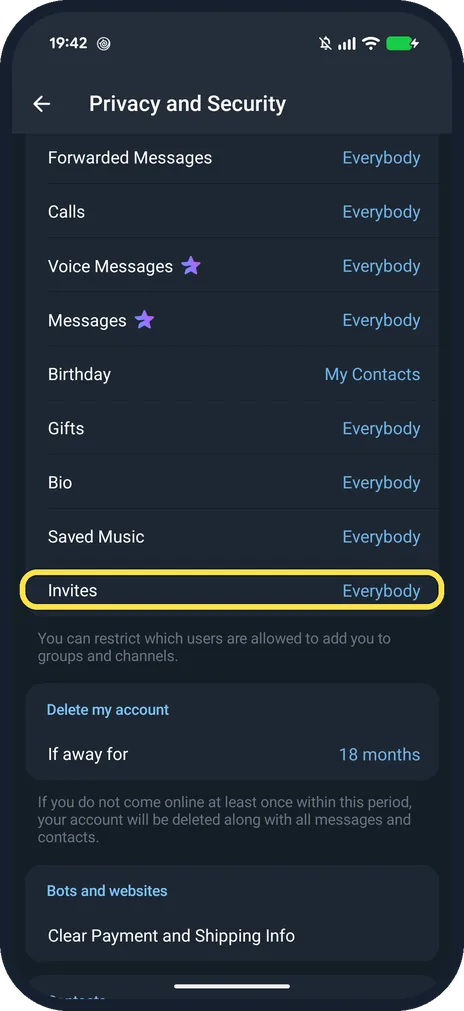
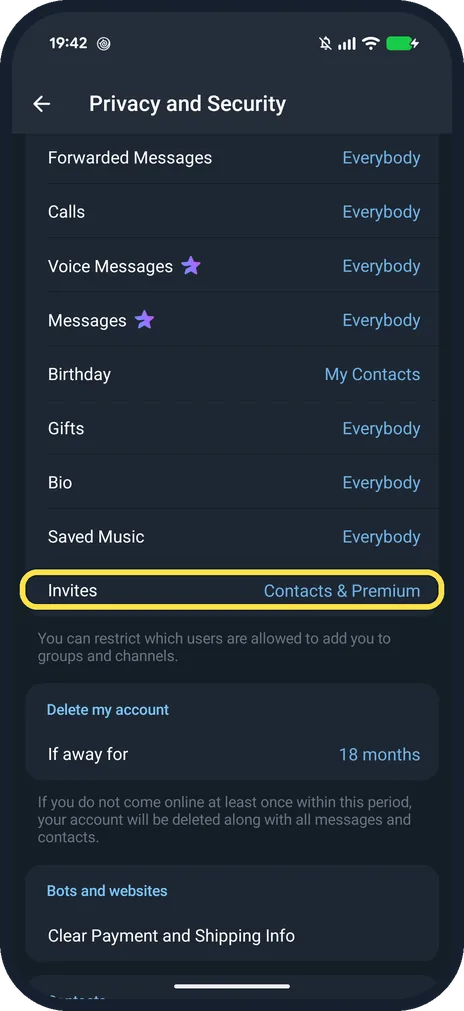
Scroll down and tap Invites
It is the last row under Privacy, below Saved Music. Ours said Everybody.
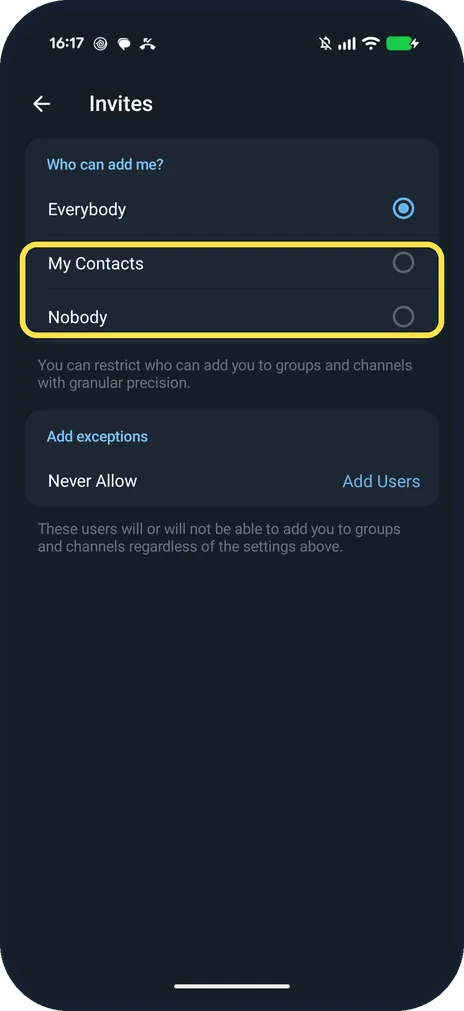
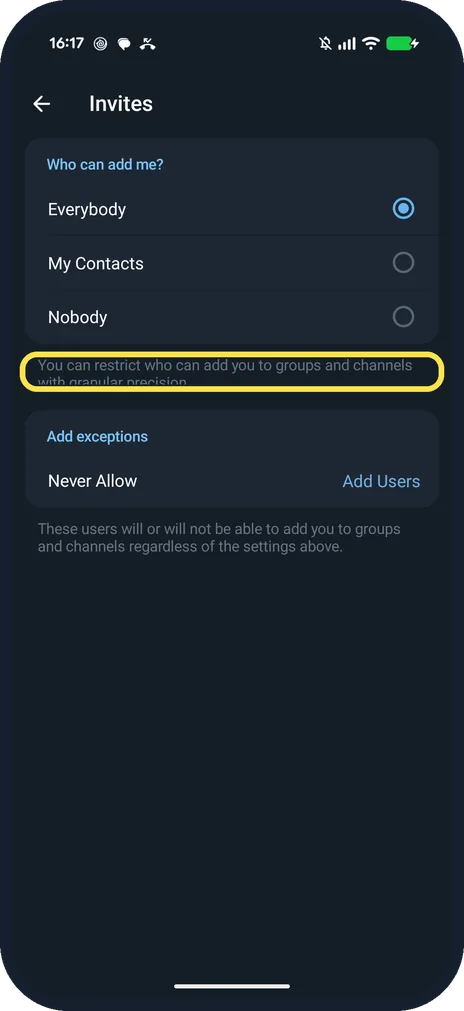
Choose My Contacts or Nobody
Under Who can add me?, tap the option you want. Never Allow adds exceptions.
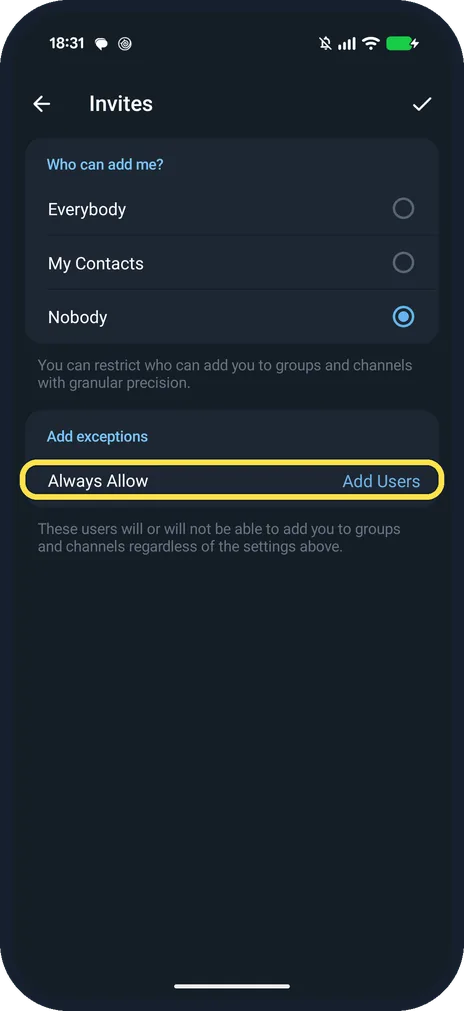
Add anyone who may still add you, then tap the tick
With Nobody picked, ours swapped Never Allow for Always Allow, Add Users.
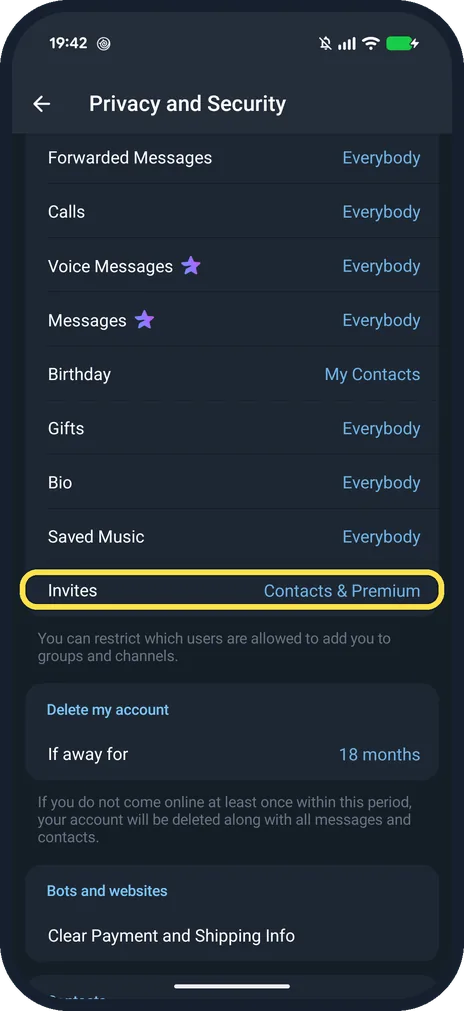
Check the Invites row
Back on Privacy and Security, after we saved My Contacts, ours read Invites: Contacts & Premium, not My Contacts. We set it back to Everybody afterwards.
If you do not see this option
- Looking for Groups & Channels? Our Telegram 13.1.1 lists it as Invites. The page itself says: You can restrict who can add you to groups and channels.
- Help page says Privacy and Security? Telegram's FAQ names the page Privacy and Security; on our Telegram 13.1.1 the Settings row reads Privacy & Security. Source: Who can see my phone number?
- Row says Contacts & Premium? That is what ours showed after we picked My Contacts and saved. It is the same setting with a different label on the list.
If this does not work
- Still added to a group? The setting stops new adds. Leave the group from its menu, then check Invites says My Contacts or Nobody.
- One person can still add you? Check Always Allow. With Nobody or My Contacts picked, anyone listed there can still add you; ours had Add Users under it.
About this guide
On our Telegram 13.1.1 this setting is called Invites, not Groups.
The screenshots are from Telegram 13.1.1 on our Google Pixel 10a with Android 17, in Dark mode, taken on 25 October 2026.
Good to know
To hide your number, see hide your phone number on Telegram.
To hide your last seen, see hide your last seen on Telegram.
In short: Telegram, Settings, Privacy & Security, Invites, My Contacts or Nobody.
Links checked in October 2026. Menus and features can change after software updates. These steps match the version named at the top.
📷 See real photos from the Pixel 10a in our Camera Lab, next to 10 other phones.
Did this guide work for you?
Sorry about that. What happened?