
howtosimply.com/guides/how-to-stop-telegram-auto-downloading-photos-and-videos-on-android/ · Checked October 2026 · Google Pixel 10a, Android 17, Telegram 13.1.1
In this guide
Open Telegram Settings, Data and Storage, tap When using mobile data, and switch off Auto-Download Media. Repeat for When connected to Wi-Fi and When roaming if you want.
4 of 4 steps with real screenshots · 1 official source below
- Device
- Android
- Shown on
- Google Pixel 10a, Android 17, Telegram 13.1.1
- App
- Settings
- Path
- Settings › Data and Storage › When using mobile data
- Real screenshots
- 4 of 4 steps
- Checked
- October 2026
- Sources
- 1 official, linked below
Step by step
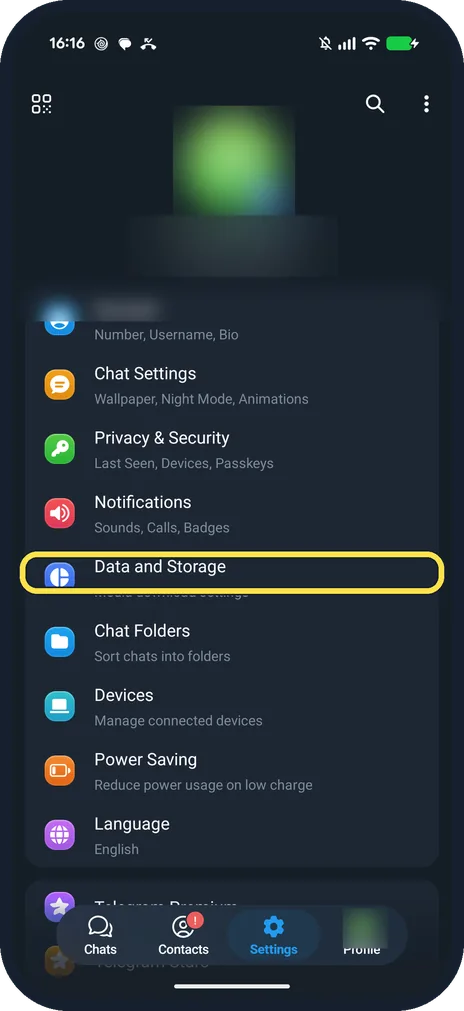
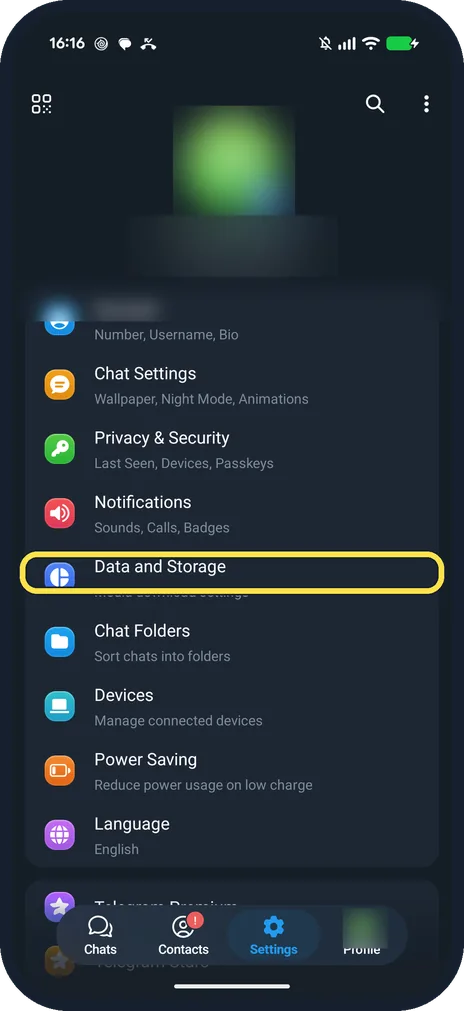
Tap Data and Storage
Open Settings in Telegram. Data and Storage is below Notifications.
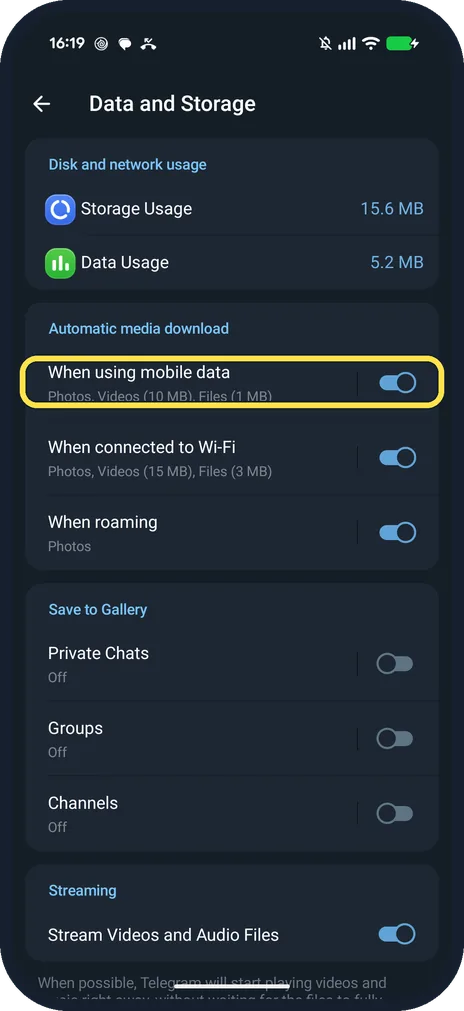
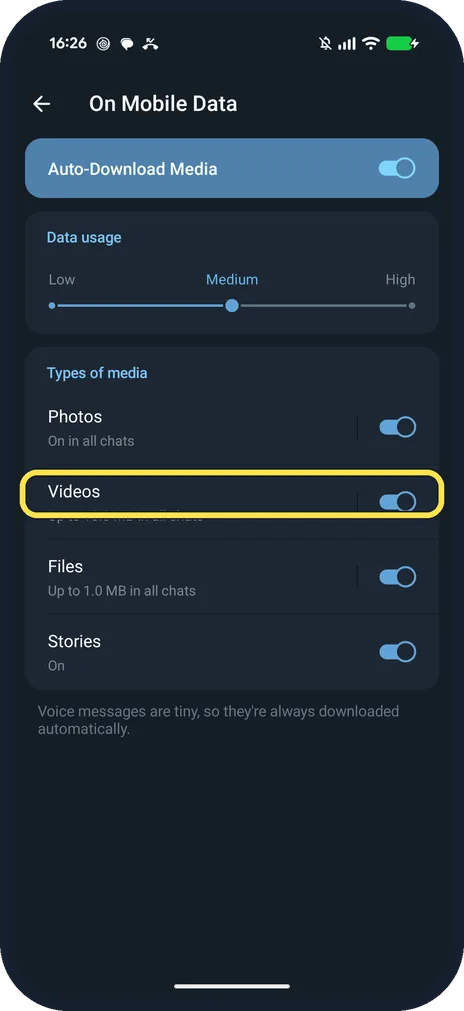
Tap When using mobile data
It is under Automatic media download. Ours said Photos, Videos (10 MB), Files (1 MB).
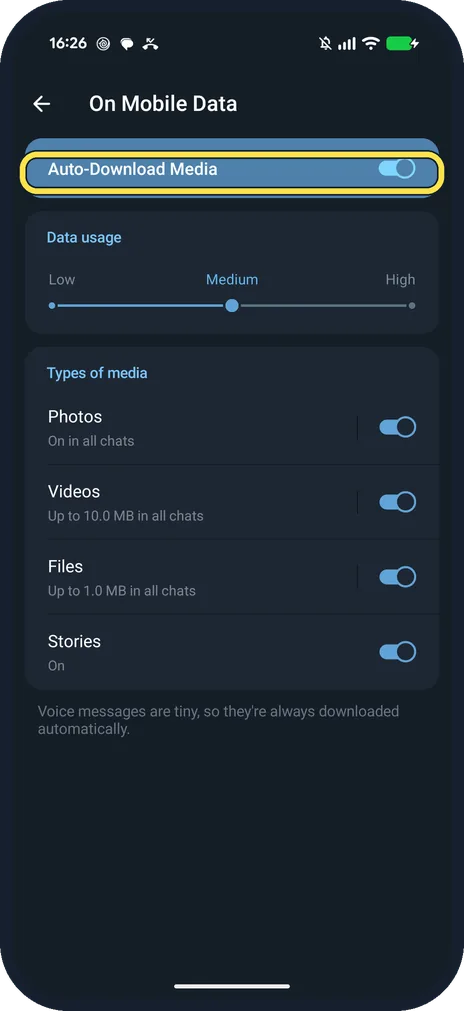
Look at what downloads now
Ours: Auto-Download Media on, Data usage Medium, Photos on in all chats, Videos up to 10.0 MB, Files up to 1.0 MB, Stories on.
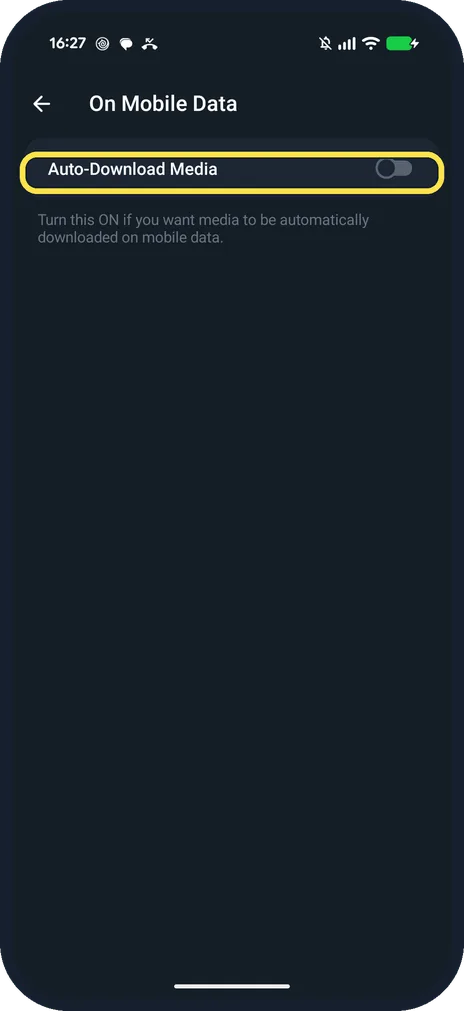
Switch off Auto-Download Media
All the media switches go away. Telegram says: Turn this ON if you want media to be automatically downloaded on mobile data.
If you do not see this option
- Only want to stop videos? Leave Auto-Download Media on and switch off Videos, or lower its size limit. Voice messages are always downloaded, Telegram says on the page.
- Photos filling the Gallery? That is Save to Gallery, lower on Data and Storage: Private Chats, Groups and Channels. Ours were all Off.
If this does not work
- Still using a lot of storage? Clear the cache from Storage Usage: see clear the Telegram cache. Telegram says media stays in its cloud. Source: How is Telegram different from WhatsApp?
- Want it back on? Switch Auto-Download Media on again: the earlier choices came back on ours.
About this guide
Each network has its own page with switches for Photos, Videos, Files and Stories, and a Low, Medium, High data usage slider.
The screenshots are from Telegram 13.1.1 on our Google Pixel 10a with Android 17, in Dark mode, taken on 25 October 2026. We switched Auto-Download Media off for the screenshots, then on again.
Good to know
To free up space, see clear the Telegram cache.
In Signal, see stop Signal auto-downloading media.
In short: Settings, Data and Storage, When using mobile data, Auto-Download Media off.
Links checked in October 2026. Menus and features can change after software updates. These steps match the version named at the top.
📷 See real photos from the Pixel 10a in our Camera Lab, next to 10 other phones.
Did this guide work for you?
Sorry about that. What happened?