
howtosimply.com/guides/how-to-change-the-refresh-rate-on-a-samsung-galaxy-phone/ · Checked October 2026 · Samsung Galaxy A57 (One UI 9, Android 17 (build A576BXXU6BZIE)) and Samsung Galaxy A57 5G (One UI 8.5, Android 16)
In this guide
Open Settings, Display, Motion smoothness. Choose Adaptive for smoother scrolling at up to 120 Hz, or Standard for 60 Hz and longer battery life, then tap Apply.
5 of 5 steps with real screenshots · 1 official source below
- Device
- Android
- Shown on
- Samsung Galaxy A57 (SM-A576B), One UI 9, Android 17 (build A576BXXU6BZIE), Samsung Galaxy A57 5G (SM-A576B), One UI 8.5, Android 16
- App
- Settings
- Path
- Settings › Display
- Real screenshots
- 5 of 5 steps
- What we did
- Observed: looked at each screen, changed nothing
- Checked
- October 2026
- Sources
- 1 official, linked below
Step by step
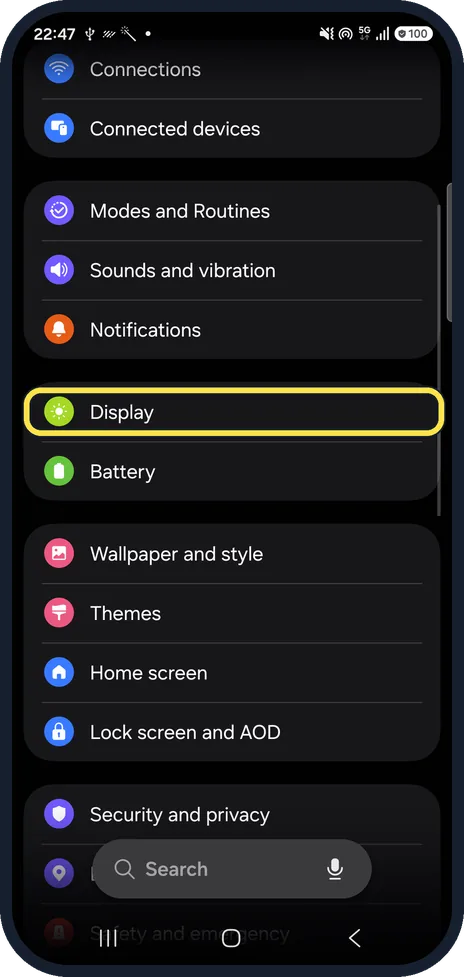
Open Display
Open Settings and tap Display.
Watch these steps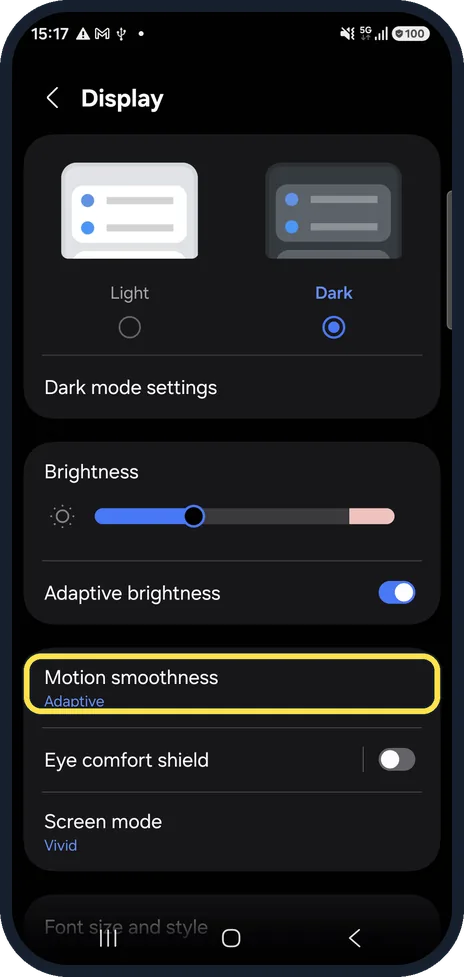
Tap Motion smoothness
On our phone it is below Adaptive brightness and above Eye comfort shield. Ours was set to Adaptive.
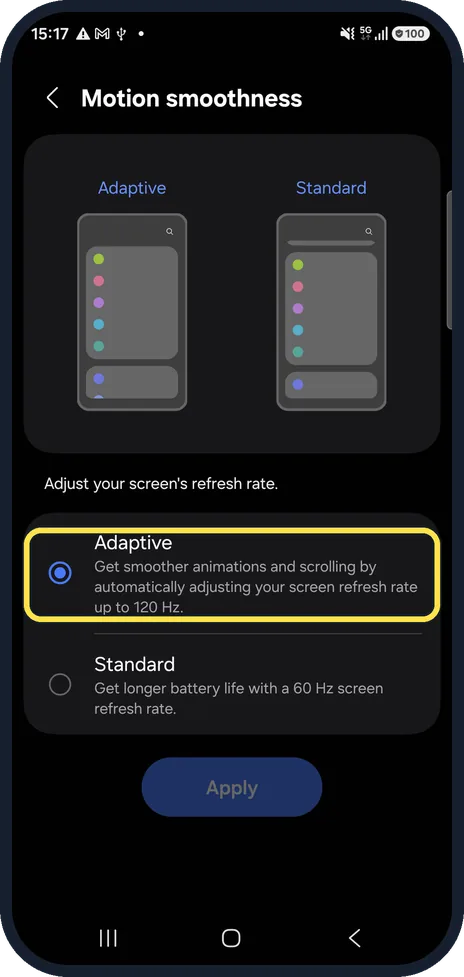
Choose Adaptive for smoothness
On our phone Adaptive gives smoother animations and scrolling by automatically adjusting the refresh rate up to 120 Hz.
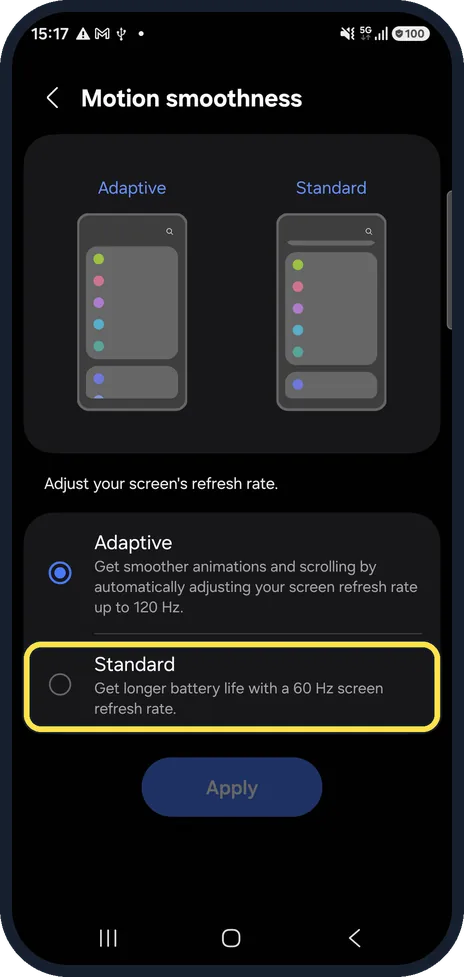
Or choose Standard for battery
Standard keeps the screen at 60 Hz. The phone lasts longer on a charge.
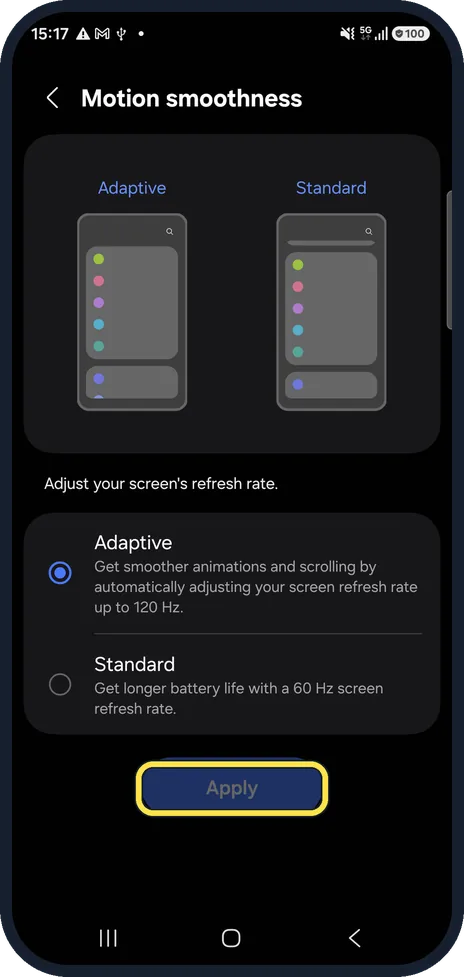
Tap Apply
On our phone Apply was dimmed while Adaptive, the current setting, was still selected. Pick the other option first, then tap Apply.
Watch these steps
If you do not see this option
- You see Standard and High Samsung says some devices offer High, which keeps the screen at 120 Hz (90 Hz on some models, such as the Galaxy A16 5G). It uses more battery than Adaptive. Source: How to adjust refresh rate options on your Galaxy phone or tablet
- There is no Motion smoothness row Samsung says only select models can use 120 Hz; older Galaxy phones have a 60 Hz screen. Search Settings for Motion smoothness to make sure. Source: How to adjust refresh rate options on your Galaxy phone or tablet
If this does not work
- It went back to Standard Samsung says the screen is set to Standard while Power saving is on. Turn Power saving off to use Adaptive again. Source: How to adjust refresh rate options on your Galaxy phone or tablet
- Adaptive switches off at a higher resolution Samsung says some devices do not support 120 Hz at WQHD+ resolution and switch to Standard when that resolution is chosen. Source: How to adjust refresh rate options on your Galaxy phone or tablet
About this guide
The refresh rate is how often the screen redraws itself each second. Higher looks smoother when you scroll; lower saves battery. Our Galaxy A57 offered two choices: Adaptive and Standard.
Good to know
If the battery runs down fast, Standard is one of the easiest savings: Samsung Galaxy battery draining fast? 6 fixes.
In short: Settings, Display, Motion smoothness: Adaptive (up to 120 Hz) or Standard (60 Hz), Apply.
Links checked in October 2026. Menus and features can change after software updates. These steps match the version named at the top.
📷 See real photos from the Galaxy A57 in our Camera Lab, next to 10 other phones.
Did this guide work for you?
Sorry about that. What happened?