
howtosimply.com/guides/how-to-change-playback-speed-in-youtube-on-android/ · Checked October 2026 · build CP3A.261005.005 · Google Pixel 10a, Android 17
In this guide
Tap the video, the gear at the top right and Playback speed. Tap 0.25, 1.0 (Normal), 1.25, 1.5 or 2.0, or use the minus and plus buttons or the slider for steps in between.
5 of 5 steps with real screenshots · 1 official source below
- Device
- Android
- Shown on
- Google Pixel 10a, Android 17 (build CP3A.261005.005)
- App
- YouTube
- Real screenshots
- 5 of 5 steps
- Checked
- October 2026
- Sources
- 1 official, linked below
Step by step
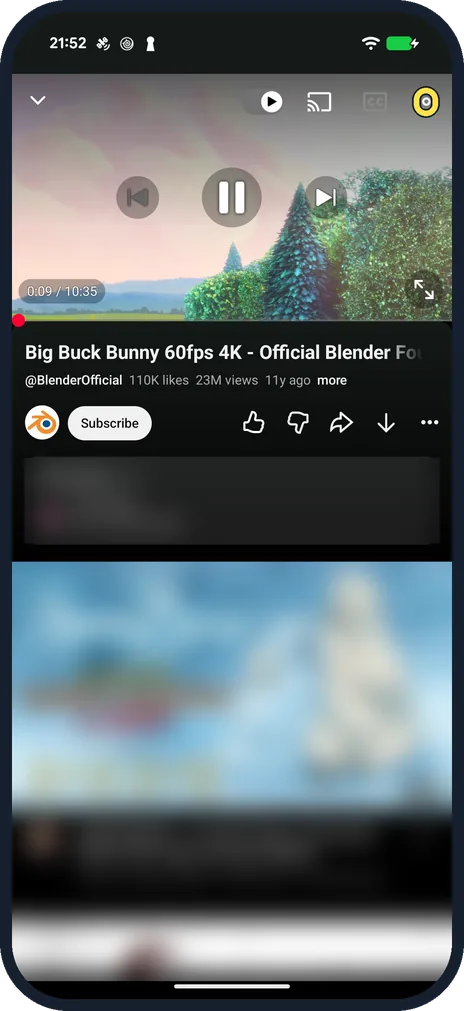
Open the player settings
Tap the video once so the controls appear, then tap the gear at the top right of the player.
Watch these steps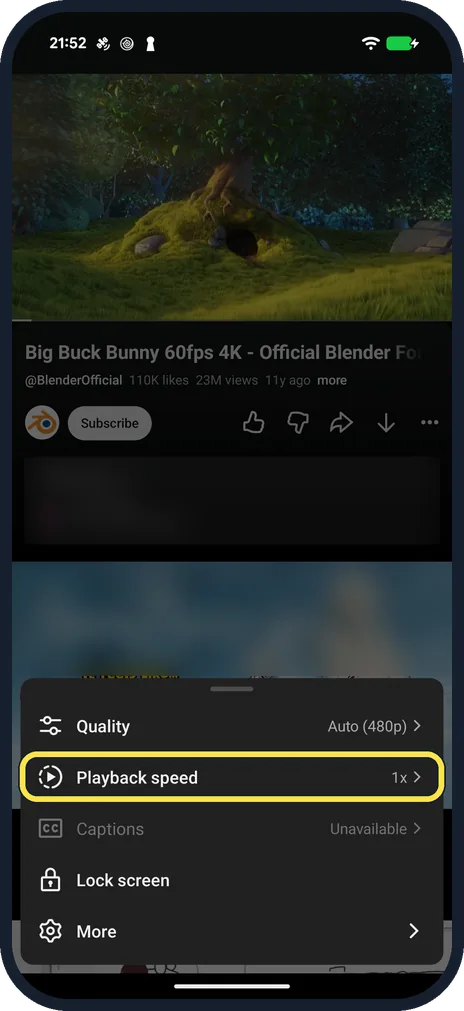
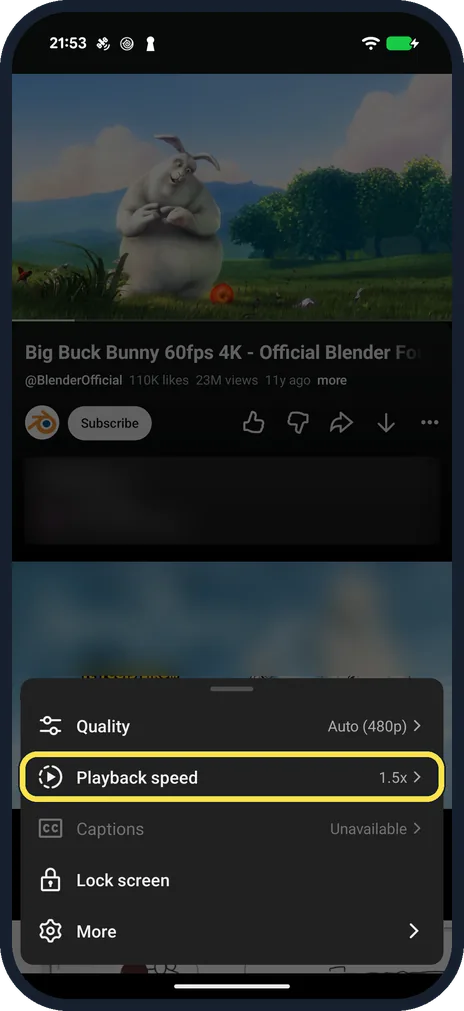
Tap Playback speed
Our sheet listed Quality, Playback speed, Captions, Lock screen and More. Playback speed read 1x.
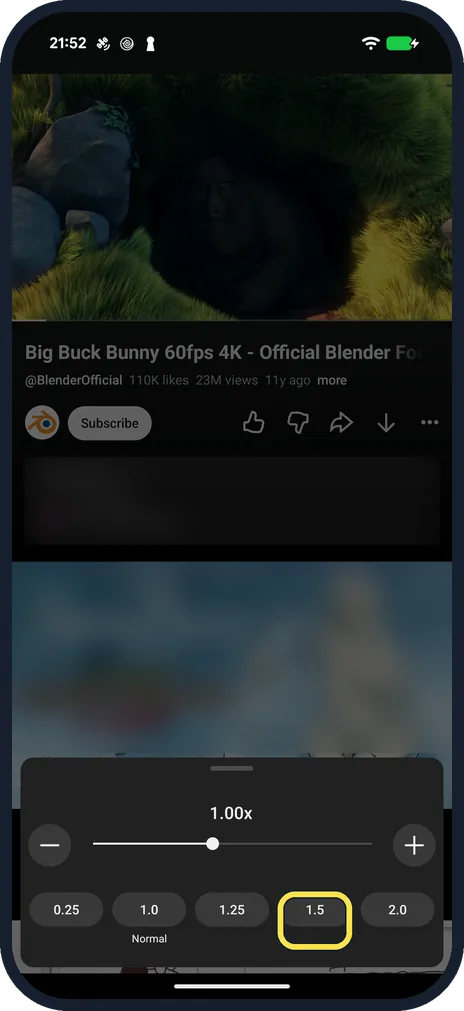
Pick a speed
The current speed is shown above a slider, with minus and plus buttons at the ends. Below are 0.25, 1.0 (marked Normal), 1.25, 1.5 and 2.0. Tap one, or drag the slider for a speed in between.
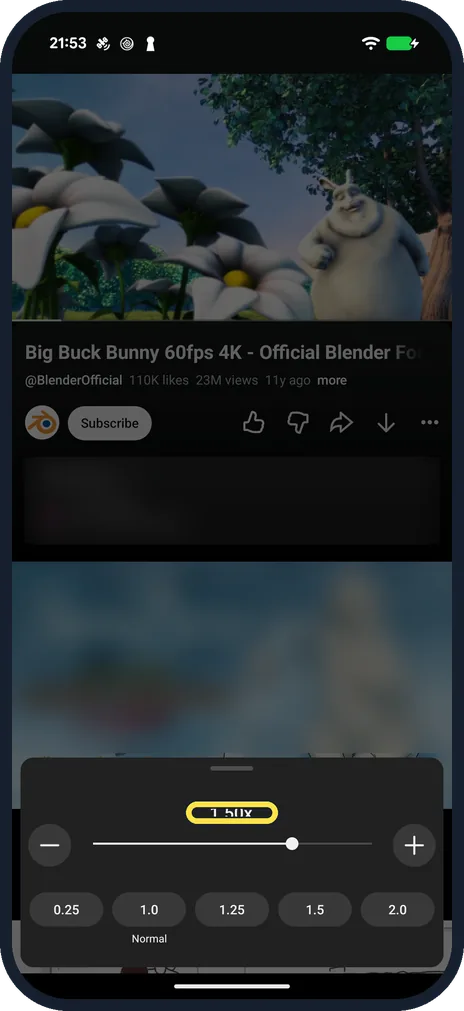
Check the speed
The value above the slider changes straight away: ours read 1.50x after tapping 1.5, and the video played faster.
Close the sheet
Tap outside the sheet. When you open the gear again, the Playback speed row shows the new speed, 1.5x on ours. We set it back to 1.0 the same way.
Watch these steps
If you do not see this option
- Playback speed is not offered YouTube says playing at other speeds needs Android 5.0 or later. Source: Speed up or slow down YouTube videos (Android)
- You only want to skip ahead YouTube says double-tap the right side of the video to jump 10 seconds ahead (the left side to go back), or touch and hold the video to play it at 2x until you let go. Source: Speed up or slow down YouTube videos (Android)
If this does not work
- Speed goes back to normal when you let go Touch and hold plays at 2x only while your finger is on the video, YouTube says. For a fixed speed, use Playback speed. Source: Speed up or slow down YouTube videos (Android)
- There is no speed option on your TV YouTube says playback speed may not be available on all smart TVs and streaming devices. Source: Speed up or slow down YouTube videos (Android)
About this guide
Speed up a slow lecture or slow down a tutorial. The speed is set from the player, for the video you are watching.
The screenshots are from the YouTube app on our Google Pixel 10a with Android 17 (build CP3A.261005.005), in dark mode, signed out of YouTube. The video is Big Buck Bunny from the Blender Foundation.
Good to know
The video above was recorded earlier on our Galaxy A57 with One UI 8.5; the speed sheet works the same way there.
To stop the next video starting by itself, turn off autoplay.
In short: Tap the video, gear, Playback speed, tap a speed such as 1.5.
Links checked in October 2026. Menus and features can change after software updates. These steps match the version named at the top.
📷 See real photos from the Pixel 10a in our Camera Lab, next to 10 other phones.
Did this guide work for you?
Sorry about that. What happened?