
howtosimply.com/guides/how-to-change-the-font-size-on-a-samsung-galaxy/ · Checked October 2026 · Samsung Galaxy A57 5G (One UI 8.5, Android 16) and Samsung Galaxy A57 (One UI 9, Android 17 (build A576BXXU6BZIE))
In this guide
Open Settings, Display, Font size and style and drag the slider at the bottom. Bold font on the same page makes text heavier. To make everything bigger, not just text, use Screen zoom on the Display page.
6 of 6 steps with real screenshots · 1 official source below
- Device
- Android
- Shown on
- Samsung Galaxy A57 5G (SM-A576B), One UI 8.5, Android 16, Samsung Galaxy A57 (SM-A576B), One UI 9, Android 17 (build A576BXXU6BZIE)
- App
- Settings
- Path
- Settings › Display
- Real screenshots
- 6 of 6 steps
- Our phone
- Shown on Galaxy A57, One UI 8.5
- Checked
- October 2026
- Sources
- 1 official, linked below
Step by step
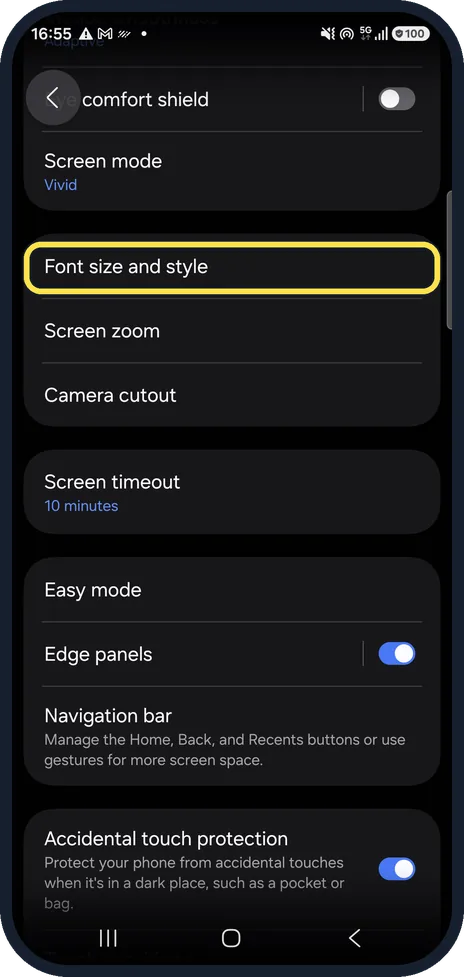
Open Font size and style
Settings, Display, then scroll to Font size and style.
Watch these steps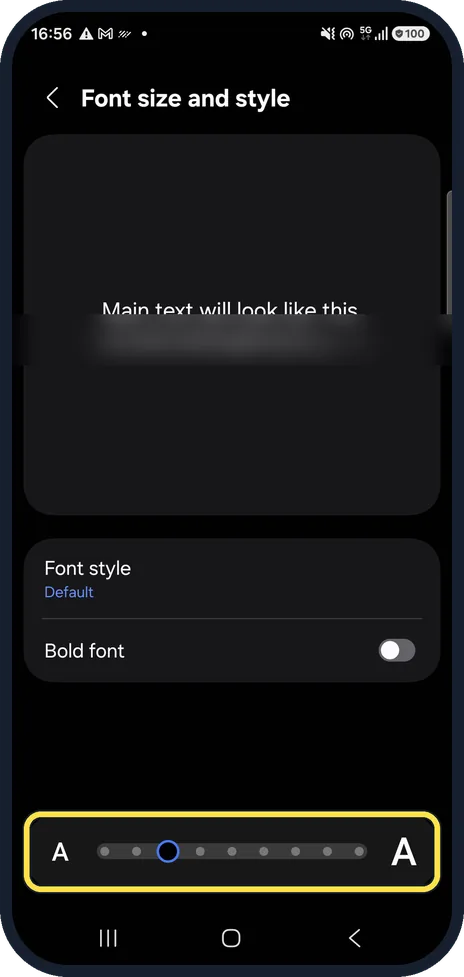
Drag the size slider
The slider at the bottom changes the size; the preview at the top shows how main text will look. Ours was on the third step.
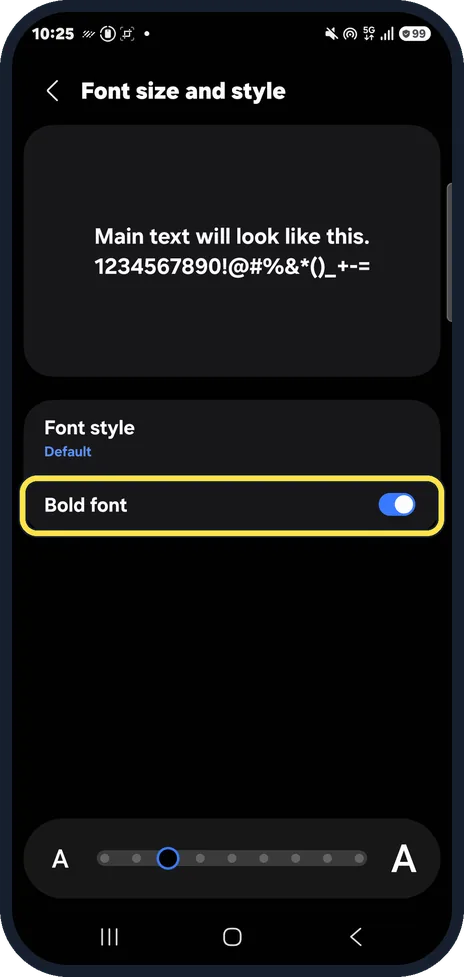
Make text bold
Bold font makes all text heavier, which can help as much as a bigger size. It was off on ours; switched on, the preview text turned bold. We switched it back off.
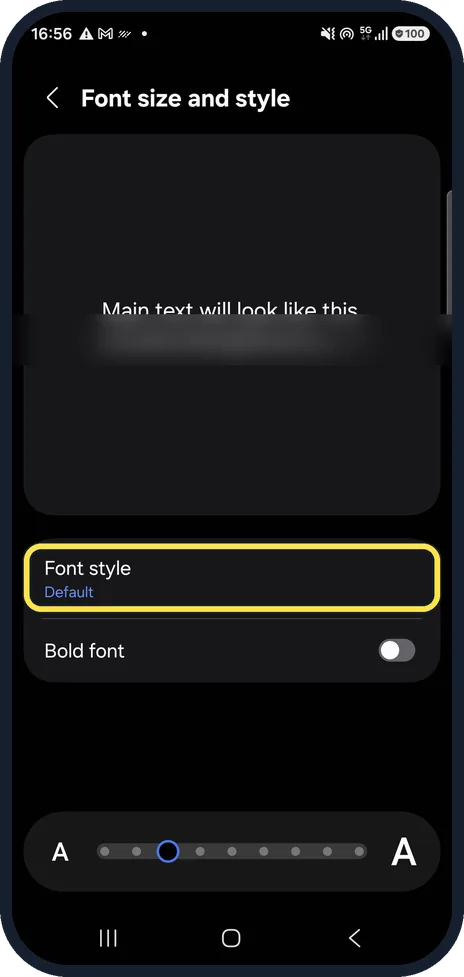
Change the font style
Font style picks the typeface. Ours was Default.
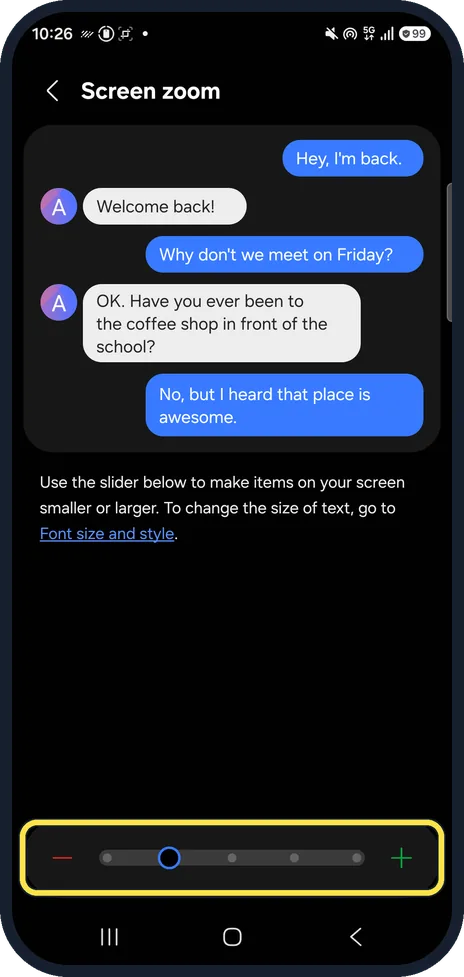
Make everything bigger with Screen zoom
Back on the Display page, Screen zoom enlarges icons, buttons and text together.
Ours sat on the second of five steps.
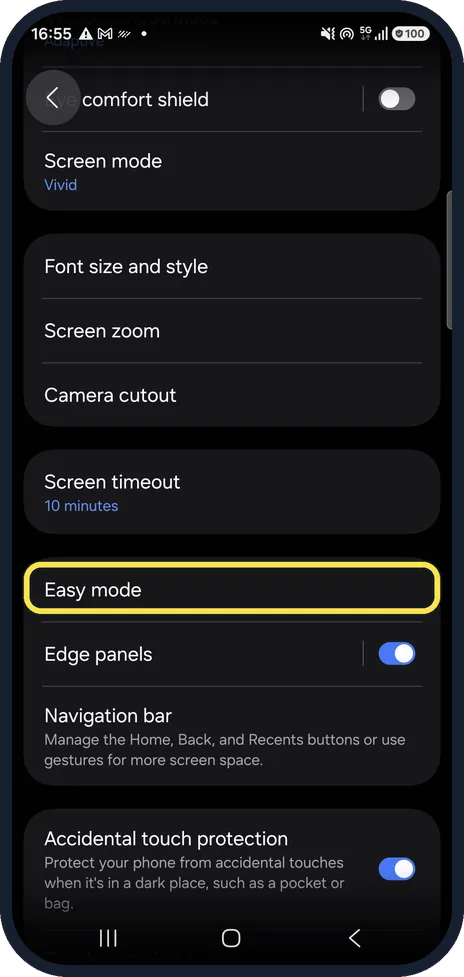
Or try Easy mode
Easy mode, further down the Display page, switches to a simpler layout with larger items.
Watch these steps
If you do not see this option
- You want a different font Samsung says to tap Font style, then Download fonts. Galaxy Store opens with fonts to install; on mobile data the download can cost extra. Source: How to adjust the font size and style on your Galaxy phone
- The biggest size is still hard to read Samsung suggests Settings, Accessibility, Visibility enhancements and the switch for High contrast fonts, which adds an outline to all text, including the lock screen clock. Source: How to adjust the font size and style on your Galaxy phone
If this does not work
- Text in one app stays small Some apps, such as browsers, have their own text size setting. Change it in that app, or use Screen zoom in step 5 to enlarge everything. Source: How to adjust the font size and style on your Galaxy phone
About this guide
Text that is too small, or too big, is set in one place on a Galaxy. The preview at the top shows the new size before you leave the page.
We switched Bold font on for one picture and back off. Steps 3 and 5 are from the same phone after its One UI 9 update (Android 17).
Good to know
Some apps, such as browsers, have their own text size setting that this does not change.
Screen colours look wrong instead? Samsung Galaxy screen turned black and white? How to fix it.
In short: Settings, Display, Font size and style: drag the slider, Bold font if you like. Screen zoom for everything.
Links checked in October 2026. Menus and features can change after software updates. These steps match the version named at the top.
📷 See real photos from the Galaxy A57 in our Camera Lab, next to 10 other phones.
Did this guide work for you?
Sorry about that. What happened?