GOOGLE PIXEL
How to stop a Google Pixel switching to mobile data on weak Wi-Fi (Android 17)

In short
Open Settings, Network and Internet, Adaptive connectivity and turn off Auto-switch to mobile network. It was on on ours, with the note: Ensures connectivity when Wi-Fi is poor or unavailable. Data charges may apply.
4 of 4 steps show a real screenshot from our Pixel 10a. Each step was checked against the maker's own instructions, linked at the end.
Steps
- 1
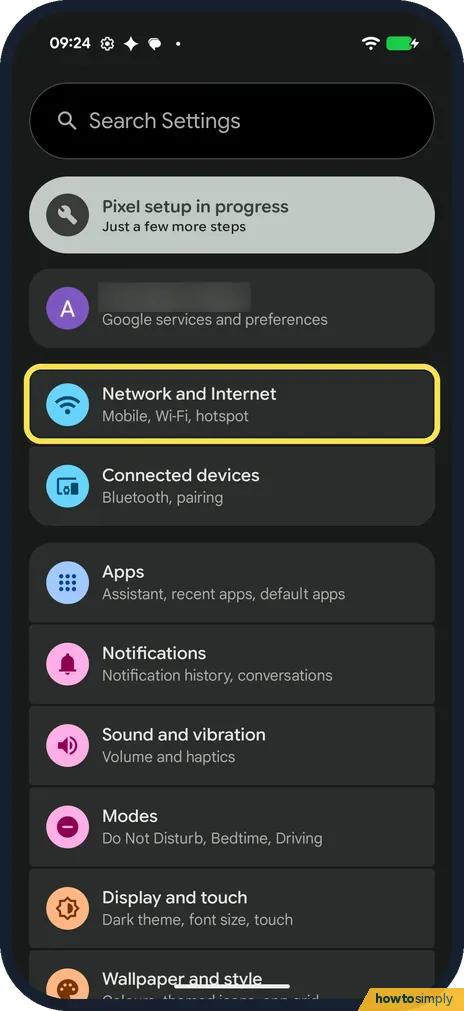
Open Network and Internet
Open Settings and tap Network and Internet: Mobile, Wi-Fi, hotspot.
- 2
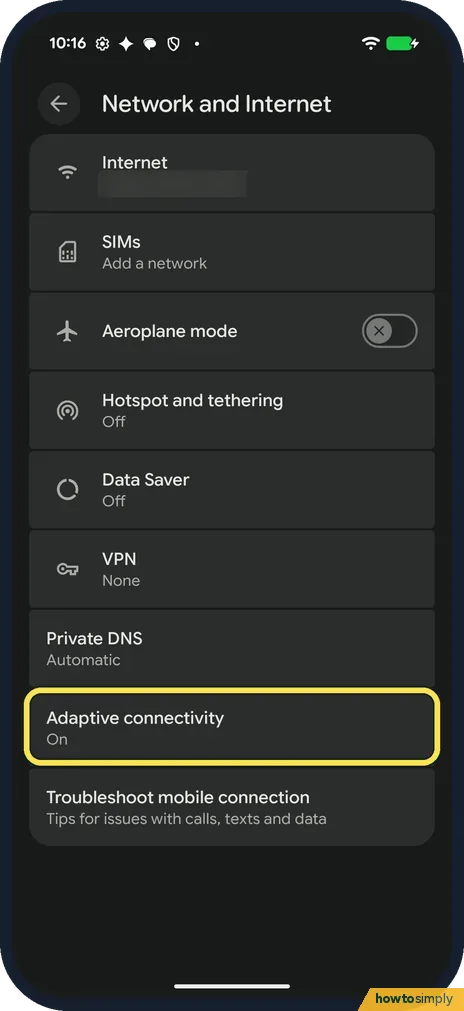
Tap Adaptive connectivity
Adaptive connectivity is near the bottom, below Private DNS. Ours said On. Tap it.
- 3
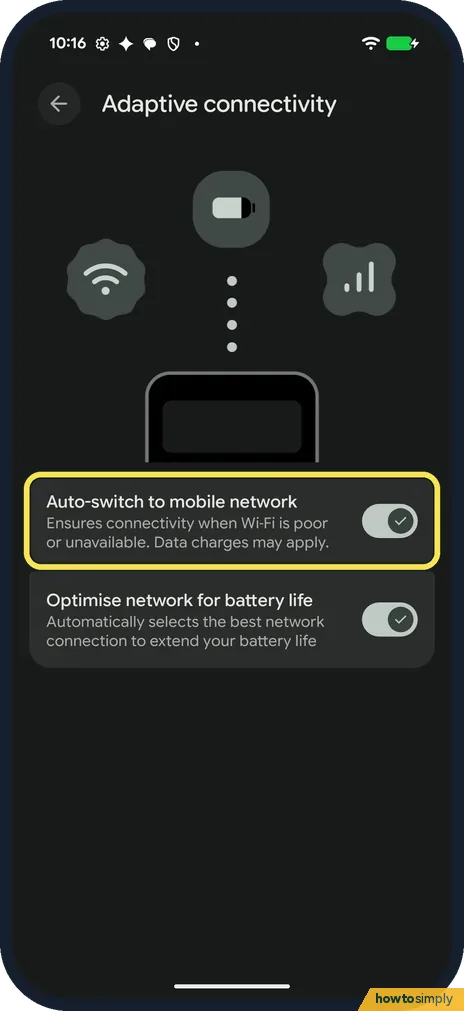
Turn off Auto-switch to mobile network
The first switch is Auto-switch to mobile network: Ensures connectivity when Wi-Fi is poor or unavailable. Data charges may apply. It was on on ours. Tap the switch to turn it off. The second switch, Optimise network for battery life, was on too; the page says it automatically selects the best network connection to extend your battery life.
- 4
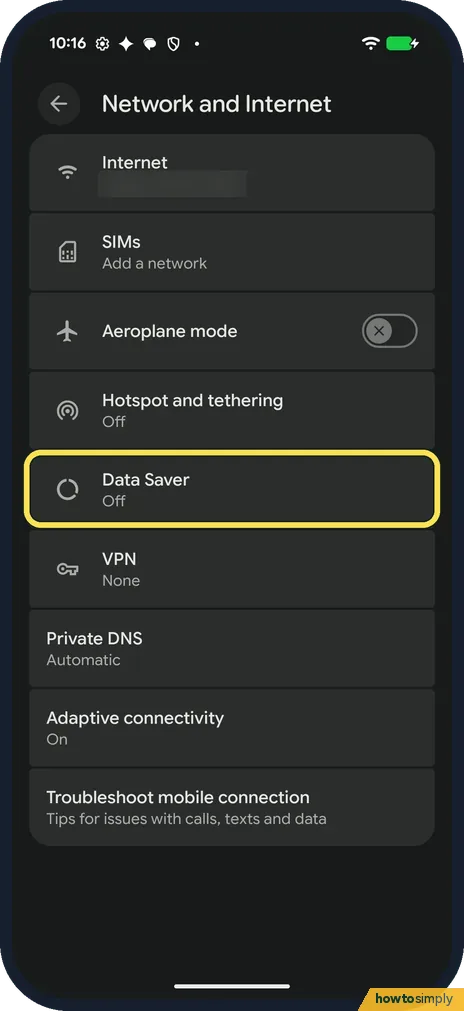
Limit mobile data as well
Back on Network and Internet, Data Saver was Off on ours. Google's Pixel help offers it to use less mobile data. Tap it to turn it on.
If you do not see this option
- Expected a 5G switch? Google describes Adaptive Connectivity as turning on 5G only when an app needs more speed, with one on/off switch. On our Pixel 10a the page had two switches instead, Auto-switch to mobile network and Optimise network for battery life. Source: Control aeroplane mode, private DNS and other network settings
- No Adaptive connectivity row? Google lists it for Pixel 4a (5G) and later, and says some operators in the United States may limit it. Source: Control aeroplane mode, private DNS and other network settings
- No SIM in the phone? Ours had none (SIMs said Add a network), so it had no mobile data to switch to. The switch only matters with a SIM and mobile data on.
If this does not work
- Still slow when Wi-Fi is weak? With the switch off, the phone stays on the weak Wi-Fi. Google suggests turning the router and modem off and on again. For more checks see Pixel Wi-Fi keeps disconnecting.
- Worried about the bill? Set a warning before you hit your allowance: how to set a data warning and limit. Data Saver helps too: how to use Data Saver.
- No internet on mobile data either? See Pixel mobile data not working.
- Want to see how much data it used? Google's Pixel help puts this under Network and Internet, Internet, then Settings next to your operator. Tap App data usage for a graph, with each app listed below it.
Good to know
Google says Auto-switch gives a seamless internet experience but may use more mobile data. Turn it back on if you would rather stay online.
Wi-Fi turning itself back on is a different switch: how to stop Wi-Fi turning on automatically.
With Auto-switch off, the phone stays on Wi-Fi even when it is poor, so pages and calls may stall until you move closer to the router or turn Wi-Fi off yourself. Mobile data is then used only when Wi-Fi is off or out of range. Your saved networks and operator settings are not touched, and you can turn the switch back on at any time.
About this guide
- Device
- Android
- Shown on
- Google Pixel 10a, Android 17 (build CP3A.261005.005)
- App
- Settings
- Path
- Settings › Network and Internet
- Real screenshots
- 4 of 4 steps
- What we did
- Observed: looked at each screen, changed nothing
- Checked
- October 2026
- Sources
- 4 official, linked below
Sources
Links checked October 2026. Menus and features can change with updates.Spotted a mistake? Menus change with updates, and we want every step to match your screen. Email us about this page or use the contact form. We read every report, and fixes are listed on What changed.
Liked this guide?
Follow us for new guides and short how-to videos.
Did this guide work for you?
Sorry about that. What happened?