SAMSUNG GALAXY
How to force stop an app on a Samsung Galaxy (One UI 9)

In short
Open Settings, Apps and tap the app. On its App info page tap Force stop at the bottom, then OK. One UI 9 warns: If you force stop an app, it may cause errors.
5 of 5 steps show a real screenshot from our Galaxy A57. Each step was checked against the maker's own instructions, linked at the end.
Steps
- 1
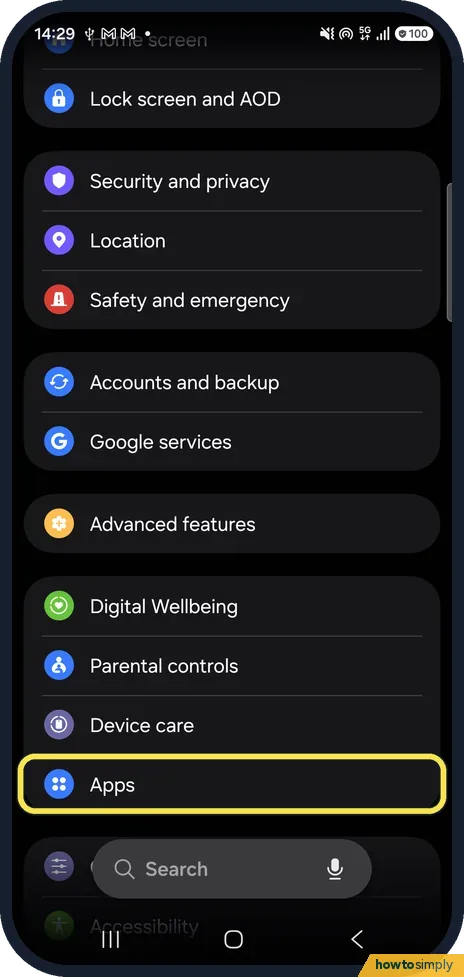
Open Apps
Open Settings and tap Apps, below Device care.
- 2
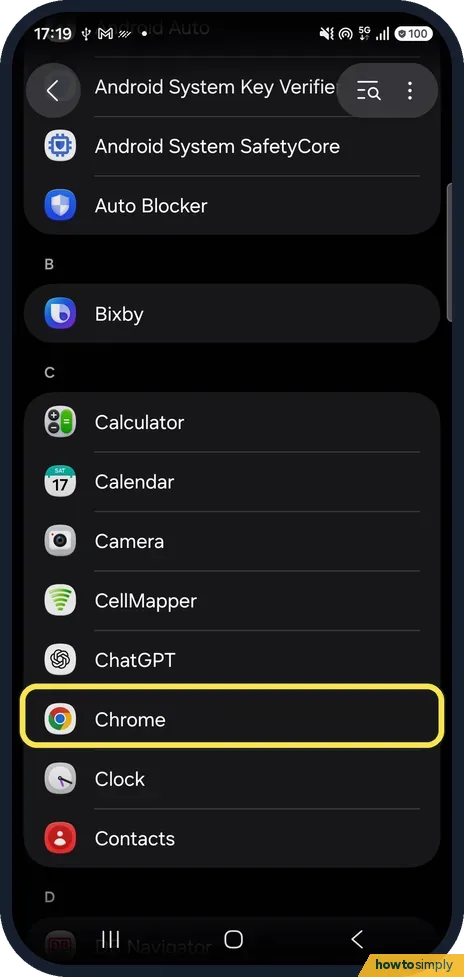
Tap the app
Apps is an A to Z list under letter headings. Tap the app; we used Chrome.
- 3
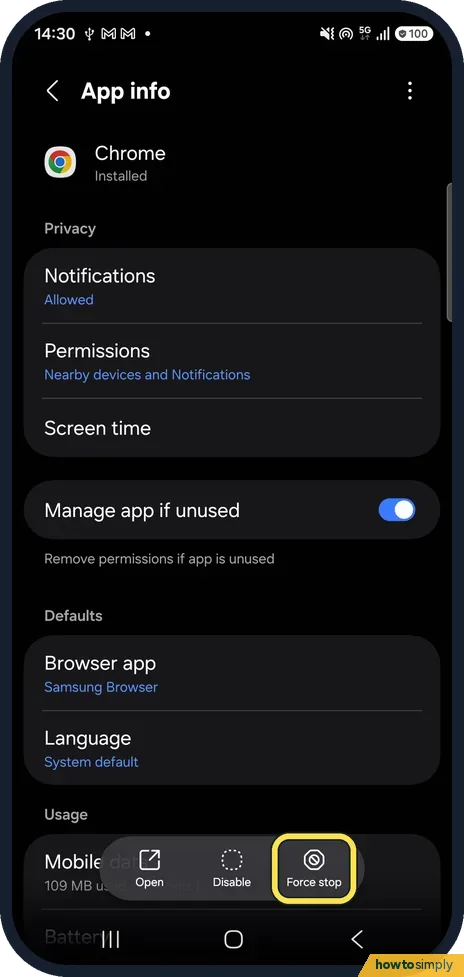
Tap Force stop
App info opens; Open, Disable and Force stop are at the bottom. Tap Force stop.
- 4
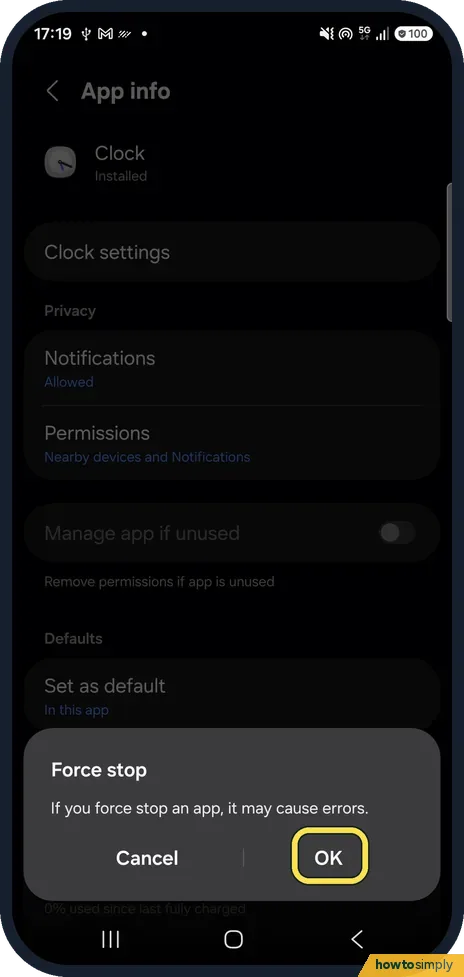
Tap OK
A box says Force stop: If you force stop an app, it may cause errors. Tap OK to stop it, or Cancel. We cancelled for Chrome, then tried it on the Clock app and tapped OK.
- 5
Check that it stopped
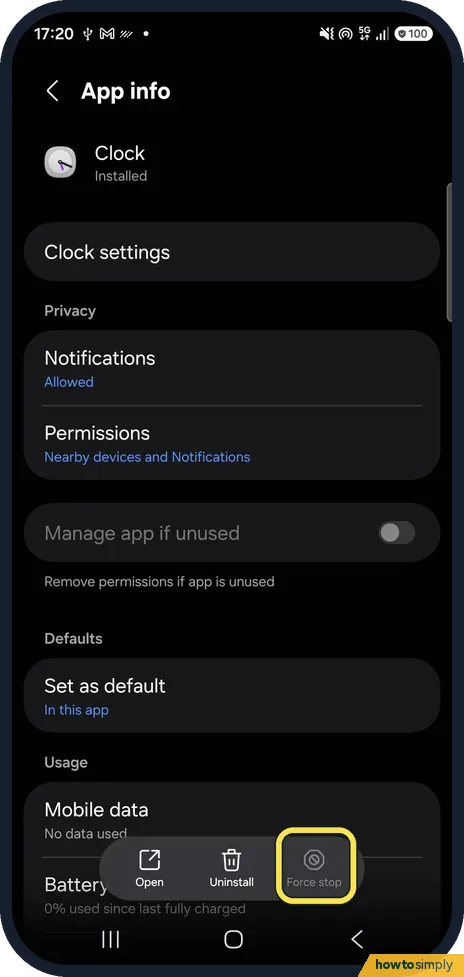
Back on App info, Force stop is greyed out, while Open and Uninstall still work. Tap Open to start the app again.
If you do not see this option
- Can't find the app in Apps? The list runs A to Z under letter headings; scroll to the app's first letter.
- Force stop greyed out? The app is not running, so there is nothing to stop. On ours Force stop turned grey right after we stopped Clock, while Open and Uninstall stayed available.
If this does not work
- App still not working? Google says if problems continue after you force stop the app, you may need to contact its developer.
- App keeps crashing? More fixes: apps keep crashing on a Galaxy, or clear an app's cache.
- App starts again by itself? Force stop only ends the app for now. Another app or the system can start it again, and it starts when you open it. To keep an app quiet for longer, put it to sleep instead: put apps to sleep on a Samsung Galaxy.
- Still misbehaving after a force stop? Google's next steps are to restart the phone, check for system updates and update the app in the Play Store. Do these before anything more drastic.
- Problem appeared after a bad connection? Samsung notes that apps can crash on a slow or unstable connection. Switch Wi-Fi or mobile data off for a few minutes, reconnect or try another network, then open the app again.
Good to know
On a Pixel: force stop an app on a Google Pixel.
After a force stop, the app's notifications, alarms and background sync pause until it starts again. A messaging app may not show new messages until you open it, and a fitness or music app stops what it was doing. Your data stays in place; nothing is deleted.
There is nothing to undo: open the app again from the home screen or with Open on App info, and it starts fresh. Google calls clearing an app's cache a short-term fix because the cache builds up again over time, and the same goes for a force stop. If one app needs it often, update or reinstall it.
About this guide
- Device
- Android
- Shown on
- Samsung Galaxy A57 (SM-A576B), One UI 9, Android 17 (build A576BXXU6BZIE)
- App
- Settings
- Path
- Settings › Apps › App info › Force stop
- Real screenshots
- 5 of 5 steps
- Checked
- October 2026
- Sources
- 1 official, linked below
Sources
Links checked October 2026. Menus and features can change with updates.Spotted a mistake? Menus change with updates, and we want every step to match your screen. Email us about this page or use the contact form. We read every report, and fixes are listed on What changed.
Liked this guide?
Follow us for new guides and short how-to videos.
Did this guide work for you?
Sorry about that. What happened?