
You are viewing the macOS 26 version of this guide, recorded on macOS Tahoe 26 (MacBook Pro) on 2 October 2026. It is kept as it was and not updated. See the macOS 27 version.
howtosimply.com/guides/how-to-stop-a-mac-from-going-to-sleep/ · Checked 2 October 2026 · MacBook Pro · macOS Tahoe 26
In this guide
Open System Settings, click Lock Screen and set both Turn display off settings to a longer time or Never. On a MacBook, also open Battery, click Options and switch on Prevent automatic sleeping on power adapter when the display is off.
4 of 5 steps with real screenshots · 2 official sources below
- Device
- Mac
- Shown on
- macOS Tahoe 26 (MacBook Pro)
- App
- System Settings
- Real screenshots
- 4 of 5 steps
- Checked
- 2 October 2026
- Sources
- 2 official, linked below
Step by step
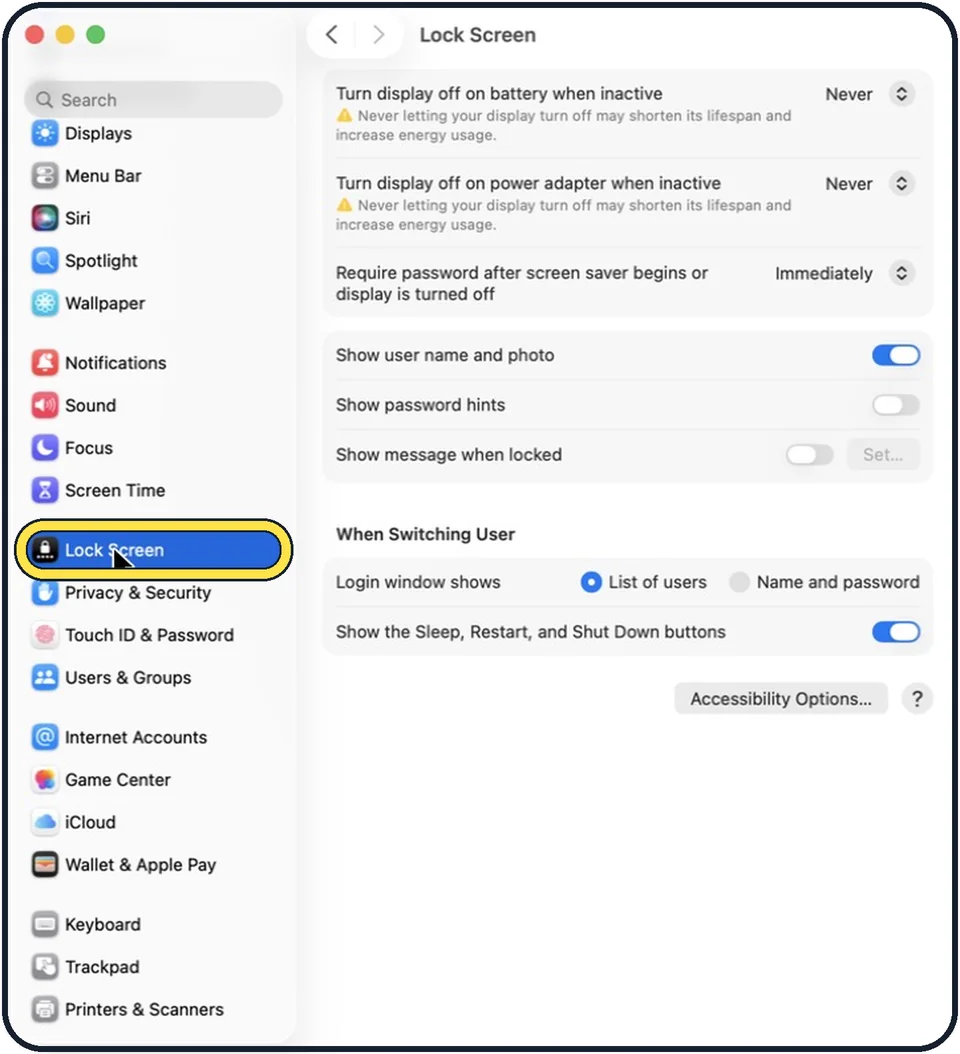
Tap the picture to see it full size Open System Settings and click Lock Screen
Click the Apple menu, then System Settings. Lock Screen is in the sidebar. You may need to scroll down.
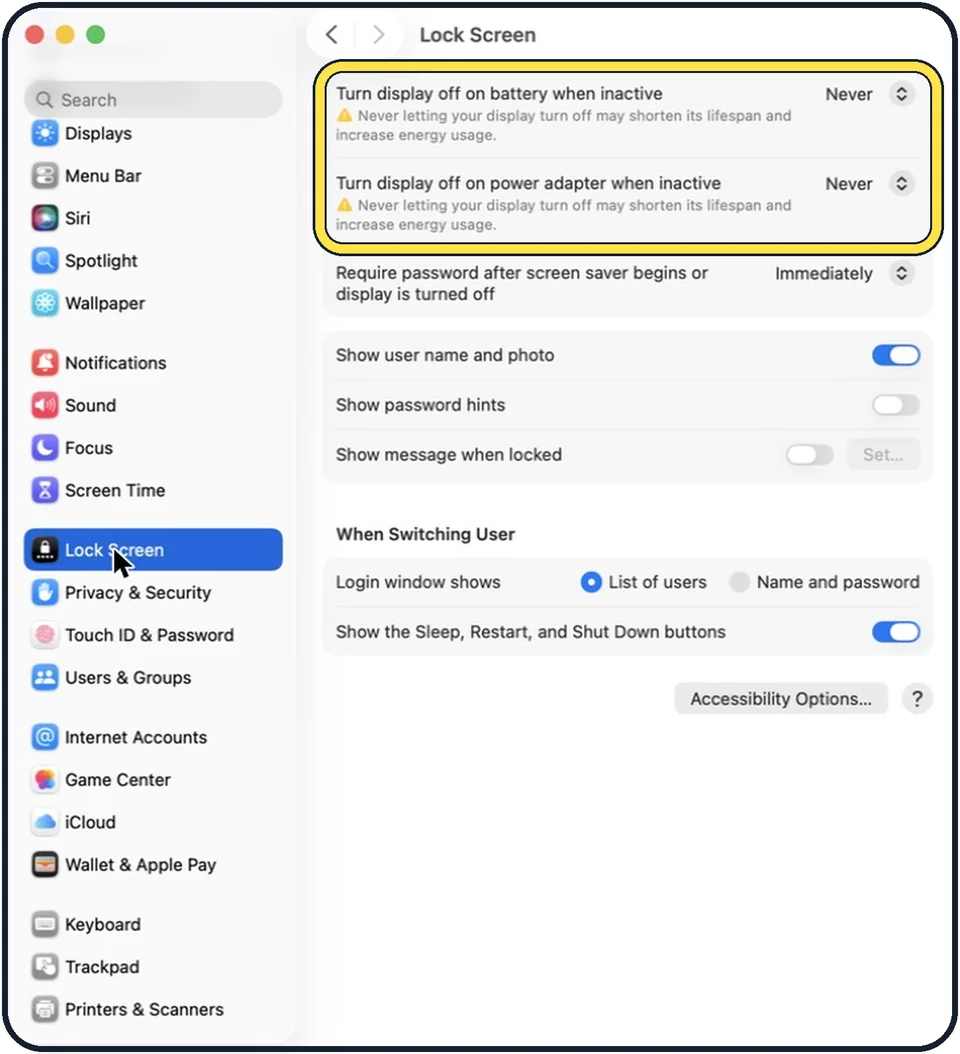
Tap the picture to see it full size Change when the display turns off
Set Turn display off on power adapter when inactive to a longer time or to Never. On a MacBook there is a second setting for battery. Leave that one short, or the battery empties quickly.
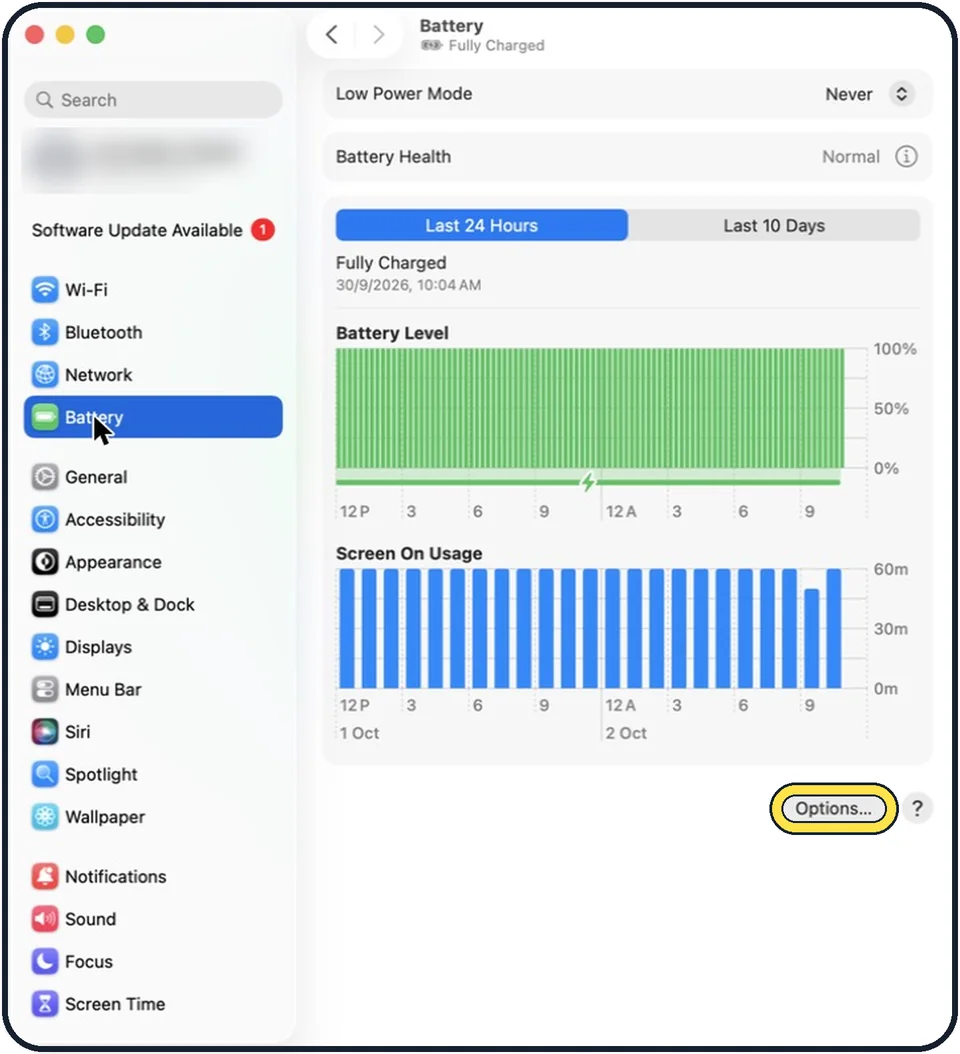
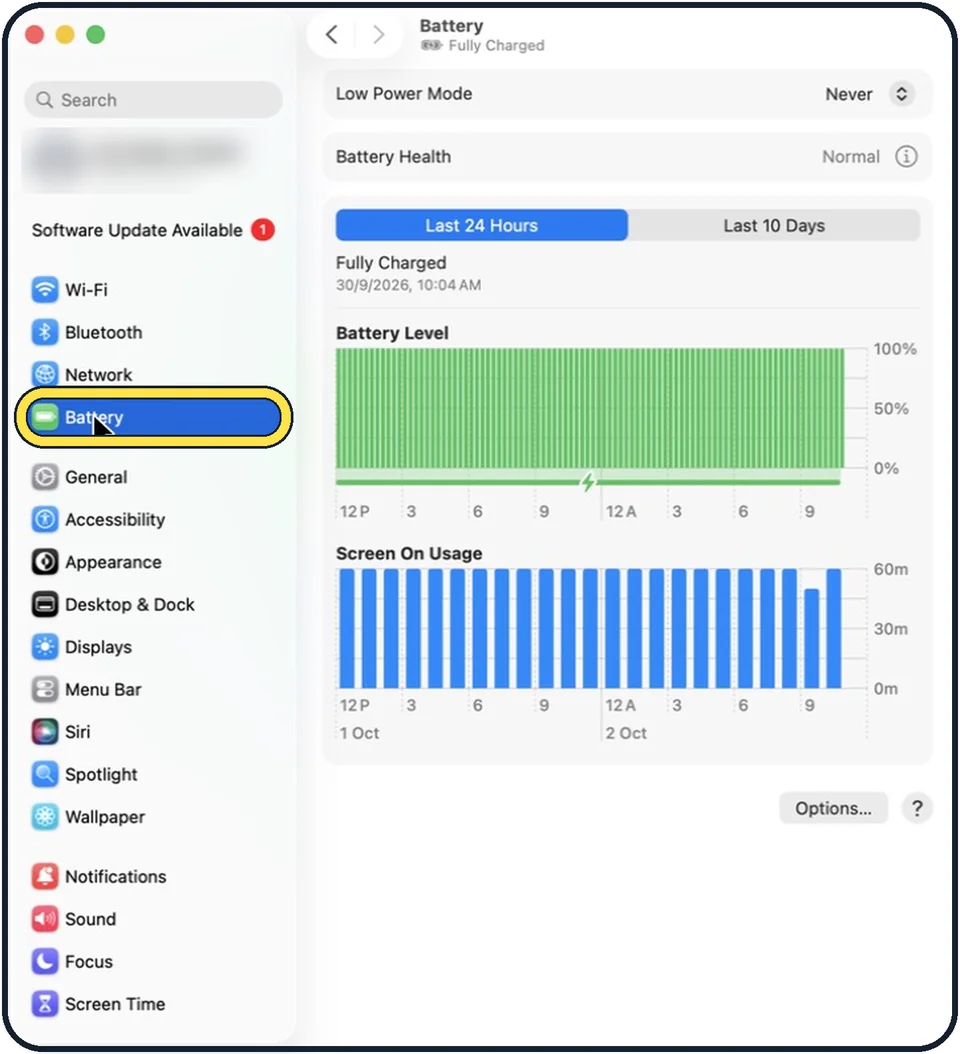
Tap the picture to see it full size MacBook: click Battery, then Options
Battery is higher up in the sidebar. Options is the button at the bottom right of the Battery page.
Tap the picture to see it full size Switch on Prevent automatic sleeping
The full name is Prevent automatic sleeping on power adapter when the display is off. The MacBook then keeps working while it is plugged in, even when the screen is dark.
Desktop Mac: click Energy
On an iMac, Mac mini or Mac Studio the setting is under Energy and is called Prevent automatic sleeping when the display is off.
What we saw on our device
- Click Lock Screen: On our MacBook Neo it sits between Screen Time and Privacy & Security.
- Set the power adapter row to Never: On our MacBook Neo the menu runs from For 1 minute to For 3 hours, then Never, and the setting was For 10 minutes.
About this guide
A Mac that sleeps in the middle of a long download, a backup or a presentation is annoying. Two settings control this: when the display turns off, and whether the Mac itself may sleep afterwards.
These steps are for recent versions of macOS, where the settings app is called System Settings. The pictures are our own screenshots from macOS Tahoe 26 on a MacBook Pro.
Good to know
These settings increase power use. Set them back when the long job is finished.
macOS itself warns next to the Never setting that never letting the display turn off may shorten its lifespan and increase energy usage.
Wake for network access, in the same place, lets other devices reach shared files or printers on a sleeping Mac.
Closing the lid still puts a MacBook to sleep unless an external display, keyboard and power are connected.
Which options appear depends on the Mac model.
In short: Apple menu > System Settings… > Lock Screen > Turn display off on power adapter when inactive > Never (MacBook: Battery > Options > Prevent automatic sleeping).
- Apple Support: Set sleep and wake settings for your Mac
- Apple Support: Change Lock Screen settings on Mac
Links checked in October 2026. Menus and features can change after software updates. These steps match the version named at the top.
Did this guide work for you?
Sorry about that. What happened?